How to Stop Shortcut: A Practical, Step-by-Step Guide
Learn how to stop a shortcut across iOS, macOS, and Windows with practical steps, safety tips, and troubleshooting. This guide from Shortcuts Lib covers disabling, rebinding, and removing automations to regain control of your workflow.


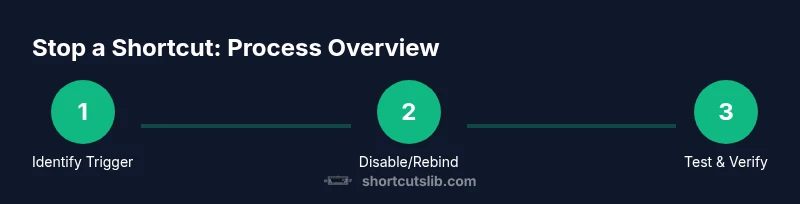
To stop a shortcut from running, you’ll disable or delete the shortcut in the Shortcuts app and neutralize any automations or hotkeys that trigger it. If the shortcut is a system-wide keyboard shortcut, rebind or turn off the hotkey in your OS settings. This guide from Shortcuts Lib walks you through safe, practical steps for complete stoppage.
Understanding What It Means to Stop a Shortcut
Stopping a shortcut isn’t the same as deleting it in every case. In practice, stopping means preventing a shortcut from starting automatically, or pausing it when it triggers. For many users, the simplest route is to disable or delete the shortcut in the Shortcuts app, but there are nuanced options depending on platform (iOS, macOS, Windows, or browser-based shortcuts). According to Shortcuts Lib, stopping a shortcut often involves changing its trigger or pausing automation rather than removing it outright, since removal can break dependent workflows. The Shortcuts Lib team found that many users stop unintended runs by adjusting the trigger conditions rather than performing a full deletion, preserving value while preventing interruptions. Differentiating between a global keyboard shortcut and a localized automation is essential, because the cessation method differs: system-level shortcuts usually require OS-level changes, while app shortcuts are managed inside the Shortcuts ecosystem.
Quick context on triggers and safety
A trigger is any event that starts a shortcut: an app action, a keyboard shortcut, a calendar alert, or a location change. If you’re unsure why a shortcut runs, trace the trigger chain: where did the run originate, what conditions were met, and which actions follow. As a practical rule, always test changes in a controlled scenario to avoid disrupting important automations. Shortcuts Lib analysis shows that most stoppages succeed when you first identify the exact trigger and then apply a minimal change that blocks only that path, leaving the rest of your shortcuts intact.
Scope and impact of stopping shortcuts
Stoppage can be temporary (pause) or permanent (delete). Temporary pauses are useful during a project or presentation when automation would be disruptive but you still want to keep the shortcut for later use. Permanent removal should be reserved for shortcuts you no longer need or that cause repeated issues. The decision often depends on whether other automations, workflows, or dependencies rely on the shortcut. When in doubt, document the change you’re making so you can revert if necessary, a best practice highlighted by Shortcuts Lib.
Tools & Materials
- iPhone or iPad with Shortcuts app installed(Ensure device is updated to latest iOS/iPadOS)
- Mac or Windows PC (for OS-level shortcut management)(Use built-in system settings to rebind or disable shortcuts)
- Access to OS Settings (Keyboard/Shortcuts sections)(To locate global keyboard shortcuts and hotkeys)
- Backup method (notes or export of shortcuts)(Optional in case you want to revert changes later)
- Stable internet connection(For syncing changes or accessing help articles)
Steps
Estimated time: Estimated total time: 20-40 minutes
- 1
Identify the Shortcut to Stop
Open the Shortcuts app and locate the shortcut you want to stop. Confirm its name, trigger, and where it is used (device, app, or automation). This prevents accidentally disabling the wrong shortcut and keeps your work safe.
Tip: Double-check linked automations before making changes; misidentifying a shortcut leads to unintended behavior. - 2
Open the Shortcut’s Settings
Tap the shortcut to open its detail view and choose Disable, Pause, or Remove Trigger to stop automatic runs. This step preserves the shortcut for later use while halting current activity.
Tip: If the shortcut has multiple branches, choose the specific branch that triggers the unwanted run. - 3
Remove or Rebind Triggers
If the shortcut is triggered by a specific event (e.g., a keyboard shortcut or app event), remove or rebind that trigger so the shortcut won’t start again. This reduces the risk of reactivation without deleting the shortcut entirely.
Tip: Consider using a neutral, non-conflicting trigger for future use. - 4
Pause Automations and Related Shortcuts
Check for automations that run the shortcut and temporarily pause or disable them. This stops future runs while allowing you to preserve the workflow for reference or reuse.
Tip: Document which automations were paused and why to simplify future reactivation. - 5
Test the Change
Trigger the workflow once to ensure it no longer runs unexpectedly. If it does, re-check triggers, permissions, and app interactions that could re-fire the shortcut.
Tip: Test in a safe environment (e.g., a test profile) to avoid disrupting real data or tasks. - 6
Finalize and Back Up
If you’re confident the shortcut won’t run, back up your changes and note the new status in your changelog. If you ever need to restore, you’ll have a reference to revert.
Tip: Keep a changelog entry with the date and reason for stoppage.
Questions & Answers
What does it mean to stop a shortcut in Shortcuts?
Stopping a shortcut means preventing it from starting automatically or by a trigger. You can pause, rebind, or delete the shortcut depending on the context and platform. This helps avoid unwanted runs while keeping the shortcut available for future use.
Stopping a shortcut means preventing it from starting automatically. You can pause or rebind it so it won’t run unexpectedly.
Should I delete a shortcut to stop it permanently?
Deleting should be reserved for shortcuts you no longer need or that cause consistent issues. If you might need it later, consider pausing or removing only its triggers instead of a full delete.
Deleting should be your last resort. If you might reuse it, pause or remove the triggers instead.
How do I stop a global keyboard shortcut on macOS or Windows?
Global shortcuts are managed by the operating system. Rebind or disable the hotkey in System Preferences (macOS) or Settings (Windows). This prevents the shortcut from firing anywhere across apps.
You change global shortcuts in your OS settings to prevent them from triggering.
Can I stop a shortcut without affecting other automations?
Yes. Disable the specific trigger or pause only the automation that calls the shortcut. This keeps other shortcuts intact while stopping the problematic one.
Yes. Disable just the trigger for that shortcut to keep others working.
What should I do after stopping a shortcut?
Test the affected workflows, check permissions, and document what you changed. Consider leaving a note for future reference and back up the updated configuration.
Test the workflows and document what you changed so you can revert if needed.
Watch Video
Main Points
- Identify the exact trigger before stopping.
- Pause or rebind instead of deleting whenever possible.
- Back up shortcuts and document changes.
- Test thoroughly after changes to prevent surprises.