How to Start Learning the Keyboard: A Beginner Guide
Learn to master keyboard shortcuts with a practical, brand-driven plan. Set goals, choose tools, and build a daily habit that speeds up work across Windows and macOS.


You're about to learn essential keyboard shortcuts to speed up everyday tasks. This guide shows a practical, step-by-step path to start learning the keyboard, focusing on the most-used shortcuts across Windows and macOS, plus simple practice routines. By the end, you'll be regularly using shortcuts to copy, paste, switch tabs, and manage windows with confidence.
Why learning the keyboard shortcuts matters
In modern work, speed and accuracy are competitive advantages. Learning keyboard shortcuts reduces friction, keeps your hands on the keyboard, and cuts down mouse travel. For tech users and keyboard enthusiasts, shortcuts become mental shortcuts, turning routine tasks into almost automatic moves. According to Shortcuts Lib, mastering keyboard shortcuts early accelerates confidence and productivity for tech users. By prioritizing a small, reliable core set, you can avoid burnout and build momentum that compounds over weeks and months. This article focuses on how to start learning the keyboard with a practical, brand-driven approach, emphasizing cross-platform patterns and real-world usefulness. You'll learn why a core set matters, how to choose your first shortcuts, and how to practice them without turning learning into a chore. The goal is not to memorize every conceivable key combination but to cultivate a workflow where shortcuts feel natural. As you progress, you’ll discover that consistent practice makes navigation across apps faster, more precise, and less dependent on the mouse. Shortcuts aren’t magic—they’re a repeatable system you can tailor to your own routine.
Core shortcuts to learn first
Start with a compact, cross-platform core set that covers most daily tasks. On Windows and macOS, the familiar trio—Copy (Ctrl/Cmd+C), Paste (Ctrl/Cmd+V), and Cut (Ctrl/Cmd+X)—is the foundation. Add Undo (Ctrl/Cmd+Z) and Redo (Ctrl/Cmd+Shift+Z). Then, extend with navigation moves like New Tab (Ctrl/Cmd+T) and Switch Tabs (Ctrl/Cmd+Tab). If you work in documents or browsers, Find (Ctrl/Cmd+F) is a powerful helper. Practice each shortcut in isolation first, then combine them in realistic workflows. It’s helpful to keep two cheat sheets: one for Windows/macOS parity and another for the apps you use most (browser, word processor, email). Remember that some apps use different conventions (for example, Cmd instead of Ctrl on Mac). The aim is to build a mental map so you can recall the correct combo without pausing to search. Integrate these shortcuts into daily tasks for a week, and you’ll start to notice faster selection, editing, and navigation without thinking about it.
Setup and ergonomics for long sessions
Proper setup matters just as much as practice. Position your monitor at eye level, keep wrists straight, and ensure your chair supports your lower back. A comfortable, neutral posture reduces fatigue and injury risk while you practice. Use a keyboard with a comfortable layout or consider an ergonomic option if you type for long periods. Lighting should be sufficient but not harsh; a softly lit desk reduces eye strain. Create a dedicated practice desk space if possible, with a visible cheat sheet or on-screen shortcuts. If you work in shared spaces, use a compact, wireless keyboard or a foldable setup to minimize clutter. Finally, enable helpful OS features like sticky keys or key repeat settings to tailor your environment to your pace. These adjustments reinforce good technique and make daily practice sustainable.
A beginner-friendly 14-day plan
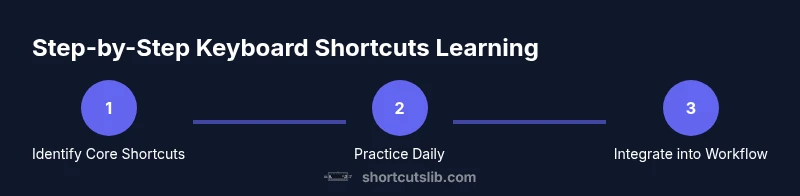
A guided plan helps you build momentum without overwhelm. Day 1–2: Identify Core Shortcuts and create a two-column cheat sheet (Windows vs macOS). Day 3–4: Lock in six core shortcuts and start a 10–15 minute daily drill. Day 5–7: Practice real tasks (copy/paste in documents, tab navigation in browsers). Day 8–10: Add two new shortcuts you actually need in your apps. Day 11–12: Apply shortcuts to more complex tasks (editing, formatting, search). Day 13–14: Review progress, prune unused shortcuts, and set a lightweight quarterly goal. The key is consistency; short daily sessions beat sporadic longer sessions. Keep a log of wins and hiccups to calibrate your plan. By the end of two weeks, shortcuts become a natural extension of your workflow rather than a separate task.
Practice routines you can actually stick to
Effective practice blends repetition with realistic tasks. Start with a 15-minute daily routine: warm-up with the core six shortcuts, perform 3 quick tasks (copy/paste, undo/redo, tab navigation), then challenge yourself with short, task-based drills. Increase complexity gradually by pairing shortcuts—copy then switch tabs, or paste into a new document and format quickly. Use a timer to maintain consistency, and rotate through apps you use most to reinforce cross-application patterns. Interleave practice with short breaks to sustain focus and prevent fatigue. Document any new shortcuts you learn and revisit them in the next session to reinforce memory.
Using shortcuts in common apps
Shortcuts speed up everyday activities across browsers, word processors, email, and file managers. In browsers, learn Alt/Option-based tab switching and page navigation Ctrl/Cmd+L to focus the address bar. In document editors, Master Ctrl/Cmd+C, Ctrl/Cmd+V, Ctrl/Cmd+X for edits and Ctrl/Cmd+K for hyperlinks. Email clients reward quick drafting with Ctrl/Cmd+Shift+V for paste without formatting, Ctrl/Cmd+R to reply, and Ctrl/Cmd+Enter to send. For file explorers, try Ctrl/Cmd+N to create new items and Ctrl/Cmd+W to close windows. The goal is to apply shortcuts to real tasks rather than isolated drills, so your muscles learn patterns you’ll use daily. Start by mapping a small set of tasks to shortcuts and expand as you gain confidence.
Tracking progress and staying motivated
Progress tracking is a powerful motivator. Record time taken to complete routine tasks before and after practicing shortcuts. Note qualitative improvements, like fewer mouse moves or faster tab switching. Set weekly milestones (e.g., “reach 80% accuracy on six core shortcuts in all apps”) and celebrate when you hit them. Visual progress, such as a simple chart or checklist, reinforces discipline. If motivation dips, revisit your cheat sheet and adjust the plan to emphasize tasks that matter most in your day-to-day work. The habit will deepen as shortcuts become second nature, leading to smoother workflows and less cognitive load.
Common mistakes and how to avoid them
Many beginners overload themselves with dozens of shortcuts too soon. Start with a concise core set, then practice them in realistic contexts before expanding. Another pitfall is practicing without feedback—record your sessions, compare results, and adjust. Mouse reliance often persists; fight it by forcing yourself to use shortcuts for a full hour of work each day. Also, neglecting ergonomic breaks can lead to fatigue or strain, so schedule short pauses every 20–30 minutes. Finally, avoid copying shortcuts from memory alone—keep a one-page cheat sheet handy until the patterns feel automatic.
From shortcuts to workflow automation
Once you’re comfortable with core shortcuts, you can move toward lightweight automation. Create templates that embed key actions, map a handful of macro shortcuts to repeatable workflows, and use simple scriptable tools to streamline repetitive tasks. The benefit is not just speed but consistency across projects. Start with one or two repeated tasks—formatting a document, inserting a citation, or creating a new email template—and gradually build a personal library of shortcuts that integrate with your most-used apps. This is where the skills learned from basic shortcuts evolve into a durable, scalable workflow.
Tools & Materials
- Computer or laptop with keyboard(Any OS (Windows, macOS, Linux) will do; focus on cross-platform equivalents)
- OS-specific shortcut reference sheet(Printed or digital cheat sheet with core shortcuts (copy, paste, undo, redo, new tab, switch tabs, find))
- Timer or Pomodoro app(Set 15-minute blocks for focused practice; include short breaks)
- Comfortable chair and desk setup(Ergonomic support to maintain good posture during practice)
- Notebook or digital notes(Log shortcuts learned, personal notes, and progress metrics)
- Optional macro-capable keyboard/software(For mapping custom shortcuts once comfortable with core patterns)
Steps
Estimated time: approximately 2-3 hours to complete the initial setup and first practice cycle
- 1
Identify Core Shortcuts
List six core OS shortcuts you will practice daily across your most-used apps. Create a cheat sheet and note any OS differences.
Tip: Focus on consistency; start with a concrete six before expanding. - 2
Create a Daily Practice Slot
Block 15 minutes each day for targeted drill work and review of your cheat sheet. Use a timer to stay on track.
Tip: Treat it like an appointment you can’t miss. - 3
Practice with Real Tasks
Apply shortcuts to actual work tasks (drafting, editing, navigation). Observe how it changes your flow.
Tip: Narrate actions aloud to reinforce memory. - 4
Add Two New Shortcuts Each Week
Gradually expand your core set by selecting shortcuts you frequently encounter in your apps.
Tip: Avoid overload; add only what you will use weekly. - 5
Integrate Shortcuts into Your Workflow
Create templates or macros for repeating tasks and begin using shortcuts as your default path.
Tip: Automate small patterns first to build momentum. - 6
Set Up a Cheat Sheet
Maintain a simple, visible cheat sheet. Update it as you learn new shortcuts and remove unused ones.
Tip: Keep it near your workspace for quick reference. - 7
Review and Reflect Weekly
Assess what worked, what didn’t, and adjust your plan. Record improvements and remaining gaps.
Tip: Use a short journal entry to capture insights. - 8
Establish a Long-Term Habit
Set monthly goals and quarterly reviews to ensure your shortcut practice remains ongoing.
Tip: Treat mastery as a marathon, not a sprint.
Questions & Answers
What is a keyboard shortcut?
A keyboard shortcut is a key combination that performs a task without using a mouse. They save time and reduce interruptions.
Keyboard shortcuts are key combinations that perform tasks without a mouse to save time.
What should a beginner focus on first?
Start with six core shortcuts across your OS and favorite apps: copy, paste, undo, redo, new tab, and switch tabs.
Begin with six core shortcuts across your OS.
Are shortcuts universal across apps?
Many shortcuts are similar but not universal. You will often rely on OS-level shortcuts and app-specific variants.
Shortcuts share patterns, but you will see app-specific variations.
How long does it take to become proficient?
Consistency matters more than speed. A 15-minute daily practice habit tends to yield noticeable gains within a few weeks.
Consistent daily practice yields results in weeks.
Should I customize shortcuts or use defaults?
Start with defaults to learn patterns, then customize to your workflow if needed.
Learn the built-in shortcuts first, then tailor.
Watch Video
Main Points
- Define a small core set of shortcuts.
- Practice daily with a timer.
- Apply shortcuts to real tasks.
- Track progress and adjust.
- Integrate shortcuts into your workflow gradually.