How to Start Keyboard Shortcut Keys: A Practical Beginner's Guide
A practical, brand-driven guide to starting with keyboard shortcut keys. Learn core shortcuts, practice routines, customization tips, and how to build a lasting habit for faster, more efficient workflows.


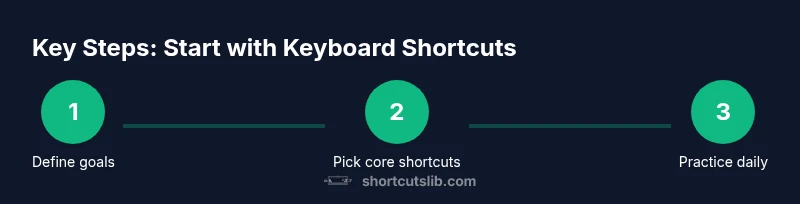
You will learn how to start using keyboard shortcut keys effectively by focusing on essential OS shortcuts, creating a simple practice schedule, and gradually customizing mappings. A strong first step is to choose 6 core shortcuts that you will use daily, then expand once you’re comfortable. This quick start keeps you moving without overwhelm.
Why Start with Keyboard Shortcuts: Benefits and Mindset
According to Shortcuts Lib, mastering keyboard shortcut keys isn’t about memorizing dozens of keystrokes—it's about building a reliable system that speeds up everyday tasks. The moment you reduce mouse work, you reclaim mental energy for more important decisions. Beginners often underestimate how a small set of core shortcuts can compound into a dramatic productivity boost over weeks. The mindset shift matters just as much as the mechanics: focus on consistency, practice in short daily bursts, and celebrate small wins. By framing shortcuts as tools that support flow rather than as a chore, you’ll stay motivated even when you encounter tricky software environments. As you begin, track improvements in task completion time and precision to reinforce positive feedback. Shortcuts Lib’s analysis shows that steady, deliberate practice compounds into durable habits, not just quick wins. Keep your goals clear, and let your daily tasks reveal which keystrokes matter most to you.
OS vs App Shortcuts: Where to Begin
Your first decision is whether to start with system-level shortcuts (available across most apps) or app-specific shortcuts (which vary by program). System shortcuts lay a stable foundation, ensuring you can navigate files, windows, and text efficiently in any context. App shortcuts accelerate work inside a particular tool, like a code editor or a design suite, but they require learning per-application mappings. A practical approach is to begin with 4–6 universal system shortcuts (copy, paste, undo, redo, save, find) that you’ll apply across programs. Then pick one or two critical apps you use daily and learn their top 3–5 shortcuts. The aim is a reliable shell of speed at the OS level, with targeted productivity gains inside your most-used programs. Shortcuts Lib recommends documenting both layers so you can reference them quickly during work sessions.
Core Shortcuts to Learn First
Begin with a core set that covers common tasks: Copy, Paste, Undo, Redo, Save, and Find. In cross-platform terms, learn both Ctrl/Cmd variants (Ctrl for Windows/Linux, Cmd for macOS) where applicable. For example: Copy: Ctrl/Cmd + C; Paste: Ctrl/Cmd + V; Undo: Ctrl/Cmd + Z; Redo: Ctrl/Cmd + Y or Shift + Cmd + Z; Save: Ctrl/Cmd + S; Find: Ctrl/Cmd + F. Expand to select-all, new-tab, and screenshot once you’re comfortable. As you practice, annotate each shortcut with a one-sentence use-case so you remember the exact scenario you’ll apply it to. This creates mental hooks that speed recall under pressure. Shortcuts Lib’s approach emphasizes starting small with a durable core you actually use daily rather than chasing every possible hotkey.
How to Practice: A Simple Daily Routine
Set a daily 15–20 minute window for deliberate practice. Begin with 3–4 shortcuts in action during a real task, then pause to reflect on speed and accuracy. Use a timer and maintain a quick log of successful reps. After a week, add one new shortcut and retire none from the core set. Regular, short sessions outperform sporadic, long sessions. If you’re using Windows or macOS, practice both parent OS shortcuts and the most relevant app shortcuts in a single workflow to reinforce context switching. The goal is automaticity, not memorization from a textbook. Shortcuts Lib notes that consistency beats intensity when building durable habits.
Building a Personal Shortcut Library
As you gain confidence, start a personal shortcut library: a digital notebook or sheet listing each shortcut, its OS/app scope, and a real-world task example. Include a brief one-line rationale for why this shortcut is useful in your daily work. Periodically review and prune rarely used mappings; keep only those that save you meaningful time. Consider color-coding shortcuts by category (navigation, editing, formatting) and linking them to a sample task list. This customized reference becomes your living guide as your tasks evolve. Shortcuts Lib’s guidance suggests integrating this library into your onboarding so new teammates pick up the same efficient habits more quickly.
Troubleshooting and Accessibility Considerations
If shortcuts stop working, check for conflicts with other software, keyboard remapping, or disabled accessibility features like sticky keys. Ensure you’re not holding modifier keys too long, which can cause missed combos. Use your operating system’s accessibility settings to tailor key repeat rates and key combinations if you have motor challenges. Keyboard wear and tear can also affect performance; ensure your keys register reliably and consider an external keyboard if needed. Remember to type intentionally—speed isn’t worth sacrificing accuracy or comfort. Shortcuts Lib emphasizes safe practice: take breaks, stretch, and reset if you experience fatigue or discomfort.
Tools and Resources: Cheat Sheets and Practice Files
Gather a few practical resources to support your learning: a one-page keyboard shortcut cheat sheet, a note-taking app to log your progress, and a sample task file set to practice on. Look for OS-specific guides and reputable tutorials from established sources, then customize them to your workflow. Create a simple practice file with a few dummy documents to simulate real work. Keep a printable version of your core shortcuts for quick recall. Shortcuts Lib suggests printing or saving a compact cheat sheet that you can review during screen time without breaking focus.
Real-World Scenarios: Task-Based Practice Pairings
- Email triage: use find, reply, forward, and delete efficiently; switch between threads with tab navigation.
- Document editing: apply copy/paste, bold/underline formatting, find/replace, and save frequently.
- Code or text editing: use undo/redo, cut/copy/paste, and select-all to refactor quickly.
- Web workflows: open new tabs, switch tabs, and close tabs to stay in the flow without reaching for the mouse. Each scenario gives you a concrete reason to rely on shortcuts, strengthening memory through meaningful context. Shortcuts Lib notes that practicing with realistic tasks helps you internalize these mappings faster.
Next Steps and Ongoing Practice
Once your core set feels natural, integrate shortcuts into your daily routines and gradually expand to app-specific mappings. Schedule weekly reviews to add or prune shortcuts based on actual usage. Track time saved per task and set incremental targets to maintain momentum. The emphasis is on continuous improvement rather than one-off wins. As your library grows, rotate shortcuts into new contexts so you remain adaptable across tools and projects. The process should feel like upgrading your own workflow, not just memorizing keys.
Tools & Materials
- Computer or laptop with a standard keyboard(Any major OS (Windows, macOS, Linux) works)
- Stable internet connection(For downloading resources and updates)
- Notebook or digital note app(Record custom shortcuts and usage notes)
- Shortcut reference sheet (digital or print)(A quick cheat sheet for daily reference)
- Access to system keyboard settings(To enable and customize shortcuts)
Steps
Estimated time: 4 weeks
- 1
Define learning goals
Choose a clear objective: learn 6 core OS shortcuts you’ll use daily, plus a couple of app-specific mappings relevant to your work. Write these down and keep the list visible during practice sessions to reinforce intent.
Tip: Document goals in your shortcut library and set a 4-week target. - 2
Take inventory of current shortcuts
Review your most-used programs and identify which shortcuts you already use and which you miss. Note gaps so you can prioritize additions that reduce mouse reliance.
Tip: Create a quick map showing where you’ll apply each new shortcut. - 3
Pick core shortcuts
Select 6 core shortcuts that span navigation, editing, and file management. Include copies of system shortcuts and a couple of universal app shortcuts to maximize cross-application applicability.
Tip: Start with the ones you reach for most in your current tasks. - 4
Set up a daily practice routine
Schedule 15–20 minutes daily to practice with real tasks or simulated files. Use a timer, track reps, and review mistakes to close gaps quickly.
Tip: Use calendar reminders to keep consistency. - 5
Practice with real tasks
Apply shortcuts to existing work tasks (copy/paste, find, save, navigate tabs). This builds context and makes memorization meaningful rather than abstract.
Tip: Log task before and after shortcuts to measure impact. - 6
Integrate and expand
Once core shortcuts feel automatic, add 1–2 app-specific shortcuts. Update your shortcut library and keep references practical, not overwhelming.
Tip: Rotate shortcuts into new contexts to generalize learning. - 7
Review and adjust weekly
Every week, review what improved, what didn’t, and adjust targets. Prune rarely used mappings and reinforce high-value shortcuts.
Tip: Schedule a 30-minute weekly review session.
Questions & Answers
What exactly are keyboard shortcuts and why should I use them?
Keyboard shortcuts are key combinations that perform common actions quickly. They save time, reduce mouse usage, and streamline workflows once learned. Start with a small, focused set to build confidence and gradually broaden your repertoire.
Keyboard shortcuts are quick key combinations that save you time by performing actions without the mouse. Start with a small set and grow as you gain confidence.
How long does it take to learn the core shortcuts?
Most beginners reach comfort with a core set within a few weeks of consistent practice. The exact timeline varies by task complexity and daily usage, but a steady 15–20 minute routine accelerates progress.
Most people get comfortable with the core set in a few weeks with steady, short practice sessions.
Are shortcuts OS-specific or are there universal mappings?
There are both. OS-level shortcuts work across many apps, while app-specific shortcuts differ by program. Start with universal ones and add app-specific mappings for your top tools.
Shortcuts exist for both the operating system and individual apps. Start with universal ones, then add app-specific mappings.
Can I customize shortcuts, and how risky is it?
Customization is generally safe and beneficial when done thoughtfully. Avoid conflicting with system shortcuts and document changes in your shortcut library to prevent confusion.
Yes, you can customize shortcuts. Just avoid conflicts and keep a record of changes.
What’s the best way to practice effectively?
Use a daily 15–20 minute routine, practice with real tasks, and log improvements. Review weekly and adjust targets to keep momentum.
Practice daily in short sessions with real tasks, then review and adjust weekly.
What if a shortcut stops working or isn’t registering?
Check for conflicts with other apps, verify keyboard settings, and ensure accessibility features aren’t interfering. Test in a clean environment if problems persist.
If a shortcut stops working, check for conflicts and settings, and test in a clean environment.
Should I memorize shortcuts exactly as shown or adapt over time?
Begin with exact mappings for consistency, then adapt to your workflow as tasks evolve. Document any changes and revisit them during weekly reviews.
Memorize the essentials first, then adapt as your tasks change. Review regularly.
Watch Video
Main Points
- Define a small, actionable shortcut set.
- Practice daily in short blocks for durable habits.
- Differentiate OS-wide vs app-specific shortcuts.
- Expand your library gradually with real tasks.