How to Show Keyboard Shortcuts on Screen
Learn practical methods to display keyboard shortcuts on screen across macOS, Windows, and popular apps. This guide covers OS overlays, app-specific cheat sheets, accessibility considerations, and maintenance with templates you can reuse.


By the end of this guide you'll be able to reveal keyboard shortcuts on screen across your operating system and apps, choose the best overlay approach for your workflow, and create reusable shortcut sheets for teams or personal use. You'll learn OS-level methods, per-app overlays, and best-practice tips for clear on-screen displays. Shortcuts Lib's method-focused approach keeps tasks simple and repeatable.
Why showing keyboard shortcuts on screen matters
Visible keyboard shortcuts reduce cognitive load and accelerate learning, especially for people new to a workspace or a complex software suite. When shortcuts are displayed on screen, users form a visual memory of key combinations, which speeds up task completion and reduces errors. This approach also supports accessibility goals by lowering the mental effort required to remember commands. According to Shortcuts Lib, a consistent on-screen shortcut strategy boosts retention and user confidence, particularly during onboarding or when adopting new tools. The core idea is to provide just-in-time guidance without turning the screen into a cluttered cheat sheet. In practice, a well-designed display highlights the most frequently used shortcuts and uses a clean, legible layout to avoid distraction.
As you plan your approach, consider who will use the display, where it will appear, and how it will scale as your toolkit grows. This article focuses on practical methods you can implement today, with a preference for reusable templates and clear typography. The goal is not to overwhelm the reader with every possible shortcut—it's to empower a quick, confident recall during real work. The phrase how to show keyboard shortcuts on screen should guide both your design choices and the technology you pick, ensuring accessibility as a baseline expectation.
In this guide you will find a balanced mix of OS features, app-level overlays, and template-driven cheat sheets that you can adapt to fit your environment. Shortcuts Lib emphasizes actionable steps, testable results, and maintainable processes that scale from individual use to team-wide adoption.
Quick-start methods to reveal shortcuts
There are three practical paths to show keyboard shortcuts on screen: (1) OS-level overlays, (2) per-app overlays or cheat sheets, and (3) slide- or media-based overlays you can display during demonstrations or tutorials. OS-level overlays are the most seamless option for broad coverage, while per-app overlays ensure you present the most relevant keys within a specific workflow. Slide- or video-based overlays are ideal for training sessions or onboarding videos where you want to demonstrate a sequence of actions.
- OS-level overlays offer built-in accessibility features or keyboard viewers that visually reproduce key presses. These are typically lightweight, require minimal setup, and stay in the user’s peripheral view.
- Per-app overlays or cheat sheets are tailored to a single tool. They keep the information contextual—e.g., shortcuts for text editors, design software, or web browsers—and can be shared with teammates as editable templates.
- Slides or video overlays provide a reusable, portable reference that can be shown during live demos, recorded tutorials, or training modules. They are especially useful when you need to illustrate a fixed sequence of actions.
When choosing a method, start with broad coverage and progressively add specificity. This layered approach reduces the risk of information overload and makes your shortcuts easy to adopt. Shortcuts Lib recommends starting with a simple, reusable template that can be extended over time as you collect user feedback and observe real-world usage.
OS-specific overlays: macOS and Windows
Both macOS and Windows offer built-in options to display shortcuts, without requiring third-party apps. On macOS, the Keyboard Viewer provides a visual representation of the keys you press, which can be shown during demonstrations or embedded into training materials. On Windows, the On-Screen Keyboard (OSK) or a system-wide accessibility feature can be used to mirror keystrokes. In practical terms, you enable the feature once and reuse it across multiple apps; for a consistent experience, link the overlay to a single, unified cheat sheet that highlights the most relevant shortcuts for your tasks.
Beyond the core operating system features, consider using per-app overlays where supported. Many apps expose their own keyboard shortcuts in the Help or Preferences section, and you can capture these in a shared cheat sheet. For example, common productivity tools tend to share core shortcuts like copy, paste, and undo, while specialized software adds domain-specific combinations. The advantage of per-app overlays is precision; the downside is maintenance overhead. Shortcuts Lib advises striking a balance by combining OS-level overlays for general commands with app-specific cards for less frequent, higher-skill actions.
If you support remote teams, provide both macOS- and Windows-compatible versions of each overlay to ensure parity. Always treat readability as a priority: use high-contrast text, a legible font, and ample spacing to ensure that shortcuts remain legible at a variety of screen sizes and distances.
Creating app-specific shortcut overlays
App-specific overlays are powerful because they present shortcuts in the context where users actually work. Start by compiling a focused list of the most-used commands for a given tool and organizing them into a compact cheat sheet. A practical approach is to create a single, reusable template that you can duplicate across apps with minor adjustments. For each app, group shortcuts by task—navigation, editing, formatting, and advanced actions—so users can quickly locate the keys they need.
Templates can be created in simple document formats, slide decks, or lightweight web pages. If you share templates with a team, keep formatting consistent: same font, same color accents, and the same header style. This reduces cognitive load and improves the speed at which teammates can reference the shortcuts during work sessions. Shortcuts Lib emphasizes keeping the language concise and using unambiguous key names (e.g., Cmd/Ctrl rather than “CMD” or “Control”).
To maintain relevance, review these app-specific overlays quarterly or after major software updates. Solicit feedback on which shortcuts are most helpful and which are rarely used. Replace rarely used items with new or updated actions that better align with evolving workflows.
Designing readable on-screen shortcuts
Readability is the backbone of a successful on-screen shortcut display. Start with contrast: light text on a dark background or vice versa, with a minimum contrast ratio that remains accessible on high-resolution displays. Use a clean sans-serif font, at least 14–16 pixels in body text, and larger sizes for headings. Keep padding and margins generous so that each shortcut block feels distinct rather than squeezed. When possible, present shortcuts in a predictable layout: a two-column grid with the shortcut key(s) on the left and the action description on the right.
Color coding can help users distinguish categories (e.g., editing vs. navigation). However, avoid overusing color; a restrained palette improves legibility and reduces visual fatigue. For dynamic overlays, apply subtle motion or animation only to introduce the shortcuts—avoid continuous movement that distracts from the content. Accessibility-minded designers should ensure keyboard navigability and provide an option to hide overlays for users who prefer a minimal interface. Shortcuts Lib notes that a simple, legible design typically yields higher retention and faster recall.
Templates, templates, templates: starting points you can reuse
Templates save time and improve consistency. Create a master cheat-sheet template that you can duplicate across apps and teams. Include sections for: (1) Core shortcuts every user should know, (2) App-specific shortcuts, (3) Advanced actions, and (4) a quick reference legend that explains any non-standard symbols or color codes. Use a common shorthand for key names so users don’t need to re-interpret: use Cmd or Ctrl, Option/Alt, Shift, and the letter keys in uppercase when needed for emphasis.
Store templates in a central repository (e.g., a shared drive or a wiki) with version control. Provide a quick way for teammates to request updates or report missing shortcuts. A well-maintained template reduces friction and accelerates adoption across teams. Shortcuts Lib's approach favors modularity: build small, focused cards that can be recombined to cover new software quickly.
Testing, validation, and iteration
After you deploy overlays or cheat sheets, collect feedback from real users. Run short usability checks to ensure the overlay does not obscure important content and that the font size scales appropriately on different devices. Consider A/B testing two overlay layouts to see which one provides faster recall and fewer errors. Track qualitative indicators like user confidence and perceived usefulness, along with quantitative metrics such as task completion time and error rate if feasible. Iterate based on feedback, updating templates and re-sharing with the team. Shortcuts Lib recommends a cadence of monthly reviews during rapid software cycles and quarterly reviews otherwise to keep shortcuts aligned with current workflows.
Remember to document changes so new team members aren’t surprised by updated layouts. A well-documented change log helps maintain consistency and reduces confusion during onboarding.
Troubleshooting and common pitfalls
Common issues include overlays that are too opaque, text that doesn’t scale on high-DPI displays, and shortcuts that conflict with global system commands. If users report readability problems, adjust font choices, line spacing, and contrast settings. If overlays obscure essential UI elements, decrease opacity or hide non-critical sections during focused tasks. Ensure that app-specific shortcuts are kept in a separate section to avoid duplication across multiple tools. Finally, avoid overloading the display with too many shortcuts; prioritize the most frequently used items and keep the rest accessible via a separate reference sheet. Shortcuts Lib stresses that simplicity and clarity beat comprehensiveness when the primary goal is quick recall.
Next steps and maintenance: keeping it fresh
Maintenance is essential for long-term usefulness. Schedule regular reviews of shortcuts to reflect software updates, changed workflows, or newly adopted tools. Refresh templates with updated typography, color schemes, and layout refinements based on user feedback. Provide an easy path for users to contribute improvements, such as a shared form or feedback channel. Finally, publish a concise getting-started guide that explains how to implement overlays within a specific team or department. A small, repeatable process today pays off with faster onboarding and better performance tomorrow.
Tools & Materials
- Computer with internet access(For research and setting up overlays)
- Screen capture or recording tool(To demonstrate shortcuts during demonstrations)
- Text editor(Draft cheat sheets and templates (e.g., a simple markdown file))
- Presentation software(Optional for slides-based overlays or templates)
- Color contrast checker(Ensures legibility across displays and lighting conditions)
- Template library(Starting points for per-app shortcuts and onboarding materials)
Steps
Estimated time: 60-90 minutes
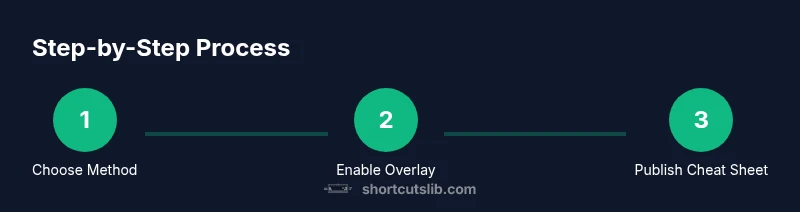
- 1
Choose an overlay approach
Decide whether you’ll use an OS-level overlay, a per-app cheat sheet, or a slide/video overlay for demonstrations. This sets the scope and determines which tools you’ll need. If you’re uncertain, start with an OS-level overlay for broad coverage and then add per-app sheets as needed.
Tip: Starting with one approach keeps the project manageable and avoids duplication. - 2
Enable a basic overlay
Turn on the operating system’s built-in overlay or keyboard viewer. This provides a universal baseline that works across many apps and tasks. Ensure the overlay remains visible but unobtrusive during your typical work sessions.
Tip: Test readability at your normal monitor distance and in split-screen setups. - 3
Create a reusable cheat-sheet template
Draft a compact template with headings such as Core Shortcuts, App-Specific, and Advanced Actions. Use a consistent font, spacing, and color scheme so teammates recognize the layout immediately.
Tip: Use a single source of truth file to prevent drift between templates. - 4
Add app-specific shortcuts
Populate each app’s section with the most frequent actions and ensure naming consistency (e.g., Cmd/Ctrl + S for Save). Include a legend for any non-standard symbols.
Tip: Limit per-app lists to 6–12 items to avoid cognitive overload. - 5
Publish and display during tasks
Share the cheat sheets with your team and pin overlays or slides in demos. Use consistent placement and opacity to keep content readable without obscuring essential UI.
Tip: Provide quick toggles to hide/show overlays as needed during reviews. - 6
Validate and iterate
Collect feedback on readability, usefulness, and accuracy. Update templates promptly and communicate changes to users.
Tip: Track which shortcuts are most used and prioritize them in updates.
Questions & Answers
What is the best way to show shortcuts on screen for a live demo?
Use a lightweight on-screen overlay paired with a short cheat-sheet. Keep the display subtle and focused on the actions demonstrated. Practice the flow to deliver a smooth demonstration.
Use a lightweight on-screen overlay paired with a short cheat sheet and practice the sequence for a smooth demo.
Can I customize the shortcuts shown on screen per user?
Yes. You can tailor cheat sheets to individual workflows or roles, then share the templates. Centralized templates help ensure consistency across users.
Yes, you can customize cheat sheets per user and share templates for consistency.
Are there accessibility concerns when showing shortcuts on screen?
Yes. Ensure high contrast, scalable font sizes, and a toggle to hide overlays for users who prefer a minimal interface. Provide keyboard-navigable content where possible.
Yes; prioritize contrast, scalable text, and a hide option for accessibility.
What tools should I use to create the overlays?
A simple text editor for templates and a presentation tool or lightweight web page for overlays work well. Screen capture or recording tools help verify overlays in action.
Use a text editor and a presentation tool or lightweight web page to craft overlays.
How often should I update the on-screen shortcuts?
Update whenever workflows or software updates introduce new shortcuts. Schedule a regular review cadence and document changes.
Update whenever shortcuts change; schedule regular reviews.
Watch Video
Main Points
- Define a clear overlay approach and stick to it.
- Prioritize readability with high contrast and legible typography.
- Use templates to scale across apps and teams.
- Iterate based on user feedback for continuous improvement.
- Combine OS-level and app-specific shortcuts for best coverage.