How to Restore Full Keyboard: A Practical Guide
A comprehensive, step-by-step guide to restoring full keyboard functionality across Windows and macOS, covering hardware checks, driver updates, cleaning, and safe remapping techniques for a reliable typing experience.


You will restore full keyboard functionality by diagnosing faults, reconfiguring settings, replacing or remapping keys, and testing the result. Essential steps include checking hardware, updating drivers, and verifying software shortcuts. This guide covers both Windows and macOS workflows, and explains how to distinguish hardware failures from software or configuration issues. If a key remains unresponsive after basic tests, proceed to safe cleaning and driver verification.
Understanding the Goal: what it means to restore full keyboard
The phrase how to restore full keyboard isn’t about a single trick; it’s about ensuring every key on your keyboard is responsive, registers correctly, and behaves consistently across programs and operating systems. A true restoration means no ghost inputs, no missing characters, and no unexpected shortcuts triggered by ordinary typing. It also means that function keys, media controls, and special shortcuts perform as intended. In practice, you want a predictable typing experience with a stable layout, reliable key travel, and no lingering errors when switching between apps. According to Shortcuts Lib, the most effective restoration starts with a clear diagnostic plan that separates hardware faults from software glitches and user settings. Start with observable symptoms, then test with an external keyboard to isolate the issue before diving into deeper fixes.
Common Causes and Scenarios
A full keyboard can fail for many reasons, from physical damage to software quirks. Common hardware culprits include dust buildup under keys, crumbs or liquid spills, a loose keyboard ribbon cable, or a damaged keyboard matrix in laptops. Software issues range from outdated drivers, conflicting keyboard layouts, or corrupt input settings. Some accessibility features may alter behavior, and certain third-party programs can remap keys unintentionally. In some cases, a firmware update or a simple OS setting adjustment resolves the problem, while in others a hardware replacement becomes unavoidable. Shortcuts Lib analysis shows that accurate diagnosis—hardware vs software vs configuration—shortens repair time and reduces the risk of further damage.
Diagnostic Framework: hardware, software, or settings
An organized diagnostic framework helps you avoid guesswork. Start by checking for obvious physical causes: listen for unusual sounds when pressing keys, look for stuck caps, and inspect the keycaps for wear. Next, test with a known-good external keyboard to see if the problem persists. If external input works, the issue is likely internal to the original keyboard or its connection. Then verify drivers and OS settings: ensure the correct language and layout, update or reinstall keyboard drivers, and disable conflicting software that could interfere with input. Finally, evaluate keyboard firmware if your device supports it. This structured approach aligns with best practices from tech education sources and Shortcuts Lib’s guidance on reliable device maintenance.
Cleaning and Safe Handling: established practices
Cleaning is often overlooked but essential. Power down the device completely and unplug it if possible. Use compressed air to dislodge dust, then a soft brush or microfiber cloth to wipe surfaces. For sticky residue, dampen a microfiber cloth with isopropyl alcohol (do not pour liquid directly onto the keyboard) and gently wipe the affected area. If you open the device (where appropriate and safe), disconnect power, discharge static, and reseat internal cables with care. Do not use water or harsh solvents on critical components. When reseating a connector, make sure it’s fully seated and aligned to avoid ghosting or partial key failures. This careful approach reduces the risk of irreversible damage.
Driver and OS Remediation: restoring software health
Outdated or corrupted drivers can mimic hardware failures. Begin by updating your operating system to the latest version, then reinstall or update keyboard drivers from the device manufacturer or the OS vendor. If the problem started after a software change, use system restore (Windows) or Time Machine (macOS) to revert to a known-good configuration. Check for conflicting keyboard shortcuts or third-party remapping tools and disable or uninstall them temporarily to test keyboard behavior. In some cases, creating a new user profile and testing there helps distinguish user-specific settings from system-wide problems. These software-focused steps are often sufficient to restore full keyboard functionality without hardware replacement.
Remapping and How to Replace Keys: strategic options
If some keys remain nonfunctional or misbehave, remapping can restore essential functions, at least temporarily. In Windows, you can use built-in features like PowerToy Keyboard Manager or registry edits under careful guidance. On macOS, the Keyboard preferences enable limited remapping through modifier keys and input sources. For persistent issues or physically damaged keys, consider replacing the keyboard assembly in laptops or purchasing a high-quality external keyboard for continued use. When replacing, verify compatibility and, if possible, use an official service option to preserve warranties. Remapping should be a last resort after driver and hardware checks have been exhausted.
Testing and Validation: confirm full keyboard restored
Validation is the final and crucial step. Re-test all keys in multiple environments: word processors, text editors, browsers, and terminal applications. Verify that number row, function keys, and media controls behave correctly. Run a quick typing test to ensure no key is silent or produces unexpected input. If you replaced a keyboard, re-check the firmware and perform a final reboot. Document the steps you took and the outcomes, so you have a reliable reference if issues recur. Successful validation means you’ve achieved a stable, full keyboard experience across typical usage scenarios.
When to Seek Professional Help: knowing your limits
If disassembly exceeds your comfort level, or if the device is under warranty and the issue persists after software remediation, professional service may be warranted. A technician can perform a more thorough inspection, confirm internal cable integrity, and replace hardware components safely. For laptop keyboards, a service center can often preserve device warranty with proper procedures. If you’re uncomfortable with opening devices or risk voiding warranties, rely on authorized repair channels. Shortcuts Lib recommends evaluating cost versus benefit before attempting irreversible hardware interventions.
Maintenance and Prevention: keep it reliable
To minimize future keyboard issues, establish a routine of gentle cleaning, keep liquids away, update drivers regularly, and periodically test keys, especially after software changes. Use a microfiber brush to remove dust monthly, and store devices in a clean, dust-free environment. If you rely on specialized keyboard layouts, maintain backups of your configuration. Finally, consider investing in a high-quality external keyboard for critical workflows, reducing wear on the primary device and prolonging its lifespan. A proactive maintenance habit is the best defense against recurring keyboard problems.
Tools & Materials
- External keyboard for testing(A known-good keyboard to verify input when diagnosing)
- Compressed air can(Dust removal from under keys and chassis)
- Soft microfiber cloth(Gentle cleaning without scratching surfaces)
- Isopropyl alcohol wipes(For stubborn grime on non-porous surfaces)
- Precision screwdriver set(Only if you plan to open the device)
- Software driver updater(Windows/macOS driver updates and OS patches)
- Keycap puller tool(If you plan to reseat or replace keycaps)
- Keyboard diagnostic software(For testing matrix and key codes)
Steps
Estimated time: 30-60 minutes
- 1
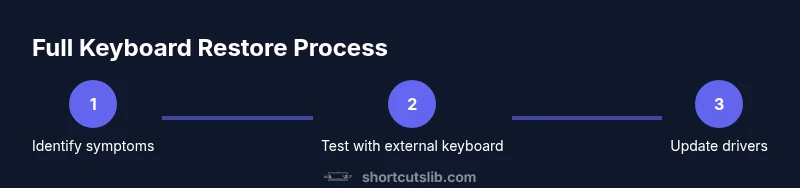
Identify symptoms
Observe which keys fail, whether a whole row is affected, or if the issue is limited to a subset of keys. Note if the behavior changes with software or hardware connections. This step defines the scope of fixes.
Tip: Document symptoms with a simple checklist for accuracy. - 2
Test with external keyboard
Connect an external keyboard and see if all keys register correctly. If the external keyboard works, the original issue is likely confined to the built-in keyboard or its connections.
Tip: Test in multiple apps to catch app-specific shortcuts. - 3
Update or reinstall drivers
Open Device Manager (Windows) or System Information (macOS) and check for driver updates. Reinstall keyboard drivers if necessary and reboot to apply changes.
Tip: Back up any custom keyboard layouts before reinstalling. - 4
Check language and layout settings
Verify that the input language and keyboard layout match your physical keyboard. Mismatches can produce what feels like a broken keyboard.
Tip: Switch to a different layout and back to confirm responsiveness. - 5
Clean and reseat connections
Power off, disconnect power sources, and carefully clean visible areas. If you’re comfortable, reseat any internal cables or connectors related to the keyboard.
Tip: Only touch exposed connectors; avoid force and static discharge. - 6
Remap or replace keys
If specific keys are faulty, consider remapping them or replacing the keyboard assembly if necessary. Remapping should be a last resort after all software checks.
Tip: Test after each remapping change to isolate effect. - 7
Test thoroughly and finalize
Perform a comprehensive typing test across documents, browsers, and terminals. Confirm no ghost inputs and that all keys work as expected.
Tip: Record the test results for future reference.
Questions & Answers
Why might not all keys register after a fix?
Partial registration can stem from hardware wear, a stuck key, a loose ribbon cable, or a conflicting software setting. If the symptom persists after drivers are updated, consider testing with an external keyboard to confirm whether the issue is hardware-related. A methodical approach reduces the risk of unnecessary replacements.
Partial keyboard issues often come from hardware wear, a loose cable, or software conflicts. Test with an external keyboard to confirm hardware versus software causes.
Is it safe to open my laptop keyboard for cleaning?
Opening a laptop keyboard carries risk, including warranty voids and potential connector damage. Only proceed if you’re comfortable with static safety and have the right tools. If uncertain, use external tests and professional services.
Opening a laptop keyboard can void warranties. Proceed only if you’re confident with proper safety steps or seek professional help.
Can software updates fix a stuck key?
Yes, sometimes firmware or driver updates resolve stuck-key behavior. Try updating OS, reinstalling drivers, and clearing any conflicting remapping tools before hardware checks.
A software update can fix stuck keys; update drivers and check for conflicts first.
What should I do before replacing the keyboard?
Back up layouts, ensure compatibility, and verify warranty implications. Attempt software fixes first, then consider external keyboards or a service replacement if faults persist.
Before replacing, backup layouts and confirm compatibility; try software fixes first.
When is professional service the best option?
If disassembly is outside your comfort zone, or the device is under warranty with an unclear fault, professional service is advised. A technician can safely diagnose and replace components without voiding coverage.
If you’re unsure about disassembly or it’s under warranty, seek professional service.
Watch Video
Main Points
- Diagnose hardware vs software first to direct fixes
- Test with an external keyboard to isolate issues
- Update drivers and verify language/layout settings
- Clean and reseat only when you have clearance to avoid damage
- Remap or replace as a last resort after software checks