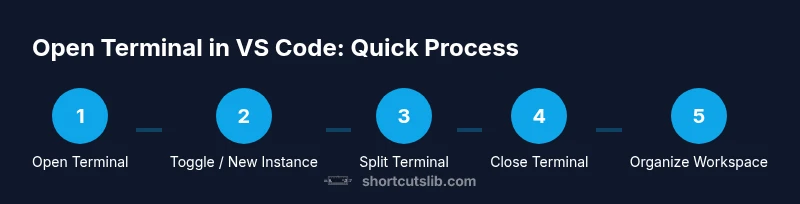
Open Terminal in VS Code: Essential Keyboard Shortcuts
Learn the quickest way to open and manage the integrated terminal in Visual Studio Code using keyboard shortcuts across Windows, macOS, and Linux. This guide from Shortcuts Lib covers toggling, customization, and practical tips to boost your coding speed.


To open the integrated terminal in VS Code, use Ctrl+` on Windows and Linux, or Cmd+` on macOS. You can also toggle Terminal from the View menu, or summon it via the Command Palette with the command "Terminal: Toggle Terminal." This quick start lets you stay in flow without leaving the editor, and you can customize shortcuts to fit your workflow.
Why opening the integrated terminal in VS Code matters
The integrated terminal is a cornerstone of smooth development workflows. It lets you run shell commands, start servers, run tests, install dependencies, and manage version control without leaving the editor. A quick terminal toggle reduces context switching and keeps your hands on the keyboard—which is exactly what keyboard-centric developers want. According to Shortcuts Lib, mastering fast terminal access is one of the most impactful speed hacks for serious workflow efficiency. In practice, you can chain commands, pipe outputs, and automate everyday tasks right where you code. This section lays the groundwork, explains the scope of the terminal, and sets expectations for how keyboard shortcuts will speed up day-to-day tasks across languages and projects. You’ll learn the core shortcuts, how to adapt them on different operating systems, and why staying consistent with shortcuts matters for long-term productivity.
Keyboard shortcuts by OS
Visual Studio Code follows a cross-platform convention for terminal toggling, but small differences exist between Windows, Linux, and macOS. On Windows and Linux, the default is to press Ctrl+ (the backtick key) to open or focus the integrated terminal. On macOS, the typical default is Cmd+ (Command + backtick). If you substitute a different layout or want a more ergonomic setup, you can customize these bindings without breaking your workflow. Beyond the toggle, you can also launch a new terminal instance, switch focus between existing terminals, or close the terminal—all through a mix of shortcuts and commands. Shortcuts Lib highlights that having a single, consistent toggle across platforms minimizes cognitive load and reduces the frustration of switching contexts between projects.
Quick-paths to open the terminal: multiple methods
There are several reliable ways to access the integrated terminal beyond the default shortcut. First, use the View > Terminal menu option, which is always visible in the Menu Bar as a guaranteed access point. Second, the Command Palette (Ctrl+Shift+P on Windows/Linux, Cmd+Shift+P on macOS) can execute the command Terminal: Toggle Terminal or Terminal: Create New Integrated Terminal. Third, right-click inside the Explorer or editor and select Open Terminal, which is handy when you want the terminal to run in the context of your current folder. Finally, you can configure a secondary shortcut for creating a new terminal instance or toggling between terminals. The multiple access paths help you adapt to different workflows and screen setups while preserving a keyboard-first approach.
How to customize your terminal shortcuts
If the default bindings don’t fit your muscle memory, you can customize them with keybindings.json. Open File > Preferences > Keyboard Shortcuts, then search for Terminal commands such as workbench.action.terminal.toggleTerminal or workbench.action.terminal.new. To edit, click the pencil icon and bind a new key combination. For example, you could map Ctrl+` to toggle the terminal and assign Ctrl+Alt+T to open a new terminal. Remember to test changes in a clean workspace to avoid conflicts with other extensions or OS-level shortcuts. Consistent customization reduces friction and keeps you in the flow.
Common issues and troubleshooting
Sometimes a terminal won’t open with the expected shortcut due to conflicting bindings or extensions. If your shortcut doesn’t work, open Keyboard Shortcuts (JSON) and search for the binding to identify conflicts. Another common problem is the terminal failing to initialize due to an unconfigured shell profile; check Settings > Terminal > Integrated: Shell: Windows (or macOS/Linux) to ensure a valid shell path is chosen. If you’re on a remote environment or inside a container, ensure the container provides a functional shell. Finally, disable conflicting extensions temporarily to isolate the issue and confirm the core VS Code behavior.
Using multiple terminals and panes
Power users often run multiple tasks in parallel. In VS Code, you can open more than one terminal tab, rename terminals, and split terminals for side-by-side views. To create a new terminal, use the Terminal: Create New Integrated Terminal command, or press your customized shortcut. To split, run Terminal: Split Terminal via the Command Palette or the assigned shortcut if you added one. Each pane retains the same working directory as its source, so you can run a server in one pane while compiling code in another. Pro tip: keep a dedicated terminal for version control commands to reduce accidental edits to your build environment.
Practical tips for power users
- Bind a dedicated shortcut for Terminal: Focus Terminal, Terminal: Create New, and Terminal: Split Terminal to speed up complex workflows. - Use the integrated terminal in the editor to keep context tight: commands, logs, and test results appear in the same window as your code. - Customize the shell profile (bash, zsh, PowerShell, or pwsh) per project or globally to match your preferred environment. - Pair terminal commands with VS Code tasks to automate routine jobs. - Remember to save and reuse common command patterns by creating aliases or scripts within your shell profile. Shortcuts Lib’s guidance emphasizes consistency across projects to maximize muscle memory and reduce cognitive load.
Example scenarios: quick productivity wins
Scenario 1: You start a local dev server and watch for file changes. Open the integrated terminal with your toggle shortcut, run npm start (or your equivalent command), and keep an eye on the terminal output without leaving the editor. Scenario 2: You run tests while editing code—open a new terminal, run the test suite, and switch between test results and source files instantly. Having a reliable terminal workflow reduces context switching and speeds up feedback loops, especially on large projects or monorepos. As you practice these patterns, you’ll naturally refine your own preferred shortcuts and commands.
Tools & Materials
- Computer with VS Code installed(Ensure VS Code is up to date and you have permission to install extensions)
- Keyboard with standard modifiers(Ctrl, Alt, Cmd, Backtick (`) keys commonly used in shortcuts)
- Internet connection (optional)(For accessing official docs or Shortcuts Lib references)
- Custom shell profiles (optional)(bash, zsh, PowerShell, pwsh configuration if you want personalized prompts and aliases)
Steps
Estimated time: 15-25 minutes
- 1
Open the terminal with the primary shortcut
Identify your OS and press the default toggle: Windows/Linux uses Ctrl+` and macOS uses Cmd+`. This expands or focuses the integrated terminal inside the editor. If the terminal isn’t visible after the first attempt, ensure no other app has captured the keys, and try again.
Tip: If the backtick key shares a key with another function in your keyboard layout, consider rebinding to a distinct key combo. - 2
Toggle the terminal visibility
Press the shortcut again to hide the terminal or bring it back into focus. Toggling helps you switch between code and shell output quickly without leaving VS Code. This is especially useful when you’re burning through a long command sequence and want to keep your cursor in place.
Tip: Familiarize yourself with both open and close actions so you never waste time hunting for the terminal pane. - 3
Create a new terminal instance
Use the terminal create command (Terminal: Create New Integrated Terminal) to spawn a fresh shell without closing the current one. This is handy when you want to run background tasks separately or test different environments.
Tip: Assign a personal shortcut to quickly spawn a separate shell without interrupting ongoing commands. - 4
Switch focus between terminals
If you have multiple terminals open, use the appropriate command or shortcut to cycle focus. This helps you send commands to the correct pane, avoiding accidental edits in the wrong session.
Tip: Configure a single shortcut for cycling focus to save effort compared to clicking with the mouse. - 5
Split a terminal for side-by-side views
Use the Terminal: Split Terminal command to view multiple shells in parallel. Split views are excellent for running a server in one pane and a build watcher in another.
Tip: Keep a naming convention for each pane (e.g., server, tests) to avoid confusion. - 6
Configure the default shell
Set the shell path for your terminal to ensure commands behave consistently across projects. Go to Settings > Terminal > Integrated: Shell: Windows/macOS/Linux and provide a valid path. This reduces surprises when commands rely on specific shell features.
Tip: Test a few common commands in the configured shell to verify behavior before starting work sessions. - 7
Close or hide terminals when done
Close terminals you no longer need to keep your workspace clean and reduce resource usage. You can close the active terminal or use the command to terminate all terminals in the session.
Tip: Before closing, ensure all critical tasks have finished or have been moved to a background job to prevent data loss.
Questions & Answers
What is the default keyboard shortcut to open the terminal in VS Code on Windows?
The default is Ctrl plus the backtick key (Ctrl+`). If your layout maps backtick differently, check Keyboard Shortcuts to rebind it.
On Windows, press Ctrl and the backtick to open the terminal, or customize the shortcut in Keyboard Shortcuts.
Can I open the terminal from the Command Palette?
Yes. Open the Command Palette with Ctrl+Shift+P (or Cmd+Shift+P on macOS) and run Terminal: Toggle Terminal or Terminal: Create New Integrated Terminal.
Yes. Use the Command Palette and search for Terminal commands to open or create a terminal.
How do I customize terminal shortcuts?
Open Keyboard Shortcuts, search for terminal commands, and redefine keys. Save changes and test to ensure no conflicts.
You can customize terminal shortcuts in Keyboard Shortcuts and test them to avoid conflicts.
What should I do if the terminal won’t open at all?
Check for conflicting extensions or bindings, verify the shell path in Settings, and try restarting VS Code. If needed, reset to default keybindings.
If the terminal won’t open, inspect extensions, verify the shell path, and restart or reset keybindings.
Is there a way to run multiple commands in separate terminals at once?
Yes. Open multiple terminals or split the terminal and run separate commands in each pane for parallel workflows.
Yes, you can run separate commands in different terminals or split panes for parallel tasks.
How can I keep my terminal commands and outputs organized?
Rename terminals, group related tasks, and use aliases or scripts to speed up common workflows. Consistency helps long-term memory.
Rename terminals and use aliases to keep commands organized.
Watch Video
Main Points
- Master the core toggle shortcuts for speed.
- Use multiple access methods to fit your workflow.
- Customize keybindings to suit your environment.
- Leverage split terminals for parallel tasks.
- Keep a consistent shell configuration across projects.