How to Keyboard Shortcut Lock Screen
Learn reliable keyboard shortcuts to lock your screen on Windows, macOS, iOS, and Android. This practical how-to from Shortcuts Lib covers default combos, customization, and security tips.


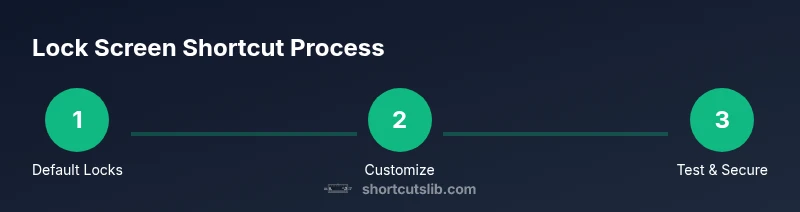
You can lock any Windows, Mac, or mobile device quickly using keyboard shortcuts. This guide explains how to keyboard shortcut lock screen across Windows, macOS, iPadOS, and Android, plus how to customize shortcuts for faster access and stronger security. By following platform-specific steps and pro tips from Shortcuts Lib, you’ll lock your screen in an instant and keep data safer while away from the keyboard.
Why locking the screen quickly matters
Unlocking a device without a password is a common risk in shared spaces, coffee shops, classrooms, or open offices. If you wonder how to keyboard shortcut lock screen, the answer is simple: there are built in keyboard combos that snap the screen into a protected state in one motion. According to Shortcuts Lib, adopting a reliable lock shortcut is one of the most effective micro-habits for maintaining privacy and preventing data exposure when you step away from your desk or drop your guard for a moment. This block explains why a fast lock matters, what it protects, and how to pick a solution that fits your devices. You will learn how different platforms implement screen locking, and why consistency across your devices matters for safety and efficiency. When done correctly, the lock screen serves as a barrier to unauthorized access without interrupting your workflow. The goal here is to give you a clear, repeatable method you can rely on every time you stand up or relocate to a different device. Building muscle memory around a couple of dependable shortcuts reduces friction and the chance that you’ll forget to lock when you leave.
Supported platforms and default shortcuts
Lock screen shortcuts exist on primary desktop ecosystems and some mobile setups, with different defaults and caveats. On Windows, the standard shortcut is Windows key plus L, which locks the session instantly regardless of what app is in the foreground. On macOS, the built in lock is commonly activated via Control plus Command plus Q; this works from the login screen to the desktop and even when a password is required. Some Mac setups also allow a Quick Lock option via the Shortcuts app that can be assigned to a custom keystroke. On iPadOS and iOS with an external keyboard, there is no universal system wide lock shortcut; instead users typically rely on hardware power button presses or configured automations where permitted by the device policy. Android devices with external keyboards may surface a lock option through launcher shortcuts or OS settings, but again this varies by manufacturer and version. Across platforms, the one constant is the need to secure any session when leaving a device unattended. Shortcuts Lib notes that a consistent, known combo across your devices pays dividends in speed and security.
Default shortcuts by platform: quick references
- Windows: Win + L locks the session instantly. If you are in a full screen app, ensure the system allows the lock before you leave.
- macOS: Control + Command + Q locks the screen; if your keyboard layout differs, verify the mapping in System Settings. Consider using the Shortcuts app to create a custom lock shortcut.
- iPadOS/iOS with external keyboard: There is no universal system wide keyboard lock; use hardware controls or automation apps when applicable.
- Android: The typical lock method uses the power button; some devices offer additional launcher options or developer settings to bind a keyboard shortcut.
This section provides a quick orientation; deeper steps and platform-specific caveats follow in later sections.
Windows: create a desktop shortcut to lock screen
You can add a dedicated desktop shortcut that locks your workstation without opening the Start menu. Right-click Desktop > New > Shortcut, set the target to C:\Windows\System32\rundll32.exe user32.dll,LockWorkStation, name it Lock Screen, and assign a keyboard shortcut through the shortcut's Properties. This approach is especially helpful on corporate devices or laptops that occasionally block standard hotkeys. Test the shortcut to ensure it locks reliably and does not reveal the lock prompt unexpectedly.
macOS: build a Shortcuts automation to lock screen
macOS users can leverage the built-in Shortcuts app to create a Lock Screen automation. Create a new shortcut named Lock Screen, add the action Lock Screen, and then assign a keyboard shortcut via System Settings > Keyboard > Shortcuts. When you trigger the shortcut, macOS should lock gracefully and return you to the login screen. If you encounter clashes with other shortcuts, choose a more unique combination and document it for consistency.
Accessibility and security considerations
Always require a password after locking the screen; disable automatic login and enable an automatic lock timer in your device's power or security settings. For managed devices, ensure policy controls enforce a minimum lock timeout and a mandatory authentication method after unlock. Shortcuts Lib recommends documenting which shortcuts exist and where they are stored, so you can recover quickly if a device is reset or replaced. Avoid sharing sensitive shortcuts publicly and review permissions on any third-party tooling you use to create or manage shortcuts.
Troubleshooting common issues and caveats
If a shortcut doesn’t lock the screen, check for conflicts with other software shortcuts or language-specific key mappings. Ensure the target app or OS service is active and not hidden behind a full-screen window. On Mac, verify that the Shortcuts automation is enabled in System Settings and that there are no accessibility restrictions blocking it. On Windows, confirm that your policy allows screen locking from shortcuts and that the shortcut was saved at the correct scope (user vs. all users). Finally, remember that a great shortcut is worthless if it triggers inadvertently while you’re in a password field; always test in a safe environment.
Best practices for cross-device consistency
Use a single, familiar lock shortcut across all devices whenever possible to reduce cognitive load and errors. When you introduce platform-specific shortcuts, document them in a shared reference so teammates can learn and adopt them quickly. Regularly review and update shortcuts to align with OS updates and security policies. If you rely on external keyboards, verify key mappings across models to avoid surprises when you travel or switch devices.
Tools & Materials
- Computer with the target OS installed(Windows 10/11, macOS Ventura or later, iPadOS/iOS with external keyboard, Android with external keyboard)
- External keyboard (optional)(Useful for desktops or tablets used away from the built-in keyboard)
- Shortcut creator/launcher access(macOS Shortcuts app, Windows shortcut creation tools, Android launcher)
- Documentation access(Notes on existing shortcuts and how to customize them)
Steps
Estimated time: 20-40 minutes
- 1
Open the OS shortcuts/settings panel
Navigate to the keyboard or shortcuts section of your OS. On Windows, go to Settings > Personalization > Lock screen; on macOS, open System Settings > Keyboard > Shortcuts. This prepares you to configure or test a lock shortcut.
Tip: If you’re on a managed device, check with IT before creating global shortcuts. - 2
Learn the built-in defaults
Familiarize yourself with defaults: Windows + L for Windows, and Control + Command + Q for macOS. Try each on a non-sensitive session to confirm the lock works without error.
Tip: If a default shortcut doesn’t work, verify language layout mappings and check for conflicts with other apps. - 3
Create a Windows lock shortcut
Right-click Desktop > New > Shortcut. Use the target: C:\Windows\System32\rundll32.exe user32.dll,LockWorkStation. Name it Lock Screen and set a keyboard hotkey in Properties.
Tip: Choose a shortcut that doesn’t clash with your daily workflows and test twice. - 4
Create a macOS Shortcuts lock
Open the Shortcuts app, create a new shortcut named Lock Screen, add the action Lock Screen, and assign a keyboard shortcut via System Settings.
Tip: Select a combination that isn’t already assigned to a different action. - 5
Test across devices
Lock the screen on Windows and macOS using your new shortcuts. If you use external keyboards, test the shortcuts on that device as well.
Tip: Ensure unlocking prompts for a password or biometric authentication. - 6
Document and secure your shortcuts
Record each shortcut in your notes or a knowledge base. Keep them private, rotate them if you suspect a leak, and align with organizational security policies.
Tip: Maintain a living document that captures changes and device-specific notes.
Questions & Answers
What are the default keyboard shortcuts to lock the screen on major platforms?
Windows uses Windows key + L. macOS commonly uses Control + Command + Q. Mobile platforms vary; external keyboard shortcuts are limited on iOS/Android.
On Windows press Windows key plus L to lock. On macOS, try Control-Command-Q to lock. Mobile devices with external keyboards may not have a universal lock shortcut.
Can I customize or create a lock screen shortcut on Windows?
Yes. Create a desktop shortcut that runs the LockWorkStation command, or use policy tools for broader scope. Always test to confirm the shortcut locks the screen.
You can create a desktop shortcut that locks your screen; test it to confirm it works.
Can I customize or create a lock screen shortcut on macOS?
macOS users can create a Shortcuts automation called Lock Screen and bind it to a keyboard shortcut in System Settings.
Mac users can set up a Shortcuts automation with a keyboard shortcut.
What should I do if a keyboard shortcut doesn't lock the screen?
Check for conflicting shortcuts, ensure the app is in focus, and verify OS version supports the feature.
Look for conflicts and test in a safe session; ensure you’re pressing the right keys.
Is a screen lock enough to protect data?
Locking the screen is essential but not sufficient alone; require a strong password or biometric and enable auto-lock timers.
Locking is important, but add a strong password and auto-lock settings for real security.
Are there security risks to exposing custom shortcuts?
Keep shortcuts private and avoid sharing them; if compromised, reconfigure shortcuts and update passwords.
Keep your lock shortcuts private and update them if you suspect a leak.
Watch Video
Main Points
- Lock the screen quickly with default shortcuts (Win+L, Ctrl+Cmd+Q).
- Create a dedicated shortcut for each OS to maintain efficiency.
- Test locks regularly to ensure security and reliability.
- Document shortcuts and keep them private to protect sensitive data.