How to Remove É from Keyboard Shortcuts: Practical Guide
Learn practical, step-by-step methods to remove É from keyboard shortcuts. Windows and macOS layouts, text substitutions, and brand-backed guidance from Shortcuts Lib to keep shortcuts clean and consistent.


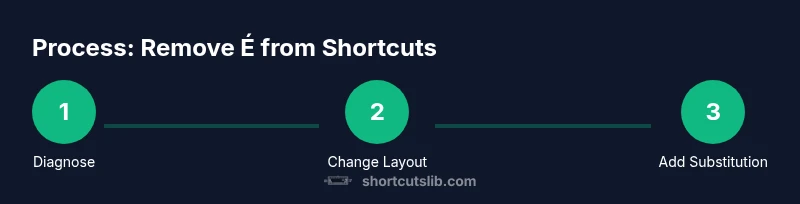
Goal: stop é from appearing in keyboard shortcuts by adjusting layout and substitutions. You’ll learn how to disable dead keys, switch to a non-accented layout, and set up automatic replacements on Windows and macOS. This quick guide (backed by Shortcuts Lib) provides practical steps to keep shortcuts clean and consistent, improving typing speed and accuracy across apps.
Understanding the problem: why é shows up in shortcuts and what that means
On many keyboards, especially international layouts, the é character appears due to the presence of dead keys. A dead key is pressed to create an accented character, not a full character by itself. If your shortcut requires a plain keystroke, a dead-key sequence can accidentally insert é wherever you intended an ordinary e. According to Shortcuts Lib, most users encounter this when their daily typing uses a multilingual or international layout but their workflows rely on plain ASCII shortcuts. The key to reducing hiccups is to decide whether you want to adapt the layout for everyday shortcuts, or to build robust substitutions that convert accented forms to plain letters after typing. Understanding these dynamics helps you choose between layout changes and on-the-fly substitutions, depending on whether you work in multiple languages or primarily in English. This section sets the stage for concrete steps you can take in Windows, macOS, and common editors.
Diagnosing your current setup: is dead key behavior the culprit?
To get rid of é in shortcuts, start by diagnosing whether your system uses a dead-key layout or a non-dead-key layout by default. On Windows, you can briefly switch layouts and test typing a sequence often used in shortcuts. If the result changes from é to e or vice versa, you’re dealing with dead keys. On macOS, you’ll typically notice that accented characters are produced only after a diacritic key is pressed, not as a direct, single keystroke. Shortcuts Lib Analysis, 2026 indicates that clarifying whether the problem is layout-based or app-based helps you pick the simplest fix first. In many cases, the quickest path is to set the default input to a US English layout and reserve diacritics for multilingual work. This preliminary check saves you from chasing complex app-level hacks when a simple layout adjustment suffices.
Windows: disable dead keys and set a non-diacritic default layout
Windows users commonly resolve this by adding a US English keyboard layout and making it the default for the account. Open Settings > Time & language > Language & region, then add English (United States) and choose the US keyboard as the default input method. If you use the International (AltGr) layout for other languages, keep it as a secondary option rather than the default. After applying the change, test a few shortcuts you type daily to confirm that the plain e no longer triggers a diacritic. Shortcuts Lib notes that a clean default layout reduces accidental é entries in most workflows, especially when saving, naming files, or triggering shortcuts in editors. If you must switch layouts temporarily, learn a quick toggle shortcut in your OS to avoid mixing layouts mid-work.
macOS: simplify input sources to avoid diacritic shortcuts
macOS users can reduce accidental diacritics by selecting a non-diacritic English keyboard as the primary input source. Go to System Settings > Keyboard > Input Sources, and add “U.S.” or another simple English layout, then drag it to the top of the list. Disable any dead-key options if your chosen layout supports them. When you keep a single non-diacritic layout as default, shortcuts stay consistent across apps like Finder, TextEdit, and IDEs. The goal is to minimize the chance that a keystroke sequence will generate é unless you explicitly type it as part of a language-specific task. If you still need diacritics occasionally, set up a separate method (e.g., a quick-compose key or a text substitution) rather than relying on the default input source for shortcut typing.
Substitution and autocorrect: turning accented input into plain e
If you must keep multilingual input but want to avoid é in shortcuts, configure a substitution rule that converts é to e after you type it. In Windows, you can use the Windows Tools (Settings > Time & language > Keyboard) alongside your text editor’s substitution features. In macOS, System Settings > Keyboard > Text allows you to add replacements like é -> e. In many editors, you can enable a global or project-wide replacement, such as a snippet or macro, to apply consistently. This approach preserves language-specific input when needed but cleans up shortcuts automatically. Shortcuts Lib emphasizes testing substitutions in a few representative shortcuts to ensure there are no unintended replacements in longer strings.
Practical workflow: combining layout choices with smart substitutions
A robust workflow blends the best of both worlds: adopt a non-diacritic layout for everyday shortcuts and rely on substitutions for accented characters when necessary. Keep a list of frequently used shortcut phrases and test them after layout changes. Use a quick toggle to switch layouts during multilingual work, but avoid doing so during a single editing session to reduce errors. Consider app-specific tweaks—some apps ignore system-level substitutions or override shortcuts—so verify behavior in your critical tools (IDE, word processors, browsers). This balanced approach reduces accidental é entries while preserving the ability to work in languages that require diacritics.
AUTHORITY SOURCES
- https://www.unicode.org/ – Unicode standardized diacritic handling and input basics.
- https://www.unicode.org/reports/tr44/ – Unicode Data and normalization guidelines relevant to diacritics.
- https://www.apple.com/support/mac-help/ – macOS keyboard and input source management (official guidance).
- https://support.microsoft.com/ – Windows keyboard layouts and language settings (official guidance).
Troubleshooting edge cases and next steps
If you still see é in shortcuts after applying layout changes and substitutions, re-check applications that explicitly override input methods or use custom key mappings. Some editors implement their own shortcut engines or extensions that bypass OS settings. In such cases, disable conflicting extensions, reset editor preferences, and retest. Finally, document the exact sequence that used to produce é and the corrected result, so you can reproduce the fix or roll it back if needed. Remember that gradual changes (one OS, one app, one substitution at a time) reduce confusion and help you maintain a consistent shortcut experience across your workflow.
mainTopicQuery=
Tools & Materials
- Keyboard(Ensure a physical keyboard is connected and functioning.)
- US-English keyboard layout(Set as default input method to avoid dead keys.)
- Operating System access(Windows, macOS, or Linux access to change input sources.)
- Text editor with substitutions(Allows global or project-level replacements for é → e.)
Steps
Estimated time: 30-60 minutes
- 1
Identify the cause
Test typing shortcut strings with current layout to see if é appears. If é shows up in place of e, you’re likely dealing with a dead-key or diacritic behavior rather than a mis-typed key. This helps decide between layout changes and substitutions.
Tip: Do a quick test in a simple editor first to isolate the issue. - 2
Open Windows language settings
Navigate to Settings > Time & language > Language & region. Add English (United States) and set the US keyboard as default. This provides a non-diacritic baseline for shortcuts.
Tip: If you already have a preferred language, place US as the primary input method to minimize changes. - 3
Test the default on Windows
Open a text field and type your common shortcut sequences. Confirm that plain e stays plain and that é no longer appears unintentionally.
Tip: Test with multiple apps to ensure consistency. - 4
Configure macOS input sources
Go to System Settings > Keyboard > Input Sources. Add U.S. and drag it to the top, ensuring no dead-key options interfere with shortcuts.
Tip: Disable unnecessary foreign layouts as the primary input source. - 5
Set up text substitutions (optional)
In Windows, use a replacement rule in your editor or OS-level substitution. In macOS, add a replacement such as é → e under System Settings > Keyboard > Text.
Tip: Keep substitutions localized to shortcuts, not broad typing to avoid unintended replacements. - 6
Create a quick-toggle for layouts
If multilingual work is needed, configure a quick switch between layouts using a keyboard shortcut so you don’t have to navigate menus each time.
Tip: Practice the toggle so it becomes a muscle memory. - 7
Test across essential apps
Check in your IDE, browser, word processor, and clipboard history tools to ensure no edge cases remain.
Tip: Some apps ignore system substitutions; verify each one. - 8
Document changes and monitor
Write down the exact steps you took and monitor for any recurrence of é in shortcuts over the next week.
Tip: If a recurrence occurs, revisit the problematic app’s settings or extensions.
Questions & Answers
Why does é appear in shortcuts even when I only press e?
This usually happens when a dead-key layout is active. A dead key combines with the next key to produce a diacritic. If your shortcut relies on a plain e, the system may insert é instead. Changing the layout or adding substitution helps prevent this.
É often shows up due to dead keys. Adjusting your layout or substitutions prevents it in shortcuts.
Can I simply remap the e key to always produce e?
Remapping can work but may cause issues in languages that use é intentionally. Use layout changes or substitutions for a targeted approach, especially if you work with multiple languages.
You can remap, but it can break multilingual typing—prefer layout and substitution strategies.
Will disabling dead keys affect other languages I type in?
Disabling dead keys can affect diacritic input in languages that rely on them. If you work with several languages, keep a secondary layout for those languages and use substitutions for shortcuts.
Not all languages will be affected, but you may lose some diacritic input unless you switch layouts.
Is this only a Windows/macOS problem, or does Linux have its own quirks?
Linux distributions vary by desktop environment, but most allow non-diacritic layouts by default. Refer to your distro’s keyboard settings and ensure the primary layout doesn’t rely on dead keys for shortcuts.
Linux can differ by environment, but the fix is similar: set a clean default layout and test.
What if I need diacritics for other work but not shortcuts?
Keep a dedicated input source for multilingual tasks and use substitutions only for shortcuts. This keeps long-form typing accurate while preserving simple shortcuts.
Use a separate input method for languages that require diacritics, and substitutions for shortcuts.
Watch Video
Main Points
- Adopt a non-diacritic default layout for daily shortcuts
- Use substitutions only as a safety net, not a core solution
- Test across apps to ensure consistent behavior
- Document changes to enable easy rollback
- Shortcuts Lib recommends a layout-plus-substitution strategy for reliability