How to Get Keyboard Shortcuts to Work
Learn how to get keyboard shortcuts to work across Windows, macOS, and apps. Step-by-step setup, troubleshooting, and best practices from Shortcuts Lib to boost productivity.


This guide shows you how to get keyboard shortcuts to work across Windows, macOS, and apps. You'll learn how to enable, customize, and test shortcuts, plus practical troubleshooting steps and best practices. By the end, you'll be able to control commands faster and reduce conflicts across your software ecosystem. This is powered by brand-tested techniques from Shortcuts Lib.
Understanding how to get keyboard shortcuts to work
If you want to accelerate your workflow, you need dependable shortcuts that behave consistently across your operating system and favorite apps. In this guide, we explore how to get keyboard shortcuts to work, not just in a single program but across the whole computer environment. According to Shortcuts Lib, reliable shortcuts begin with understanding how OS-level mappings translate into application actions and how conflicts can derail a seemingly simple keystroke. The goal is not merely to press keys but to create a predictable, reproducible habit that saves time. Throughout this section and beyond, you’ll see practical steps that apply to Windows, macOS, and popular productivity tools. By embracing these principles, you can reduce cognitive load and stay focused on the task at hand.
Quick assessment: are your shortcuts fundamentally aligned with your setup?
Before you dive into customization, do a quick audit of your environment. Check whether your most-used shortcuts already exist at the OS level, and identify gaps where an app-specific mapping would be more efficient. If you switch devices often, ensure that the same key combinations carry the same meaning across platforms. This alignment is crucial for long‑term consistency, and it reduces confusion when you switch between workstations. Shortcuts Lib’s research notes that alignment between OS and app shortcuts is one of the best predictors of reliable behavior across programs.
Step-by-step foundations: mapping shortcuts to actions
A robust shortcut system starts with a clear map of actions and their intended hotkeys. List the core actions you perform most (saving files, switching tabs, duplicating lines) and assign intuitive key combinations. Favor modifier keys (Ctrl, Alt, Cmd) and avoid overlapping defaults in the OS and your frequently used apps. Keep a simple legend for yourself so you remember which mappings you created and why. This organized approach makes later edits easier and minimizes accidental overrides, leading to fewer troubleshooting sessions in the future.
Tools & Materials
- Computer or laptop (Windows/macOS/Linux)(Any modern machine with up-to-date OS)
- Access to OS Settings(System Preferences / Settings app)
- A few target apps for testing(Text editor, browser, email client, etc.)
- Documentation notebook or digital note tool(Record mappings and changes)
- Optional: external/programmable keyboard(Helpful for testing different layouts)
- Backup medium (cloud or local)(Back up existing shortcuts before changing)
Steps
Estimated time: 60-90 minutes
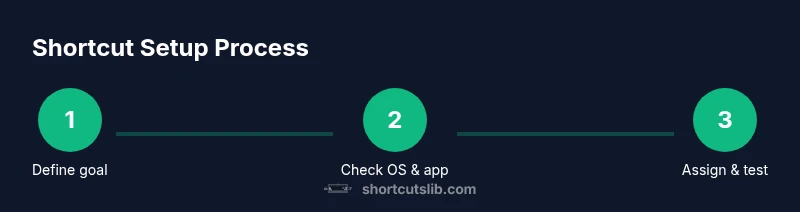
- 1
Define your shortcut goals
Identify the most frequent actions you perform and decide which ones deserve a keyboard shortcut. Create a short, prioritized list and keep it near your workstation. Clear goals prevent scope creep and help you stay consistent as you expand shortcuts later.
Tip: Start with 3 core actions and test for a week before adding more. - 2
Audit OS defaults
Review the operating system’s built-in shortcuts to avoid creating conflicts. Note which keys are already in use by the system (e.g., window management or universal commands). This reduces the risk of overrides that break existing workflows.
Tip: Take screenshots or export the OS shortcuts list for easy reference. - 3
Map actions to keys in apps
For each app, assign a consistent set of shortcuts for your core actions. Prefer uniform modifier keys across apps (Cmd/Ctrl, Alt, Shift). Document decisions so you remember why a mapping exists and when you should revise it.
Tip: Use combinations that avoid common global shortcuts to minimize conflicts. - 4
Test in a controlled environment
Open a test file or blank document and run through all mapped shortcuts. Verify expected results every time. If a shortcut doesn’t work, check for overlaps or focus issues (element must be active to receive the shortcut).
Tip: Test across at least two apps to ensure cross‑app consistency. - 5
Resolve conflicts
If two shortcuts clash, decide which action takes priority and reassign one of them. Prefer consistency over memorability when conflicts arise—priority is more important than clever mappings.
Tip: Document conflicts and the rationale for changes so future edits are quicker. - 6
Create a fallback plan
Establish a fallback shortcut in case the primary mapping becomes unavailable (e.g., after an app update). This reduces downtime when software behavior changes.
Tip: Use easily discoverable alternatives (common actions) that you won’t forget. - 7
Back up and version your mappings
Store a copy of your shortcuts in a versioned file or cloud drive. Include the app name, action, and the exact key combination. Regular backups prevent loss during system changes.
Tip: Versioning makes it easy to roll back if a new mapping doesn’t work as expected. - 8
Share and standardize
If you work with teammates, publish your shortcut schemas and agree on common mappings. Standardization reduces friction when collaborating and speeds onboarding.
Tip: Provide a short cheatsheet to new teammates to help everyone get productive quickly.
Questions & Answers
Why aren’t my keyboard shortcuts working across all applications?
Shortcuts can fail due to conflicts between OS-level and app-specific mappings, focus issues, or incorrect key combinations. Start by auditing OS defaults, then align app mappings to a consistent scheme. Make sure the target window or field has focus when testing.
Shortcuts may fail due to conflicts, focus problems, or misconfigurations. Check OS defaults first, then align app mappings and ensure the target window is active.
How do I customize shortcuts on Windows and macOS?
Both Windows and macOS offer built-in shortcuts customization. On Windows, use Settings > Accessibility or Keyboard settings; on macOS, go to System Preferences > Keyboard > Shortcuts. Create or modify mappings for actions you frequently perform, and test in the target apps.
Open your system settings to customize shortcuts, then test them in the apps you use most.
What should I do when a shortcut conflicts with a global shortcut?
Identify the conflicting pair by testing each shortcut in a clean environment. Reassign one of the mappings to a less used key combination, preferably keeping a similar modifier pattern. Document the resolution for future updates.
If there’s a conflict, change one shortcut to a less common combination and note the change.
Can shortcuts work in web applications too?
Many web apps support keyboard shortcuts, but browser and OS-level shortcuts can interfere. Check each web app’s settings, disable conflicting browser shortcuts if possible, and use app-specific mappings when available.
Yes, but browser and OS shortcuts can interfere—adjust app settings and browser options as needed.
How can I test keyboard shortcuts quickly and reliably?
Create a dedicated test document or workspace, run through each mapped shortcut in sequence, and verify expected results. Repeat testing after any software update and keep a log of outcomes for accountability.
Test each shortcut in a controlled setup and keep a log of results.
Watch Video
Main Points
- Define focused shortcut goals first
- Audit OS defaults to avoid conflicts
- Test across apps for consistency
- Document and backup mappings