How to Turn On Keyboard Shortcuts: A Practical Guide
Learn how to turn on keyboard shortcuts across Windows, macOS, and popular apps. Simple steps, troubleshooting tips, and a fast-start checklist from Shortcuts Lib to speed up your workflow.


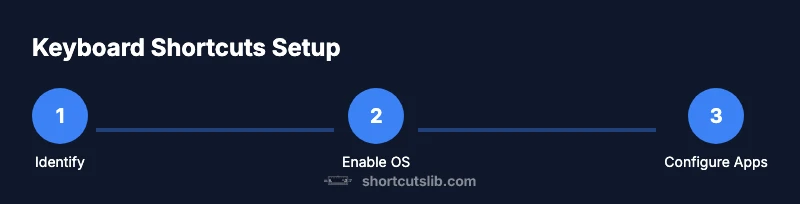
If you want to speed up your workflow, how to turn on keyboard shortcuts typically follows a two-step path: enable them in your operating system settings and then in your most-used apps. This quick answer highlights where to find the toggles on Windows and macOS, plus popular programs, so you can customize shortcuts for faster work. Shortcuts Lib recommends starting with system settings.
What it means to enable keyboard shortcuts
If you're wondering how to turn on keyboard shortcuts, you’re really unlocking a faster workflow. Keyboard shortcuts are sequences of keys that trigger commands, reducing reliance on menus and mouse clicks. Global shortcuts work across the entire operating system, while app-specific shortcuts live only inside a single program. The goal is consistency and velocity: a small, reliable set of mappings that you can reuse across tools. Shortcuts Lib emphasizes starting with a global baseline so your muscle memory builds quickly, then layering in app-specific mappings for specialized tasks. When setting up shortcuts, also plan for conflicts—decide whether system-wide mappings take priority or apps override them. A thoughtful baseline reduces cognitive load and keeps your hands on the keyboard, which is essential for power users and anyone looking to speed up daily tasks.
Global vs app-specific shortcuts
Global shortcuts work anywhere on your device, enabling you to perform common actions without switching contexts. App-specific shortcuts are defined inside a single program and may override global mappings when necessary. The consistent approach is to establish a small core of global shortcuts (copy, paste, undo, save, new tab, switch window) and then tailor app-specific mappings for tools you use most. As you expand, maintain a simple documentation system so you don’t lose track of which keys map to which actions. Shortcuts Lib has found that a coherent blend of global and app-specific shortcuts dramatically reduces context switching and speeds up routine workflows.
Windows: enabling keyboard shortcuts at the system level
Windows users typically enable keyboard shortcuts through the Settings app. Open Settings (Windows key + I), then navigate to the Keyboard section or use the search to find Shortcuts. Look for options labeled something like 'Enable keyboard shortcuts' or 'Use all keyboard shortcuts' and turn them on. If a universal switch isn’t visible, focus on the core mappings you rely on (e.g., Ctrl+C for copy, Ctrl+V for paste, Ctrl+S for save) and verify they work in a few common apps. After enabling, restart any apps you have open to ensure new mappings load. Shortcuts Lib notes that starting with a minimal, reliable baseline across programs speeds up tasks immediately.
App-level shortcuts: enabling in popular apps
Many apps let you tailor shortcuts within Preferences or Settings. In Chrome, Settings > Shortcuts (or Extensions) lets you assign keys for actions like opening a new tab or reloading. Word and Excel offer customization through Options > Customize Ribbon or Quick Access Toolbar, mapping frequent commands to easy keystrokes. Google Docs reveals shortcuts Help > Keyboard shortcuts and allows enabling them. For editors like VS Code or Sublime, install a keymap extension and edit the keybindings. Aim for consistency with OS mappings to reduce cognitive load. Shortcuts Lib observes that uniform cross-app mappings accelerate daily tasks.
Troubleshooting common issues when enabling shortcuts
If shortcuts stop working after changes, start by restarting the affected programs or the entire computer. Look for conflicts where two apps claim the same combination; consider changing one mapping to a less crowded key sequence. Ensure your keyboard layout matches your language settings, as a mismatch can alter results. Some apps override global shortcuts in their own settings, so review both system and app panels. Finally, verify you’re not in a mode that disables shortcuts (presentation mode, focus assist, or accessibility settings). A calm, methodical check usually resolves most problems.
Customizing and organizing shortcuts for speed
Organize shortcuts by workflow and avoid overloading a single key combination. Pick a single modifier (Ctrl on Windows or Command on
Quick-start checklist for beginners
- Identify your most frequent tasks and map 6–12 global shortcuts.
- Enable system-wide shortcuts in OS settings and test basic keys (copy, paste, undo, save).
- Add app-specific mappings for top tools (browser, word processor, editor).
- Test a typical workflow to ensure no conflicts, then refine as needed.
- Document mappings in a cheat sheet and back it up.
- Revisit weekly to adjust for new apps or changes in workflows.
- Enable accessibility-friendly options like sticky keys or key repeats if you need them.
- Share your setup with teammates to improve consistency.
Accessibility and safety considerations
Keyboard shortcuts can improve accessibility by reducing the need to navigate with a mouse. When choosing mappings, consider high-contrast combos that are easy to reach and remember. Enable accessibility features such as Sticky Keys or Key Repeat if you have motor or dexterity challenges. Be mindful of screen readers and ensure your shortcuts don’t conflict with screen reader commands. For teams, document conventions and avoid assigning critical actions to rare or awkward layouts that are hard to reach. Shortcuts Lib emphasizes inclusive design and practical usability in shortcut ecosystems.
Tools & Materials
- Computer or device (Windows/macOS)(Ensure you have access to system settings or admin rights if changes are restricted)
- Keyboard and mouse(Functional keys and comfortable layout help speed)
- Internet connection (optional)(Needed for app-specific shortcut guides or updates)
- Documentation or notes(Keep a cheat sheet of mappings)
- Notepad or digital bookmark(To record mappings)
Steps
Estimated time: 20-30 minutes
- 1
Identify priority shortcuts
List actions you perform most often and choose 6–12 global shortcuts to start. This keeps cognitive load manageable while building muscle memory. Include core actions like copy, paste, undo, and save, plus a couple of workflow-specific mappings.
Tip: Begin with universal actions across most apps for quick wins. - 2
Open system settings
Open your OS settings so you can locate the keyboard or shortcuts area. Use the search function if available to speed up discovery. This step prepares you to enable global shortcuts across your environment.
Tip: Use keyboard shortcuts to open Settings fast (e.g., Windows key + I). - 3
Find the shortcuts panel
Navigate to the Keyboard/Shortcuts section and review available global mappings. Be aware that some systems group shortcuts by category (e.g., copy/paste, window management).
Tip: If a master toggle exists, enable it first to unlock all mappings. - 4
Enable global shortcuts
Turn on the global shortcut option so the key sequences work across apps. Verify basic mappings work in a few programs to confirm correct activation.
Tip: Test Ctrl/Cmd + C for copy and Ctrl/Cmd + S for save in two different apps. - 5
Configure app-specific shortcuts
Open the preferences of your most-used apps and assign either new mappings or modify existing ones to align with your global set.
Tip: Avoid overlapping keys; keep a small note of app-specific exceptions. - 6
Test and refine
Run a short workflow across multiple apps to ensure consistency and resolve conflicts. Adjust as needed based on real usage.
Tip: Keep a log of any conflicts and preferred replacements. - 7
Document your setup
Create a concise cheat sheet with all mappings and their intended actions. This reduces future friction when onboarding others or switching devices.
Tip: Store the sheet in a cloud note or use a pinned document in your workspace. - 8
Backup and review
Back up your shortcut configuration and schedule a quarterly review to add, remove, or adjust mappings as needed.
Tip: Use version control or a simple changelog to track tweaks.
Questions & Answers
How do I turn on Windows shortcuts?
Open Settings, search for Keyboard Shortcuts, and enable the global shortcut option. If available, test common actions like Ctrl+C and Ctrl+S across a few apps to confirm they work.
Open Settings, find Keyboard Shortcuts, enable the global option, and test common actions like copy and save.
How do I turn on Mac shortcuts?
Go to System Settings > Keyboard > Shortcuts and enable global shortcuts. You can customize mappings and ensure Command-based keys are consistent across apps.
In System Settings, open Keyboard Shortcuts, enable global mappings, and customize as needed.
Can I customize shortcuts in Chrome?
Yes. In Chrome, go to Settings > Shortcuts or Extensions and assign or modify keys for common actions. This helps align browser shortcuts with your OS-wide mappings.
Chrome lets you customize shortcuts in Settings under Shortcuts or Extensions.
Why might my shortcuts not work after enabling them?
Conflicts with other apps, incorrect language/layout, or app-specific overrides can block shortcuts. Check each layer (OS, app settings) and restart affected programs.
Check for conflicts or overrides in OS and apps, then restart programs to apply changes.
Are keyboard shortcuts accessible for people with disabilities?
Yes. Shortcuts can reduce mouse dependence and be chosen for easier reach. Use accessibility features like Sticky Keys and customize mappings to fit needs.
Shortcuts can improve accessibility; tailor mappings and use features like Sticky Keys.
Do admin rights affect enabling shortcuts?
Some OS-level shortcut changes require admin rights or policy approval, while app-level shortcuts usually don’t. Check with your admin if changes are restricted.
OS-level changes may require admin rights; apps typically don’t.
Watch Video
Main Points
- Identify a core set of global shortcuts first.
- Differentiate global vs. app-specific mappings clearly.
- Test workflows across apps to ensure consistency.
- Document and back up your shortcut setup.
- Review and refine periodically to keep it fresh.