How to Disable Keyboard Shortcuts on YouTube
Learn how to disable YouTube keyboard shortcuts across browsers and devices with practical tips, extensions, and OS-level remapping. Enhance focus and prevent accidental actions while watching.


You can influence YouTube keyboard shortcuts by using browser extensions, per-site overrides, or OS-level remapping. There is no universal YouTube toggle, so this guide shows practical, safe methods to disable or block keys on youtube.com without affecting other sites.
Understanding YouTube Keyboard Shortcuts
If you’re curious about how to disable keyboard shortcuts on youtube, the short answer is that YouTube itself offers very limited built-in controls for globally disabling shortcuts. The YouTube player relies on keyboard events to manage playback, navigation, and volume, and many shortcuts are designed to work across pages and devices. In practice, most power users who want calmer playback turn to browser extensions or local remapping strategies. This guide explains what you can influence, what you cannot, and how to implement safe overrides that don’t interfere with other websites.
Why You Might Want to Disable Shortcuts
Shortcuts can be a source of distraction, especially when sharing a screen, teaching, or streaming with others. Accidental presses—like hitting Space while scrolling or using left/right arrows during a presentation—can interrupt a flow. For accessibility scenarios, some users prefer to minimize keystrokes that trigger video actions. According to Shortcuts Lib, there is growing interest in controlling keyboard interactions with media players, particularly on embedded sites and in multi-user environments. The goal is to reclaim focus without sacrificing essential navigation on other sites.
Built-in Options: Does YouTube Have a Toggle?
As of 2026, YouTube does not provide a universal, per-site toggle to disable all keyboard shortcuts. There is no official switch in YouTube Settings to turn off playback or navigation keys globally. This limitation means users must rely on external tools or targeted overrides for youtube.com. If you adjust these controls, you should test across videos and playlists to ensure you don’t lose access to basic navigation on other sites. Shortcuts Lib’s analysis shows that most users adopt browser-level or OS-level solutions for flexibility.
Browser-Level Approaches to Disable Shortcuts
The most common path is to use a browser extension that can intercept or block key events on specific sites. Look for extensions that offer per-site key disabling or keymapping features, then configure them so that youtube.com ignores selected keys (for example, Space, Arrow keys, J/K for playback). When selecting an extension, choose one with a clear permission model and the ability to disable features on a per-site basis. Remember to review privacy settings and keep extensions up to date to avoid conflicts with other sites or apps.
Advanced: Injecting Simple Scripts to Override Keys
If you’re comfortable with light scripting, you can inject small script snippets that override or disable certain keydown events on youtube.com. A minimal script can block or remap keys before the YouTube player receives them. This approach requires using a browser’s developer tools or a lightweight user script manager. While powerful, scripting introduces maintenance challenges when YouTube updates its interface, so you should document changes and keep a rollback plan.
OS-Level Remapping: A System-Wide But Riskier Option
OS-level remapping tools can suppress or reinterpret keys across all applications, which is useful if you consistently want to ignore certain shortcuts on every site, not just YouTube. The trade-off is reduced keyboard functionality on other apps, which may frustrate users who rely on shortcuts for productivity. If you choose this path, create a reversible profile and test thoroughly. Shortcuts Lib recommends using per-site overrides first because they’re safer and easier to revert.
Testing Your Setup: Quick Verification Steps
After applying any method, verify that the relevant keys no longer trigger YouTube actions. Open a short video, try Space to play/pause, use Arrow keys to seek, and test J/K/L. Also check that these keys still work on other sites or apps if you used per-site overrides. If something doesn’t work as expected, revert changes and reapply with a narrower rule set. Document the exact steps you took so you can reproduce or adjust later.
Common Pitfalls and How to Avoid Them
One common pitfall is applying a global remap when you only need YouTube-specific behavior. This can break workflows in other tasks. Another mistake is choosing extensions without site-specific settings, which leads to inconsistent results across sites. Finally, remember that YouTube updates can shift keyboard handling, so periodic re-testing is essential. By planning a small, reversible change, you reduce risk while preserving control.
Alternatives and Practical Tips
If you don’t want to rely on extensions or remapping, consider workflow tweaks like adjusting playback speed, using the on-screen controls, or using a dedicated keyboard with custom keys. You can also configure browser shortcuts for YouTube-related actions (e.g., opening a new tab for the video search) to minimize accidental interactions. The objective is to balance convenience with control, keeping a clean, distraction-free viewing experience.
Tools & Materials
- Web browser (Chrome, Firefox, Edge, or Safari)(Ensure it’s up to date and supports extensions or user scripts)
- Browser extension for key disablement or per-site overrides(Choose a reputable extension with per-site configuration)
- Optional: OS-level remapping tool(Use only if you need system-wide key changes and can safely revert)
- YouTube account and access to YouTube.com(Helpful for testing saved playlists and settings)
- Notes/documentation(Keep a changelog of what you configured and why)
Steps
Estimated time: 45-90 minutes
- 1
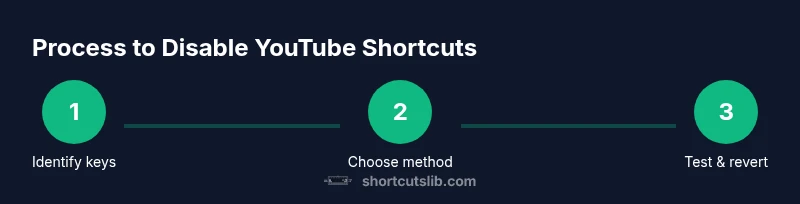
Define target keys to disable
Decide which YouTube shortcuts you want to block (e.g., Space, Arrow keys, J/K/L). This keeps changes focused and minimizes unintended side effects on other sites.
Tip: Start with one or two keys to validate behavior before broadening. - 2
Choose your approach
Pick browser extension per-site override or OS-level remapping. Extensions are safer and easier to revert; OS remaps affect all apps.
Tip: If unsure, begin with a per-site extension before system-wide changes. - 3
Install and configure the extension
Add the extension to your browser and enable per-site settings for youtube.com. Disable the chosen keys only on youtube.com.
Tip: Review extension permissions and disable on other sites if necessary. - 4
Test in all common scenarios
Test on different videos, playlists, and embedded players. Confirm that only the intended keys are affected and that the rest of YouTube works as expected.
Tip: Test in incognito mode to rule out conflicting extensions. - 5
Document and back up configurations
Record which keys were disabled and how they were implemented. Save a backup of settings so you can revert quickly.
Tip: Keep a recovery plan in case YouTube changes how shortcuts are handled. - 6
Consider a rollback plan
Know how to disable or remove the extension or revert OS remaps with a single action.
Tip: Create a quick toggle or profile switch for reviewers or collaborators.
Questions & Answers
Is there an official way to disable YouTube shortcuts?
No, YouTube does not provide an official toggle to disable shortcuts. You’ll need browser extensions or remapping methods to achieve selective control.
There isn’t an official on/off switch for YouTube shortcuts; you’ll use extensions or remapping to control them.
Will disabling shortcuts affect other sites?
Per-site extensions affect only youtube.com, while OS remapping can impact all sites and apps. Choose the method that matches your scope.
Per-site overrides impact only YouTube; system-wide remaps affect everything.
Can I revert changes easily?
Yes. Disable or remove the extension and restore default browser behavior, or disable the remapping profile and return to normal shortcuts.
You can simply disable the extension or turn off the remap profile to revert.
Are there shortcuts that cannot be disabled?
Most common keys are blockable, but some browser-specific or YouTube-embedded keys may continue to trigger actions. Plan for edge cases.
Most keys can be blocked, but a few may still act due to browser or embed limitations.
Does this affect accessibility?
Remapping and blocking shortcuts can affect keyboard navigation for some users. Balance control with accessibility needs and test with assistive tech.
Modifying shortcuts can impact accessibility; ensure you don’t hinder keyboard navigation for users who rely on shortcuts.
Watch Video
Main Points
- Block targeted keys with browser extensions.
- YouTube lacks a built-in per-site toggle as of 2026.
- OS remapping is powerful but risky—prefer per-site overrides first.
- Test across devices and videos to ensure consistency.
- Maintain a clear rollback plan for safety.