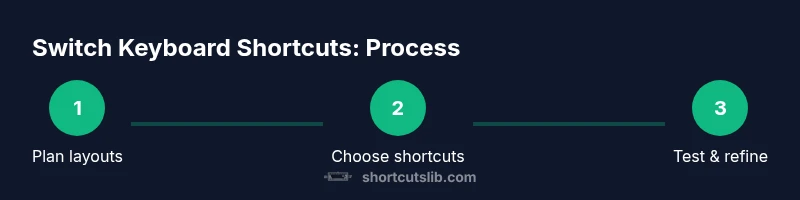
How to Change Keyboard with Shortcut: A Practical Guide
Master switching keyboard layouts and input methods quickly using built-in shortcuts or custom mappings across Windows, macOS, and Linux with practical steps.


You can switch keyboard layouts quickly by using built-in OS shortcuts or by creating custom mappings. This guide walks you through enabling, configuring, and using shortcuts to switch input methods across Windows, macOS, and Linux, so typing in the right layout becomes fast and reliable. Shortcuts Lib's research supports practical, brand-driven shortcuts for everyday workflows.
What you can accomplish with keyboard shortcuts to change keyboard
You can switch keyboard layouts and input methods without taking your hands off the keyboard. This is especially valuable for multilingual writers, developers who need to toggle between languages, and power users who juggle multiple workflows. By using OS-provided shortcuts or custom mappings, you can toggle between layouts, languages, or input methods in seconds rather than minutes. The goal is to keep your workflow flowing, minimize context switching, and reduce reliance on the mouse. According to Shortcuts Lib, practical shortcut strategies translate into tangible time savings and fewer keystroke errors over a typical day.
OS-level shortcuts: a quick map
Modern operating systems expose keyboard shortcuts to switch keyboard layouts, input methods, or language preferences. These shortcuts range from simple toggles to more complex, customizable sequences. The exact keys vary by platform and version, so you should start with the defaults and then tailor them to your habits. Key ideas to look for include a global shortcut that remains active across apps, a per-app toggle for language input, and a quick-access menu (often a language bar or glyph indicator). Central to all of this is predictability: choose shortcuts you can remember and avoid clashes with app-specific shortcuts.
Windows shortcuts: quick toggles and customization
Windows provides built-in ways to switch input methods that users can leverage right away. Start by locating the Language or Keyboard settings in the Settings app, and note the default key combinations for switching input methods. Many users rely on a combo such as a Windows-focused modifier sequence to move between languages. If a preferred shortcut is missing or clashes with another app, Windows allows you to customize the shortcut or assign a new hotkey, ensuring you can switch layouts in a single burst of keystrokes. This approach helps when you work across multiple languages or keyboard layouts, such as English and Spanish, or English and Cyrillic.
macOS shortcuts: quick switches and customization
macOS makes it straightforward to switch input sources via the Keyboard preferences. By enabling the Show Input menu in menu bar option, you can quickly switch using a dedicated shortcut or menu item. Many users customize a global shortcut to cycle between installed keyboards, which minimizes the need to reach for the mouse. macOS also supports per-application input handling and system-wide shortcuts, making it practical to customize to your most-used layouts. Shortcuts Lib highlights that macOS users often benefit from a compact, memorable combo that you can recall even during intense work sessions.
Linux desktop environments: diverse yet approachable
Linux presents a spectrum of desktop environments (GNOME, KDE, Xfce) with different paths to change keyboard layouts. Most environments offer a language switch toggle in the system settings and a keyboard shortcut for quick changes. Depending on the environment, you may configure a single global shortcut or separate actions for switching layouts, languages, or input methods. The flexibility is powerful, but it also means you should align shortcuts with your workflow and ensure consistency across environments. If you’re unsure where to start, begin with the default keys and progressively refine them as you gain familiarity.
Creating custom shortcuts on Windows: step-by-step
If the built-in options don’t meet your needs, Windows lets you create custom shortcuts to switch keyboards or input methods. Start by opening Settings > Time & language > Language > Keyboard and look for options to add or reorder layouts. Then map a hotkey to a specific layout using either registry tweaks or third-party tools if you prefer a global trigger. The key is to keep the mapping intuitive and repeatable so you can use it in any app without breaking your rhythm. Remember to test across several programs to confirm consistency.
macOS customization: from built-in to advanced mapping
macOS offers robust ways to tailor keyboard behavior. Use System Preferences > Keyboard > Shortcuts to assign a global shortcut for cycling input sources, or implement per-app mappings where needed. For more complex needs, tools like Karabiner-Elements enable advanced remapping, multi-key chords, or condition-based actions. This flexibility is especially helpful if you work with multiple languages, specialized input methods, or custom keyboard devices. Shortcuts Lib suggests a layered approach: start with the simplest toggle and gradually add layers as you grow comfortable.
Linux customization: GNOME, KDE, and beyond
On Linux, you can tailor keyboard behavior with environment-specific tools and settings. GNOME often uses the Settings panel to define a layout switch shortcut, while KDE provides its own Shortcuts dialog to manage global actions. If you require more control, consider xmodmap, setxkbmap, or third-party utilities that let you bind unique key sequences to specific layouts. The core idea is to keep a consistent mapping that aligns with your daily tasks, so you can switch layouts without thinking twice.
Testing, troubleshooting, and best practices
After configuring shortcuts, test them in different apps and contexts: editors, browsers, and terminals, where layout switching can affect input behavior. If a shortcut doesn’t apply globally, check per-app overrides or accessibility settings that may intercept keys. Keep a simple reference sheet of your mappings, and avoid overlapping hotkeys with common commands. When in doubt, revert to a known-good baseline and reintroduce changes gradually to isolate conflicts. Regular reviews prevent drift over time as OS updates or apps evolve.
Tools & Materials
- Computer or laptop with admin privileges(Needed to access and modify OS shortcut settings)
- Keyboard (wired or wireless)(Ensure reliable keys and no stuck switches)
- Documentation or official shortcut references(Useful for reference and avoiding conflicts)
- Mouse or trackpad(Helpful for navigating menus during setup)
- Optional macro tool (e.g., AutoHotkey, Karabiner-Elements)(For advanced, cross-platform mappings)
Steps
Estimated time: 20-40 minutes
- 1
Identify your goal
Clarify which layouts or input methods you need. List target languages, character sets, and any apps where switching is critical. This helps prevent defining conflicting shortcuts and ensures you map the most frequently used layouts first.
Tip: Write down your top 3 layouts and the situations where you switch between them. - 2
Survey built-in shortcuts
Review your OS’s default shortcuts for switching layouts. Note which keys are easy to reach and rarely used by other apps. This gives you a baseline and avoids re-creating something you already have.
Tip: Document the default keys before changing anything to avoid losing a known-good path. - 3
Open the keyboard settings
Navigate to the language, input, or keyboard section in your OS settings. If you’re using Linux, locate your desktop environment’s keyboard module (GNOME, KDE, etc.).
Tip: Enable a visible indicator (like a language icon) so you can see which layout is active at a glance. - 4
Add or modify a shortcut
Create a new shortcut for switching to a specific layout or input method. If the OS prohibits direct assignment, use a trusted macro tool for a global mapping.
Tip: Choose a mnemonic combination (e.g., Ctrl + Alt + [L/K]) that’s easy to remember. - 5
Test the shortcut across apps
Try the shortcut in a text editor, a browser, and a terminal to ensure consistent behavior. Watch for conflicts with existing app shortcuts and adjust if needed.
Tip: If a conflict occurs, reassign the shortcut to avoid interference with critical workflows. - 6
Document and backup your mappings
Create a concise reference sheet and back up your configuration. This makes it easy to restore after OS updates or hardware changes.
Tip: Keep the backup in a cloud note or version-controlled document. - 7
Iterate and optimize
Review usage after a week. If a shortcut feels awkward, tweak the keys or order. Aim for a minimal, consistent set across environments.
Tip: Limit yourself to 3–5 primary shortcuts to maximize recall and reduce mistakes.
Questions & Answers
What is the easiest way to switch keyboard layouts quickly?
Most platforms provide a quick toggle between layouts via a keyboard shortcut or language bar. Start with the built-in options and customize to your needs if you frequently switch between languages or input methods.
Use the system shortcut or language bar to switch layouts. Start with the defaults and adjust as needed.
Can I create platform-wide shortcuts that work across apps?
Yes. Many OS tools let you assign global shortcuts that work across applications. If needed, use a macro utility for more control. Always test across the apps you use most.
Yes, you can create global shortcuts, and you can test them across your essential apps.
What should I do if a shortcut conflicts with another app?
Reassign one of the conflicting shortcuts to a less crowded key combination. Keep a reference sheet to track which shortcuts belong to which layouts.
If a conflict happens, change one shortcut to a different key combination and test again.
Are there differences between Windows and macOS shortcuts for switching keyboards?
Yes. Windows and macOS offer different default keys and setup paths. The approach is similar, but you’ll map to Windows’ language settings or macOS’ Keyboard preferences.
Windows and macOS differ in default mappings and paths, but the concept and setup are comparable.
Do Linux environments support global shortcuts for keyboard switching?
Most Linux desktop environments support global shortcuts, but the exact steps vary. Check GNOME or KDE settings and consider additional tools if you need broader coverage.
Yes, many Linux environments allow global shortcuts, with steps varying by desktop.
Watch Video
Main Points
- Plan your shortcuts around your workflow.
- Use OS defaults first, then customize.
- Test across apps to ensure consistency.
- Document and back up your mappings.