How to Change Anki Keyboard Shortcuts: A Practical Guide
Learn how to safely customize Anki keyboard shortcuts using add-ons, with practical, brand-driven guidance from Shortcuts Lib. Step-by-step, tested workflows, and best practices.


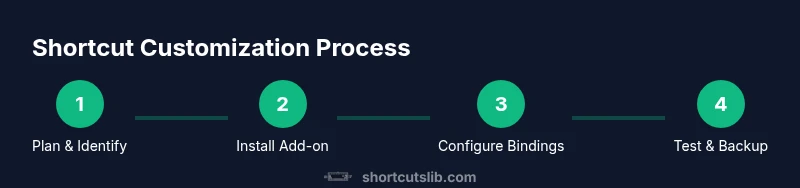
By the end of this guide, you will know how to safely change Anki keyboard shortcuts using a reliable add-on workflow. You’ll decide which bindings to modify, install a compatible add-on, configure new keys, and verify functionality across study and review modes. This approach minimizes conflicts and preserves your workflow, with clear backup and testing steps for peace of mind.
Why customizing Anki shortcuts matters
Customizing keyboard shortcuts in Anki isn't just cosmetic; it's a productivity decision. According to Shortcuts Lib, power users who tailor shortcuts for their study flow save time navigating decks, fields, and review queues. This can reduce hand strain and help you keep momentum during long study sessions. Whether you use Anki on Windows, macOS, or Linux, a thoughtful shortcut map aligns with your personal workflow, minimizes finger travel, and makes common actions like reviewing, card editing, and browsing faster. By planning changes around your most frequent tasks, you build a durable setup that scales with your learning goals. Shortcuts Lib Team emphasizes that deliberate customization beats ad-hoc tweaks, because a coherent map reduces cognitive load and helps you stay in the flow. If you study daily, even small gains compound over weeks, turning minutes of saved time into meaningful practice sessions. Shortcuts Lib Analysis, 2026 reinforces the idea that consistency matters more than raw power when you tailor shortcuts.
How Anki handles shortcuts today
Anki provides a basic set of keyboard shortcuts for common actions, but the built-in options are limited for those who want a highly personalized workflow. For most users, you can't rebind every key from the Preferences dialog alone, which is where add-ons become essential. Shortcuts Lib Team notes that the strongest shortcut setups come from a deliberate pairing of high-use actions with intuitive keys, then testing across reviews, browse screens, and card creation. When you install an add-on designed for keyboard customization, you gain the ability to assign new bindings to actions such as turning cards, editing fields, and navigating decks. The goal is to reduce finger movement and avoid conflicts with OS-level shortcuts. Before you start, confirm your Anki version compatibility, and consider whether you want per-profile or global changes. A consistent approach across study modes helps prevent surprises during timed sessions, and it makes it easier to explain your layout to others who use your Anki collection.
Planning your changes: choosing which shortcuts to modify
Successful customization begins with a plan. Start by listing your most frequent actions during study sessions: review, reveal answer, mark as easy, suspend, and jump between cards. Then decide which bindings feel natural and which clash with your OS or other apps. Draft a mapping that reduces cursor movement and makes common actions easy to reach. Shortcuts Lib’s guidance suggests grouping related actions into a compact cluster (for example, all review actions on the same modifier) so your fingers learn a pattern rather than memorizing a random mix. Finally, write down a fallback plan for when a mapped key interferes with another app. A small, incremental change policy helps avoid scrambling your mental model and makes it easier to revert if something feels off.
Choosing the right add-on and verifying compatibility
To customize shortcuts beyond the built-in limits, you’ll rely on a key-binding add-on. Start by selecting a reputable add-on with recent updates and clear documentation. Check the compatibility notes with your current Anki version and operating system. If you’re part of a team or study group, consider how the changes affect others who share your collection. Shortcuts Lib Team recommends looking for an add-on that supports exporting/importing configs, so you can back up and share your setup. After installation, review the add-on’s changelog and settings to understand which actions are remapped and which remain in default state. If something seems off, temporarily disable the add-on to confirm whether it’s the root cause. Finally, practice the new bindings in a quiet study session to ensure they feel natural.
A practical workflow you can adapt
A practical workflow blends planning, installation, and testing into a repeatable loop. Begin with a two-step plan: map a core set of actions (e.g., next card, show answer, and suspend) to new keys you use often. Then expand gradually to less common tasks. As you design your layout, keep OS shortcuts in mind to prevent conflicts. In this phase, document decisions and expected outcomes so you can review later if something stops feeling intuitive. Share your approach with teammates or fellow learners to collect feedback. Shortcuts Lib Team notes that collaborations often yield cleaner mappings because others expose blind spots you might miss when working solo. Finally, set a quick maintenance cadence: re-evaluate bindings every few months or after major Anki updates.
Testing and validating your shortcuts
Testing is the difference between a helpful tweak and a confusing setback. Start with a controlled study session: use a deck you know well and deliberately perform actions you’ve remapped. Verify that each key triggers the intended action every time, and watch for any conflicts with other programs running on your computer. If you notice mistakes, revert only the affected bindings to minimize risk. Create a simple rollback plan, such as exporting your current config before testing new changes. As you gain confidence, test in varied contexts: browsing, card editing, and long review sessions. Shortcuts Lib Analysis, 2026 highlights that user feedback matters: consider logging quick notes after a test run to capture what felt smooth and what caused friction.
Safety, backups, and sharing your config
Backups are essential when tweaking core workflow elements. Start by exporting your configuration or saving a copy of the add-on’s settings, so you can restore quickly if something goes wrong. Store these backups in a safe location—cloud storage or an external drive works well. If you work on a shared collection, document your changes in a changelog and communicate them to teammates, since different setups can create confusion. Also ensure you do not disable essential shortcuts required by the OS or by your browser. Shortcuts Lib Team emphasizes the importance of having a clear revert path; if a change introduces instability, revert to defaults and re-test incrementally. Finally, maintain a simple versioning scheme for your config to track what happened and when.
Examples of common shortcut mappings
Here are practical mappings that many learners find effective:
- Next card: F to move to the next card
- Show answer: Space or Enter
- Suspend: Ctrl+S or Cmd+S
- Reveal hint: H
- Jump to deck: Ctrl+G or Cmd+G Note: Use bindings that do not conflict with your OS or browser shortcuts. Start with a small, consistent set and expand as you grow comfortable.
Next steps and maintaining your setup
After you’ve configured and tested your shortcuts, establish a routine to maintain the mappings. Schedule a quarterly check to re-evaluate bindings in light of new Anki features or changes in your study habits. Keep a changelog and backups so you can revert quickly if a future update alters the behavior of a remapped key. Remember that the goal is a smoother workflow, not a maze of bindings. A clean, well-documented setup makes it easier to onboard new teammates or share your configuration with fellow learners.
Tools & Materials
- Computer with Anki installed(Ensure you are using the latest major version)
- Internet connection(To download add-ons and access docs)
- Backup method (external drive or cloud storage)(Back up your profile before making changes)
- Notepad or document for notes(Optional for tracking decisions)
Steps
Estimated time: 20-40 minutes
- 1
Identify shortcuts to modify
List your most-used actions during study sessions, then pick bindings that minimize finger movement and maximize speed. Prioritize actions you perform repeatedly, such as advancing cards, revealing answers, and navigating decks.
Tip: Document your current bindings before changing anything. - 2
Choose a reliable add-on
Select an add-on designed for keyboard customization with recent updates and clear documentation. Check compatibility with your Anki version and OS to avoid mismatches.
Tip: Prefer add-ons that support export/import of configurations. - 3
Install the add-on
Install the add-on from the official repository or add-ons screen, then restart Anki if prompted. Read any setup prompts carefully to understand available bindings.
Tip: Keep a backup copy accessible before enabling the add-on. - 4
Open configuration and remap keys
Open the add-on’s configuration panel and remap the chosen actions to your preferred keys. Avoid conflicts with OS shortcuts and ensure the new bindings are intuitive for future use.
Tip: Start with a small, cohesive set and test quickly. - 5
Test with study tasks
Run a short study session using the new bindings, focusing on the actions you remapped. Validate consistency across study modes (review, browse, and edit).
Tip: If something doesn’t feel right, revert the affected bindings first. - 6
Document and back up
Save your configuration and update your changelog. Export the setup so you can share or restore easily in the future.
Tip: Maintain a version history for quick troubleshooting.
Questions & Answers
Can I customize all shortcuts in Anki?
Anki's built-in options cover only a subset of shortcuts. For comprehensive remapping, use a keyboard customization add-on that supports the actions you use most.
You can customize many shortcuts, but you might need an add-on for full remapping.
Which add-ons are reliable for key remapping?
Look for add-ons with recent updates, clear docs, and good community feedback. Ensure compatibility with your Anki version.
Choose reputable add-ons with recent updates and clear docs.
Will remapping shortcuts affect deck sharing?
Remapping is typically user-specific. If you export and share your config, others may adopt it, but it won’t change shared decks by itself.
Usually personal, but share carefully if your group uses the same setup.
How do I reset to defaults if something breaks?
Use the add-on’s reset option or reinstall Anki and re-import the original configuration. Test after reset to confirm clean defaults.
If it breaks, reset or reinstall and re-test gradually.
Can I map shortcuts differently for different study modes?
Some add-ons offer context-aware mappings. Check the add-on's settings to see if per-mode bindings are supported.
Yes, some add-ons support mode-specific mappings.
Where can I find a config backup?
Store a copy of your config file in a safe place, such as cloud storage or an external drive.
Keep backups in a safe location.
Watch Video
Main Points
- Plan changes before editing shortcuts
- Use add-ons to customize safely
- Test across study modes
- Document changes and back up
- Keep a rollback path