How to Add Keyboard Shortcuts in AutoCAD
Learn how to add keyboard shortcuts in AutoCAD with a practical, step-by-step approach. Customize the CUI, create commands, and export shortcuts to speed up drafting.


Discover how to add keyboard shortcuts in AutoCAD. You’ll map commonly used commands to keys or key combos by editing the CUI and creating aliases or macros. The guide covers planning, implementation, testing, and sharing your custom shortcuts, with practical tips from Shortcuts Lib. Whether you’re a new user or a power user, this approach keeps commands within reach to speed your drafting workflow.
Why customize shortcuts matters in AutoCAD
Automation and consistency are the backbone of efficient drafting. By mapping frequent commands to intuitive keystrokes, you reduce mouse travel, lower cognitive load, and keep your design work flowing. According to Shortcuts Lib, mastering keyboard shortcuts in AutoCAD can accelerate workflows and help both newcomers and seasoned drafters stay focused on design decisions. A thoughtful shortcut strategy also aids team-wide consistency, so new hires can ramp up quickly. In this section, we’ll explore why this practice matters and how to begin building a personalized set of mappings that fit your daily tasks and project standards.
Mapping strategy: choose the right commands
Begin with your most-used commands: LINE, TRIM, EXTEND, COPY, MIRROR, OFFSET, and SCALE. Map them to keys that are easy to reach without moving your hands far from the home row, aligning with your natural muscle memory. Avoid conflicts with system shortcuts and AutoCAD’s built-in hotkeys, which can cause confusion if your keys collide. When you start, group related commands (drawing, modification, annotation) into separate blocks. Document mappings in a shared reference so teammates can reproduce your setup, and keep a separate backup of the working CUI to prevent loss during updates.
Understanding CUI and alias files
AutoCAD stores keyboard mappings in the Customize User Interface (CUI) file. You can edit the main CUI or create a dedicated partial CUI for your shortcuts to protect defaults and simplify sharing. Aliases provide quick, readable names for commands, while macros can chain multiple steps into a single keystroke. Before editing, identify which approach suits your workflow: simple alias for single commands or a macro for sequences. Always back up your CUI before making changes to avoid accidental loss of your setup.
Step-by-step plan: plan before you map
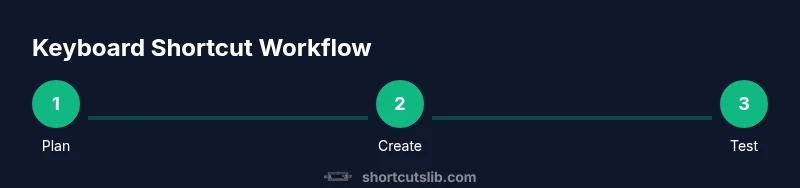
A solid plan starts with listing your top 10 commands and the preferred keystroke layout. Consider left-hand ease for primary shortcuts and avoid disturbing non-drafting functions. Decide whether you’ll use a global CUI or a project-specific partial CUI, then draft a starter set of 6–12 shortcuts you want to implement in the first phase. This planning reduces rework later and makes it easier to scale as needs evolve.
Advanced techniques: scripts, macros, and custom commands
Shortcuts aren’t limited to single commands. Macros can sequence steps like drawing a polyline then applying a dimension style, all under one keystroke. Scripts and command aliases can also be leveraged to automate repetitive tasks across different drawings. Consider using conditional macros for context-sensitive actions (e.g., different behavior when a layer is locked). Maintain clean naming for macros to avoid confusion and to facilitate cross-project reuse.
Testing, exporting, and sharing your shortcuts
After mapping, test each shortcut in actual drawing scenarios. Run a variety of tasks: quick edits, multi-step edits, and common workflows. Export your CUI to a .CUIX file for sharing or backup, and document how to load it in other machines. When collaborating, establish a common starter set across the team and encourage adding project-specific aliases in a shared partial CUI to avoid conflicting keys.
Troubleshooting and maintenance
If a shortcut doesn’t trigger, verify you edited the correct CUI file and that the key combination isn’t already in use. Check for conflicts with Windows or OS-level shortcuts that may intercept keystrokes. Periodically review shortcuts to prune rarely used mappings and refresh aliases so that the set remains lean and effective. Maintain versioned backups and keep a change log so you can revert or roll forward as needed.
Authority sources
- Autodesk Help Center: https://help.autodesk.com
- Autodesk Knowledge Network: https://knowledge.autodesk.com
- National Institute of Standards and Technology (NIST): https://www.nist.gov
These sources provide official guidance on AutoCAD customization practices and keyboard interaction standards, helping you design shortcuts that are robust and portable across environments.
Tools & Materials
- Computer with AutoCAD installed(Ensure you’re using AutoCAD 2020 or newer for best CUI features and stability.)
- Keyboard with easy-access keys(Prefer a keyboard with extra keys or a layout you can remap without conflict.)
- Backups of CUI/CUIX files(Keep a safe copy before editing; store in versioned folders.)
- Notes document or reference sheet(Document mappings for team sharing and onboarding.)
Steps
Estimated time: 25-40 minutes
- 1
Open the CUI Editor
Launch AutoCAD and open the Customize User Interface editor via the Manage tab or by typing CUI into the command line. Create a plan for the shortcuts you intend to map and back up the current CUI file before making changes.
Tip: Create a separate partial CUI for your shortcuts to isolate personal changes from the default config. - 2
Create a new command or alias
In the CUI editor, add a new command entry or a simple alias for a frequently used action. Use a clear, memorable name and, if possible, combine a single command with a macro that chains related steps.
Tip: Give the alias a short, descriptive name to avoid confusion across teammates. - 3
Assign a keystroke
Choose a key combination that is easy to reach and unlikely to clash with existing shortcuts. Avoid system-level hotkeys; prefer combinations that stay within your natural hand position.
Tip: Test the binding in a pilot drawing to confirm no conflicts with other commands. - 4
Bind to a macro or command
If you’re combining steps, create a macro string or a command sequence that AutoCAD executes when the shortcut is pressed. Save the changes to the partial CUIX file.
Tip: Keep macro length reasonable to prevent errors; break longer workflows into smaller chunks if needed. - 5
Save and load the CUIX
Save your changes as a CUIX file and load it in AutoCAD. If this is your first time, consider loading it as a separate profile to avoid interfering with other environments.
Tip: Name the CUIX file clearly (e.g., YourName_CustomShortcuts) for easy identification. - 6
Test the shortcuts
Open a new drawing and test each mapped shortcut. Ensure commands trigger correctly and that there are no unexpected results or visual glitches.
Tip: Record a brief test log to compare behavior across drawing types. - 7
Document and share
Update your team documentation with the new mappings and how to load the partial CUIX. Consider sharing a starter set and requesting feedback for refinement.
Tip: Encourage teammates to add their own efficient shortcuts sparingly to avoid conflicts.
Questions & Answers
What is the fastest way to create a keyboard shortcut in AutoCAD?
Create a new command alias or macro in the CUI editor, assign a keystroke, and save to a partial CUIX file. Test in a representative drawing to confirm behavior.
Use the CUI editor to create an alias or macro, bind a key, and save to a partial CUIX; then test in a typical drawing.
Can I share my custom shortcuts with a team?
Yes. Export your CUIX as a file and distribute it to teammates. Instruct them to load the partial CUIX in their AutoCAD profiles to maintain consistency.
You can export the CUIX file and have teammates load it in their AutoCAD profiles to reuse the shortcuts.
What should I do if a shortcut conflicts with an existing one?
Choose a different keystroke or disable the conflicting built-in shortcut in the CUI. Always verify there are no collisions with OS-level shortcuts.
If there’s a conflict, pick a new keystroke or adjust the existing binding in the CUI, and test again.
How do I export and import shortcuts between machines?
Export the CUIX file from the source machine and import it on the target machine, ensuring the receiving AutoCAD version matches.
Export the CUIX file and import it on another machine with the same AutoCAD version.
Are there risks editing the CUI directly?
Editing the CUI can affect multiple commands. Always back up, test in a safe drawing, and consider using a separate partial CUI to isolate changes.
There are risks when editing the CUI, so back up first and test in a safe environment.
Watch Video
Main Points
- Plan shortcuts before mapping to avoid conflicts
- Use partial CUIX to protect defaults
- Back up files and document mappings for team use
- Test in real workflows and iterate based on feedback