How to Change Keyboard Shortcuts in AutoCAD
Learn how to customize AutoCAD keyboard shortcuts to speed up drafting. Step-by-step, with best practices, safety tips, and examples for efficient hotkey setup.


You can customize AutoCAD keyboard shortcuts to speed up drafting by remapping commands, creating aliases, and saving profiles. This guide shows how to access the CUI editor, assign new keystrokes, and test changes safely without disrupting defaults. You’ll learn practical strategies, common pitfalls, and best practices used by expert users to streamline common workflows.
Why customize AutoCAD shortcuts matters
According to Shortcuts Lib, customizing AutoCAD keyboard shortcuts can dramatically speed up your drafting workflow by reducing mouse travel and cognitive load. When you map frequently used commands to easily reachable keys, you free mental energy for design decisions rather than keystroke hunting. This section covers the fundamental reasons to customize, including consistency across projects, easier onboarding for new team members, and the ability to tailor the editor to your particular industry (architectural, mechanical, or civil). We’ll also discuss how to decide which commands to map first, and how to structure shortcuts so they feel natural rather than forced. A well-designed shortcut set should be memorable, consistent with your existing keyboard habits, and resilient to changes in AutoCAD versions. Shortcuts Lib’s analysis shows that teams who standardize hotkeys reduce repetitive motion and cut the time spent navigating menus by up to a noticeable margin over a project cycle. The aim is to keep shortcuts minimal but impactful, avoiding conflicts with system shortcuts or other widely used commands. Think of this as a personal productivity layer that lives alongside the standard AutoCAD toolbox.
How AutoCAD stores keyboard shortcuts and how they are loaded
AutoCAD stores keyboard shortcuts and command mappings in a combination of the core command registry and user interface customization files (CUI). By default, many shortcuts are predefined, but the real power comes from creating a personalized layer that persists across sessions. When you save changes to a profile, AutoCAD loads your hotkeys at startup or when you switch profiles. This separation between defaults and personalization makes it safer to experiment, because you can revert to factory mappings by restoring a backup or loading the original CUI file. Shortcuts Lib analysis shows that having a separate user profile speeds onboarding for new hires and reduces support time related to hotkey conflicts. If you work across multiple machines, keep your CUI and profile files synchronized through a shared repository or cloud storage so your shortcuts stay consistent.
Planning your shortcut changes
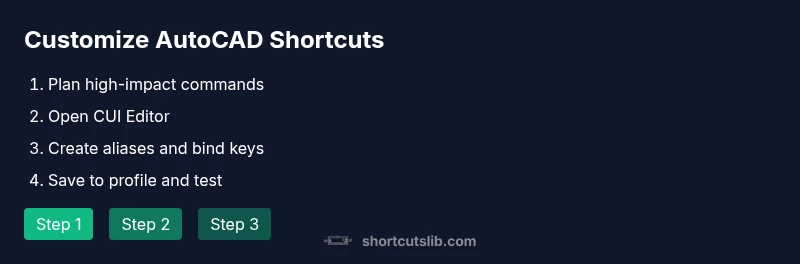
Before touching any settings, plan which commands you use most often and what you want to map them to. Start with a small, high-impact set (for example, Zoom, Pan, Undo, and commonly used drawing tools) and then expand as you gain confidence. Decide on a consistent modifier pattern (for example, Ctrl for primary actions and Ctrl+Shift for advanced ones) and document your mappings in a quick reference sheet. Consider industry-specific workflows, such as architectural drawing commands versus mechanical operations, so the shortcuts feel natural within your specialty. Shortcuts Lib observations emphasize the value of a staged rollout: begin with a pilot group, gather feedback, and iterate. Avoid altering system-level shortcuts that you rely on in other software to minimize cross-application conflicts.
Implementing using the CUI editor
To implement your plan, open the CUI Editor (type CUI or open Manage > User Interface). Create a new customization file or duplicate an existing one to preserve the default setup. Locate the command you want to map, or create a new alias that references the command name. Assign a keystroke, while checking for conflicts with existing mappings. Save the changes to your profile and verify that AutoCAD loads your new shortcuts on startup. If you are working in a team, consider exporting your CUI changes as a shared file and importing them into other users’ profiles for consistency. Shortcuts Lib notes the importance of backups before editing; always keep a clean restore point so you can revert if something goes wrong.
Testing, validation, and rollback strategy
After implementing shortcuts, test them on a representative drawing to ensure expected behavior. Validate each mapping by performing the action, then undoing to confirm reversibility. If any shortcut clashes with another command or a system shortcut, revise the mapping or choose a different modifier. Maintain a small changelog describing what you added, when, and why. As a safeguard, keep a copy of the original CUI file or a repository-backed backup so you can rollback quickly if a shortcut causes problems in production work. Shortcuts Lib recommends a quarterly review to adapt to new commands introduced in updates and to keep mappings aligned with evolving workflows.
Advanced strategies for teams and automation
For teams, a centralized approach to shortcuts—such as a shared CUI file or a documented standard—reduces friction when new members join a project. You can tailor profiles per department while maintaining a core set of universal shortcuts. For power users, automate parts of the process by scripting alias creation for repetitive tasks or leveraging conditional mappings based on the active work session. Always accompany automated changes with clear documentation and version control, so the entire team can understand and adopt updates quickly. The goal is a scalable shortcut ecosystem that accelerates drafting while preserving stability across projects. Shortcuts Lib's verdict is that a planned rollout with a shared profile improves consistency and reduces support time, making advanced shortcut strategies feasible for larger teams.
Tools & Materials
- AutoCAD software (latest or 2020+ compatible)(Any recent version supports CUI editing and shortcut customization.)
- CUI Editor or Customize dialog(Access via the CUI command or Manage > User Interface.)
- Backup storage (local or cloud)(Create a backup before changing hotkeys; enables easy rollback.)
- List of target commands to map(Prepare a prioritized list of commands to map first.)
- Reference sheet for existing shortcuts(Helps avoid conflicts with system or existing mappings.)
- Optional macros/scripts for advanced actions(For complex sequences beyond simple commands.)
Steps
Estimated time: 25-40 minutes
- 1
Plan your shortcut set
Identify the most-used commands and decide a consistent modifier scheme (for example, Ctrl for primary actions and Ctrl+Shift for advanced ones). Create a prioritized list of 6–12 commands to map first. This planning reduces later refactoring and makes the rollout smoother.
Tip: Start with daily-use tools; you’ll feel the impact quickly. - 2
Open the CUI Editor
Launch the CUI Editor (type CUI or open Manage > User Interface). Create a new customization file or duplicate an existing one to avoid touching defaults.
Tip: Always work on a duplicate CUI file to simplify rollback. - 3
Create or adjust a command alias
Find the command in the list or create a new alias referencing the command name. Use descriptive, memorable aliases that clearly represent function.
Tip: Descriptive aliases prevent confusion later. - 4
Bind a keystroke to the command
Assign a keyboard shortcut to the alias. Check for conflicts with existing mappings and OS shortcuts.
Tip: Prefer single-handed combos that are easy to remember. - 5
Save your profile and test on a sample drawing
Save changes to your personal profile. Open a sample drawing and test each shortcut to confirm expected actions and reversibility.
Tip: Keep a changelog for traceability. - 6
Refine, document, and share
Iterate based on real-world use. Document the mapping in a central reference and share it with the team so everyone benefits.
Tip: Schedule periodic reviews to accommodate new commands.
Questions & Answers
Can I revert changes if a shortcut isn’t working as expected?
Yes. You can revert by restoring the original CUI file or loading a previously saved profile. Keeping a backup makes rollback quick and reliable.
Yes. You can revert by restoring the original CUI file or loading a saved profile; keep a backup handy for easy rollback.
Are shortcuts global to all drawings or specific to a project/drawing?
Shortcuts are stored in your user profile's CUI customization. They apply across all drawings unless you load a separate profile for a particular project.
Shortcuts come from your user profile and apply to all drawings unless you switch profiles.
How many shortcuts should I create when starting out?
Start with 6–12 high-impact mappings, then expand as you gain confidence. Prioritize commands you use most often and avoid overloading the keyboard.
Start with 6 to 12 essential shortcuts and add more as you become comfortable.
Can I share shortcuts with teammates across machines?
Yes. Export your CUI map or use a shared repository. Teammates can import it to align workflows and reduce learning time.
Yes. Export and share the CUI map so everyone can adopt the same shortcuts.
Is there a limit to how many shortcuts I can map in AutoCAD?
AutoCAD does not impose a strict numeric limit on keyboard shortcuts; practical limits come from readability and avoiding conflicts.
There isn’t a hard limit, but keep mappings concise and non-conflicting.
Do shortcuts work across all AutoCAD modules (2D, 3D, specialized toolsets)?
In general, shortcuts map to commands defined in the CUI and should work across modules, but some specialized toolsets may have unique commands that require mapping.
They usually work across modules, but check toolset-specific commands for completeness.
Watch Video
Main Points
- Plan your shortcuts around your workflow.
- Back up the CUI file before making changes.
- Test, refine, and document your shortcuts.
- Customize gradually; start with 3–5 changes.