How to Edit Keyboard Shortcuts in Photoshop: A Practical Guide
Learn how to customize and edit keyboard shortcuts in Photoshop. This practical guide covers the Shortcut Editor, best practices, Mac vs Windows nuances, and how to export and share your personalized shortcuts.


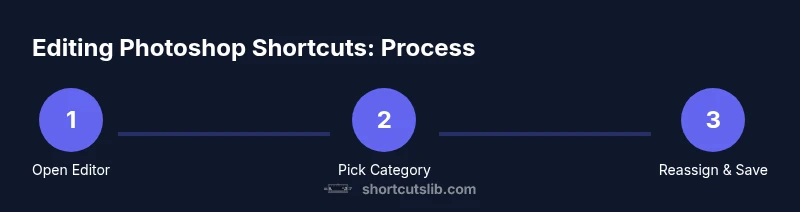
You can edit Photoshop keyboard shortcuts by opening the Edit Keyboard Shortcuts dialog, selecting a category, and reassigning commands. Make sure you’re using Photoshop CC or newer on Windows or macOS, and back up your presets first. According to Shortcuts Lib, customizing shortcuts speeds up your workflow and makes complex edits feel effortless.
Overview: why you should customize Photoshop shortcuts
If you often perform repetitive actions in Photoshop, you may wonder how can keyboard shortcuts be edited in photoshop to streamline your workflow. Custom shortcuts reduce keystrokes, speed up routine tasks, and minimize tool-switching fatigue. This section outlines the core reasons to tailor shortcuts: aligning commands with your natural gestures, prioritizing tools you use most, and creating a portable setup that travels with your projects. Shortcuts Lib analyses, 2026, emphasize that seasoned users rely on personalized mappings to sustain momentum across complex edits. By understanding the philosophy behind shortcut customization, you’ll be better prepared to design a set that fits your creative process. The goal is a clean, efficient mapping that remains consistent across projects.
Accessing the Keyboard Shortcuts editor
To edit shortcuts in Photoshop, launch the application and navigate to Edit > Keyboard Shortcuts (Mac: Photoshop > Keyboard Shortcuts). The editor organizes commands into menus and categories, allowing you to enable conflict prompts and see live previews of changes. Start by selecting the category that contains the action you want to modify, such as Tools, Layers, or Adjustments. This initial step is foundational: choosing the right category ensures you’ll locate the exact command quickly when you’re under time pressure. A well-organized editor also makes it easier to maintain consistency as you add new mappings over time.
Practical example: reassigning a frequently used shortcut
Imagine you want to speed up your workflow by reassigning a common action. In the Tools category, find a frequently used command—like switching to the Brush Tool—and assign a new key combination, such as Shift+B, if that combination isn’t already in use by another essential function. If Photoshop flags a conflict, you’ll decide whether to override the existing shortcut or choose a different key sequence. After assigning, test the shortcut in a canvas document to confirm it behaves as expected and doesn’t interfere with OS-level shortcuts. This concrete example demonstrates how editing shortcuts can reduce hand movements and stabilize your editing rhythm.
Saving, exporting, and syncing shortcuts
Once you’ve established a productive set of shortcuts, save your configuration within Photoshop to keep changes intact for the current workspace. Photoshop supports exporting your shortcut set to a file, which you can import on another device or share with teammates. To keep your customizations portable, consider organizing presets with clear naming conventions and including a brief description of each mapping’s purpose. Regularly exporting and archiving presets ensures you won’t lose a preferred workflow if you need to reset or reinstall Photoshop.
Mac vs Windows considerations
There are subtle differences between Mac and Windows environments when editing shortcuts. OS-level conflicts can block certain key sequences; for example, some modifier keys (Command vs Ctrl) behave differently across platforms. When you edit shortcuts, verify each mapping on both operating systems if you work cross-platform or collaborate with others. If a critical shortcut conflicts with an OS function, adjust either the Photoshop mapping or the OS-level shortcut to preserve optimal usability on your primary platform.
Best practices and common pitfalls
Effective shortcut design balances frequency, memorability, and non-conflict with existing commands. Favor single-key or simple modifier combinations for your most-used actions, and reserve multi-key sequences for less frequent tasks. Always back up before making major changes, and maintain a named set for quick reversion. A common pitfall is overloading a palette with too many custom mappings, which can slow you down when you forget the exact key sequence. Keep it human-friendly and task-oriented.
Advanced topics: actions and conditional shortcuts
Beyond simple key reassignments, advanced users leverage Photoshop actions and conditional shortcuts to automate multi-step workflows. For example, you can bind a sequence like “Select Subject” followed by a color-correction step to a single shortcut, then tie it to a macro or action. Be mindful of scope: ensure conditional shortcuts apply to the correct document type or tool context to avoid unexpected results during edits.
Tools & Materials
- Computer with Photoshop CC or newer(Mac or Windows; ensure you’re running a supported version)
- Keyboard and mouse(Comfortable layout and reliable keystrokes)
- External backup storage or cloud(Used to export and store shortcut presets)
- Notepad or label system(Helpful for documenting mapping choices)
Steps
Estimated time: 10-15 minutes
- 1
Open the Keyboard Shortcuts editor
Launch Photoshop and access Edit > Keyboard Shortcuts (Mac: Photoshop > Keyboard Shortcuts). This opens the centralized editor where all mappings live. Why: starting here ensures you’re editing the correct category and avoids applying changes to unrelated commands.
Tip: If you don’t see your target category, switch to a broader category and use the search within the dialog. - 2
Choose a category
Select the category that contains the command you want to customize, such as Tools, Panels, or Layers. This narrows the list to relevant actions and prevents accidental edits elsewhere.
Tip: Use the search field to quickly locate a specific command without scrolling. - 3
Reassign a command
Click the current shortcut, press the new key combination you want, and confirm any conflicts. If Photoshop warns about a conflict, decide whether to override or pick an alternate mapping.
Tip: Prefer intuitive combos (e.g., single-letter plus a modifier) for speed and recall. - 4
Test the shortcut in a real document
Try the new mapping on an active project to verify it performs the expected action without disrupting other tools. Testing helps catch context-specific conflicts early.
Tip: Record a quick note about what the shortcut does for future reference. - 5
Save and export your preset
Save the modified shortcut set to preserve changes. Use the export option to create a portable file you can reuse on other machines or share with teammates.
Tip: Name the preset clearly and include the Photoshop version for compatibility clarity. - 6
Back up and reset if needed
If things go awry, revert to a known-good preset or reset to default and reapply your carefully chosen mappings. Keeping a backup ensures you can recover quickly.
Tip: Periodic backups prevent data loss and simplify future migrations.
Questions & Answers
Can I export and import custom keyboard shortcut sets in Photoshop?
Yes. Photoshop allows you to export a keyboard shortcut set to a file and import it on another device or workstation. This makes it easy to maintain a consistent workflow across machines.
You can export and import your shortcut sets in Photoshop to keep your workflow consistent across devices.
Will customizing shortcuts affect existing projects?
No. Shortcuts affect only how commands are triggered in your workflow. Existing edits and saved files are not altered by changing shortcut mappings.
Custom shortcuts only affect future actions; it won't change your existing projects.
Are keyboard shortcuts the same on Mac and Windows?
There are platform-specific differences in modifier keys (Command vs Ctrl) and OS-level conflicts. Verify shortcuts on both platforms if you collaborate cross-platform.
Mac and Windows have key differences; check mappings on each platform if needed.
What if I forget the shortcut I assigned?
Open the Keyboard Shortcuts editor and use the search to locate the mapped command. You can view or reassign the shortcut from there.
You can locate and edit your mapped shortcut in the editor any time.
Can I reset shortcuts to Photoshop defaults?
Yes, you can reset to the default mapping and start fresh. It’s a quick way to recover if your customizations become unwieldy.
You can reset shortcuts to the defaults if needed.
How can I share shortcuts with teammates?
Export your shortcut set and share the file or provide guidance on how teammates can import it into their Photoshop setup.
Export and share the shortcut file so teammates can import it.
Watch Video
Main Points
- Back up presets before editing
- Test shortcuts in real projects
- Export presets for cross-device use
- Mac and Windows differences require checks
- Use clear, memorable naming for mappings