Deselect Keyboard Shortcuts in Photoshop: A Practical Guide
Learn how to deselect selections in Photoshop efficiently. This practical guide covers default shortcuts, customization, workflows, and troubleshooting for Mac and Windows to boost your editing speed.


Deselect in Photoshop using Ctrl+D on Windows or Cmd+D on macOS to clear an active selection. This quick guide explains how to use the default shortcut, customize it, and apply reliable workflows across common tasks. It also covers pitfalls and alternatives for when shortcuts are unavailable.
What Deselect Means in Photoshop
Deselect means clearing any active selection so that no pixels are highlighted. In Photoshop, most edits apply only to the selected area; when you deselect, edits affect the entire canvas until a new selection is created. The default keyboard shortcut to deselect is Ctrl+D on Windows and Cmd+D on macOS. According to Shortcuts Lib, mastering deselect shortcuts can shave seconds off editing sessions and help you stay focused on the task at hand. When a selection is active, you’ll see the marching ants outline around the selected region. Deselecting is a fundamental step that unlocks a smooth transition from selection to modification, masking, or adjustment without accidentally affecting unintended areas. In addition to keyboard commands, you can access Select > Deselect from the menu bar, which is especially useful when shortcuts are disabled or you’re teaching new users. Quick Mask mode behaves differently: exit Quick Mask with Q to return to normal editing, then use Deselect as needed.
Default Deselect Shortcuts Across Platforms
On Windows, press Ctrl+D to clear the active selection; on macOS, press Cmd+D. If you’re using a tablet or a non-traditional input device, make sure the OS isn’t intercepting these keystrokes, because macOS and Windows sometimes map them to other actions. Shortcuts Lib analysis shows that the Deselect shortcut remains a reliable, widely supported option across Photoshop versions; beginners should memorize it early for faster editing. If a third-party app remaps keys, disable or rebind the keys within Photoshop to ensure consistency. Note that Esc cancels the current operation but doesn’t always deselect, depending on the active tool. For reliability, pair the keyboard shortcut with the menu option during demonstrations and training sessions to reinforce muscle memory.
Deselect via Menu Commands and Tool States
To deselect via menus: Select > Deselect. This works regardless of OS and is robust when keyboard shortcuts are disabled in a work environment. It also applies to Quick Mask mode when you exit to normal selection state. If you have multiple selections across layers, deselect clears only the active selection; you still need to switch to other selections if present. You can customize a temporary alias by assigning a new keyboard shortcut to Deselect through Edit > Keyboard Shortcuts > Shortcuts For: Application > Photoshop > Edit > Deselect, which helps maintain consistency after updates. After setting a new binding, test it on a real project to confirm there are no conflicts with existing commands.
Customizing Shortcuts in Photoshop
Photoshop supports keyboard shortcut customization via Edit > Keyboard Shortcuts. You can create a dedicated Deselect shortcut, or rebind Deselect to a more convenient key combination that won’t clash with OS shortcuts. The workflow is: open Keyboard Shortcuts, choose Shortcuts For: Application, locate the Deselect command under Select, assign your preferred keys, and save as a new set. If you work on shared machines, export the custom set and import on other machines to keep consistency. For advanced optimization, pair Deselect with adjacent actions like Inverse or Feather to speed up routine edits. After saving, test the new binding across multiple image types to ensure reliable behavior across tools and selections.
Photoshop Shortcuts for Deselect in Different Workflows
Different editing contexts demand varying deselect behavior. In a typical selection workflow (Marquee, Lasso, or Quick Selection), Deselect clears the active pixels and returns you to the full canvas. In masking workflows, deselecting may be followed by refining edges or applying adjustments to the entire image after exiting the selection. For vector shapes, deselect after edits to proceed with compositing. If you’re working with multiple layers and selections, toggle between selections using Select > Deselect and reselect as needed. In 3D or color-grade workflows, ensure your deselect action doesn’t modify the wrong layer by locking layers or using separate documents for test edits.
Common Pitfalls and Troubleshooting
Frequent issues include keyboard shortcuts not applying due to OS-level overrides or third-party software capturing keys before Photoshop. Check System Preferences (macOS) or Settings (Windows) to ensure the Deselect keys aren’t hijacked; disable or rebind if necessary. Another pitfall is assuming Esc will always deselect; in some contexts Esc cancels the current tool instead. If custom shortcuts stop working after an update, reimport the saved preset or reset Photoshop’s preferences. Finally, remember that Deselect clears the active selection only; masks or channels require separate handling and may need toggling or painting in Quick Mask mode.
Practical Examples and Scenarios
Example 1: You’ve drawn a Quick Selection and want to feather edges without affecting the rest of the image. Press Ctrl+D (Windows) or Cmd+D (Mac) to deselect, then proceed with editing. Example 2: You’re refining a mask. Deselect to exit selection mode, then switch to brush to refine the edge. Example 3: You want to start a new selection; use Deselect to clear the current selection, then choose a new tool. Example 4: You’re evaluating alternative bindings. Create a test shortcut for Deselect and compare the speed across several edits. Example 5: On Mac, Cmd+D is your go-to, but you may customize it if you collaborate across platforms.
Best Practices and Efficiency Tips
- Use a single, consistent Deselect shortcut across all Photoshop projects to build muscle memory.
- Keep OS shortcuts in mind; if a global shortcut interferes, temporarily disable it or use a customized binding inside Photoshop.
- Pair Deselect with frequent follow-up actions (Inverse, Mask, or Refine Edge) to streamline workflows.
- Test new bindings on both simple and complex documents to ensure reliability.
- Document your bindings in a team wiki to reduce onboarding time for new editors.
Quick Reference Cheatsheet and Troubleshooting Checklist
- Default: Ctrl+D (Windows) or Cmd+D (Mac) for deselect.
- Alternative: Select > Deselect from the menu bar.
- Customize: Edit > Keyboard Shortcuts > Shortcuts For: Application > Photoshop > Edit > Deselect.
- Quick Mask: Exit with Q before using Deselect on a standard selection.
- Troubleshoot: Check OS-level shortcuts if Deselect stops working; reset preferences if necessary.
Tools & Materials
- Computer with Photoshop installed(Ensure you’re running a supported version (Creative Cloud or later).)
- Keyboard(Standard US keyboard layout; macOS users use Cmd for Deselect.)
- Mouse or drawing tablet(Helpful for precise selections and quick navigation.)
- Saved shortcut preset(Exported from Edit > Keyboard Shortcuts for quick setup on other machines.)
Steps
Estimated time: 15-25 minutes
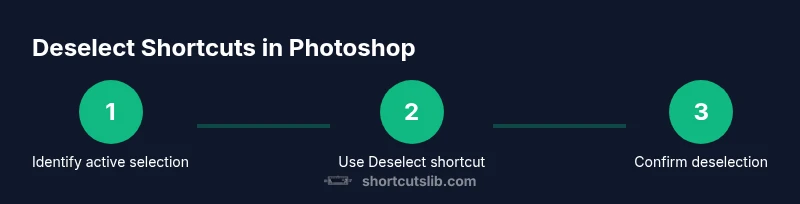
- 1
Prepare a known selection
Create or confirm an active selection with any selection tool. This ensures the deselect shortcut has a clear target and you can verify the result after using the command.
Tip: If you’re testing shortcuts, keep a simple shape to verify the effect quickly. - 2
Use the default shortcut
Press Ctrl+D on Windows or Cmd+D on macOS to clear the active selection. This is the fastest way to reset selection state before edits.
Tip: If the shortcut isn’t working, confirm you’re not in a tool mode that overrides it. - 3
Verify selection is cleared
Look for the marching ants to disappear and ensure no pixels remain highlighted. If still selected, reattempt with the keyboard or menu.
Tip: Move the cursor away from the canvas and back to confirm the state. - 4
Deselect via Menu
If shortcuts fail, go to Select > Deselect to perform the same action without keyboards. This is a robust fallback across tools and versions.
Tip: Use this when teaching new users or during demonstrations. - 5
Check Quick Mask state
If you’re in Quick Mask mode, exit by pressing Q, then use Deselect if needed. Quick Mask changes how selections are managed.
Tip: Remember that Q toggles Quick Mask on/off. - 6
Customize a preferred binding
Open Edit > Keyboard Shortcuts and assign a dedicated key combo to Deselect under Select. Save as a new set for consistent use.
Tip: Choose a binding that doesn’t conflict with OS shortcuts.
Questions & Answers
What is the default deselect shortcut in Photoshop?
The default deselect shortcut is Ctrl+D on Windows and Cmd+D on macOS. This clears the active selection so edits apply to the full canvas.
The default is Ctrl-D on Windows or Command-D on Mac.
Can I deselect without a keyboard?
Yes. Use the menu path Select > Deselect. This provides a reliable alternative when shortcuts are unavailable or disabled.
You can select Deselect from the menu if the keyboard shortcut isn’t usable.
How do I customize the deselect shortcut?
Open Edit > Keyboard Shortcuts, set Shortcuts For: Application, locate Deselect under Select, assign a new key combo, and save as a new set.
You can customize Deselect under Keyboard Shortcuts and save a new set.
Does Deselect work in Quick Mask mode?
Deselect affects active selections; exit Quick Mask with Q to return to normal editing, then deselect as needed.
Exit Quick Mask with Q, then deselect if required.
What causes a deselect shortcut not to work?
OS-level shortcuts or third-party tools can intercept keys. Check system preferences and, if needed, rebinding the Photoshop shortcut.
Sometimes the operating system grabs the keys, so check your system and Photoshop settings.
Are there different deselect behaviors for tools?
Deselect clears the active selection; some tools or modes (like Quick Mask) require exiting or switching modes to see effects.
Deselect behavior depends on the tool; you may need to exit certain modes.
Watch Video
Main Points
- Know the default Deselect shortcuts for your platform.
- Use the menu option if shortcuts fail or are disabled.
- Customize shortcuts to fit your workflow and confirm no conflicts.
- Test bindings across different tools and document types.