Create Keyboard Shortcut Word: Step-by-Step Guide
Learn how to create a keyboard shortcut word that expands into a longer phrase. This educational guide covers methods, best practices, and a practical step-by-step setup for safe, cross-app reliability.


A keyboard shortcut word is a short trigger that expands into a longer phrase, enabling fast, consistent text across apps. This quick answer outlines a practical method to design, implement, and test expansions safely.
What is a keyboard shortcut word?
A keyboard shortcut word is a compact trigger that expands into a longer, commonly used phrase or text block. Think of it as a tiny macro that you type in one go, which then fills in the full sentence, paragraph, or code snippet. The goal is to reduce repetitive typing while ensuring consistency across documents, emails, and chats. According to Shortcuts Lib, the most effective shortcut words are those tied to routine tasks and contexts. When designed well, a shortcut word should be memorable, easy to type, and safe to insert in diverse contexts. Avoid overlap with existing shortcuts to prevent accidental expansions, and steer clear of triggers that resemble common words you type in normal prose.
Why you might want to create a keyboard shortcut word
Saving keystrokes adds up over time, especially for high-frequency phrases like signatures, boilerplate responses, or common coding templates. A well-chosen trigger reduces cognitive load, helps you preserve tone and formatting consistency, and minimizes typos from repetitive typing. For teams, a shared set of expansions speeds onboarding and maintains a uniform voice. The trade-offs include choosing triggers that won’t clash with everyday writing and ensuring expansions stay relevant across your apps and workflows.
Approaches to implement a keyboard shortcut word
There are multiple ways to create a keyboard shortcut word, depending on your platform and needs. Built-in OS features like macOS Text Replacement or Windows text expansion capabilities offer seamless cross-application use in many cases. If you work across many apps or need more complex behavior, third-party tools or macro software can provide more control, such as multi-line snippets, dynamic placeholders, or conditional expansions. When selecting an approach, consider cross-platform compatibility, ease of maintenance, and whether you prefer a single tool or lightweight, app-specific solutions. Shortcuts Lib recommends starting with one reliable method and expanding later as you gain confidence.
Designing a robust shortcut word: best practices
Start with a trigger that’s short, memorable, and unlikely to appear during normal typing. Use consistent naming conventions (for example, two to three letters plus a dash or underscore) to prevent collisions. Keep the expansion concise but complete enough to convey the intended meaning. Document each shortcut in a central reference so teammates can adopt or audit them. Consider context-aware variants (such as different expansions for email vs. code) and test the trigger in at least three common apps you use daily. A disciplined design process reduces maintenance overhead and improves reliability over time.
Implementation options: built-in OS features
macOS users can leverage Text Replacement within System Preferences to define triggers and expansions that auto-fill across apps. Windows users can explore built-in typing options or PowerToys for text replacements, enabling cross-application usage. Linux users may implement per-application snippets or lightweight scripts that hook into the clipboard. The key is to understand each environment’s limitations and to keep your triggers consistent across platforms to minimize mental load. Even with OS-level tools, begin with a small set of expansions and verify they work in the most-used contexts before scaling.
Implementing with dedicated text-expansion tools
If you need richer features, consider dedicated text-expansion tools that support cross-application use, multi-line snippets, and dynamic fields. When selecting a tool, assess compatibility with your operating system, ease of sharing templates, and the ability to search or categorize expansions. Start by importing a few high-frequency phrases, then grow your library as you validate your approach. Remember to back up your configurations and maintain a short changelog so you can revert if a change introduces conflicts.
Testing and refining your shortcut word across apps
Testing is essential. Verify that your trigger expands correctly in email clients, word processors, code editors, and chat apps. Check for accidental activations when typing quickly, and adjust if needed—consider longer triggers or adding a trailing space to reduce false positives. Solicit feedback from teammates who use your shortcuts and refine expansions for clarity and tone. Periodic reviews help you prune unused shortcuts and keep your library lean and useful.
Common pitfalls and how to avoid them
Collisions with existing shortcuts, overlong expansions, and context-inappropriate triggers are the main risks. Avoid single-letter or overly generic triggers that frequently appear in normal prose. Keep expansions to a readable length and ensure they maintain proper punctuation and capitalization. Regularly audit your library to remove obsolete phrases and to align with evolving writing standards. A disciplined maintenance habit is your best defense against creeping conflicts.
Practical templates you can adapt
Here are safe starter templates you can adapt:
- sig -> Best regards,\nYour Team
- thanks -> Thank you for your message. I’ll reply soon.
- asap -> I will get back to you as soon as possible.
- addr -> 123 Main Street, Your City, Your Country
- brb -> Be right back. These examples are starting points. Replace them with phrases that match your voice, job, and writing style. Keep a master document with notes on when each template should be used.
Next steps and best practices
Begin with 4–6 high-frequency expansions and a single platform to avoid cross-application confusion. After you gain comfort, expand to more phrases and consider cross-team sharing. Maintain a small style guide that covers preferred expansions, tone, and context. Schedule quarterly reviews to prune outdated entries and to incorporate new workflows.
Tools & Materials
- Computer with your primary OS(Ensure the OS supports text replacement or macro tools; verify version compatibility.)
- Text expansion tool or macro software(Choose one that works across your most-used apps and supports multi-line snippets.)
- Draft list of target phrases(Start with 6–12 phrases you use daily enough to justify automation.)
- Test corpus(A few sample emails, notes, or code comments to validate expansions.)
- Change log/documentation(Track additions, removals, and conflicts for future maintenance.)
- Conflict-check checklist(A simple list to verify no overlaps with existing shortcuts.)
Steps
Estimated time: 45-90 minutes
- 1
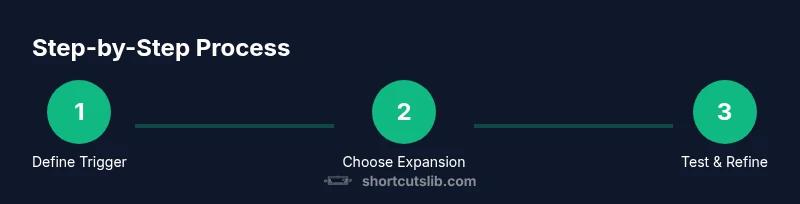
Define your trigger word
Choose a trigger that’s easy to remember and unlikely to appear in normal prose. Prefer a two- to three-character pattern with a unique separator (for example, two letters plus a dash). This reduces accidental expansions and keeps the trigger quick to type.
Tip: Aim for triggers that align with how you think about the phrase (e.g., brb for 'be right back'). - 2
Decide the expansion
Draft a concise expansion that fully conveys the intended meaning. Include punctuation as needed so the inserted text reads naturally in different contexts. Avoid overly long blocks that slow you down.
Tip: Prefer expansions that are commonly typed in your workflow to maximize usefulness. - 3
Choose your implementation method
Pick a method that works across your most-used apps. OS-level text replacement is simplest for cross-app use; dedicated tools offer more features but may require setup time.
Tip: If you work across multiple devices, choose a tool with cloud sync. - 4
Configure the expansion
Set the trigger and its expansion in your chosen tool. Include optional options like multi-line support or placeholders if your task requires them. Save and back up your configuration.
Tip: Enable a brief confirmation or a lightweight preview to catch typos early. - 5
Test across applications
Open your most-used apps (email, docs, code editor, chat) and test each trigger. Check for unintended activations and verify capitalization and punctuation appear as intended.
Tip: Test on both mobile and desktop if your workflow spans devices. - 6
Refine and document
Make adjustments based on tests and user feedback. Document the rationale, usage guidelines, and any conflicts to simplify onboarding for teammates.
Tip: Keep a changelog and a quick-start guide for new users.
Questions & Answers
What is a keyboard shortcut word?
A keyboard shortcut word is a short trigger that expands into a longer phrase or text block. It speeds up writing and maintains consistency across apps by replacing repetitive text with a single keystroke sequence.
A shortcut word is a tiny trigger that expands into longer text, saving time across apps.
How is this different from a clipboard manager or generic text expansion?
A keyboard shortcut word is a predefined trigger that expands automatically as you type, whereas clipboard managers focus on storing and retrieving copied items. Text expansion tools also insert predefined text but offer more customization and scope.
It’s similar to text expansion, but optimized for quick, repeatable phrases with triggers.
Can I use shortcuts across all apps?
Cross-app support depends on the tool you choose. OS-level features often work across many apps, while some third-party tools may be app-specific. Always test in your most-used workflows.
Yes, if you pick a cross-platform tool and test across your apps.
What is the best practice to avoid conflicts with existing shortcuts?
Use unique triggers, avoid common words, and document each shortcut. Periodically audit your library to remove overlaps and adjust expansions as your workflows change.
Keep triggers unique and review them regularly to prevent clashes.
Is there a risk of accidental expansions?
Yes. Choose triggers unlikely to appear in normal typing and consider adding a trailing space or punctuation to reduce false positives.
There is a risk if triggers are too common; pick distinct ones.
How can I share shortcuts with teammates?
Export your shortcut library and provide a quick onboarding guide. Use a central document or a shared team space to keep everyone aligned.
Share a library and guide so teammates can adopt them quickly.
Watch Video
Main Points
- Define a memorable, conflict-free trigger.
- Keep expansions concise and context-appropriate.
- Test across apps and devices before wider rollout.
- Document and review shortcuts regularly.