Can You Create a Keyboard Shortcut for a Phrase? A Practical Guide
Learn how to turn a frequently used phrase into a keyboard shortcut using built-in OS features or trusted text expansion tools. This comprehensive, step‑by‑step guide covers triggers, phrases, testing, and best practices to boost your typing efficiency.


Yes. You can create a keyboard shortcut that expands into a phrase using built-in text expansion features or third‑party tools. Start by choosing a short trigger (like a two to four character cue), then define the full phrase you want inserted, decide where it should work, and test it across apps. Adjust for conflicts and spelling to ensure reliability.
Understanding Where Phrase Shortcuts Live
If you ask can you create a keyboard shortcut for a phrase, the short answer is yes, and it is a common technique across platforms. Phrase shortcuts live in two main places: built in OS features and third party text expansion tools. According to Shortcuts Lib, most users start by choosing a short trigger and a longer phrase that they type frequently. When you set up the shortcut, it should work across apps like browsers, editors, and chat apps, but some fields such as password prompts may behave differently. Before you begin, map the exact phrases you want to expand and decide where the shortcut should be active. This planning pays off later when you test and refine the replacement so it feels natural rather than disruptive. In this guide you will learn the steps, best practices, and common pitfalls so you can confidently create a keyboard shortcut for a phrase.
Methods to Create Phrase Shortcuts
There are two broad paths for creating phrase shortcuts: OS level features and dedicated text expansion apps. On macOS you can enable text replacements in System Preferences > Keyboard > Text, then add a new entry with a trigger and its expansion. On Windows, built in functionality exists in certain apps and you can enable suggestions or use a tool like AutoHotkey for more control. Third party apps such as a text expander offer more advanced features, including fuzzy matching, rich formatting, and cross device sync. When choosing a method, consider how widely you want the shortcut to work, whether you need dynamic fields, and how much you value reliability versus complexity. This section compares approaches and helps you pick the right tool for your workflow while keeping a consistent approach across devices.
Choosing a Trigger That Works
A strong trigger is short, memorable, and unlikely to appear in normal typing. Aim for 2 to 4 characters and avoid common letter combinations that show up in everyday text. Case sensitivity can help prevent accidental activations in lowercase contexts. For example, ggl might stand for a phrase you type often, while THX could meaning a quick thank you. Create a short list of candidate triggers and test them in multiple apps to ensure they don’t collide with your ordinary writing. Keep a simple rule sheet that notes where each trigger is active and which phrases they expand to. This discipline reduces confusion as you scale your shortcuts.
Defining the Expansion Phrase
Decide exactly how the phrase should appear, including capitalization, punctuation, and spacing. If a phrase begins a sentence, consider starting with a capital letter and preserving any required punctuation. You may also specify whether a trailing space should be inserted after the expansion to keep your typing flow smooth. If you routinely insert a date, name, or code, consider using a consistent pattern so the expansion remains readable in all contexts. Finally, keep phrases concise but complete so they remove the need for backtracking or edits later.
Testing and Debugging Your Shortcuts
Test each shortcut across the applications you use most, including word processors, emails, chat apps, and code editors. Look for unintended activations in regular text and verify that the expansion appears exactly as intended. If a trigger collides with another shortcut or a common word, refine the trigger or phrase. Check behavior in password fields or form controls where automatic insertions may be blocked. Keep a small test matrix and update it as you add more shortcuts to your workspace.
Platform-Specific Walkthroughs: macOS and Windows
macOS: Go to System Preferences > Keyboard > Text and add a replacement with your trigger and expansion. Windows: Use built in text suggestions in Settings or install a dedicated tool like AutoHotkey for advanced control. In both cases, limit the shortcut by scope to the apps where you write the most, and disable in secure fields if needed. After setup, run a cross‑app validation pass to ensure consistency across platforms.
Handling Privacy and Security Considerations
Phrase expansions are stored locally on your device or within the selected app. Be mindful of sensitive phrases such as passwords, banking details, or confidential project names. If you share a device or work in a managed environment, check policy restrictions and consider using separate user profiles or encryption to protect sensitive text. Regular audits help prevent accidental data leakage through long stored phrases.
Advanced Use Cases and Customization
For power users, shortcuts can do more than insert text. You can build dynamic fields, pull in dates, or combine multiple expansions into one via scriptable tools. Platforms like AutoHotkey on Windows or AppleScript combos on macOS enable conditional expansions, such as inserting a short greeting only when you type at the start of a line. Remember that more complexity means higher maintenance, so document each shortcut and keep a change log to avoid conflicts.
Maintenance: Documentation, Backups, and Sharing
Treat phrase shortcuts like software assets. Maintain a simple inventory listing the triggers, phrases, and the apps where they are active. Regularly back up your shortcut library and consider exporting configurations for quick restoration after system updates. If you work in a team, establish a shared guideline for adding new phrases and deprecating outdated ones to maintain consistency across devices.
Common Pitfalls and How to Avoid Them
Mistakes to avoid include creating overly long triggers, using phrases that sound like natural prose, and failing to test across all apps. Another pitfall is neglecting to verify in password fields or secure forms. Proactively document your shortcuts, limit their scope, and periodically audit for collisions with new software or updates.
Quick Reference: Triggers, Phrases, and Best Practices
Keep most phrases under 10 words and triggers to 2–4 characters. Prefer a consistent naming convention and maintain a centralized log of shortcuts. Regularly review for relevance and prune those you no longer use to keep your workflow lean.
Keeping Shortcuts Relevant Over Time
As your vocabulary and tools change, so should shortcuts. Set a quarterly review to retire stale phrases and add new ones aligned with your current tasks. When you update a shortcut, propagate the change across devices and inform collaborators if you share a workspace.
Tools & Materials
- Device with keyboard(PC, Mac, or mobile device)
- Text expansion option (OS built‑in or app)(Choose the method that matches your workflow)
- List of target phrases(Phrases you use frequently (prepare a master list))
- Configured trigger plan(2–4 character triggers with a defined expansion)
- Access to app or OS settings(For setup and maintenance)
- Backup method(Optional: export or copy configurations)
Steps
Estimated time: 30-60 minutes
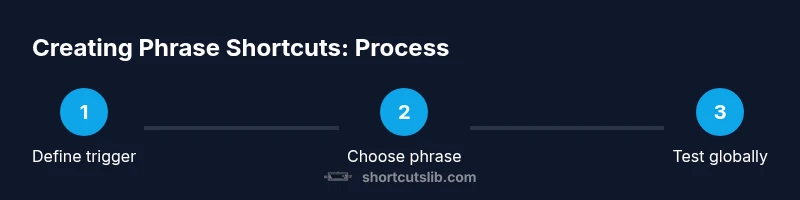
- 1
Define your trigger
Decide on a short, memorable trigger that will not appear often in regular text. Keep it to 2–4 characters and ensure it is unlikely to clash with common words.
Tip: Choose a trigger that you would easily remember, but not something you would naturally type in a sentence. - 2
Create the shortcut in your chosen tool
Open the OS settings or your text expander and add a new shortcut with the trigger and its expansion. Set the scope to the apps where you will use it most.
Tip: If using multiple platforms, create parallel shortcuts with the same trigger for consistency. - 3
Enter the full expansion phrase
Type the exact phrase you want inserted. Decide on capitalization and punctuation to keep it readable in different contexts.
Tip: Keep expansions concise yet complete to avoid editing later. - 4
Set the applicable scope
Limit the shortcut to specific apps or domains to avoid accidental insertions in password fields or forms.
Tip: Disable in secure fields to prevent leakage of sensitive data. - 5
Test across apps
Test in a word processor, browser, and email client to confirm behavior is consistent. Check for unintended insertions.
Tip: Keep a test log to track any inconsistent results. - 6
Refine triggers and phrases
If collisions occur, adjust the trigger or phrase to reduce overlap with normal typing.
Tip: Aim for low collision risk while keeping it easy to remember. - 7
Document and back up
Record the final trigger, phrase, and scope. Create a backup export so you can restore quickly after updates.
Tip: Store backups in a known location and label with date.
Questions & Answers
What is a keyboard shortcut for a phrase?
A keyboard shortcut for a phrase is a short trigger that expands into a longer phrase when typed in supported apps. It saves time and reduces repetitive typing.
A phrase shortcut is a short key or sequence that expands into a longer phrase when you type it in supported apps.
Can I use built in OS features for this?
Yes, both macOS and Windows offer text expansion options, and third party apps provide additional power and flexibility.
Yes, you can use built in OS features or third party apps to set up phrase shortcuts.
How long should the trigger be?
Aim for 2 to 4 characters to balance quick typing with low collision risk. Adjust as you test across apps.
Usually two to four characters work best; test to avoid triggering in normal text.
Will this work across all apps?
Most apps support clipboard or insertion expansions, but some secure fields may block it. Always test in critical apps.
In most apps yes, but verify in secure fields where insertions can be blocked.
How do I update or delete a shortcut?
Open the same tool you used to create it, modify the trigger or phrase, or delete it entirely. Then re-test.
Go back to the tool you used and edit or delete the shortcut, then test again.
Watch Video
Main Points
- Choose a concise trigger that minimizes conflicts
- Test across multiple apps and contexts
- Document and back up your shortcut library
- Keep expansions brief and readable
- Review and prune shortcuts regularly