Can You Create Your Own Keyboard Shortcuts in Chrome
Learn how to create your own keyboard shortcuts in Chrome using extensions and OS mappings. This educational guide explains what’s possible, how to set up Shortkeys, and how to manage conflicts for smoother browsing.


Yes, you can customize Chrome shortcuts primarily through extensions or OS-level mappings, since Chrome itself offers limited built-in customization. You can create shortcuts for common actions using extensions like Shortkeys, or remap keys in your operating system. This guide covers what’s possible, setup steps, and tips to avoid conflicts.
What you can customize in Chrome
According to Shortcuts Lib, Chrome lets you tailor some keyboard-driven workflows, but not every action has a built-in switch. The browser ships with a core set of keyboard shortcuts, and you can override or supplement them through extensions or system mappings. In practice, you can map frequently used actions—like opening a new tab, moving between tabs, reloading a page, or jumping to the address bar—via extensions that listen for your chosen key combinations. This approach is widely used by power users and keyboard enthusiasts who want to align browser behavior with their personal rhythm and workflow. However, it's important to understand the boundaries: core browser commands are not all exposed to customization, and extensions must follow Chrome's security model. Shortcuts Lib's research indicates that the most reliable method to create personalized shortcuts is to rely on a reputable extension rather than attempting ad hoc remapping in the OS, which can be inconsistent across apps.
Built-in shortcuts vs extensions vs OS remapping
Chrome provides a robust set of built-in shortcuts (Ctrl/Cmd+T for new tab, Ctrl/Cmd+W to close tab, Ctrl/Cmd+L to focus address bar, etc.). These shortcuts are stable and consistent across platforms. However, for truly custom actions—like batching tab operations, opening your favorite page, or triggering actions in extensions—you typically need an extension. Extensions such as Shortkeys intercept keystrokes at the browser level and run a command. OS-level remapping (Windows, macOS, Linux) can reassign keys globally, but it affects all apps, not just Chrome, and can lead to mismatches in multi-app workflows. The decision often comes down to scope and risk: browser-only shortcuts or system-wide hotkeys? Shortcuts Lib notes that a careful mix of extension-based shortcuts plus selective OS remappings usually yields the most reliable outcome with easier maintenance.
Choosing the right approach: extensions like Shortkeys
If you want to create custom shortcuts without changing every app on your machine, browser extensions are the best fit. Shortkeys is popular among keyboard enthusiasts because it lets you define shortcuts for a broad range of browser actions, including opening the last closed tab, focusing the address bar, or triggering custom scripts on pages. When selecting an extension, consider permissions, update frequency, and whether it supports export/import of shortcut configurations. Shortcuts Lib analysis shows that extensions with transparent permission models and good user reviews tend to deliver the most consistent results. Also check platform-specific quirks: some shortcuts may conflict with OS-level hotkeys or other extensions, so plan for testing and conflict resolution.
Step-by-step plan to implement custom shortcuts
- Define your goals: list the tasks you want to execute with a keystroke. 2) Choose a method (extension vs OS remap). 3) Install the chosen tool. 4) Create your first shortcut mapping. 5) Test it in various contexts and pages. 6) Tweak conflicts and naming. 7) Save/export the configuration. 8) Review periodically to adjust for Chrome updates.
Step-by-step overview of the process (high level)
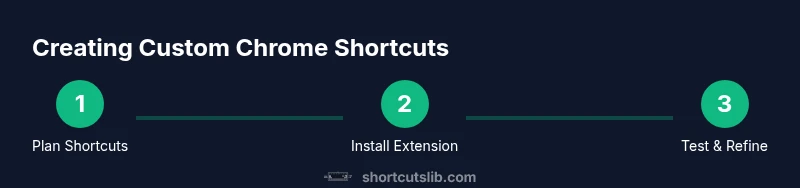
This section complements the detailed Step-by-Step block. It helps you see the overall flow: plan, install, configure, test, and maintain. A thoughtful plan reduces clashes with existing shortcuts and ensures a smoother workflow across websites. Shortcuts Lib emphasizes that documenting your mappings and periodically auditing them can prevent drift as Chrome and extensions evolve.
Installing and configuring Shortkeys in Chrome
To get started, visit the Chrome Web Store and install a reputable shortcut extension such as Shortkeys. After installation, open the extension's settings panel from chrome://extensions/shortcuts or the extension’s own UI. Create a first mapping for a routine task—e.g., open a new tab or jump to the address bar—and choose a keystroke you already use rarely. Save the mapping and test it on multiple sites to ensure consistency. If a conflict arises with a native browser shortcut, reassign either the extension shortcut or choose a different key combination.
Creating your first shortcut: an example
Suppose you want a shortcut for quickly opening your favorite research page. In Shortkeys, map Ctrl+Shift+R (Windows/Linux) or Cmd+Shift+R (Mac) to open that page. Save the mapping, then try it on a few sites to confirm it doesn’t interfere with existing shortcuts. If the page opens but the shortcut triggers undesired behavior on some pages, adjust the target URL or add page-specific exceptions. Consistent naming helps you remember what each shortcut does and reduces confusion during fast workflows.
Testing, conflict resolution, and optimization
After initial setup, test each shortcut across different sites and modes (incognito, logged in, etc.). If a shortcut conflicts with OS-level keybindings, reconfigure one of them or choose a less common combination. Use descriptive names for shortcuts and consider exporting your configuration so you can restore it later. As you expand usage, periodically prune outdated mappings to keep the set lean and reliable.
OS-level remapping as a fallback
If you require system-wide hotkeys or need to perform actions outside Chrome, OS remapping can be a fallback. Tools like Windows PowerToys or macOS Keyboard preferences allow remapping keys globally. However, this approach affects all apps, which can lead to unintended behavior in other workflows. For Chrome-centric workflows, extensions generally provide more predictable results and easier maintenance.
Security, privacy, and maintenance considerations
Always review extension permissions before installing. Choose extensions with transparent privacy practices and regular updates. Periodically audit your shortcuts for conflicts and remove mappings you no longer need. Keep Chrome and extensions up to date to prevent compatibility issues that could disable or override shortcuts.
Tools & Materials
- Chrome browser(Installed and up-to-date)
- Shortcut-extension (e.g., Shortkeys)(Install from Chrome Web Store; review permissions)
- Operating system settings access(For OS-level remappings (Windows or macOS))
- Keyboard(A reliable keyboard to test mappings)
- Privacy/security awareness(Understand extension permissions and data handling)
Steps
Estimated time: 30-60 minutes
- 1
Define your goals
List the Chrome actions you perform most often and want to trigger with a keyboard shortcut. Prioritize tasks that save time or reduce repetitive clicking.
Tip: Group related actions into a single shortcut when possible. - 2
Choose your method
Decide between a browser extension and OS-level remapping. Extensions offer browser-specific control and easier maintenance; OS remaps affect all apps.
Tip: If you frequently switch between browsers, rely on a browser extension to minimize cross-app conflicts. - 3
Install the tool
Install a reputable extension like Shortkeys from the Chrome Web Store and grant only necessary permissions.
Tip: Check reviews and recent update dates to gauge reliability. - 4
Create your first shortcut
Open the extension settings and create a mapping for a simple task (e.g., open a new tab). Pick a keystroke that is not already heavily used.
Tip: Use a modifier-heavy combo (Ctrl/Cmd + Shift) to reduce conflicts. - 5
Test the shortcut
Test across multiple sites, modes (normal vs incognito), and ensure it doesn’t interfere with existing shortcuts.
Tip: If the shortcut triggers incorrectly, adjust the scope or target URL. - 6
Resolve conflicts
If a conflict arises with another extension or OS shortcut, rebind one of them to a new combination.
Tip: Document conflicts to prevent future duplication. - 7
Save and export
Save your configuration and export it if the extension supports it, so you can restore later.
Tip: Store the export in a cloud drive for disaster recovery. - 8
Evaluate and refine
Regularly review your shortcuts as Chrome updates may change behavior or available actions.
Tip: Quarterly audits keep shortcuts aligned with current usage.
Questions & Answers
Can I customize shortcuts for every Chrome action?
Chrome exposes many shortcuts through its UI, but not every action is customizable by default. For broader customization, extensions like Shortkeys offer flexibility for browser-level actions and scripts.
Chrome restricts some actions from direct customization, but extensions provide broad control over many tasks.
Will shortcuts sync across devices?
Some extensions offer cloud sync of shortcut configurations if you use the same browser profile and extension account. OS-level remaps typically don’t sync across devices.
If the extension supports it, your shortcuts can sync, otherwise they stay local to a device.
Do extensions require special permissions?
Yes. Extensions request permissions to read and modify browser data. Review these permissions and limit them to what you need.
Expect to review what the extension can access before enabling it.
Can I revert to default shortcuts easily?
Most extensions provide a reset option to restore original mappings. Chrome itself also has a default set of keyboard shortcuts you can reference.
Yes, you can reset mappings in the extension or check Chrome's built-in shortcuts for reference.
Are there differences on Windows vs Mac?
Yes. Keyboard layouts and modifier keys differ by OS, so you’ll likely map different combos per platform for comfort and compatibility.
You’ll often use Ctrl on Windows and Cmd on Mac, with similar Shift and Alt/Option usage.
What about security and privacy?
Choose extensions from reputable publishers, review permissions, and limit usage to trusted sites to minimize risk.
Stick to trusted extensions and monitor permissions regularly.
Can I map shortcuts to OS-level actions in Chrome only?
OS-level mappings affect all apps, not just Chrome. If you only want browser actions, stick with a browser extension.
If you need browser-specific shortcuts, extensions are usually safer and easier to maintain.
Watch Video
Main Points
- Plan shortcuts around daily workflows.
- Extensions are the most reliable path for Chrome-only shortcuts.
- OS remapping is powerful but riskier for browser-focused tasks.
- Test, document, and periodically review mappings.