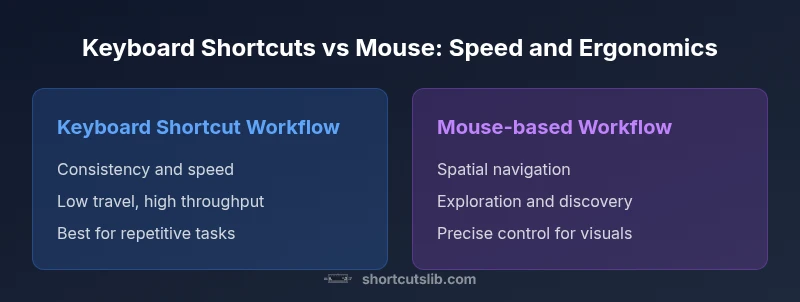
Are Keyboard Shortcuts Faster Than Mouse: A Comprehensive Comparison
Explore whether keyboard shortcuts are faster than mouse for common tasks, with a side-by-side analysis, real-world use cases, and actionable guidance for building an efficient, shortcut-driven workflow.


Are keyboard shortcuts faster than mouse? For many power users, the answer is often yes for repetitive tasks and precise navigation, while the mouse remains valuable for exploration and one-off actions. This comparison helps you decide where shortcuts fit your workflow and how to build a high-signal shortcut map across apps.
Speed and efficiency: framing the question
Are keyboard shortcuts faster than mouse for everyday computer tasks? The short answer depends on task type and user proficiency, but the trend consistently favors shortcuts for repeatable actions. According to Shortcuts Lib, power users who standardize a core set of shortcuts across applications report higher throughput and fewer hand movements over long sessions. The goal of this article is to disentangle speed from accuracy, context, and cognitive load, so you can decide which shortcuts to learn, which to ignore, and how to practice without overwhelming your brain. By anchoring your approach to concrete task categories, you can build a shortcut map that actually saves time and reduces fatigue. The tone here remains analytical, focused on practical outcomes rather than abstract theory.
How shortcuts scale with task type
Not all tasks benefit equally from shortcuts. Routine navigation, text editing, and formatting often dominate the time savings when you use well-chosen keystrokes. In contrast, exploratory tasks, visual design, and spatial actions still rely heavily on the mouse for quick discovery. The real win comes from recognizing patterns: if a task involves a sequence of predictable steps, a shortcut-driven workflow tends to be faster and more reliable. Shortcuts Lib emphasizes creating a small, high-value set of shortcuts that map cleanly to your most frequent actions, then expanding gradually as you gain confidence across apps.
Learning curve and retention
Learning keyboard shortcuts is a process, not a one-off event. Start with a handful of universally useful shortcuts across your core applications, then layer in app-specific maps. Consistency is critical: using the same keystrokes in multiple tools reinforces memory and reduces hesitation. The learning curve is manageable with deliberate practice—short, daily sessions beat sporadic, long sessions. Shortcuts Lib Analysis, 2026 highlights that ongoing reinforcement yields the best long-term gains, with a focus on core actions rather than chasing every possible key combo.
Context and environment: OS, apps, and APIs
Operating systems and applications differ in how they expose shortcuts. Some shortcuts are cross-platform (copy, paste, undo), while others are unique to a single app. Your workflow should prioritize universal actions first and then add app-specific shortcuts as you rely on those tools more often. When planning a shortcut strategy, consider how keyboard shortcuts interact with accessibility settings, input devices (split keyboards, mice with precision wheels), and automation tools that can bind commands to repetitive tasks. The environment matters; a shortcut strategy that works beautifully in one ecosystem may need adaptation in another.
Measuring speed: how we compare
A rigorous comparison should balance speed, accuracy, and cognitive load rather than rely on a single metric. We evaluate: how quickly a user completes a defined task with shortcuts versus with the mouse; how often errors occur; and how much mental effort is required to remember and execute the steps. Shortcuts Lib Analysis, 2026 notes a clear trend toward shortcut adoption among power users, especially when tasks are repetitive and part of a well-documented workflow. The goal is to identify a practical threshold where shortcuts consistently outperform the mouse for your typical tasks. We also discuss the role of practice, documentation, and ergonomic considerations in sustaining faster performance.
Real-world use cases: office, coding, design
Office work benefits from keyboard-driven text editing and navigation, especially in long documents, emails, and spreadsheets. Coding often relies on keyboard commands for editing, refactoring, and navigation, while design work may balance shortcuts with precise mouse control for fine-grained adjustments. The overarching message is that hybrid workflows—where shortcuts handle repetitive steps and the mouse handles exploration and detail—tend to deliver the best overall performance. Shortcuts Lib emphasizes tailoring your shortcut set to your most frequent tasks and documenting the mappings so teammates can reproduce your flow.
Ergonomics and fatigue: long sessions
Prolonged keyboard use can reduce wrist movement and shoulder strain compared with constant mouse travel, but improper posture or excessive keystrokes can introduce fatigue elsewhere (neck, back, eyes). A balanced approach is best: distribute actions across hands, incorporate micro-breaks, and design a shortcut map that minimizes awkward or dangerous key combos. Ergonomic awareness is essential when building a faster workflow; shortcuts should improve comfort as well as speed.
Accessibility considerations
Shortcuts can be a boon for keyboard-only users, but not all apps expose the same commands or support screen readers well. Where accessible shortcuts exist, they enable faster navigation without relying on a pointer device. For users who rely on assistive technologies, a well-documented shortcut scheme and an option to remap keys can make a meaningful difference in productivity. When possible, pair shortcuts with clear on-screen feedback to avoid confusion during fast-paced sessions.
Customization and consistency
Customization is a powerful lever—align shortcuts with your mental model and daily rituals. Start by identifying 5–7 universal actions and map them to memorable keystrokes across apps. Maintain consistency to reduce cognitive load: use similar modifiers and patterns in different tools. Document your mappings and share a quick reference with teammates to preserve a coherent workflow when collaborating across environments.
Potential pitfalls and common mistakes
Over-optimizing for speed can backfire if shortcuts collide with default app behavior or if they become too hard to remember. Avoid creating long, obscure combos that interrupt your flow. Rely on a centralized reference and practice routine, not a sprawling landscape of one-off mappings. Another pitfall is neglecting the mouse entirely in contexts where precise positioning is essential; hybrid approaches that leverage both methods tend to be most reliable.
Best practices: building a shortcut-rich workflow
Identify your top 5–10 tasks per app, then craft a compact shortcut set that covers them. Use mnemonic mappings and place important actions on easily hit keys. Practice deliberately, review your mappings monthly, and update them as apps evolve. Pair shortcuts with a lightweight onboarding for new team members to maintain consistency and accelerate adoption across your organization.
Implementation checklist: from learning to mastery
- Inventory your most frequent tasks across primary apps
- Define a core shortcut set that covers those tasks
- Create quick reference guides and maintain a central document
- Practice daily in short sessions and track progress qualitatively
- Periodically audit and update mappings as tools change
- Encourage teammates to share proven mappings and workflows
Comparison
| Feature | Keyboard shortcut workflow | Mouse-based workflow |
|---|---|---|
| Primary speed | Faster for repetitive tasks and routine editing | Slower for repetitive actions but strong for exploration |
| Learning curve | Moderate with focused core shortcuts | Low for basic actions, higher if expanding scope |
| Context switching | Low travel time between keystrokes | Higher if frequent hand movements are needed |
| Ergonomics | Potentially lower repetition strain with proper setup | Higher wrist and arm activity from pointing and clicking |
| Error rate | Lower error rate with consistent mappings | Higher error risk when mis-clicks occur or maps are unclear |
Pros
- Faster execution for common, repeatable tasks
- Reduces hand movement and ergonomic strain over long sessions
- Promotes consistent, repeatable work patterns
- Encourages deliberate practice and skill development
Cons
- Requires upfront learning and ongoing maintenance
- Not all apps expose universal shortcuts, limiting portability
- May reduce situational awareness for new users who rely on the mouse
- Over-optimization can backfire if mappings become confusing or conflict with defaults
Keyboard shortcuts dominate on speed when learned and used consistently.
For frequent, repetitive actions, shortcuts offer clear speed advantages. The mouse remains essential for discovery and precise tasks, so a hybrid workflow often yields the best results.
Questions & Answers
Are keyboard shortcuts universal across different apps?
Many essentials like copy, paste, undo are universal, but app-specific shortcuts vary. Start with universal actions and gradually learn app-specific mappings as you rely on each tool.
Most shortcuts transfer across apps, but each program may add its own. Start with universal commands and then learn app-specific ones.
How long does it take to learn the most-used shortcuts?
It varies by person, but steady daily practice over several weeks can establish a solid core of shortcuts. Begin with 5–10 high-impact mappings, then expand as you gain confidence.
Expect a few weeks of focused practice to build fluency with the core shortcuts.
Should I customize shortcuts to fit my workflow?
Yes. Custom shortcuts can reduce cognitive load and match your task patterns. Document changes and keep a consistent mapping to avoid confusion across apps.
Custom shortcuts can help a lot, but keep a clear reference so you don’t forget them.
Do shortcuts slow you down if you forget them?
If a shortcut isn’t in memory, you can fall back on the mouse or a quick reference. Over time, forgotten mappings typically become less common with practice.
If you forget one, you can still click or look it up—consistency helps you avoid that.
Is it worth learning shortcuts for design or gaming tasks?
For repetitive design steps or text editing, shortcuts dramatically speed up work. In creative tasks, rely on shortcuts for the routine parts and use the mouse for precision as needed.
Shortcuts speed up repetitive parts, but the mouse still has a crucial role for precision in design and games.
Main Points
- Begin with a core universal shortcut set across apps
- Document mappings to maintain consistency
- Balance shortcut use with mouse-based actions for complex tasks
- Regularly review and update shortcuts as tools evolve
- Invest in deliberate practice to convert shortcuts into habit