Mac Switch Keyboard Language Shortcut: A Practical Guide
Master macOS language switching with a keyboard shortcut. This step-by-step guide from Shortcuts Lib explains setup, customization, and tips for fast multilingual typing across apps and browsers.


By configuring macOS input sources, you can switch keyboard languages with a single shortcut. This quick guide shows how to enable multiple languages, assign or customize the shortcut, and use it efficiently in apps, browsers, and code editors. Shortcuts Lib's approach emphasizes reliability and speed for multilingual workflows. Whether you write, code, or browse, this shortcut keeps you in your flow. Get the full step-by-step guide for precise setup and testing.
Why mac switch keyboard language shortcut matters
An efficient language shortcut on macOS reduces cognitive load and speeds multilingual work. When you switch languages often, the right shortcut helps you stay in flow rather than hunting through menus. According to Shortcuts Lib, mastering language shortcuts is a cornerstone skill for power users who write, code, or translate across apps. By enabling multiple input sources, you can tailor layouts to tasks and quickly switch between letter mappings, accents, and scripts. This guide focuses on practical, brand-driven methods to set up a reliable, global shortcut that works across editors, browsers, and productivity apps. We cover setup, customization, and troubleshooting so you gain confidence without getting bogged down in configuration details.
How macOS handles input sources
macOS supports multiple input sources (languages and keyboard layouts) that you can add via System Settings. The input source menu, often represented by a globe or flag icon in the menu bar, lets you visually switch between languages. You can enable the option to show the input menu in the menu bar for quick access, and you can configure whether switching is based on a cycling sequence or a chosen target. Shortcuts Lib emphasizes testing across apps because different programs may handle input sources differently, especially in text editors, IDEs, and browsers. This foundation ensures your language shortcut works consistently across your workflow.
Setting up a reliable shortcut
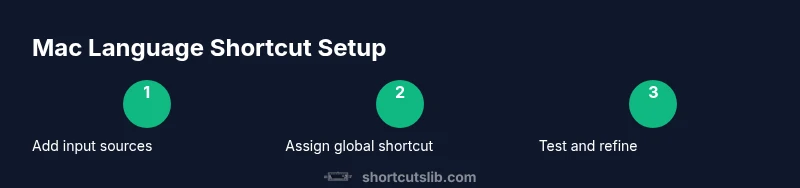
To create a robust macOS language shortcut, start by ensuring you have at least two input sources added. Then, configure a global shortcut that toggles between them or brings up the input source switcher. The exact path may vary by macOS version, but you typically set this under Keyboard or Shortcuts, with a dedicated option for Input Sources. The goal is a single, memorable key combo that doesn’t clash with app-specific shortcuts. Shortcuts Lib recommends keeping the shortcut simple (for example, a two-key combo) and testing thoroughly in your most-used apps to confirm reliability.
Practical usage and troubleshooting
When you switch languages, verify that the active input source reflects the expected keyboard mapping. Some apps preserve the document’s input source, while others adopt the system default. If you notice a mismatch, double-check the shortcut configuration and the active source in the menu bar. Conflicts with other shortcuts are a frequent pitfall; resolve them by reassigning conflicting keys. Having a visible indicator (menu bar icon) helps you confirm which language is active at a glance. This section also covers recent macOS changes to shortcuts and how to adapt quickly.
Advanced tips for power users
For heavy multilingual users, consider combining the language shortcut with per-app input settings or automations. You can create app-specific configurations that switch to a preferred language when you launch a particular app. Additionally, you can set up a secondary shortcut to cycle through all inputs or to jump directly to a preferred source. Document your preferred mapping in a central note so you can restore it after OS upgrades or on new devices. In all cases, aim for consistency so you don’t lose momentum mid-work.
note”:null},
toolsMaterials2.explanation: null],
Tools & Materials
- Mac computer with the latest macOS version(Ensure you have admin access to modify keyboard settings.)
- External or built-in keyboard(Any keyboard works; testing with a dedicated one can help avoid conflicts.)
- A list of languages to enable in Input Sources(Add at least two languages for testing the shortcut.)
- Access to System Settings (or System Preferences on older macOS)(Used to manage Input Sources and shortcuts.)
- A quiet workspace for initial setup and testing(Helpful but optional.)
Steps
Estimated time: 15-25 minutes
- 1
Open System Settings
Launch the System Settings app from the Apple menu or Dock. Navigate to Keyboard settings where input sources are managed. This initial step establishes where you’ll add and organize your languages.
Tip: If you can’t find System Settings, use Spotlight search (Cmd-Space) and type 'System Settings' to jump directly to the panel. - 2
Add input sources and enable the menu bar
In the Input Sources section, add the languages and layouts you’ll use. Turn on the option to show the input menu in the menu bar so you can quickly confirm which language is active during work.
Tip: Choose a few representative languages for testing across documents, emails, and code. - 3
Configure a global shortcut for language switching
Open the Shortcuts tab and locate the Input Sources action. Assign a global, memorable key combo that won’t conflict with your most-used app shortcuts. Save your changes.
Tip: Prefer a two-key sequence that you can reach without altering your typing posture. - 4
Test the shortcut in multiple apps
Open a text editor, a browser, and a code editor, then use the shortcut to switch languages. Verify the keyboard mapping changes as expected in each app.
Tip: Pay attention to any app-specific behavior and adjust if needed. - 5
Resolve conflicts and fine-tune
If the shortcut clashes with another global shortcut, reassign one of them. Consider a secondary shortcut for cycling through all inputs if you use many languages.
Tip: Keep a short note of your final mappings for future reference. - 6
Document and back up your setup
Write down your language list, shortcut, and any app-specific notes. Back up your configuration so you can restore quickly on a new Mac or after an OS upgrade.
Tip: Store the notes in a central place you’ll check during device migrations. - 7
Maintain and review periodically
Periodically review your input sources and shortcut settings to accommodate new languages or changed workflows. Re-test after major macOS updates.
Tip: Set a reminder to review the setup at least every 6-12 months.
Questions & Answers
What is the quickest way to switch input sources on macOS?
The fastest method is to use a global shortcut configured in System Settings under Keyboard or Shortcuts. This toggles between your enabled input sources and keeps you in your workflow without digging through menus.
Use the global shortcut you set up to switch languages quickly; it keeps you productive without hunting through menus.
Can I customize the shortcut to switch languages for specific apps?
Yes. Some macOS configurations allow per-app shortcuts or automation. You can test app behavior and, if necessary, create a separate automation or short-cut to switch languages when launching a particular app.
You can set up app-specific triggers if your workflow requires language changes on a per-app basis.
What should I do if the shortcut doesn’t work after updating macOS?
Updates can reset custom shortcuts. Check the Shortcuts or Keyboard settings, re-apply your global shortcut, and test in a few critical apps to confirm the change took effect.
After an update, recheck your shortcut in Settings and test it across apps.
Is there a limit to how many input sources I can add?
macOS supports multiple input sources; you can add several languages and layouts as needed. Plan your set to keep switching intuitive and quick.
You can add many languages, so pick the ones you actually use.
How can I test my shortcut across different apps effectively?
Open a document, a browser, and a code editor, then apply the shortcut to switch languages and verify the mapping in each app. This helps catch app-specific quirks early.
Open several apps and switch languages to see if the mapping holds across them.
Should I document my shortcut setup for future use?
Yes. Keeping a short, updated note helps you restore or migrate your setup after OS upgrades or on a new device.
Document your setup so you can recreate it easily later.
Watch Video
Main Points
- Enable multiple input sources for multilingual typing
- Assign a distinct, global shortcut to switch languages
- Test across your most-used apps for consistency
- Resolve shortcut conflicts to maintain productivity