How to Switch Language on Mac Keyboard Shortcut
Learn practical, brand-driven steps to switch input languages on macOS using keyboard shortcuts. Includes setup, customization, tips, and troubleshooting for fast multilingual workflows.


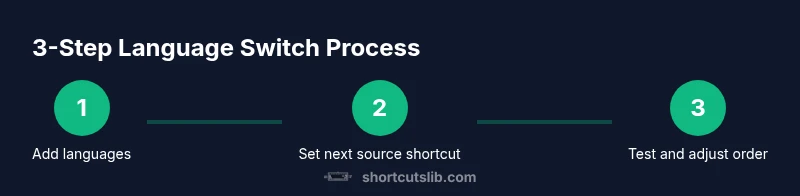
To switch language on Mac with a keyboard shortcut, use the input source toggle (default: Control+Space) or customize it in System Settings > Keyboard > Shortcuts > Input Sources. Add languages and test to ensure smooth cycling.
Why language switching matters on Mac
For multilingual workflows, the ability to switch input language quickly is a productivity multiplier. When you draft documents, fill forms, or code in multiple languages, the same keyboard shortcuts can save seconds or minutes per task. According to Shortcuts Lib, many Mac users rely on keyboard shortcuts to switch languages rather than hunting through menus, which reduces context switching and keeps your flow intact. In practice, a fast toggle helps with foreign language emails, multilingual code comments, and collaboration across teams where spelling and grammar vary by language. The right shortcut can be a mental model that stays with you across apps—TextEdit, Pages, Terminal, and browsers all respond to the same input source switch. This setup is truly a global capability: it travels with your account across documents and projects, making multilingual work smoother and more reliable. As you practice, you’ll notice reduced cognitive load and faster switching in both casual editing and complex workflows.
Default shortcuts and customization landscape
macOS includes a built-in mechanism to switch between input sources, commonly via a keyboard shortcut. The default mapping to move to the next input source is typically Control+Space on recent macOS versions, though this can vary by OS and user customization. If the shortcut clashes with other apps (for example, Spotlight uses Command+Space on many systems), you’ll want to adjust it. Shortcuts Lib’s research shows that users who customize input source shortcuts report fewer interruptions and smoother bilingual task flows. To review or change your shortcuts, open System Settings (or System Preferences on older versions), then navigate to Keyboard > Shortcuts > Input Sources. Here you can enable the input menu in the menu bar for easier switching and set the next/previous source actions. This approach keeps your workflow intact whether you’re drafting emails, coding, or doing multilingual data entry.
How to customize shortcuts in System Settings
To tailor language switching to your hands, start by opening System Settings. Go to Keyboard, then Shortcuts, and select Input Sources. Enable and customize the actions for "Select next source in input menu" and "Select previous source in input menu." You can assign a simple two-key chord (for example, Control+Option+Space) to cycle through sources, or set a dedicated shortcut for a preferred language. If you work with three languages regularly, consider a cycling setup paired with a fixed language shortcut for your primary tongue. After saving changes, test the shortcuts in a few apps to confirm consistent behavior across documents, browsers, and editors. Remember to keep a short language set to minimize cognitive load and maximize speed.
Enabling the Input Menu in the Menu Bar
Show the input menu in the menu bar to provide a quick visual cue and an alternative switching method. In the same Input Sources section, toggle on "Show input menu in menu bar." The menu becomes a handy fall-back when a shortcut is momentarily unclear or you’re using a shared keyboard. You can click the flag or language name to switch languages with a click, and you can rearrange your language order in the Source list to prioritize the languages you use most often. This method complements keyboard shortcuts and helps you keep rhythm, especially during rapid editing sessions.
Automating switching with the Shortcuts app
For power users, macOS Shortcuts can automate language switching, either by cycling through sources or by jumping directly to a chosen language. In Shortcuts, create a new shortcut and add an action like "Set Input Source" to a specific language, or build a small cycle that alternates between two languages with each run. You can assign a keyboard shortcut to trigger this shortcut via System Settings > Keyboard > Shortcuts > App Shortcuts, or pin it to the Dock for quick access. This approach reduces manual steps during intense editing, translations, or live-collaboration sessions.
Troubleshooting, best practices, and quick health checks
If a shortcut stops working after an OS update, revisit System Settings and re-check the Input Sources shortcuts. Conflicts with other apps are a common culprit, so consider reassigning conflicting keys or moving to a two-key combo that’s less likely to clash. Always ensure you have at least two languages installed in the Input Sources list, and verify the order aligns with your daily workflow. The Shortcuts Lib team recommends testing new shortcuts in multiple apps to ensure reliability, and keeping a small, consistent set of languages can reduce errors during fast-paced work.
Tools & Materials
- Mac computer(Any Intel or Apple Silicon Mac with macOS 12 or later)
- System Settings access(Administrative rights not strictly required; personal settings can be changed by user)
- A list of languages you frequently use(Add them to Input Sources for quick switching)
- External keyboard (optional)(Can help with ergonomics or test shortcuts without switching wrists)
- Notepad for quick reference(Jot down preferred shortcuts and language order)
Steps
Estimated time: 15-25 minutes
- 1
Open System Settings
Click the Apple menu and choose System Settings (or System Preferences on older macOS). This is where you configure language input sources. You’ll start at a general overview page that links to Keyboard settings.
Tip: If you’re on macOS Ventura or later, use the search bar to quickly locate Keyboard settings. - 2
Navigate to Keyboard Shortcuts
In System Settings, select Keyboard, then choose Shortcuts. This is where you manage input sources and their keyboard actions. You’ll see a list of categories including Input Sources.
Tip: Use the search in the top-right corner to jump directly to Input Sources. - 3
Enable and customize input sources
Turn on the shortcuts for "Select next source in input menu" and "Select previous source in input menu." Assign new key combinations if needed.
Tip: Choose a two-key combo that doesn’t conflict with other apps to minimize misfires. - 4
Add languages to Input Sources
If your languages aren’t listed, add them under System Settings > Keyboard > Input Sources. You can reorder them so your most-used languages appear first.
Tip: Keep the most-used language first for quick toggling. - 5
Show input menu in the menu bar
Enable the option to show the input menu in the menu bar. This provides a clickable indicator and a fallback method to switch languages.
Tip: Use the menu bar as a visual reminder of your current language state. - 6
Test the shortcuts in multiple apps
Open Mail, a word processor, and a code editor to verify that switching sources behaves consistently. Verify the order and the keyboard responses work across contexts.
Tip: If a shortcut doesn’t respond, try restarting the app or the system to clear temporary conflicts. - 7
Optional: create a Shortcuts automation
In the Shortcuts app, create a new shortcut to set a specific input source or cycle languages. Bind it to a keyboard shortcut in System Settings.
Tip: Test the automation with and without the Shortcuts app open to ensure reliability.
Questions & Answers
How do I add a new language to input sources on macOS?
Open System Settings > Keyboard > Input Sources and click the plus button to add a language. After adding it, you can reorder languages and assign a shortcut to switch to it specifically.
Open Settings, add a language, then set a shortcut to switch to it directly.
Can I switch languages with a single keystroke?
Yes, you can assign a dedicated two-key or single-key combination for next source. It’s best to avoid conflicts with other global shortcuts.
You can assign a dedicated keystroke for next language and test it in multiple apps.
How can I revert to the previous language quickly?
Configure a separate shortcut to go to the previous input source. Some setups map this to a gentle reverse cycle in addition to the forward cycle.
Set a previous-source shortcut to flip back to the language you just used.
What should I do if the shortcut stops working after an OS update?
Revisit System Settings to confirm shortcuts are enabled and rebind if necessary. OS updates can reset custom shortcuts, so re-check the mappings.
If it stops after an update, recheck and rebind the shortcuts in Settings.
Can I switch languages per app?
macOS shortcuts apply system-wide by default. Some apps may remember a language state; you can use Shortcuts to tailor per-app behavior, but it requires more setup.
You can tailor behavior with Shortcuts, but it’s a bit more advanced.
How do I remove a language from input sources?
Go to System Settings > Keyboard > Input Sources, select the language, and remove it from the list. Keep your most-used languages intact to avoid unnecessary switching.
In Settings, remove the language you don’t need from the list.
Watch Video
Main Points
- Set a stable next-source shortcut for quick toggling
- Enable the menu bar input switch for visibility and fallback
- Add your most-used languages and order them intuitively
- Test across apps to ensure consistent behavior
- Consider Shortcuts automation for frequent workflows