Troubleshooting a Keyboard That Will Only Do Shortcuts
If your keyboard only types shortcuts, this urgent guide from Shortcuts Lib reveals common causes, quick fixes, and safety tips to restore normal typing.


Most keyboards that only perform shortcuts point to simple settings or driver issues, not a defective device. Start by checking Fn lock, accessibility shortcuts, and language layout. If those aren’t the cause, test with a second keyboard and update drivers. This quick diagnosis helps you decide whether you can fix it at home or need professional help.
Symptoms and impact
When a keyboard seems to only perform shortcuts, the problem commonly manifests as letters not appearing in text fields while shortcuts like Ctrl+C or Cmd+C still work. This is disruptive across everyday tasks, from writing emails to coding. According to Shortcuts Lib, many of these issues stem from simple, reversible settings rather than a dead key matrix. In most cases you can recover normal typing without swapping hardware. The impact is often mild at first—test in a text editor, a browser form, and a password field to confirm the exact scope of the problem. If the issue only happens in one application, the culprit is likely software-specific; if it happens everywhere, concentrate on system-wide settings and drivers. From a user perspective, a structured approach saves time and reduces stress when you face an urgent keyboard problem.
Common culprits at a glance
- Fn lock or function-key behavior: Some keyboards default to function keys as shortcuts and require Fn to type letters, or have a dedicated Fn-lock toggle.
- Accessibility shortcuts: Windows and macOS offer shortcuts that can be activated unintentionally, subtly changing input behavior.
- Language or layout mismatch: A wrong keyboard layout can map letters to different keys, making typing feel off, while shortcuts still work.
- Keyboard remapping software or background processes: Apps like AutoHotkey or vendor utilities can remap keys, forcing shortcuts over standard characters.
- Hardware fault or driver issue: If the keyboard matrix or USB driver is failing, you may see sporadic input behavior that mimics shortcut-only typing.
The goal is to validate or rule out each category quickly and then move to targeted fixes.
Check Fn lock and function-key behavior
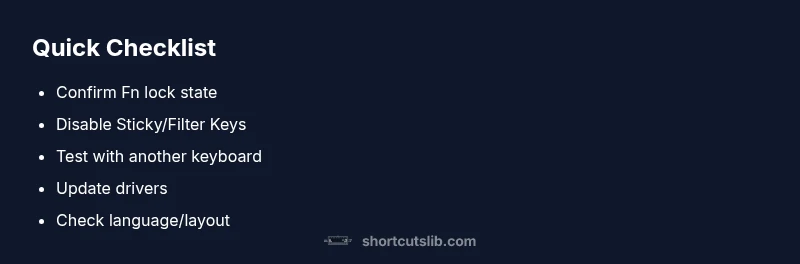
Fn lock behavior is one of the most common culprits. If your keyboard uses physical Fn keys, check for a dedicated Fn lock key or a BIOS/UEFI setting that flips the behavior so letters type without Fn. On many laptops, pressing Fn + Esc or a specific function key toggles the lock. If you’re on a desktop keyboard, look for a toggle or a software setting from the manufacturer. Temporary changes, like rebooting or disabling the Fn lock in BIOS, can restore normal typing without losing shortcuts. Make sure to document the exact model so you can revert changes if needed.
Test typing vs shortcuts across applications
To isolate whether the issue is global or app-specific, open multiple programs—text editors, browsers, and IDEs—and type common letters. If letters appear in some apps but not in others, you’re likely dealing with an application-specific remapping, extension interference, or paste behavior. Disable extensions that hook keyboard input, then re-test. If the problem persists across all apps, move to system-level checks and driver updates. This trial helps you avoid unnecessary changes and keeps you focused on the right layer: software vs hardware.
Inspect accessibility features and keyboard settings
Both Windows and macOS have accessibility features that alter keyboard behavior. Sticky Keys, Filter Keys, and keyboard shortcuts can be toggled accidentally, especially after updates. On Windows, go to Settings > Ease of Access > Keyboard and disable Sticky Keys and Filter Keys; on macOS, check System Settings > Keyboard > Shortcuts and ensure modifiers aren’t unexpectedly triggering extra shortcuts. After adjustments, restart the computer and re-test typing in several apps to verify the fixes have taken effect.
Drivers, remapping software, and background processes
Outdated or corrupted keyboard drivers can disrupt input, as can third-party remapping tools. Visit Device Manager (Windows) or System Information (macOS) to verify the keyboard driver is current. Consider reinstalling or updating the driver, and temporarily disable any remapping utilities to determine if they’re the cause. If you rely on vendor software for shortcuts, temporarily disable it to test baseline typing; this helps you separate hardware faults from software-induced behavior.
Hardware checks and external keyboard testing
If possible, connect a different keyboard to the same computer. If the new keyboard types normally, your original keyboard likely has a hardware fault or a faulty USB/PS2 connection. If the issue persists with a second keyboard, the problem is likely system-wide—either software or driver-related. In both cases, try different USB ports, cables, and even a clean OS boot to see if the problem is intermittent or consistent across environments.
Language, layout, and regional settings
An incorrect input language or keyboard layout can resemble a typing issue where letters are replaced or suppressed while shortcuts stay active. Verify your preferred input method in the system settings (e.g., English US vs. English UK, or a non-Latin layout). After aligning the language and layout, restart and retest. If the problem remains, test in a clean account or boot environment to rule out profile-specific remnant configurations.
When to seek professional help or replace hardware
If the keyboard still behaves oddly after all checks and you have ruled out software and layout issues, a hardware fault becomes the likely culprit. In that case, consult a professional technician or consider replacing the keyboard, especially if it’s an older model or under warranty. If you frequently rely on shortcuts for work, pairing a proven external keyboard while diagnosing can keep productivity high during the process. Remember to back up important data before any major reinstall or hardware swap.
Steps
Estimated time: 45-60 minutes
- 1
Identify the symptom and scope
Confirm whether letters fail to type across all apps or only certain programs. Note if shortcuts still trigger, and document when the issue began. This helps you determine if the cause is software or hardware.
Tip: Record the symptoms with exact words users report for later reference. - 2
Check Fn lock/function-key behavior
Look for an Fn lock key or a BIOS/UEFI option and toggle it. If the keyboard is laptop-based, try Fn + Esc or the designated toggle. Reboot after changing settings and test typing again.
Tip: If in doubt, reset BIOS to default and retest. - 3
Test in multiple applications
Open a plain text editor, a browser text field, and a code editor to see if the issue is universal. If letters appear in one app but not others, look for app-specific remapping or extensions.
Tip: Disable extensions that might capture keyboard input. - 4
Review accessibility settings
Disable Sticky Keys and Filter Keys on Windows, and check Keyboard Shortcuts in macOS. Disable any custom shortcuts that conflict with typing.
Tip: Restart after changes to ensure settings apply. - 5
Update drivers and remove remappers
Update keyboard drivers via Device Manager (Windows) or System Information (macOS); temporarily disable or uninstall remapping software to test baseline typing.
Tip: Keep a backup of any remapping profiles before disabling. - 6
Try another keyboard
Connect a different keyboard to the same computer and test typing. If the new keyboard works, the original device may be faulty or worn out.
Tip: Check USB ports and cables for damage. - 7
Check language and layout settings
Ensure the input language matches your region and that the keyboard layout is correct (e.g., US QWERTY). This prevents mis-typed keys and unexpected mappings.
Tip: Test with a language switch and observe changes. - 8
Decide on next steps
If none of the fixes work, plan for hardware replacement or professional service. Back up data and consider an external keyboard during the transition.
Tip: Document all changes to assist future troubleshooting.
Diagnosis: Keyboard will only produce shortcuts; letters do not appear in typical typing tasks.
Possible Causes
- highFn lock or function-key behavior
- mediumAccessibility features (Sticky/Filter Keys)
- mediumLanguage/layout mismatch or remapping software
- lowDriver or hardware fault
Fixes
- easyToggle Fn lock or adjust function-key mode in BIOS/keyboard settings
- easyDisable Sticky Keys and Filter Keys, adjust accessibility options
- easyVerify and correct keyboard layout/language; remove remapping software
- mediumUpdate or reinstall keyboard drivers; test with a different keyboard
Questions & Answers
Why does my keyboard only respond to shortcuts?
This typically happens due to Fn lock, accessibility shortcuts, or a remapped layout. Check these settings first before assuming a hardware fault. If the problem continues, test with another keyboard to isolate the cause.
Usually Fn lock, accessibility features, or a remap cause this. Start by disabling those settings and testing with another keyboard.
How do I disable Fn lock on Windows or Mac?
Fn lock settings vary by device. On many keyboards, press Fn and Esc together to toggle. In Windows, check BIOS/UEFI settings; on Mac, adjust Keyboard in System Settings and disable any Fn behaviors you don’t need.
Use Fn plus Esc or check BIOS for the Fn behavior; on Mac, adjust Keyboard preferences to set standard function keys.
Can software remapping cause this issue?
Yes. Remapping software can steal character keys for shortcuts. Disable or uninstall any remapping tools temporarily to see if typing returns to normal, then reintroduce them gradually if needed.
Remapping tools can hijack keys. Try disabling them to confirm if typing normalizes.
Is this usually a hardware fault or a software one?
Both are possible. Start with software and settings; if no fix succeeds and a second keyboard behaves normally or the issue persists on multiple devices, a hardware fault is more likely.
It could be either. Rule out software first, then test with another keyboard to judge hardware fault.
When should I see a professional or replace the keyboard?
If you’ve methodically tested and the problem remains, this is a strong sign of hardware failure. Consider professional diagnosis or replacement, especially for keyboards under warranty.
If fixes don’t work after thorough testing, a professional check or replacement is sensible.
Watch Video
Main Points
- Identify whether the issue is hardware or software first.
- Fn lock and accessibility settings are common culprits.
- Test across apps to isolate the problem.
- Update drivers and check for remappings.
- If all else fails, consider hardware replacement.