How to Find Keyboard Shortcuts: A Practical Guide
Learn how to locate, verify, and memorize keyboard shortcuts across Windows, macOS, and popular apps with a practical, step-by-step approach and printable cheatsheets.


Goal: locate built-in keyboard shortcuts across Windows, macOS, and popular apps, learn how to customize them, and build a reliable cheat sheet. This guide shows practical methods to discover, verify, and memorize shortcuts, plus tips for practicing daily tasks so you can speed up workflows and reduce reliance on the mouse today.
Why finding keyboard shortcuts matters
In the daily workflow of tech users and keyboard enthusiasts, keyboard shortcuts are the fastest route to efficiency. Shortcuts shrink the distance between intention and action, cut down repetitive mouse movements, and can reduce fatigue during long sessions. When you master a core set of shortcuts, you gain consistency across apps and platforms, which makes learning new tools easier. According to Shortcuts Lib, the most valuable shortcuts are those you actually use in real tasks, not every key combination under the sun. This is why a focused discovery approach matters: identify three to five high-impact tasks you perform most often, then learn the corresponding shortcuts first, before expanding to a broader set. A practical shortcut mindset blends OS-level keys with app-specific commands, so you can navigate, edit, search, and manage workflows with confidence.
Beyond speed, shortcuts improve accessibility. They offer alternate paths for users who rely on keyboard navigation due to motor or vision differences. For power users, shortcuts unlock keyboard-driven workflows that competitors often depend on the mouse for. In this guide, you’ll see concrete steps to find shortcuts, validate them, and craft a personalized cheat sheet you can reference daily. Shortcuts Lib’s approach emphasizes reliability and repetition over memorizing hundreds of symbols. Start with a plan, practice in context, and adjust as your work evolves.
How shortcuts vary across platforms
Shortcuts aren’t universal. They change with operating systems, application suites, and even browser environments. Windows favors its Ctrl and Alt combinations, while macOS leans on the Command key for many standard actions. Linux distributions may mirror Windows or macOS shortcuts depending on the desktop environment. Web apps often invent their own shortcuts to optimize web workflows, like browser tabs, content editing, and integrated search. The key is to learn the common anchors first—copy, paste, undo, redo, save, and window management—and then map them to the environments you use most. In practice, you’ll rely on platform-wide shortcuts for navigation and editing, then augment with app-specific shortcuts to unlock advanced features. By understanding platform conventions, you avoid conflicts and pick shortcuts that feel intuitive rather than arbitrary. Shortcuts Lib suggests pairing OS shortcuts with the most frequent app shortcuts so your muscle memory becomes predictable across tasks.
Where to find built-in shortcuts in Windows
Windows provides a broad catalog of keyboard shortcuts built into the OS, many of which work across most apps. The most reliable starting point is the official Windows Help and Support portal, which lists common actions like copy (Ctrl+C), paste (Ctrl+V), select all (Ctrl+A), undo (Ctrl+Z), and redo (Ctrl+Y). Window management shortcuts (Alt+Tab to switch apps, Win+D to show the desktop) are equally valuable in daily use. You can also open the Settings app and search for Shortcut keys or Keyboard to see where new shortcuts are defined for accessibility features, virtual desktops, and language input. For power users, exploring advanced shortcuts in the Control Panel’s Ease of Access Center and the Keyboard section can reveal options to customize behavior, such as enabling Sticky Keys or changing the behavior of the Print Screen key. Regularly verifying shortcuts in the exact apps you use helps prevent confusion when you switch contexts.
Where to find built-in shortcuts in macOS
macOS relies heavily on the Command key for many essentials. Common shortcuts include Command+C (copy), Command+V (paste), Command+X (cut), Command-Z (undo), Command-Shift-4 (screenshot region), and Command-Tab (switch apps). The System Settings (formerly System Preferences) under Keyboard exposes shortcuts you can customize, including Mission Control, Spotlight, and App Shortcuts. In Finder, the standard actions have their own quick keys, and many apps expose their own shortcuts in the app’s Help menu or with a dedicated Keyboard Shortcuts reference sheet. If you’re coming from Windows, consider building a quick conversion map: which Windows shortcuts map to a Command-based equivalent on macOS. Shortcuts Lib emphasizes practicing in real tasks to consolidate cross-platform consistency while embracing platform-specific nuances.
Where to find shortcuts in popular apps (Chrome, Word, Excel, and more)
Many apps include a built-in shortcuts reference, often accessible via the Help menu or a keyboard icon on the toolbar. Chrome, for example, supports a wide range of shortcuts for tab management (Ctrl+Tab, Ctrl+Shift+Tab), omnibox navigation (Ctrl+L), and developer tools (Ctrl+Shift+I). Microsoft Word and Excel offer extensive lists for formatting, editing, and data manipulation, with power-user shortcuts for navigation, cell editing, and formula entry. To locate these, open the app’s help center, search for “keyboard shortcuts,” and look for a dedicated “Shortcuts” or “Key combinations” article. Additionally, many apps allow you to customize shortcuts—use this capability to map frequently used actions to easy-to-remember keys. The coexistence of OS-level and app-level shortcuts makes a practical cheat sheet essential when learning across tools.
Steps to discover shortcuts on your system (step-by-step approach)
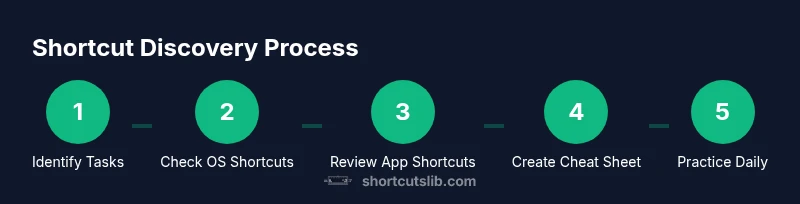
The following method works across Windows and macOS and scales to many apps. First, list three tasks you perform most often. Then, open the OS Help and search for keyboard shortcuts relevant to those tasks. Next, scan the app menus for the exact keystrokes used for those tasks. Add any discovered shortcuts to your master cheat sheet. Finally, practice by performing those tasks with the shortcuts in context, not in isolation. This process helps confirm shortcuts you actually use and reveals gaps where you need to learn more. Shortcuts Lib recommends scheduling a 15-minute weekly review to keep your cheat sheet current and to prune rarely used keys in favor of high-value actions.
How to organize and memorize shortcuts effectively
Organize shortcuts by task categories (navigation, editing, window management, formatting) and then by platform. Create a printable or digital cheat sheet with three columns: action, shortcut, notes. Use color-coding to distinguish OS-level shortcuts from app-specific ones. Practice in context: perform real tasks using shortcuts rather than isolated drills. Use repetition strategically—start with five core shortcuts and add two new ones weekly. Build a habit loop: plan, practice, test, reflect. Finally, keep a log of shortcuts you’ve adopted and update it as your toolkit grows; this makes memorization less daunting and improves long-term retention. Shortcuts Lib emphasizes sustainable learning, not crash-courses.
Ways to customize and learn shortcuts effectively
Customization is a powerful ally when standard shortcuts don’t fit your workflow. Start by enabling keyboard shortcuts in Settings, then map frequently used actions to keys you can remember easily. Use a consistent mnemonic approach: if you want to remember a complex combination, pair it with a familiar daily action. Create a personal shortcut cheat sheet and review it daily for two weeks. Use spaced repetition: practice a handful of shortcuts in steady intervals rather than cramming. For accessibility, ensure shortcuts are reachable without awkward finger stretches and consider enabling accessibility features like High Contrast or Sticky Keys when needed. Shortcuts Lib highlights that personalized mappings trump generic lists for long-term efficiency.
Practice routines and spaced repetition for long-term retention
Short, regular practice beats marathon cramming. Schedule 10-15 minutes daily devoted to a rotating set of core shortcuts, then extend to advanced keys as comfort grows. Use real tasks as the testing ground: open a document, format text, or navigate between tabs using your shortcuts. Create mini-challenges such as completing a workflow in a fixed time with only shortcuts, then reflect on areas where you hesitated or forgot a key combination. Spaced repetition helps transfer short-term memory into long-term recall, so your brain builds neuro-associations around meaningful actions. After a few weeks, you should reach a level where you can operate at a natural pace with keyboard-driven efficiency.
Security and accessibility considerations when using shortcuts
Be mindful of security: avoid binding sensitive actions to keys that could be triggered accidentally in public or shared environments. When using shortcut managers, ensure you back up configurations securely and disable them on public machines if required. Consider accessibility: some shortcuts may be challenging for users with motor limitations. Where necessary, choose alternative keys or enable modifiers like Ctrl instead of requiring rapid multi-key combinations. Laptop keyboards with smaller layouts can benefit from customizing shortcuts to simpler key sequences. Always test shortcuts in a safe environment before relying on them in critical workflows. Shortcuts Lib champions inclusive design and mindful customization.
Tools & Materials
- Computer or laptop with keyboard(Any OS (Windows/macOS/Linux) with admin rights for app installations.)
- Internet browser(To browse official shortcut references and app docs.)
- Notepad or note-taking app(For recording and organizing your cheat sheet.)
- Printer or printable cheat sheet template(Optional for offline use.)
- Sticky notes or digital sticky board(Quick reference in your workspace.)
- Cheat sheet template (digital or printable)(Helps structure and memorize shortcuts.)
Steps
Estimated time: 45-60 minutes
- 1
Define your learning goal
Identify three to five high-impact tasks you perform daily. This sets scope and ensures you learn shortcuts that yield real productivity gains.
Tip: Choose tasks that save you the most clicks or keystrokes first. - 2
List OS shortcuts for core tasks
Open the OS Help or Settings and locate universal shortcuts for copy, paste, undo, and navigation. Record these in your master sheet.
Tip: Note differences between Windows and macOS equivalents to avoid confusion. - 3
Identify app-specific shortcuts
In your most-used apps, check Help, Settings, or Keyboard Shortcuts reference to capture action-specific keys.
Tip: Start with editing and formatting shortcuts in your go-to editor or browser. - 4
Create a master cheat sheet
Consolidate OS and app shortcuts into a single document organized by task and platform.
Tip: Use color coding to distinguish OS-level vs. app-specific shortcuts. - 5
Practice in real tasks
Perform tasks with shortcuts during actual work, not isolated drills, to reinforce memory.
Tip: Set a daily 10-minute practice window and track progress. - 6
Review and prune
After two weeks, review your cheat sheet to remove rare shortcuts and keep high-value ones.
Tip: Update notes with any new shortcuts you discover during practice. - 7
Explore advanced helpers
If needed, consider a shortcut manager or macro tool to preserve consistency across apps.
Tip: Ensure safe use: back up configurations and test on non-sensitive data first. - 8
Establish a learning routine
Schedule regular reviews and expand your set gradually to avoid cognitive overload.
Tip: Aim for incremental growth—add 2–3 shortcuts per week rather than all at once.
Questions & Answers
What are keyboard shortcuts?
Keyboard shortcuts are key combinations that perform tasks more quickly than using a mouse. They span OS functions, app commands, and browser actions, enabling faster navigation and editing.
Keyboard shortcuts are quick key combinations that let you perform tasks faster than with a mouse.
Where can I find Windows shortcuts?
Most Windows shortcuts are documented in the Help center and Settings > Keyboard. Common actions include copy, paste, undo, redo, and window management shortcuts like Alt+Tab.
Windows shortcuts are usually listed in Help or Settings; start with copy, paste, undo, and window navigation.
Where can I find macOS shortcuts?
macOS shortcuts rely on the Command key for many actions. Use System Settings > Keyboard to customize or view shortcuts, and check Finder and app Help menus for app-specific keys.
macOS shortcuts use the Command key; customize in System Settings and check app Help menus for specifics.
How can I memorize shortcuts effectively?
Memorize shortcuts through consistent practice in real tasks, create a single master cheat sheet, and use spaced repetition over a few weeks to build long-term recall.
Practice in real tasks, keep a cheat sheet, and use spaced repetition to memorize shortcuts.
Are there accessibility considerations I should know?
Yes. Ensure shortcuts are reachable on your hardware, avoid overlong combos, and provide alternatives if needed for users with motor impairments.
Shortcuts should be accessible; avoid overly long combos, and offer alternatives if needed.
Watch Video
Main Points
- Identify high-impact shortcuts first
- Differentiate OS vs. app shortcuts
- Practice in real tasks with context
- Regularly review and update your cheat sheet