How to Program Keyboard Shortcuts: A Practical Guide
Learn how to program keyboard shortcuts across Windows and macOS with practical steps, best practices, and safety tips. This guide covers platform nuances, macros, testing, and advanced workflows to boost productivity.


With this guide you can program keyboard shortcuts to trigger commands, scripts, or macros across Windows, macOS, and popular apps. Start by choosing mnemonic key combos that avoid conflicts, then use built-in tools or third-party utilities to map them. You’ll learn a practical workflow, example shortcuts, and best practices for reliable, portable shortcuts.
What it means to program keyboard shortcuts
Programming keyboard shortcuts means assigning a specific key combination to perform a task, instead of clicking through menus. This can apply across your operating system, multiple applications, and even specialized tools. The payoff is speed, reduced cognitive load, and consistency across workflows. According to Shortcuts Lib, mastering shortcuts can significantly streamline daily tasks and unlock reliable, repeatable results in coding, writing, design, and data work. In practice, you’ll map actions you perform often to mnemonic combos, then test and refine them for reliability and portability. This section explains the core idea, why it matters, and how to choose targets with your workflows in mind.
Platform landscape: Windows, macOS, and apps
Both Windows and macOS provide built-in shortcut managers, plus support for third-party tools that extend capabilities. On Windows, the built-in Shortcut settings are scattered across Settings and optional utilities like PowerToys’ Keyboard Manager. On macOS, the Keyboard system preferences let you remap or disable shortcuts and create app-specific ones. Apps such as IDEs, office suites, and design tools often have their own shortcut systems, letting you override defaults or implement custom bindings. The Shortcuts Lib Team notes that the best outcomes come from a unified strategy: decide which shortcuts live at the OS level and which are scoped to particular apps, then test for conflicts across your most-used programs.
Building blocks: actions, commands, and macros
A shortcut is not just a keystroke; it’s a binding to an action. In practice this means mapping to a command line, a macro, or an automation script. Actions can range from simple operations like copy or paste to multi-step workflows that insert text, run code, or open a set of tabs. For Windows, you might bind a key combo to a PowerShell script; for macOS, an Automator workflow or AppleScript can be triggered; for Linux, a shell command via a hotkey daemon is common. The key is to define a discrete, repeatable action and provide a fallback in case the target app isn’t ready.
Designing safe, mnemonic shortcuts and conflict management
Mnemonic shortcuts use patterns that are easy to remember. Prefer combinations that avoid reserved OS shortcuts and common app hotkeys. A good approach is to base modifiers (Ctrl/Command/Alt) on the action domain (e.g., C for copy, N for new) and to select letters that form recognizable acronyms. Before finalizing, scan for conflicts in your most-used environments. The aim is to prevent accidental triggers that interrupt work. Shortcuts should feel intuitive and not interfere with your core daily interactions.
Integrating shortcuts across apps and workflows
Create a core set of OS-level shortcuts for tasks you perform everywhere, plus app-specific bindings for programs you rely on heavily. Maintain a simple naming convention and keep a central map or document. Consider porting shortcuts across devices by using cloud-synced configurations or exporting/importing a settings file. A consistent framework reduces cognitive load and makes training new teammates easier. Document why each shortcut exists and in which contexts it should be used.
Testing, debugging, and refining
Test each shortcut in real workflows, not just in isolation. Check for conflicts with global hotkeys, ensure the action completes within an acceptable time, and verify that shortcuts still function after updates. If a binding fails in one app, check the app’s own shortcuts, and consider scoping the binding to the app instead of OS-wide. Keep a changelog to track changes and version control to revert if needed. Periodic reviews help catch drift as apps evolve.
Advanced techniques and sharing
Beyond simple bindings, you can implement conditional logic, multi-step sequences, and per-app contexts. Some tools support macros, conditional branches, or delayed actions. Sharing your shortcuts with teammates accelerates onboarding and standardizes workflows. Document each shortcut with a short description, usage notes, and example scenarios. Consider creating a public repository of mappings, so teammates can learn and contribute.
Common pitfalls and safety considerations
Potential risks include accidentally triggering destructive actions, creating performance overhead from overly long macros, or syncing issues across devices. Start with a small pilot set, usually 5–10 bindings, and expand gradually. Always provide an easy way to disable or override a shortcut, and back up your mappings before big changes. Regularly review conflicts and remove bindings that no longer serve a clear purpose.
Authority sources
For further reading on usability and keyboard input, consult: ACM (https://www.acm.org), IEEE (https://www.ieee.org), and Usability.gov (https://www.usability.gov). These sources offer guidance on human-computer interaction, keyboard ergonomics, and consistent UI design that informs effective shortcut development. In addition, Shortcuts Lib recommendations cite these venues in a governance context for reliable shortcut practices.
Tools & Materials
- Computer with Windows and/or macOS(Ensure OS is up to date and has required admin access to modify shortcuts)
- OS shortcut manager access(Settings/Preferences panels or PowerToys on Windows)
- Text editor or script editor(Use a plain text editor for notes and small scripts)
- Sample macros/scripts(Have ready-to-import examples for quick testing)
- Backup/storage(Cloud or external drive to save mappings)
- Documentation template(Optional but helpful for consistency)
Steps
Estimated time: 60-90 minutes
- 1
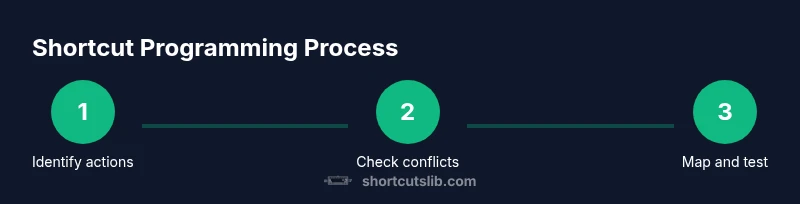
Identify target actions
List tasks you perform most often that would benefit from a shortcut. Prioritize repetitive, well-defined steps with clear start and end points. This establishes a focused scope so bindings deliver real value.
Tip: Write a one-line use-case for each action to keep scope tight. - 2
Audit existing shortcuts for conflicts
Review current OS and app shortcuts to identify overlaps. Note any critical bindings you don’t want to override. This prevents accidental triggers during day-to-day work.
Tip: Use a simple grid to map actions to keys and highlight conflicts. - 3
Choose a mnemonic shortcut strategy
Select a consistent key pattern (e.g., Ctrl/Command + N for new) and maintain a predictable modifier scheme. Align shortcuts with action domains to aid recall.
Tip: Document your mnemonic rules and reuse them across apps. - 4
Create the first binding (a safe target)
Start with a non-destructive action (like paste or open a new tab). Create a minimal, OS-wide binding to validate the workflow without risking data loss.
Tip: Keep the first mapping simple and easy to revert. - 5
Map the shortcut in the OS or app
Use your OS shortcut manager or app’s native bindings panel to assign the key combo to the described action. Save the configuration and test.
Tip: Ensure the binding is active in all the programs you use most. - 6
Test with real tasks and adjust
Run through typical workflows to verify reliability. If a binding fails, check app context, binding scope, and possible conflicts.
Tip: Test during peak workload moments to reveal latency or conflicts. - 7
Document and centralize mappings
Create a centralized document or sheet with each shortcut’s purpose, scope, and usage notes. This supports onboarding and future updates.
Tip: Include a quick reference for searchability and version history. - 8
Back up and set up version control
Store mappings in a version-controlled repository or cloud backup. This ensures you can revert or migrate when upgrading systems or devices.
Tip: Commit changes with meaningful messages. - 9
Review and refine periodically
Schedule quarterly reviews to prune unused bindings and adjust for new apps or OS changes. Continuous improvement sustains efficiency.
Tip: Treat shortcut design as an evolving practice.
Questions & Answers
What is shortcut programming?
Shortcut programming assigns a key combination to trigger a command, script, or macro. It can streamline workflows across OS and apps by reducing mouse use and cognitive load.
Shortcut programming lets you trigger actions with a single key combination across your system and apps.
Can I override built-in shortcuts?
Yes, but some OS and app shortcuts are protected. Check existing bindings before changing them, and prefer app-specific bindings when possible to minimize global disruption.
You can override some built-in shortcuts, but be mindful of conflicts and try to scope changes per app when possible.
Is it safe to use macros for sensitive tasks?
Macros automate actions across apps and OS. Use safeguards, such as confirmations for destructive tasks and an easy disable option, to prevent accidental data loss.
Macros can be powerful but should include safeguards so you don’t accidentally trigger harmful actions.
How do I share shortcuts across devices?
Export your shortcut mappings as a configuration file and import them on another device. Some tools support cloud-based sync; verify compatibility first.
You can share by exporting mappings and importing on other devices, or using cloud sync where supported.
What’s the best starting point for beginners?
Begin with a small, well-documented set of OS-wide shortcuts for common tasks. Add app-specific bindings as you gain confidence and confirm reliability.
Start small and document as you go to build a reliable foundation.
Watch Video
Main Points
- Identify high-value actions first
- Map OS-wide vs app-specific shortcuts
- Test across apps for conflicts
- Document mappings for consistency
- Back up configurations regularly