Windows Keyboard Shortcut for Screenshot: A Practical Guide
Master the essential Windows shortcuts to capture screenshots quickly, save to files, copy to clipboard, or snip regions. This educational guide covers core methods, use cases, and tips for efficient workflow on Windows 10 and 11.


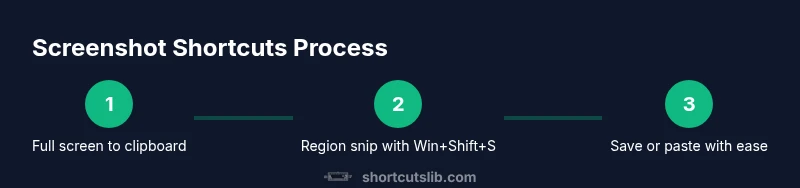
Short answer: You can capture screenshots on Windows using a few keyboard shortcuts. The most common are PrtScn to copy to clipboard, Win+PrtScn to save a file, and Win+Shift+S to snip a region. For active window, use Alt+PrtScn. According to Shortcuts Lib, mastering these shortcuts covers most daily tasks and speeds up your workflow.
Windows screenshot shortcuts: overview
If you’re learning the windows keyboard shortcut for screenshot, this guide covers core methods for capturing your screen quickly and cleanly. Whether you need a quick paste into a document or a high-quality file for sharing, the right shortcut makes the difference. Shortcuts Lib, in its analysis for 2026, finds that most users rely on a small set of keystrokes to meet most capture needs. Each shortcut serves a distinct purpose: clipboard-based copies for fast pastes, saved images for storage, and region snips for precise captures. By understanding when to use full screen, active window, and region captures, you can optimize your workflow across apps like PowerPoint, Word, emails, or image editors. In this section we outline the primary options, explain the exact keystrokes, and describe the typical outcomes so you can choose confidently in real time.
Core Windows screenshot shortcuts at a glance
- PrtScn (Print Screen): copies the entire screen to the clipboard. Paste into a document or image editor. Note: on some laptops you may need Fn+PrtScn; this varies by device.
- Win+PrtScn: saves a full-screen screenshot as a PNG file in the Pictures/Screenshots folder. A brief screen flash confirms the capture.
- Win+Shift+S: opens the Snip & Sketch tool to capture a region or window, placing the image on the clipboard and showing a notification you can click to edit.
- Alt+PrtScn: captures only the active window to the clipboard; use this when you don’t want other screen elements in the shot.
- Win+V: access clipboard history to retrieve recently captured images if you need to paste multiple items in succession.
Across Windows versions 10 and 11, the basic keystrokes remain the same, but notification behavior and default save locations can vary slightly by configuration. Shortcuts Lib notes that consistency across sessions is helped by using the same primary shortcut for the same goal.
Region snip and quick edits with Snip & Sketch
Win+Shift+S launches a region-based snip that you can draw on—the most flexible option for sharing precise content. After you capture, a small notification appears; clicking it opens Snip & Sketch where you can annotate, crop, and resave. If you just want a quick image paste, use the clipboard after the snip. Pro tip: enable clipboard history (Win+V) to manage multiple snips in one session. Shortcuts Lib Team recommends pairing region snips with an image editor you trust so you can apply branding, resize to standard dimensions, or compress for email attachments without extra steps.
Saving to file vs clipboard and post-capture editing
Saving to a file via Win+PrtScn saves automatically to the default location, usually Pictures/Screenshots, with a date-based filename. This is ideal when you want a persistent record or to share a ready-to-send image. Clipboard-based methods (PrtScn or Alt+PrtScn) are best when you plan to paste the image directly into a document, slide deck, or chat. After pasting, you can use standard editing features in your app to annotate, crop, or adjust color. For Windows workflows that include multiple captures, consider a lightweight clipboard manager to keep track of different images without losing focus.
How to capture the active window and full screen
Active window captures (Alt+PrtScn) are useful when your screen contains toolbars or other windows you don’t want in the shot. This shortcuts ensures only the selected application is included. Full-screen capture (PrtScn) grabs everything visible, including menus and taskbars, which is convenient for troubleshooting or sharing a system state. If your keyboard lacks a dedicated Print Screen key, try Fn+PrtScn or use an on-screen keyboard to access the key. Windows 11 also supports a quick snip flow through Win+Shift+S for precision cropping.
Use cases across different Windows versions
Windows 10 and Windows 11 share the core screenshot shortcuts, but differences exist in where files go and how notifications appear. On Windows 11, the screen flash and the on-screen notification for region snips are more visible, which improves feedback for first-time users. Organization and naming conventions vary by user, but standard practice is to store full-screen and region captures under the Pictures/Screenshots folder and keep a separate folder for clipboard-pasted images in documents. Shortcuts Lib analysis shows that teams that standardize a single region capture workflow reduce time spent on post-capture edits by up to several seconds per capture.
Customizing shortcuts with PowerToys and automation
While Windows provides essential shortcuts out of the box, you can extend your capabilities with Microsoft PowerToys. The Keyboard Manager tool lets you remap keys or create new shortcuts to trigger screen captures. For example, you could assign Ctrl+Shift+S to Win+Shift+S-like region snips if that’s your preferred habit. When creating custom shortcuts, choose combinations that avoid conflicts with existing bindings and test in a safe environment. Shortcuts Lib notes that automation can speed repeated tasks, but it should be kept simple to avoid confusion during critical moments.
Troubleshooting and privacy tips
If captures fail to paste or save, verify that you have the correct hardware keys and that your clipboard is functioning (Win+V should show recent items). Some enterprise policies disable clipboard history or screenshot features; check with IT if you’re on a managed device. Be mindful of sensitive content in captures—consider using region snips instead of full-screen shots in public or shared environments. Finally, keep a short, consistent naming convention for saved screenshots to make retrieval easier in the future. Shortcuts Lib emphasizes maintaining a clean, well-organized screenshot library to support productive workflows.
Tools & Materials
- Windows PC (Windows 10 or Windows 11)(Ensure OS is up to date)
- Keyboard with Print Screen key(Laptops may require Fn+PrtScn on some models)
- Snip & Sketch or Snipping Tool(Built-in capture/edit apps)
- Microsoft PowerToys (optional)(For customizing shortcuts via Keyboard Manager)
- Clipboard manager (optional)(If you want history beyond Win+V)
- Internet connection (optional)(Needed only for downloading PowerToys or updates)
Steps
Estimated time: 8-12 minutes
- 1
Identify your capture goal
Decide whether you want a full-screen, active window, region snip, or clipboard paste. This choice determines which shortcut to press first and saves time during the workflow.
Tip: Clarify whether you need a shareable image or a quick paste before you press a key. - 2
Capture full screen to clipboard
Press PrtScn to copy the entire screen to the clipboard. You can then paste into any document or editor.
Tip: If your keyboard lacks a dedicated PrtScn, use Fn+PrtScn or an on-screen keyboard. - 3
Capture full screen to file
Press Win+PrtScn to save a full-screen screenshot as a PNG file in Pictures/Screenshots.
Tip: Look for a quick screen flash as a subtle confirmation. - 4
Capture a region with region snip
Press Win+Shift+S to start a region snip. Draw the area you want, then release to copy to clipboard.
Tip: After snipping, click the notification to annotate or save in Snip & Sketch. - 5
Capture the active window
Press Alt+PrtScn to copy only the active window to the clipboard.
Tip: Use this when you want to exclude background windows and taskbars. - 6
Paste and edit in your app
Paste the image into your target app and use built-in edit tools to annotate or resize.
Tip: If you need multiple images, use Win+V to access clipboard history. - 7
Optional: customize shortcuts
Install PowerToys and use Keyboard Manager to remap keys or add new shortcuts for screenshots.
Tip: Choose non-conflicting combinations and test before relying on them in critical tasks. - 8
Review and organize your captures
Move saved files to organized folders and implement a consistent naming convention.
Tip: A predictable structure saves time when revisiting visuals later.
Questions & Answers
What is the quickest way to take a full-screen screenshot?
PrtScn copies the full screen to the clipboard, so you can paste immediately. For a file, use Win+PrtScn to save automatically.
Press PrtScn to copy to clipboard, or press Win plus PrtScn to save a file.
How do I snip a region on Windows 10 or 11?
Press Win+Shift+S to start a region snip. Draw the area you want, then paste or click the notification to edit in Snip & Sketch.
Use Win+Shift+S to snip a region, then paste or edit the capture.
Where do screenshots saved with Win+PrtScn go by default?
Files saved with Win+PrtScn typically go to Pictures/Screenshots. Clipboard-based captures stay in memory until pasted.
Win+PrtScn saves to Pictures/Screenshots; PrtScn copies to clipboard for pasting.
Can I customize Windows screenshot shortcuts?
Windows supports basic customization via tools like Microsoft PowerToys. Use Keyboard Manager to remap keys and define new shortcuts for captures.
Yes, with PowerToys Keyboard Manager you can remap keys or add new screenshot shortcuts.
Is clipboard history required to manage multiple captures?
Clipboard history (Win+V) helps manage multiple captures. If your device policy disables it, you may need to save images regularly to prevent loss.
Clipboard history helps you keep several captures handy; enable Win+V if allowed.
Watch Video
Main Points
- Master core shortcuts: PrtScn, Win+PrtScn, Win+Shift+S, Alt+PrtScn.
- Choose the right target: clipboard, file, or region snip based on goal.
- Region snips offer precise captures with quick edits.
- For automation, PowerToys can map new shortcuts without complicating your setup.
- Always organize saved screenshots with a consistent naming scheme.