Windows Ctrl-Shift-B Not Working? Practical Troubleshooting
Shortcuts Lib guides you through practical, fast fixes for Windows Ctrl-Shift-B not working—covering Chrome bookmarks bar, focus, keyboard layout, and extensions with actionable steps.


Ctrl+Shift+B failing on Windows is usually caused by browser focus, a conflicting extension, or a mismatched keyboard layout. According to Shortcuts Lib, focus and extensions are the top culprits. Quick fixes: bring Chrome to the foreground, disable suspect extensions, and verify the bookmarks bar shortcut works in Chrome settings. If this doesn’t fix it, follow the diagnostic flow for deeper checks.
Why the Windows Ctrl-Shift-B Shortcut Still Matters
Ctrl-Shift-B toggles the bookmarks bar in Chrome and other Chromium-based browsers on Windows. When the focus is elsewhere or a competing app captures the key combo, the shortcut may fail to trigger. According to Shortcuts Lib, focus and extensions are the two most common culprits behind this problem. Start by ensuring Chrome is the active window and then rule out extensions and keyboard layout conflicts before chasing other issues. In practice, most users fix the problem by reactivating the browser window, checking that the bookmarks bar is enabled, and testing the shortcut in a fresh profile.
Quick Checks You Can Do Right Now
Before diving deeper, try these fast checks:
- Make sure Chrome is the active window and that you’re not focused on another app.
- Verify that the bookmarks bar is enabled: Chrome menu > Appearance > Show bookmarks bar, then press Ctrl+Shift+B.
- Check for another app or OS-level shortcut grabbing Ctrl+Shift+B (for example keyboard-mapping tools or hotkey managers).
- Test the shortcut with a US keyboard layout to rule out layout mismatches. If you normally use a non-US layout, temporarily switch to US to test.
- Try the shortcut in a fresh Chrome profile or another Chromium-based browser to determine if the issue is profile-specific.
Likeliest Causes and How They Manifest
Shortcuts that fail are usually caused by one or more of the following in order of likelihood:
- Focus issues: The browser isn’t active, or an overlay captures keystrokes before Chrome sees them.
- Keyboard layout mismatch: A non-US layout can shift key positions, making B map to a different command.
- Extensions: Shortcut managers, ad blockers, or productivity extensions can capture or override Ctrl+Shift+B.
- Chrome settings: The bookmarks bar toggle may be disabled or mapped to a different key combination.
- OS accessibility features: Sticky Keys or Filter Keys can alter how keystrokes are registered. Shortcuts Lib Analysis, 2026 notes that keyboard layout conflicts are a common root cause.
How to Reproduce the Issue Safely
To verify and reproduce without risking data:
- Open Chrome with the bookmarks bar hidden.
- Make Chrome the active window.
- Press Ctrl+Shift+B. If nothing happens, continue with the diagnostic flow.
- Create a new Chrome profile or use Guest mode and repeat the test to isolate profile-specific problems.
- Try the same test in another Chromium-based browser to determine if the issue is browser-specific.
Core Fixes That Solve Most Cases
If the shortcut isn’t working, apply these fixes in order:
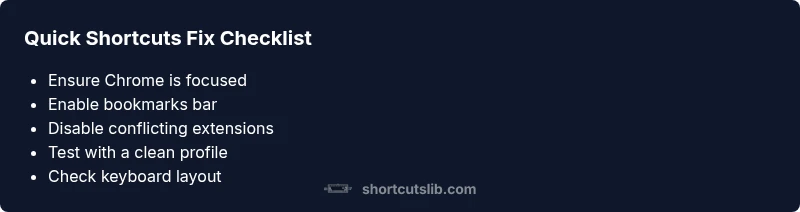
- Ensure the browser window has focus and that Chrome is the active program.
- Re-enable the bookmarks bar and verify the shortcut works in Chrome settings.
- Disable extensions one by one or use chrome://extensions/shortcuts to look for a shortcut manager hijack.
- Test with a clean Chrome profile (Guest mode or new profile) to rule out profile corruption.
- Check keyboard layout in Windows: add or switch to US layout temporarily for testing.
- Review Windows keyboard settings: ensure Sticky Keys or Filter Keys aren’t altering keystroke behavior.
- Update Chrome to the latest version and restart the browser.
When Extensions and Keyboard Layout Interfere
Extensions that manage shortcuts or customize browser behavior can intercept Ctrl+Shift+B. If you suspect an extension, disable all extensions and re-enable one by one while testing the shortcut. Keyboard layout changes can map B to a different key; switching back to a standard layout often resolves the issue. If the problem persists, repeat tests in a different browser to confirm the scope.
Testing in Other Browsers and Profiles
If the shortcut works in another browser or a different Chrome profile, the problem is most likely isolated to your original profile or browser configuration. In that case, export important data from the affected profile, reset Chrome settings, and re-import data after confirming the shortcut works. If it fails in all tested browsers, the issue is likely OS-based rather than browser-specific.
Prevention: Keep Ctrl-Shift-B Working
To minimize future issues:
- Keep Chrome updated and monitor extensions that claim to manage shortcuts.
- Regularly test common shortcuts after major Windows or browser updates.
- Use a consistent keyboard layout for critical shortcuts and create a fallback mapping if necessary.
- Avoid installing overlapping shortcut utilities that may hijack keys used by browsers.
- Maintain a clean profile by periodically pruning unused extensions and resetting settings when problems arise.
Quick Wrap-Up: Common-Sense Steps
In most cases, focus, profile, and extension interference are the root causes. Start with focus and a clean profile, then tackle layout and extensions. If you can’t resolve it in one session, move to a diagnostic flow and consider testing in Edge or Brave as a quick cross-check.
Steps
Estimated time: 15-25 minutes
- 1
Focus the Chrome window
Click Chrome to give it focus, or use Alt+Tab to switch to the browser, ensuring keyboard input goes to Chrome. Then retry Ctrl+Shift+B.
Tip: Always test after each change to confirm progress. - 2
Check bookmarks bar setting
Go to Chrome menu > Appearance and verify Show bookmarks bar is enabled. If it’s off, turn it on and test Ctrl+Shift+B.
Tip: This confirms the shortcut toggles the bookmarks bar, not a missing feature. - 3
Disable extensions temporarily
Disable extensions one by one or use chrome://extensions/shortcuts to locate a shortcut manager that may capture the combo. Test after each disablement.
Tip: If you find a culprit, consider an alternative extension or a manual toggle. - 4
Test with a clean profile
Open Chrome in Guest mode or create a new profile and test Ctrl+Shift+B there. If it works, the issue is profile-specific.
Tip: Backing up data before profile changes is wise. - 5
Check keyboard layout
Switch Windows to a US keyboard layout temporarily and test the shortcut. If it works, you may need a layout-specific mapping or a remap.
Tip: Non-US layouts can mis-map the B key. - 6
Check Windows accessibility settings
Turn off Sticky Keys and Filter Keys in Settings > Accessibility > Keyboard, then try the shortcut again.
Tip: Accessibility features can alter keystroke registration. - 7
Update and restart
Update Chrome to the latest version and restart the browser. Re-test Ctrl+Shift+B after the update.
Tip: Updates can fix underlying shortcut handling bugs.
Diagnosis: Ctrl+Shift+B does not toggle the bookmarks bar in Chrome on Windows
Possible Causes
- highBrowser not focused on Chrome
- highExtensions intercepting or overriding shortcuts
- mediumKeyboard layout mismatch (non-US layout)
- lowChrome setting or profile-specific issue
Fixes
- easyClick the Chrome window to ensure focus, then press Ctrl+Shift+B again.
- easyEnable the bookmarks bar in Chrome: Menu > Appearance > Show bookmarks bar, then test the shortcut.
- easyDisable or remove extensions that may hijack shortcuts, especially shortcut managers; test after each change.
- easyOpen Chrome in a new profile or Guest mode to rule out profile corruption.
- easySwitch to a US keyboard layout temporarily to test whether layout mapping is the issue.
- easyUpdate Chrome to the latest version and restart the browser.
Questions & Answers
Why isn't Ctrl+Shift+B toggling the bookmarks bar in Chrome on Windows?
The most common reasons are that Chrome isn’t focused, an extension is intercepting the shortcut, or a keyboard layout mismatch. Start by focusing Chrome, then check the bookmarks bar setting and disable any shortcut-related extensions. If it still fails, test in a new profile or another Chromium-based browser.
Usually this happens because Chrome isn’t focused or an extension is blocking the shortcut. Try focusing Chrome and testing again, then disable extensions one by one to identify the culprit.
How can I re-enable the bookmarks bar shortcut in Chrome?
Open Chrome settings and ensure the bookmarks bar is enabled under Appearance. Then, test Ctrl+Shift+B in a familiar page. If it still doesn’t work, check for extensions that may map or override shortcut keys and disable them temporarily.
Make sure the bookmarks bar is turned on in Chrome’s appearance settings, then test the shortcut again.
Can extensions block keyboard shortcuts?
Yes. Shortcut manager extensions can hijack Ctrl+Shift+B. Disable or uninstall suspicious extensions and retest. If it works, you’ve found the culprit; consider alternatives or adjusting the shortcut in the extension’s settings.
Yes, some extensions grab keyboard shortcuts. Disable them to see if the issue resolves.
Does keyboard layout affect Ctrl+Shift+B?
A non-US keyboard layout can place B in a different position or map the combo differently. Switch to a US layout temporarily to test and, if necessary, adjust settings or remap keys for consistency.
Layout can affect the shortcut, so testing with a US layout helps confirm the cause.
What should I do if Ctrl+Shift+B works in another browser but not in Chrome?
Isolate by testing in a fresh Chrome profile, then reset Chrome settings if needed. If the issue persists only in Chrome, consider reinstalling Chrome or checking Chrome-specific extensions and shortcuts.
If it works in another browser but not Chrome, focus on Chrome settings or profile data.
Watch Video
Main Points
- Focus the browser first to ensure key input is registered
- Check and enable the bookmarks bar, then test the shortcut
- Disable extensions that may hijack shortcuts
- Test with a fresh profile to isolate issues
- Keyboard layout and Windows accessibility settings can affect shortcuts