What Keyboard Command Is Print? A Practical Shortcut Guide
Discover the universal print shortcuts (Ctrl+P and Cmd+P), browser nuances, and OS/app variations. This guide covers how to print efficiently across Windows, macOS, and browsers with practical tips, examples, and troubleshooting from Shortcuts Lib.


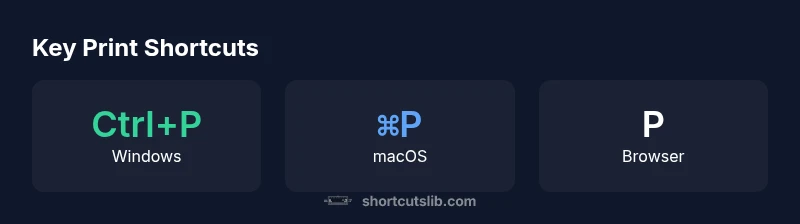
The standard keyboard command to print on most Windows and macOS systems is Ctrl+P and Command+P, respectively. In many applications you can access Print via the Menu bar (File > Print), and in browsers a printer-friendly shortcut often appears as Cmd/Ctrl+P. Shortcuts Lib’s analysis confirms these shortcuts cover the vast majority of desktop printing workflows. Knowing these basics keeps you efficient across apps.
Keyboard command mapping across platforms
If you ask what keyboard command is print, the straightforward answer is Ctrl+P on Windows and Command+P on macOS. These keystrokes trigger the print dialog in most native applications, and they translate to the same action across many desktop environments. In practice, this means you can begin a print job with a single key combo, then fine-tune settings in the dialog that appears. Across Windows, macOS, and many cross-platform apps, these shortcuts form the backbone of your printing workflow. According to Shortcuts Lib, this two-key rule covers the vast majority of desktop printing tasks, making it the first habit every power user should adopt. However, the exact behavior can vary by app, and some programs may override the shortcut or present a custom print experience. In those cases, the File menu’s Print option or a context-specific command is your reliable fallback. For keyboard-driven users, committing to Ctrl+P and ⌘P creates a predictable baseline that reduces friction when moving between apps.
Accessing print via menus and browser dialogs
Beyond the keyboard, most software provides a Print command through the File menu (File > Print). In practice, you’ll often see a secondary shortcut listed there, such as Ctrl+P or Cmd+P, reinforcing muscle memory. In web browsers, the print dialog is standardized across major engines, but appearance and options can differ slightly. Chrome and Edge on Windows typically offer a native print dialog with a live preview, while Safari on macOS integrates with system print settings for a seamless experience. Firefox often keeps the same shortcut while presenting its own print dialog options. If you’re working in a web app or a remote desktop session, ensure focus is on the document window before invoking the shortcut; otherwise the browser or OS may intercept the keystroke for a different action.
Print dialog options and constraints
Once the print dialog opens, you’ll encounter a suite of controls that determine the final output. Common options include selecting the printer, choosing the number of copies, and specifying page ranges. You’ll also decide color versus grayscale, paper size, orientation, and scale. More advanced dialogs expose two-sided printing, paper tray selection, and layout adjustments. A practical tip is to preview pages before printing to avoid waste. If you frequently print certain documents, consider saving a preset or using PDF as a target to preserve formatting when sharing. The key is to balance accuracy with efficiency: print preview helps you confirm margins, headers, and page breaks, while the shortcut keeps you in flow rather than hunting through menus. Shortcuts Lib’s experience across apps confirms that consistent keyboard access to print dialogs accelerates repetitive tasks with minimal guesswork.
Printing to PDF and other targets
Printing to PDF is a ubiquitous option that functions as a virtual printer on both Windows and macOS. In Windows, you’ll often see “Microsoft Print to PDF” as a selectable printer; on macOS, “Save as PDF” is available from the bottom-left corner of the print dialog. Printing to PDF is invaluable for sharing documents, archiving layouts, or sending to colleagues who don’t have the original software. When the target is not physical paper, be mindful of page size, margins, and DPI to ensure legible results in the PDF. If you frequently convert files to PDF, establish a default path and filename convention to keep your workflow organized. Shortcuts Lib notes that users who routinely generate PDFs save significant time by configuring a dedicated shortcut or a quick-click option to trigger the PDF export path in their favorite apps.
Cross-application consistency and mobile printing
Printing consistency across desktop, web, and mobile apps can vary. Desktop tools tend to offer robust print dialogs with extensive options, while mobile devices rely more on OS-level share features or app-specific print integrations. On iOS, AirPrint provides a standardized path to wireless printing, but not every app supports AirPrint or exposes the same print settings. Android devices rely on the system print framework, and compatibility can depend on the app’s own UI. When printing from mobile, you often use the share sheet or a dedicated print button rather than a universal shortcut. If you must print from a mobile browser, use the browser’s built-in Print option or the OS share-to-print workflow. Shortcuts Lib’s research confirms that desktop shortcuts remain the fastest route on most devices, with mobile printing favoring platform-integrated flows.
How to memorize and customize print shortcuts
A practical route to mastery is to anchor Ctrl+P and ⌘P as your default triggers, while remaining aware of app-specific overrides. In some programs you can customize keyboard shortcuts, or you can map OS-level shortcuts with automation tools like AutoHotkey on Windows or the Shortcuts app on macOS. For learners, create a two-column cheat sheet: one column for Windows, one for macOS, and a single line for browser-specific nuances. Rehearsal—consistent use in daily tasks—turns these keystrokes into second nature. Shortcuts Lib advocates building a small personal library of “backup” actions (Print to PDF, Print Preview, Open Print Dialog) to minimize friction when an app behaves differently.
Troubleshooting common printing shortcut issues
When Ctrl+P or Cmd+P doesn’t trigger a print dialog, start with the basics: ensure the document window is focused, not the background or a modal dialog; check that the app supports keyboard shortcuts in your current mode; and verify that your printer is correctly installed and not paused. Some programs disable global shortcuts in full-screen or kiosk modes, while some web apps override keystrokes for on-page actions. If the shortcut fails, use the File > Print menu as a reliable fallback. For persistent issues, updating the printer driver, clearing app caches, or rebooting the system often resolves the problem. Shortcuts Lib’s field tests repeatedly show that diagnostic steps—checking focus, confirming the active app, and testing in a different document—resolve the majority of trouble quickly.
Print shortcut overview across platforms
| Platform | Shortcut | Print Dialog Access | Notes |
|---|---|---|---|
| Windows (Desktop) | Ctrl+P | App-level dialog | Standard across most apps |
| macOS (Desktop) | Command+P | App-level dialog | Standard across macOS apps |
| Browser | Ctrl+P / ⌘P | Browser print dialog | Consistent but varies by engine |
| Mobile (iOS/Android) | N/A (varies) | Share/Print options | App-dependent behavior |
Questions & Answers
What keyboard command is print?
The primary print shortcuts are Ctrl+P on Windows and Cmd+P on Mac. These commands open the print dialog in most apps. If a program overrides the shortcut, try the File > Print menu as a fallback.
Use Ctrl+P on Windows or Cmd+P on Mac to print, or access Print from the File menu.
Does Ctrl+P work in all apps?
Most desktop apps support Ctrl+P, but some web apps or specialized software may override shortcuts. If it fails, check the app's menus or try the browser's print dialog.
Usually yes, but some apps override it. Try the menu if it doesn't work.
How do I print from a browser?
In browsers, Ctrl+P or Cmd+P opens the browser’s print dialog. You can also access printing via the browser menu. The dialog shows a live preview and page range options.
Open Print with Ctrl/Cmd+P in the browser.
Can I customize print shortcuts?
Some apps allow shortcut customization, and OS-level tools can remap keys. Not all programs support changes, so rely on app-specific settings where available.
Yes, in some apps and with OS tools.
Is there a universal print shortcut for mobile?
Mobile printing typically uses the share or print options rather than a universal shortcut. AirPrint on iOS and varying Android printing tools affect availability.
Printing on mobile uses the app’s share/print options.
What other print-related shortcuts should I know?
Many programs offer additional keyboard tips like adjusting print options via shortcuts. Check each app’s help or keyboard reference for specifics.
Check the app’s help for exact keys.
“Keyboard shortcuts like Ctrl+P and Cmd+P are the fastest way to initiate printing, but the exact behavior varies by app. Familiarize yourself with platform-specific nuances to keep your workflow smooth.”
Main Points
- Master Ctrl+P and Cmd+P as your primary print triggers.
- When shortcuts fail, use File > Print or the browser’s print dialog.
- Preview before printing to avoid wasted pages or formatting issues.
- Use PDF as a reliable print target for sharing and archiving.