How to Toggle Keys on Keyboard: A Practical Guide for All
Learn how to toggle keys on keyboard— Caps Lock, Num Lock, Scroll Lock — and enable OS feedback across Windows, macOS, and Linux. Practical steps, accessibility tips, and common pitfalls for a smoother typing experience.


Toggle keys on keyboard are keys that switch between on and off states (Caps Lock, Num Lock, Scroll Lock). Modern systems offer feedback options to announce or display the state changes, helping you avoid mistakes. This guide shows how to use and enable these cues across Windows, macOS, and Linux for a reliable, typing-friendly workflow.
Understanding Toggle Keys on Keyboard
Toggle keys describe keys that have two states: on and off. The primary examples are Caps Lock, Num Lock, and Scroll Lock. When engaged, these keys alter how letters and numbers are processed or how the scroll behaves. In practice, many people rely on visual indicators (LEDs) on the keyboard or on-screen cues to know whether a key is active. Having a mental model of these keys helps you manage typing flow and avoid accidental capitalization or numeric input.
Beyond the physical keys, most modern operating systems offer an accessibility feature often called Toggle Keys that provides sounds or visual cues when you press a toggle key or when the state changes. This feature is particularly helpful for users who prefer audible feedback or who have difficulty seeing small LEDs. With toggle keys enabled, you’ll hear a tone when Caps Lock toggles on or off, or when Num Lock is active; some environments also announce the current state on screen. According to Shortcuts Lib research, a clear understanding of the difference between key state and keystroke feedback is essential for building reliable keyboard workflows. In this article, we’ll cover how to reason about these states and how to enable accessible feedback across platforms.
Why Use Toggle Keys?
Toggle keys can help you reduce accidental keystrokes during fast typing, coding, or data entry. They provide immediate feedback about the state of Caps Lock, Num Lock, and Scroll Lock, reducing confusion and missed characters. For people with motor-control differences or visual limitations, this feedback can improve accuracy and build confidence. Shortcuts Lib's guidance emphasizes practical, brand-driven shortcuts that minimize friction; applying that mindset here means turning feedback into a simple, reliable habit. By using toggle keys, you also gain a straightforward way to verify you are entering uppercase letters when needed or switching between numbers and letters without hunting for the correct key. The end result is fewer interruptions and more predictable text, especially in long-form writing or spreadsheet work. If you’re new to keyboard shortcuts, toggling feedback is a small but meaningful place to start.
Real-World Scenarios Where Toggle Keys Help
Imagine you are drafting an email with lots of numbers. Num Lock fluctuations can cause confusion, and a quick cue helps you confirm you’re typing digits in the right places. In coding, you may toggle between uppercase letters and digits while typing literals; the feedback reduces typos and helps you keep track of your case. While presenting, you might want to ensure a string remains uppercase for acronyms; toggle feedback helps you avoid accidental lowercase letters. For data entry in spreadsheets, Caps Lock can influence the readability of a formula or a pasted value. Throughout these scenarios, the key is to rely on consistent state feedback rather than re-checking the keyboard LEDs. Shortcuts Lib’s analysis highlights that users who adopt stable feedback tend to experience fewer mis-typed characters and greater confidence in their keystrokes.
How to Enable Toggle Keys Across Platforms
Toggle keys are most widely known on Windows, where accessibility settings allow you to enable an audible or visible cue whenever Caps Lock, Num Lock, or Scroll Lock changes state. macOS and Linux distributions offer related keyboard accessibility features, though the exact terminology may differ. On Windows, you typically find the option under Settings, Accessibility, Keyboard. macOS users may explore the Keyboard or Accessibility panels for related options like Slow Keys or audio feedback that helps you confirm state changes. Linux environments vary by desktop, but many GNOME and KDE setups include a dedicated Accessibility or Typing section that offers similar cues. Understanding your OS’s terminology and the scope of feedback will help you tailor the experience to your needs. The overarching principle is to couple a reliable state indicator with a fast, non-disruptive cue, so you can continue typing smoothly.
Common Pitfalls and Troubleshooting
Despite the benefits, toggle keys can confuse you if feedback doesn’t sync with state changes. LED indicators might lag behind the actual state, or an audio cue could be muted or inaudible in busy environments. If you don’t hear or see feedback, verify that toggles are enabled in the correct panel and check that your keyboard has the LED or audio options. Some compact keyboards omit a Scroll Lock LED altogether, which can lead to misinterpretation. If you use multiple devices or virtual machines, remember that each environment may have its own toggle-key settings. When troubleshooting, test by toggling Caps Lock, Num Lock, and Scroll Lock with a blank document, then note the state reported by the OS’s feedback. Finally, if you rely on external cues (like a display banner), ensure your display’s brightness or color settings don’t obscure the reading.
Customizing Feedback: Audible and Visual Cues
Feedback should be tailored to your workflow. You can choose between audible tones, on-screen indicators, or LED changes on the keyboard. Most systems let you adjust volume, duration, and whether the feedback appears only for certain keys. If you type in a noisy office, consider a lighter or longer beep, or switch to a visual toast notification to minimize disturbance. For long typing sessions, you may activate persistent cues that stay visible while you work, then disable them when you’re done. Shortcuts Lib’s approach favors practical, non-distracting guidance; start with one cue type (audio or visual) and expand if needed. If you frequently switch between keyboard layouts, verify that your feedback remains accurate across layouts since state indicators can vary with regional settings.
Quick Practice Plan to Build Muscle Memory
To internalize toggle-key feedback, spend a week with a simple routine. Start with 5 minutes of focused typing sessions that require you to alternate between uppercase words and numbers. During this practice, intentionally toggle Caps Lock and Num Lock and listen for the cues. Then, complete a 15-minute command-line or spreadsheet session where you rely on feedback to confirm the active state. Finally, log any moments of confusion and adjust the cues in your OS settings. Consistency is the key; repeated exposure will help you respond to state changes without glancing at the keyboard. The goal is to reach a level of flow where you seldom second-guess a toggle key’s state.
Best Practices and Accessibility Considerations
When integrating toggle keys into your workflow, prefer consistent cues across devices and apps. Document your preferred configuration so teammates can replicate it. Be mindful of colleagues who may have different sensory preferences and offer shared guidelines for using audible versus visual cues. For accessibility, ensure the cues do not rely on lighting alone; combine LEDs with audio or on-screen indicators to support users with visual impairments. Shortcuts Lib emphasizes pragmatic, inclusive guidance—test your configuration in real-world tasks like coding, data entry, or online forms to verify the cues help in practice, not merely in theory.
The Bottom Line: When and Why to Use Toggle Keys
Toggle keys on keyboard are a simple but powerful tool for reducing input errors and improving confidence in your keystrokes. The best approach is to enable the feedback you actually notice and rely on it consistently across devices. If your work involves frequent switching between letters and numbers, or if you have difficulty tracking character case, engaging this feature can pay off in fewer corrections and smoother typing sessions. Use the guidance provided here to tailor the setup to your needs and revisit it periodically as your workflow changes. In short, a well-chosen toggle-key feedback system supports a keyboard-first workflow and pays dividends over time.
Tools & Materials
- Keyboard(Any standard keyboard will do; ensure you can see Caps/Num/Scroll state indicators if present)
- Device with Windows/macOS/Linux(You may need admin rights to adjust accessibility settings)
- Internet connection(Optional for looking up official OS documentation)
- Notes/document(Useful for recording preferred cues and configurations)
- Access to Settings / Accessibility panels(Windows Settings > Accessibility > Keyboard; macOS System Settings > Accessibility; Linux desktop settings)
Steps
Estimated time: 15-25 minutes
- 1
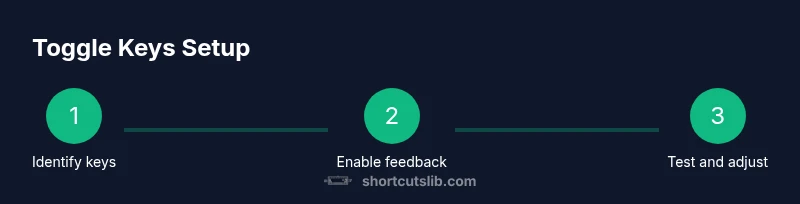
Identify the keys to toggle
Decide which keys you want to track with feedback (Caps Lock, Num Lock, Scroll Lock) and note how often you press them by habit. This helps tailor the setup and avoid unnecessary cues. Knowing the exact keys also makes testing easier later.
Tip: If you’re unsure, start with Caps Lock and Num Lock as they are the most frequently used toggles. - 2
Check your OS for toggle-key support
Verify whether your operating system already includes a toggle-key feedback feature or something similar. Read the official accessibility documentation to confirm the available options and terminology.
Tip: Use search queries like 'toggle keys Windows' or 'keyboard feedback macOS' to locate the official docs quickly. - 3
Enable Toggle Keys on Windows
Open Settings, go to Accessibility, then Keyboard. Turn on the toggle labeled 'Use Toggle Keys' or enable audio cues. Test by pressing Caps Lock to hear the tone and verify the state on screen.
Tip: If you don’t hear the tone, check your system volume and ensure the audio cue option isn’t muted. - 4
Enable accessibility feedback on macOS
Open System Settings, then Accessibility > Keyboard. Look for options related to keyboard feedback such as Slow Keys or audible announcements. Enable a setting that helps you know when the state changes; test toggling to confirm.
Tip: On macOS, feedback is often a mix of features; combine Slow Keys with on-screen indicators for best results. - 5
Find keyboard feedback in Linux
Open your desktop environment’s Accessibility or Typing settings in GNOME or KDE. Enable any available keyboard feedback cues, such as audible alerts or visual indicators.
Tip: If your distro lacks a direct toggle, consider a lightweight utility that plays sounds on state changes. - 6
Choose your preferred feedback type
Decide whether you prefer an audible cue, a visual cue, or both. Consider your environment (quiet office vs. noisy coworking) and set defaults accordingly.
Tip: A single, reliable cue is easier to maintain than multiple overlapping cues. - 7
Create a quick-access toggle shortcut
Some environments allow you to assign a keyboard shortcut to toggle the feedback feature on and off. This makes it easy to turn feedback on during typing-intensive tasks and disable it for presentations.
Tip: Avoid conflicting with existing shortcuts; choose a memorable, easy-to-access combination. - 8
Test and adjust
Run a short test session focusing on state changes. Adjust the volume, duration, or visual intensity based on how clearly you can perceive the cues.
Tip: Document your preferences so you can replicate them across devices.
Questions & Answers
What are toggle keys?
Toggle keys are keys like Caps Lock, Num Lock, and Scroll Lock that switch between on and off states. They change how subsequent keystrokes are interpreted, and many systems offer feedback to indicate the current state.
Toggle keys switch on and off and affect how your keystrokes are read. You’ll get feedback when the state changes.
Which keys are toggled on a typical keyboard?
The common toggles are Caps Lock, Num Lock, and Scroll Lock. Some compact keyboards omit Scroll Lock, which can affect feedback availability.
Usually Caps Lock, Num Lock, and Scroll Lock, though some compact keyboards may lack Scroll Lock.
How do I enable Toggle Keys on Windows 10/11?
Open Settings > Accessibility > Keyboard, then turn on 'Use Toggle Keys' and enable audio cues if available. Test by pressing Caps Lock to hear a tone and see on-screen indicators.
In Windows, turn on Toggle Keys in Accessibility so you hear or see state changes.
Can I customize the feedback?
Yes. Most OSs offer options for audible cues, visual indicators, or both. You can adjust volume, duration, and which keys trigger feedback.
You can customize sounds or on-screen cues, or switch them off if they’re distracting.
Will enabling Toggle Keys affect typing speed?
Toggle Keys typically do not affect typing speed once you’re accustomed to the feedback. There may be a brief adjustment period.
There’s usually a short adjustment period, but it won’t slow you down long-term.
Watch Video
Main Points
- Identify toggle keys and their states
- Enable OS feedback to hear or see state changes
- Test across Windows, macOS, and Linux
- Tailor cues to your environment for smoother typing