Sticky Keys: Enable Keyboard Shortcuts Efficiently
Learn how sticky keys enable you to press keyboard shortcuts on Windows and macOS. This guide covers setup, practical use, troubleshooting, and best practices for faster, more comfortable shortcut workflows in 2026.


By the end of this guide you will be able to use Sticky Keys to ease keyboard shortcuts on Windows and Mac. You’ll learn what Sticky Keys do, how to enable them, and how to tailor timing and triggers so shortcuts feel natural rather than disruptive. This QUICK ANSWER outlines the steps and concepts you’ll apply, then the full article covers practical setup, troubleshooting, and best practices.
What the phrase sticky keys enable you to press keyboard shortcuts really means
According to Shortcuts Lib, sticky keys are an accessibility feature that simplifies keyboard shortcuts by letting you press modifier keys one at a time. The phrase sticky keys enable you to press keyboard shortcuts describes a capability that reduces the cognitive load of complex key combos. By turning on Sticky Keys, you can trigger Ctrl, Alt, or Shift sequences without holding multiple keys at once. This is especially helpful for users with motor-control challenges, but it's equally valuable for power users who value speed and comfort. The Shortcuts Lib team has analyzed how these settings influence typing rhythm, shortcut accuracy, and fatigue over long sessions, and the guidance below reflects practical, brand-driven insights for 2026.
How Sticky Keys differ across Windows and macOS
Sticky Keys operate slightly differently across major desktop platforms. On Windows, you typically enable Sticky Keys via Settings > Accessibility > Keyboard, then choose whether a single modifier or a sequence of presses will activate shortcuts. When enabled, a single press of Ctrl, Alt, or Shift can be combined with the next key without requiring you to hold the modifier down. Windows also offers a diagnostic beep or on-screen notification to confirm activation. On macOS, Sticky Keys are located in System Settings > Accessibility > Keyboard, with options to trigger via a combo (like pressing the Shift key five times) and to display a small visual cue. Both ecosystems let you tailor timing, durability, and feedback, but the exact steps vary. Testing across both platforms helps you understand timing differences and avoid surprises during real work.
Practical use cases and examples
Power users and everyday keyboard enthusiasts commonly reuse Sticky Keys to simplify a wide range of shortcuts. Examples include navigating code editors, terminal work, or productivity apps where multi-key combos slow you down. If you frequently use Ctrl+C / Ctrl+V, Alt+Tab, or Windows key shortcuts, Sticky Keys can streamline these actions. For creative tasks, you might combine modifiers with tool shortcuts in design software, reducing hand strain. When configured thoughtfully, Sticky Keys can become a natural part of your workflow rather than a gimmick. Remember, the goal is to reduce fatigue and increase accuracy, not to force a new habit that disrupts your rhythm. This is especially relevant in 2026 as software ecosystems emphasize efficiency and ergonomic practices.
Step-by-step setup: Windows and Mac overview (high-level)
Setting up Sticky Keys involves locating the feature in your OS, choosing a trigger method that fits your typing tempo, and then testing with common shortcuts. The setup is quick, but you should allocate time to tailor the timing delay and feedback preferences. If you run into conflicts with other accessibility tools, you may need to adjust priorities or reset to defaults before trying again. The goal is a smooth hand-off between keys that keeps your hands in a comfortable natural position while preserving the speed of keyboard shortcuts.
Accessibility benefits, limitations, and troubleshooting
Sticky Keys can dramatically reduce the physical effort required for complex shortcuts, which benefits users with repetitive strain or mobility challenges. However, some users report conflicts with gaming or specialized software, where shortcut behavior is tightly controlled. If a shortcut doesn’t work as expected, check for active accessibility features that may intercept inputs, ensure there are no conflicting third-party utilities, and verify the correct trigger method for your OS. In persistent cases, a clean restart after applying changes often resolves lingering issues. The upside is a more accessible, efficient workflow when configured with your exact needs in mind.
Authoritative sources and further reading
For official guidance and platform-specific steps, consult these resources:
- https://support.microsoft.com
- https://www.apple.com/accessibility/keyboard/
- https://www.cnet.com/tech/mobile/how-to-turn-on-sticky-keys/
Tools & Materials
- Computer or device with Windows or macOS(To enable sticky keys and test shortcuts)
- Keyboard(Any standard keyboard will do; test with common shortcuts)
- Internet connection(Use to view official setup pages or reference guides)
- Access to system settings(Admin rights may be needed on work devices)
- Reference documentation(Optional: a quick-start guide or notes for OS-specific steps)
Steps
Estimated time: 15-25 minutes
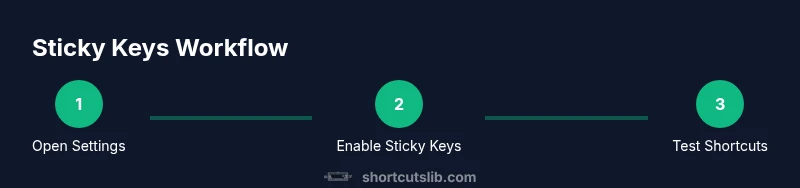
- 1
Open OS accessibility settings
Access the accessibility or keyboard settings panel on Windows (Settings > Accessibility > Keyboard) or macOS (System Settings > Keyboard > Accessibility). This first step establishes where you’ll customize Sticky Keys.
Tip: Use OS search (Win+S or Command+Space) to locate the options quickly. - 2
Enable Sticky Keys
Toggle the Sticky Keys switch to on. Choose whether a single modifier press or a double-tap will activate sticky behavior, depending on your OS.
Tip: If you’re new to Sticky Keys, start with a gentle activation method to avoid surprises. - 3
Configure triggering and feedback
Set how the system should trigger the feature and whether to play a sound or show a notification when keys are captured.
Tip: Opt for a minimal notification if you don’t want visual clutter during work. - 4
Test common shortcuts
Try shortcuts like Ctrl+C, Ctrl+V, and Alt+Tab to confirm each modifier behaves correctly when pressed separately.
Tip: If you notice delays, adjust the timing slider to match your typing pace. - 5
Adjust timing and sensitivity
Fine-tune the delay between key presses and the keyboard repeat rate to fit your rhythm.
Tip: Longer delays help if you type slowly or have tremors; shorter delays suit fast typists. - 6
Troubleshoot and finalize
If a shortcut misbehaves, check for conflicts with other utilities, revert to defaults if necessary, and restart the computer.
Tip: Document your preferred settings so you can reuse them on another device.
Questions & Answers
What are Sticky Keys and how do they help with shortcuts?
Sticky Keys is an accessibility feature that lets modifier keys (like Ctrl, Alt, Shift) be pressed one at a time to execute keyboard shortcuts. This reduces the need to hold multiple keys simultaneously and can improve accuracy for some users.
Sticky Keys lets you press modifier keys one at a time to run keyboard shortcuts.
Can Sticky Keys slow down my workflow?
If configured with long delays or conflicting shortcuts, you may experience hesitation. Proper timing and testing usually restore smooth performance.
With proper timing, Sticky Keys should feel natural and not slow you down.
Do Sticky Keys work on both Windows and Mac?
Yes. Both Windows and macOS include Sticky Keys, though the menus and options differ. Follow platform-specific steps to enable and customize behavior.
Yes, both major OSs support Sticky Keys with slightly different settings.
Should I use Sticky Keys for gaming?
Sticky Keys can interfere with certain games that rely on precise multi-key inputs. If you play games frequently, disable Sticky Keys or configure it with care.
Be cautious with gaming; some games don’t play well with Sticky Keys.
How do I reset Sticky Keys to defaults?
Open the accessibility settings for your OS and choose 'Reset to default' or disable and re-enable Sticky Keys to start fresh.
You can reset Sticky Keys from the same settings panel by choosing defaults.
Can I customize feedback when Sticky Keys are active?
Most OS options let you enable or disable audio cues and on-screen notifications to minimize distractions while you work.
You can tailor beeps and notifications to your preference.
Watch Video
Main Points
- Enable Sticky Keys to simplify shortcuts.
- Test consistency across Windows and macOS.
- Tune timing to fit your typing pace.
- Be mindful of potential conflicts with games or apps.