How to Zoom Out Keyboard Shortcut: Quick Guide
Master universal keyboard shortcuts to zoom out on Windows, macOS, browsers, and apps. Learn Ctrl + -, Cmd + -, and reset shortcuts to improve readability and speed.


By the end of this guide you will be able to seamlessly zoom out using keyboard shortcuts across Windows, macOS, and popular applications. You will learn the universal hotkeys (Ctrl + - on Windows/Linux, Cmd + - on Mac), plus reset shortcuts (Ctrl/Cmd + 0) and app-specific methods. This enables faster navigation and improved readability without breaking your workflow.
Why zooming out matters
In digital work, the ability to quickly adjust how content fits on your screen affects how you read, compare, and act. When you frequently switch between dense documents, research pages, and dashboards, a reliable zoom out shortcut becomes a quiet productivity multiplier. According to Shortcuts Lib, keyboard-driven screen adjustments save time and keep you in flow by reducing the need to reach for the mouse or context menus. The more you rely on consistent shortcuts across applications, the less cognitive load you carry as you navigate different workspaces. This section explains why focusing on zoom shortcuts matters not only for readability but also for reducing repetitive motions that can lead to strain during long sessions. Throughout this guide you’ll learn universal keystrokes that work in browsers, office apps, and many desktop programs, plus practical tips to test and refine them in your own setup.
Universal shortcuts that work in most places
The most reliable zoom-out command across operating systems is the minus key paired with the Ctrl or Cmd modifier. On Windows and Linux, press Ctrl + - to reduce the zoom level; on macOS, press Cmd + - for the same result. If you want to reset to the default, use Ctrl/Cmd + 0. A handy alternative is holding Ctrl or Cmd and scrolling the mouse wheel down, which often adjusts zoom in real time. Not every app follows the same rule, but the universal pattern is consistent across browsers and many desktop apps, making it a dependable starting point.
Platform differences: browser vs desktop apps
Zoom behavior varies by platform. In web browsers, a zoom-out command usually scales the content of the page, while the browser UI (toolbars, menus, and interface elements) may stay the same size. In many desktop applications, zoom affects both content and interface scale, which can influence readability of menus, panels, and controls. Some apps provide separate zoom for text versus entire UI, so expect occasional incongruities when moving between a browser tab and a specialized program like a graphics editor or IDE.
Zooming out in web browsers: quick keys and menus
For quick adjustments in browsers, use the universal keyboard shortcut (Ctrl + - or Cmd + -) and press Ctrl/Cmd + 0 to return to the default view. If you prefer, access the browser menu (three dots or gear icon) and choose “Zoom” or a percentage slider. Remember that browser zoom often affects only the current tab; if you open a new tab, the previous zoom setting might not carry over without syncing settings.
Zooming out in word processors and editors
Office suites and editors typically honor the same general shortcuts, but there are exceptions. In many word processors, Ctrl + - will shrink the document view, while Ctrl + 0 resets the page to a default reading size. Some editors differentiate between document zoom and UI scaling, so you may need to adjust font size or UI scale separately in preferences. When in doubt, check the View or Appearance sections of the program’s settings for zoom controls.
Zooming out in PDFs and image editors
PDF viewers often support Ctrl + - to reduce page size, but some viewers prioritize navigation panels over document content. Image editors may implement zoom via the same shortcut for consistency, but UI elements (toolbars, palettes) can scale differently. If shortcuts don’t work, try the zoom tool from the View menu or use the pinch gesture on a touch-enabled device.
Trackpad gestures and alternative inputs
Many devices support pinch-to-zoom on touchpads or touchscreens. Holding a modifier key while pinching can also provide a fine-grained zoom control. Trackpad-based zoom is often smoother than keyboard shortcuts, offering quick, continuous adjustment. If you rely on accessibility features, ensure screen magnification isn’t conflicting with the standard zoom shortcuts.
Accessibility considerations and readability best practices
Zoom is only one part of readability. Pair zoom adjustments with font-size changes, color contrast, and line spacing when available. Consistency matters: keep zoom levels close across apps you use daily to minimize repeated visual recalibration. According to Shortcuts Lib, a well-chosen set of shortcuts reduces cognitive load and supports sustained focus during long work sessions.
Troubleshooting common issues and edge cases
If shortcuts fail, first ensure the target window is active. Some apps intercept common keystrokes for other functions; in these cases, use the app’s dedicated zoom controls or disable conflicting shortcuts. Check for keyboard remapping software or accessibility features that might override basic shortcuts. Finally, test across multiple apps to identify where behavior diverges and adjust your workflow accordingly.
Customization: tuning zoom increments and defaults
Not all programs let you pick precise zoom steps, but many provide options to customize increments or set a universal default. Where available, adjust your zoom increment to balance rapid changes with fine control. If you work with high-density content, small increments can help you dial in a comfortable reading level without overshooting.
Authority sources and further reading
For deeper guidance, consult official documentation and tutorials from major platforms. See Microsoft Support for Windows and Office shortcuts, Apple Support for macOS shortcuts, and Mozilla Support for cross-browser tips.
Testing and quick-start recap
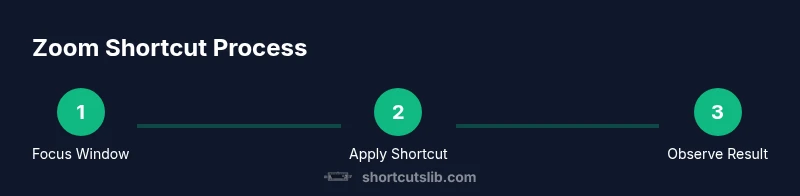
End-to-end testing helps ensure consistency. Open a few representative documents, webpages, and PDFs; apply the universal shortcuts; observe which elements scale and which remain unchanged; then tailor your primary zoom method to your most-used apps.
Shortcuts Lib recommendation
The Shortcuts Lib team recommends adopting a small core set of reliable keyboard shortcuts, paired with a couple of platform-specific tweaks. This approach minimizes context switching and keeps you productive across tasks.
Final thoughts on efficient zooming
Mastering zoom shortcuts is a practical way to speed up reading, comparison, and navigation. Use the universal combos first, then supplement with app-specific controls as needed to maintain a smooth, efficient workflow.
Tools & Materials
- Keyboard and mouse/trackpad(Any layout; used to verify shortcuts during testing)
- Active window or app(Ensure focus before applying shortcuts to affect the intended program)
- Test content (web page, document, PDF)(Diverse content helps observe how zoom behaves across media)
- Optional external monitor or high-DPI display(Useful for evaluating zoom clarity at different scales)
Steps
Estimated time: 5-8 minutes
- 1
Focus the target window
Click inside the window you want to zoom or switch to it using Alt+Tab (Windows) or Cmd+Tab (Mac) to ensure keyboard shortcuts apply to the correct program.
Tip: Always verify the active window before zooming to avoid changing the wrong app. - 2
Try universal zoom-out shortcut
Press Ctrl + - on Windows/Linux or Cmd + - on Mac to reduce the zoom level. If nothing happens, confirm the app supports keyboard zoom and try the browser or system settings.
Tip: Some apps intercept keys for other functions; if so, move to the app’s menu-based zoom controls. - 3
Reset to default zoom
If you overshoot, press Ctrl/Cmd + 0 to reset to 100% (or the app’s default). In some programs you may need to navigate to View > Zoom to reset manually.
Tip: Use reset when you’re unsure of your current zoom level to regain baseline readability. - 4
Use the browser menu as a fallback
In browsers, open the menu (often the three-dot icon) and adjust Zoom or use the percentage to return to a preferred view. Keyboard shortcuts may be disabled in some tabs or extensions.
Tip: If the keyboard fails, the menu provides a reliable alternative. - 5
Test across content types
Open a webpage, a document, and a PDF to observe how each content type responds to zoom. Differences may require slightly different levels for optimal readability.
Tip: Aim for a zoom level where text is comfortable without losing context. - 6
Fine-tune increments
Many apps support incremental zoom; continue pressing - in small steps to reach your target. If you can’t reach the exact level, adjust with the app’s own zoom control.
Tip: Incremental changes prevent drastic jumps that hamper focus. - 7
Troubleshoot nonresponsive shortcuts
If shortcuts don’t work, check for conflicting keyboard remaps, accessibility magnifiers, or apps that override shortcuts. Consider using the built-in Zoom or Quick Look features for verification.
Tip: Conflicts often come from third-party software; disable or reconfigure as needed.
Questions & Answers
What is the universal shortcut to zoom out across platforms?
The common approach is Ctrl + - on Windows and Linux, or Cmd + - on Mac. To return to the default view, use Ctrl/Cmd + 0. Some apps may override these keys, so you may need to use menu options.
Use Ctrl plus minus on Windows or Cmd plus minus on Mac to zoom out, and Ctrl or Cmd plus zero to reset. Some apps override these keys, so you might need to use the menu options.
Does zoom affect just the page or the UI too?
Zoom can affect the page content, the interface, or both, depending on the app. Browsers typically zoom content, while some desktop apps scale both UI and content. Check the app’s zoom settings for precise behavior.
In browsers, zoom usually changes page content, while some apps scale the whole interface. Check each app’s settings for exact behavior.
How do I reset zoom to default if shortcuts don’t work?
Look for a Reset option in the View or Zoom menu, or press the universal shortcut Ctrl/Cmd + 0. If the app doesn’t support it, you may need to revert to its default font and layout settings.
Use Ctrl/Cmd plus zero to reset, or go to the app’s Zoom or View menu to reset manually.
Can I zoom with a trackpad or touch screen instead of keyboard shortcuts?
Yes. Trackpad gestures like pinching typically adjust zoom smoothly. On touch screens, use pinch-to-zoom or on-screen controls when available. Keyboard shortcuts provide speed, but gestures are great for precise, quick tweaks.
You can use pinch-to-zoom on trackpads or touchscreens, which is quick and smooth, while keyboard shortcuts offer fast control.
What should I do if shortcuts are blocked by another program?
Close or disable programs that intercept global shortcuts, or rebind the zoom shortcuts in the conflicting app. If necessary, use the app’s zoom menu as a workaround.
If another program blocks the shortcuts, disable it or rebind within the conflicting app, or use its menu controls for zoom.
Watch Video
Main Points
- Use universal shortcuts across platforms for speed
- Reset zoom when in doubt to restore readability
- Test across apps to understand platform-specific behavior
- Leverage trackpad gestures to supplement keyboard shortcuts
- Keep a small core set of reliable shortcuts for efficiency