How to Use Alt Keyboard Shortcuts: A Practical Guide
Learn to use Alt keyboard shortcuts across Windows and macOS, including Alt codes, menu access, and quick character input. Practical steps, examples, and safety tips from Shortcuts Lib.


By the end of this guide, you will know how to use Alt keyboard shortcuts across Windows and macOS, including typing symbols with Alt codes, navigating menus with Alt, and tailoring shortcuts to your apps. You’ll learn practical steps, common pitfalls, and OS-specific differences. You’ll need a keyboard with a numeric keypad for Windows Alt codes, a macOS keyboard, and a little practice to build fluency.
What are Alt keyboard shortcuts and why they matter
According to Shortcuts Lib, mastering Alt keyboard shortcuts expands your command of the keyboard, helping you navigate software faster and reduce repetitive clicking. An Alt shortcut is any action triggered by holding the Alt key (or Option on Macs) and pressing another key or sequence. In Windows, Alt keys are often used to access menu items (for example, Alt+F opens the File menu). On macOS, the Option (Alt) key combines with other keys to insert special characters or produce accented letters. Across Linux and other shells, similar modifier keys exist with varying mappings. The practical value is not just speed, but consistency: once you know the pattern, you can apply it across apps and workflows. This is especially true for power users who rely on writing, programming, and data entry. The core concept is learning two layers: system-level shortcuts that work everywhere, and app-level shortcuts that are specific to the software you use. Understanding both layers lets you type more fluently and navigate interfaces with minimal mouse reliance.
Quick intro to the Alt concept and why it matters
Alt shortcuts are a backbone for efficient computing. They reduce keystrokes, help maintain focus, and support accessibility needs by offering keyboard-driven navigation. Shortcuts Lib’s analysis shows that users who learn a core set of Alt shortcuts tend to complete common tasks faster and with fewer errors, especially when juggling multiple apps. Start with essential tasks: entering special characters, opening menus, and moving between panels. As you gain confidence, you can extend your repertoire to include app-specific combinations and OS-level remappings.
The difference between Alt codes and menu access
Alt codes are character-input sequences that require the numeric keypad and specific numeric conventions. Menu access shortcuts trigger actions within a program’s interface (for example, navigating File > Save). While Alt codes are highly portable, their availability can depend on the font, code page, and keyboard layout. Menu-access shortcuts, by contrast, are more consistent within an application but vary from one program to another. Practically, you’ll use Alt codes to insert characters you can’t type directly and Alt-menu patterns to speed up your workflow.
Ambiguities and cross-platform considerations
OS differences matter. Windows Alt codes rely on the numeric keypad and typically require Num Lock to be on. macOS substitutes with the Option key to produce many symbols and diacritics, while Linux distributions may use a Compose key or custom mappings. If you switch devices or share documents across platforms, establish a cross-platform reference sheet and test important symbols on all systems. Shortcuts Lib emphasizes keeping a small, learnable core set of Alt techniques before expanding into extensive customization.
A practical mindset for learning Alt shortcuts
Treat Alt shortcuts as a language: you learn by practice, not by theory alone. Start with three reliable rules: (1) Alt codes for frequently needed symbols, (2) Alt-menu access for core actions you use daily, and (3) cross-platform checks before relying on a shortcut in mixed environments. Use a printable cheat sheet or a digital reference that lists the most common codes and app-specific menu shortcuts. With daily micro-practice, Alt shortcuts become second nature and substantially speed up routine tasks.
Practical example: typing symbols and navigating a menu
To type a symbol via Windows Alt code, ensure Num Lock is on, hold Alt, and type the numeric code for the character. For example, Alt+0169 inserts the © symbol on many fonts. To navigate a program’s menu, press and hold Alt, then press the letter corresponding to the highlighted menu item (the exact letter varies by program). On macOS, replace Alt with Option and combine with other keys to insert characters like “–” or “€” depending on your keyboard layout. These patterns form the backbone of fast, keyboard-driven work.
Tools & Materials
- Keyboard with numeric keypad(For Windows Alt codes, a full numeric keypad is recommended)
- Computer with Windows or macOS(OS should support Alt/Option shortcuts)
- Shortcut cheat sheet(Optional reference for common Alt codes and menu shortcuts)
- Test document or editor(Use to practice typing symbols and navigating menus)
Steps
Estimated time: 45-60 minutes
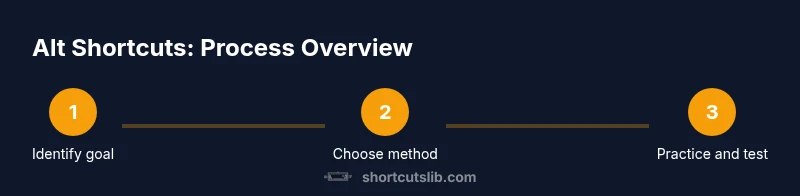
- 1
Identify the shortcut type
Decide whether you want to type a symbol with an Alt code or quickly access a menu with Alt. Determine your OS (Windows or macOS) because the key equivalents differ. This clarity will guide the rest of your practice.
Tip: Start with one Alt code and one menu-access shortcut before expanding. - 2
Enable the keypad and locate codes
If you’re using Windows, ensure Num Lock is on when you plan to type Alt codes. Find a short list of symbols you often need and memorize a handful of codes for quick access.
Tip: Keep a small, printed cheat sheet near your keyboard for fast reference. - 3
Type a simple Alt code
Hold the Alt key, press the numeric code on the keypad, then release Alt. Verify the character in your document and adjust if the font or code page differs.
Tip: Test the exact font you use in your document, as some fonts map codes differently. - 4
Use Alt to navigate menus
In most programs, pressing and holding Alt highlights the menu bar; then you press the underlined letter to activate a menu item. This pattern speeds up daily tasks without using the mouse.
Tip: In browsers, Alt+F often opens the File menu; in editors, test the standard File/Edit menus first. - 5
Try Option/Alt on macOS
macOS users often use Option (Alt) combined with other keys to insert symbols or diacritics. Practice common combinations (e.g., Option+e then a to create accented vowels) to improve fluency.
Tip: Keep a macOS-specific mini-cheat sheet for frequently used symbols. - 6
Create a personal shortcuts plan
Document a small, dependable set of Alt codes and menu shortcuts you’ll use across your most-used apps. Review and revise monthly as you add new workflows.
Tip: Limit your initial set to 6–12 codes to build confidence before expanding.
Questions & Answers
What is an Alt code and when should I use it?
An Alt code is a numeric sequence used with the Alt key to produce characters that aren’t readily typed on a keyboard. Use Alt codes when you need symbols or letters from extended character sets without switching input methods.
Alt codes are numeric sequences that create symbols when you hold Alt and press numbers. Use them to insert characters not available on your keyboard.
Can I use Alt shortcuts on macOS?
Mac users rely on the Option key (the Mac equivalent of Alt) to input diacritics and special characters. The patterns differ from Windows, so you’ll need a macOS-specific reference sheet.
On Macs, the Option key performs many symbol-typing tasks. It’s different from Windows Alt, so check macOS mappings.
Are Alt codes portable across apps?
Alt codes depend on the font and code page, so results can vary between apps. Always test symbols in the target program and font before relying on them in critical documents.
Alt codes can map differently depending on the font and app, so verify in each context.
How do I type symbols not present on my keyboard?
Use Alt codes or macOS Option combos to generate symbols. If a code isn’t available in your font, try a similar character or a different font.
If a symbol isn’t on your keyboard, try Alt codes or Option combos to insert it.
Do Alt shortcuts work in every app?
Most apps support a basic set of Alt-driven actions, but some programs override shortcuts or disable Alt combinations. Always test in critical apps.
Most apps support Alt actions, but some might override them. Test in your important apps.
Watch Video
Main Points
- Master a core set of Alt shortcuts
- Differentiate Windows Alt codes from macOS Option usage
- Test symbols across fonts and apps
- Create a personal cheat sheet for quick reference