How to Adjust Brightness Keyboard Shortcut
Learn to adjust screen brightness quickly with keyboard shortcuts across Windows, macOS, and Linux. A practical guide covering built-in keys, customization, and troubleshooting.


You will learn how to adjust screen brightness quickly using keyboard shortcuts across Windows, macOS, and Linux. This guide covers built-in keys, cross-platform nuances, and how to customize hotkeys for your setup. Expect practical steps, quick troubleshooting, and tips to keep your display comfortable in any lighting. According to Shortcuts Lib, mastering a core set of shortcuts saves time every day.
Understanding brightness shortcuts across operating systems
Brightness controls are ubiquitous, but they behave differently depending on your device and OS. On laptops, keys labeled with a sun icon generally adjust display brightness. Windows often maps these actions to Fn plus the brightness keys, while macOS places the brightness controls on the F1 and F2 keys, sometimes requiring the Fn key for laptops. Linux users may see brightness control integrated into their desktop environment (GNOME, KDE, etc.) or rely on hardware keys that send ACPI signals. From a user-experience perspective, the goal is consistency: you want to tweak brightness without leaving the keyboard. Shortcuts Lib Analysis, 2026 highlights that most users benefit from a focused set of reliable shortcuts rather than hunting through menus. In this section, you’ll learn where these shortcuts live, how they differ across platforms, and what you can do to align them with your daily workflow. The key is to understand the hardware and software layer that mediates brightness.
Built-in brightness shortcuts: where they live
Across platforms, the most common approach is to use dedicated brightness keys on the top row of your keyboard, often marked with a sun symbol or a crescent icon. On Windows laptops, you typically press the brightness keys while holding the Fn key if the function key lock is enabled. On Macs, brightness is controlled via F1 and F2, and some newer laptops require you to hold the Fn key to access the brightness function without triggering system volume. Linux distributions expose brightness control through the desktop environment and may also map brightness to the same media keys. If you’re using an external monitor, many brightness adjustments happen directly on the monitor itself via its own buttons. In everyday use, these built-in shortcuts deliver fast, frameless adjustments that keep your eyes comfortable without interrupting your workflow.
Using the Fn keys and how to enable/disable function lock
Many keyboards ship with a function (Fn) lock that toggles between standard F-key behavior and multimedia actions. When Fn lock is active, the brightness keys will alter display brightness; when it’s off, they may change volume or perform other actions. If your shortcuts don’t work, check the Fn lock state and test the keys in a text editor to see which function is being triggered. You can usually toggle Fn lock with a dedicated key (often Esc or a function key) or in the BIOS/UEFI settings on desktops. By understanding Fn behavior, you can make brightness shortcuts predictable across devices and avoid the common pitfall of triggering audio at the same time.
Customizing brightness shortcuts on Windows, macOS, and Linux
Customization lets you define exactly which keys adjust brightness and by how much. Windows users can leverage the built-in Keyboard Manager (PowerToys) to remap brightness shortcuts or create global hotkeys. macOS users can use the Shortcuts app or System Settings to assign brightness actions to new key combinations. Linux users can explore desktop-environment tools (GNOME/KDE) or utilities like xbindkeys or custom scripts to map brightness changes to preferred keys. When customizing, choose a small set of bindings you can remember, and keep them distinct from other essential shortcuts to reduce conflicts. After configuring, test with both system brightness and an external monitor to ensure the shortcuts behave consistently.
External monitors and multi-display brightness control
When you work with external displays, brightness control can become complex because each monitor has its own brightness setting. Some laptops automatically dim attached panels, while external screens keep their own brightness independent of the laptop. If you rely on external monitors, you may need to adjust brightness via monitor OSD menus or your graphics driver software, and use keyboard shortcuts as a convenience for the primary display. In a multi-display setup, consider creating a baseline brightness level for primary and secondary screens, then adjust with quick keys as needed. Shortcuts Lib notes that a unified approach reduces eye strain across screens across long work sessions.
Troubleshooting common issues with brightness shortcuts
If brightness shortcuts stop working, start with the basics: verify the keys aren’t disabled by a hardware switch or Fn lock, update your OS, and ensure drivers for your keyboard are current. Try testing the shortcuts in a neutral app like a text editor to confirm whether the keystrokes are interpreted as brightness commands or something else. If you use virtualization or remote desktop, brightness control may be delegated to the host machine; adjust there first. For external monitors, check monitor-specific settings and cable connections. If problems persist, temporarily reset to default shortcuts and re-assign them incrementally to identify conflicts.
Practical tips for consistency across devices
Keep a single, short list of brightness shortcuts you use most often and store it in a note you can access quickly. When you switch devices, copy your remappings or recreate them in the new environment so you don’t have to relearn from scratch. Maintain a comfortable brightness baseline by adjusting color temperature along with brightness, especially in dim rooms. Finally, consider accessibility needs; if you work long hours, a moderate brightness plus increased contrast can reduce eye strain. The Shortcuts Lib Team recommends testing changes during different times of day to confirm comfort.
Quick reference: everyday scenarios and shortcuts
Morning: raise brightness by two steps to wake up the display. Meetings in bright rooms: lower brightness to reduce glare. Night mode: combine brightness with color temperature shifts for restful viewing. For external monitors, rely on OSD for core brightness and reserve keyboard shortcuts for quick tweaks on the primary display. Practice a weekly audit to keep shortcuts reliable across updates.
How to verify your shortcuts work and save settings
After configuring shortcuts, shut down and restart to confirm persistence, then perform a live test at different ambient light levels. Record which keys produce which brightness changes and adjust if necessary. Save your configuration in a central place and note any platform-specific caveats so you can reproduce the setup in future devices.
Tools & Materials
- A computer or laptop with a supported keyboard(Windows, macOS, or Linux; works with built-in brightness keys)
- Access to OS brightness settings(System preferences or settings area)
- Optional: PowerToys (Windows) or equivalent(For remapping keys on Windows)
- Optional: external monitor with its own brightness control(Useful for multi-display scenarios)
- Notepad or note-taking app(Capture a quick baseline and remapping notes)
Steps
Estimated time: 15-25 minutes
- 1
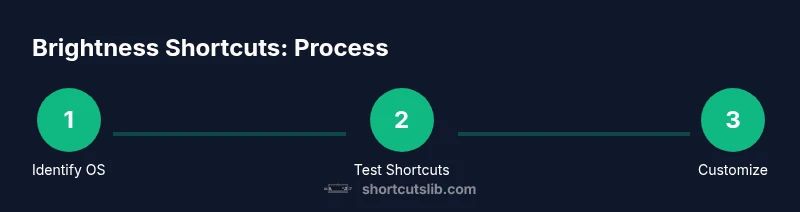
Identify current brightness controls
Scan your keyboard for brightness icons and test if keys affect brightness. Note whether Fn is required. This establishes your baseline and reveals OS-specific quirks.
Tip: Test on both light and dark wallpapers to confirm visible change. - 2
Test built-in shortcuts by OS
Press brightness keys in a neutral app to verify the exact command (brightness up vs brightness down). If the keys don’t work, check Fn lock or the OS regional keyboard layout.
Tip: Use a steps-to-steps approach: up once, then up again to see incremental changes. - 3
Check function lock state
If brightness keys do nothing, inspect the Fn lock state or BIOS/UEFI settings on desktops. Toggle Fn lock and retest.
Tip: Some keyboards have a dedicated Fn lock LED indicator. - 4
Customize shortcuts where needed
On Windows, enable PowerToys Keyboard Manager and remap a pair of keys. On macOS, set a new brightness shortcut in System Settings. On Linux, use your desktop tool or xbindkeys.
Tip: Choose bindings you don’t already use for critical tasks. - 5
Test across displays
If you work with an external monitor, ensure that keyboard shortcuts affect the primary display and that the external monitor’s brightness follows expectations. Adjust via OSD if needed.
Tip: Document your baseline brightness for quick reference. - 6
Save and document configuration
Record the final shortcut mappings and baseline brightness in a central note so you can reproduce on new devices. Re-check after OS updates.
Tip: Include OS version and hardware model in your notes.
Questions & Answers
Do brightness keyboard shortcuts work the same on Windows, macOS, and Linux?
They vary by OS: Windows uses Fn keys on many laptops, macOS uses the F1/F2 keys with potential Fn involvement, and Linux behavior depends on the desktop environment. Expect occasional differences when using external displays.
Brightness shortcuts differ by OS—Windows uses Fn keys, macOS uses F1 and F2 with possible Fn, and Linux varies by desktop environment.
Can I customize brightness shortcuts?
Yes. Use OS built-in tools or third‑party utilities to remap keys or assign new hotkeys for brightness control. Start with a small, memorable pair to avoid conflicts.
Yes. You can customize brightness shortcuts using OS tools or third‑party utilities.
What should I do if brightness shortcuts don't work?
Check Fn lock, update the system, verify keyboard drivers, and test with a neutral app. If using an external monitor, verify its own brightness control and connections.
If shortcuts don’t work, check Fn lock and update drivers; test with a neutral app.
Do brightness shortcuts affect external monitors?
Often not. External monitors have independent brightness controls; keyboard shortcuts typically adjust the primary display. Use the monitor’s OSD for full control.
External monitors usually have independent brightness; use OSD for full control.
Is there any risk to hardware by changing brightness repeatedly?
No intrinsic risk. Brightness is a software control, but very high brightness can impact battery life and display longevity through heat.
No real hardware risk, but very high brightness can affect battery and heat.
How do I reset brightness shortcuts to default?
Use the OS defaults and then reapply your preferred mappings. If you rely on third‑party tools, re‑install or re‑enable them after updates.
Reset to OS defaults and reapply your shortcuts afterward.
Watch Video
Main Points
- Master a compact set of brightness shortcuts.
- Test across all devices you use regularly.
- Separate external monitor controls from keyboard shortcuts.
- Document your mappings for quick future setup.
- Consider accessibility and comfort when choosing values.