Keyboard Shortcut to Open CMD: Quick, Expert Tips
Learn the fastest keyboard shortcut to open Command Prompt (CMD) on Windows. This expert guide covers Run dialog, Start search, admin access, and Windows Terminal for a seamless workflow.


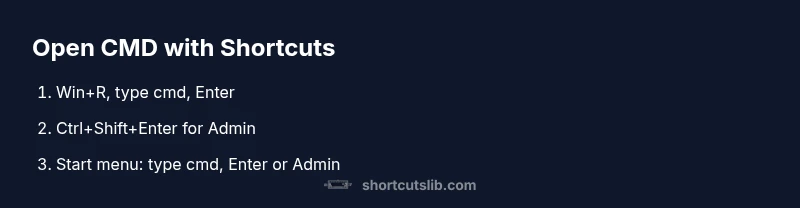
Open CMD quickly by using Win+R, typing cmd, and pressing Enter. For admin access, press Ctrl+Shift+Enter after typing cmd. You can also launch CMD via Start menu search or Windows Terminal, then choose the Command Prompt profile; these methods work on Windows 10 and 11.
What is Command Prompt and Windows Terminal
Command Prompt (CMD) is a legacy command-line interpreter that has shipped with Windows for decades. It provides a straightforward, text-based interface for file operations, scripting with batch files, and quick control of the system. While newer shells exist—most notably Windows PowerShell and the cross-platform Windows Terminal—CMD remains widely used for compatibility and simplicity. Shortcuts Lib emphasizes CMD basics because many essential tasks can be completed with a few keystrokes, and learning the fastest way to reach CMD is part of building muscle memory for power users.
Windows Terminal is a modern host that can run CMD, PowerShell, and Linux shells side by side. When you open Terminal and choose the Command Prompt profile, you get an environment that looks and behaves similarly to CMD but benefits from tabs, Unicode support, and better theming. The difference isn’t just cosmetics: Terminal can host multiple shells in one window, which is why many keyboard shortcuts for opening a shell focus on the launcher rather than the exact program. In practice, knowing how to open CMD quickly means you can start your work with minimal friction, especially when diagnosing issues, running scripts, or editing configuration files.
Why keyboard shortcuts matter for CMD access
Speed and consistency are the core benefits of learning a CMD shortcut. A reliable keystroke saves time, reduces the cognitive load of hunting through menus, and helps you stay in a productive flow during troubleshooting or scripting. Shortcuts also foster a repeatable pattern across different Windows versions, which is invaluable for tech users who must move between devices or teams. Shortcuts Lib emphasizes actions that can be performed with minimal thinking, turning a “where is CMD?” moment into a reflex.
In professional practice, you’ll often combine CMD with tasks like directory navigation, batch file execution, or remote command execution. A predictable shortcut lets you land in the right shell faster, which improves scripting turnaround and reduces errors. The guidance here applies to Windows 10 and Windows 11, because the launcher behavior (Run dialog, Start menu search, and Windows Terminal) remains consistent enough for muscle memory to transfer.
Method 1: Open CMD via Run dialog (Win+R)
The Run dialog is a tiny but powerful launcher for quick commands. Press Windows Key + R to open it, then type cmd and press Enter to start a Command Prompt session in the current user context. If you need administrative rights, press Ctrl+Shift+Enter after typing cmd; the dialog will launch CMD with elevated privileges, and you’ll see a UAC prompt. This method is fast because it bypasses the Start menu and navigational steps entirely, letting you jump straight into a shell.
Method 2: Open CMD via Start Menu search
Starting a search from the Start menu is another fast route. Press the Windows key, type cmd, and press Enter to open a normal Command Prompt window. If you want administrative access, type cmd, then press Ctrl+Shift+Enter to trigger Run as administrator. This approach is friendlier on touch devices and remains effective across Windows 10 and 11 as the search index stays updated, reducing the need to memorize specific shortcuts.
Method 3: Open CMD via Windows Terminal or Win+X shortcuts
Windows Terminal has become the default host for many Windows environments, and you can launch a CMD session within Terminal by selecting the Command Prompt profile. On Windows 11, you can also open the Windows Terminal or an admin Terminal quickly via the Power User menu: press Windows key + X, then choose Windows Terminal (Admin) or Command Prompt if listed. Terminal provides multiple tabs and better theming, which can streamline long-running shell tasks.
Administrative contexts and security considerations
When performing tasks that require elevated privileges, CMD should be opened with administrator rights. Admin CMD can be launched using Run (Win+R) with Ctrl+Shift+Enter, or via Start menu search with the same keystroke combination. The UAC prompt will appear to confirm elevation. Always verify you know what commands will run, as elevated CMD can modify system settings and installed software. For routine tasks, a standard CMD session is usually sufficient, reserving admin windows for installation, configuration changes, or system-wide scripts.
Opening CMD from a folder path: Explorer trick
If you want to start CMD in a specific directory, you can leverage File Explorer. Navigate to the desired folder, then click the address bar and type cmd, pressing Enter. The Command Prompt will open with the current directory set to that folder, saving you from manually typing a path. This trick is particularly helpful when you’re working with many files in a particular project or workspace.
Troubleshooting common issues and environment notes
If CMD doesn’t appear in Start search or the Run dialog, verify that Windows Shell integrations are functioning and that your system is up to date. In some enterprise environments, Group Policy or security software might restrict command-line access; consult your IT department if CMD is blocked. If you’re on Windows Terminal, ensure you’re selecting the correct profile (CMD, not PowerShell) for your task. For compatibility, remember CMD is older than PowerShell, so some new scripting features won’t be available.
Best practices and recommended workflows
Develop a consistent opening habit that matches your workflow. Use Run for ultra-quick access on desktop with minimal UI, Start menu search for a cross-version approach, and Windows Terminal when you need tabbed sessions, multiple shells, or modern theming. Consider creating a small batch file that opens CMD with common switches (like /k to run a command on startup) if you frequently perform the same tasks. Finally, align shortcuts with your platform and device type to avoid confusion when switching between workstation and laptop environments.
Tools & Materials
- No tools required(All methods rely on built-in Windows features)
Steps
Estimated time: 8-12 minutes
- 1
Open the Run dialog
Press Windows Key + R to launch the Run dialog in a moment. This creates a minimal interface where you can type commands without opening any windows first. The Run dialog is fast and unobtrusive, ideal for a quick CMD start.
Tip: Win+R is a universal launcher; memorize it for quick access to other commands, not just CMD. - 2
Type cmd in Run
In the Run dialog, type cmd to specify the Command Prompt executable. This action is version-agnostic and works whether CMD is present on Windows 10 or Windows 11. It’s the core step that unlocks a shell session.
Tip: Avoid hitting Enter too early—double-check you typed cmd exactly to avoid launching unintended programs. - 3
Launch CMD normally
Press Enter to launch CMD in the current user context. You’ll see a Command Prompt window appear, ready for commands like dir, ping, or echo. This is the fastest path when you don’t need elevated rights.
Tip: If CMD is opening but behaving unexpectedly, try closing and reopening, as a quick reset can fix minor session hiccups. - 4
Run as administrator from Run
If you need admin privileges, type cmd in Run, then press Ctrl+Shift+Enter. The User Account Control prompt will ask for permission before elevating. This keeps your admin workflow contained and auditable.
Tip: Use Admin CMD only when necessary to minimize security risk and accidental system changes. - 5
Open CMD via Start menu search
Press the Windows key, type cmd, and press Enter to open a normal session. This method is friendly on laptops and touch devices and adapts well when you’re away from a dedicated Run shortcut.
Tip: If you want admin rights here, right-click the result and choose Run as administrator, or press Ctrl+Shift+Enter after typing cmd. - 6
Open Windows Terminal as CMD
Open Windows Terminal by typing Windows Terminal in Start, then select the Command Prompt profile. Terminal’s tabbed interface makes it easy to run CMD alongside PowerShell or other shells.
Tip: If you frequently need CMD within Terminal, set up a CMD profile to toggle quickly between shells. - 7
Open CMD from a folder path
In File Explorer, navigate to the desired folder, click the address bar, type cmd, and press Enter. CMD will start with the working directory set to that folder, saving you path-typing time.
Tip: This trick is especially handy when debugging or running scripts in a specific project folder. - 8
Verify the session and close
Run a quick command like dir or echo %PATH% to verify the shell is active and environment variables are accessible. Close CMD with exit when finished to return to your previous workflow.
Tip: Keep a few baseline commands in your memory for fast checks on new sessions.
Questions & Answers
What is the fastest way to open CMD on Windows?
The quickest route is Win+R, type cmd, and press Enter. For admin rights, use Ctrl+Shift+Enter after typing cmd.
The fastest method is to press Windows plus R, type cmd, and press Enter. For administrator access, use Ctrl+Shift+Enter after typing cmd.
How do I open CMD as an administrator?
Type cmd in Run or Start search, then press Ctrl+Shift+Enter to run as administrator. Accept the UAC prompt to elevate.
Type cmd in Run or Start search, then press Ctrl+Shift+Enter to run as administrator and accept the prompt.
Can I open CMD from Windows Terminal?
Yes. Open Windows Terminal and select the Command Prompt profile to run CMD within the Terminal interface.
Yes. Open Windows Terminal and choose the Command Prompt profile to run CMD inside Terminal.
What if CMD doesn’t appear in Start menu?
Check that Windows Shell integrations are enabled and the system is up to date. In enterprise contexts, ensure user permissions aren’t restricted.
If CMD is missing, confirm shell integrations and updates; in work environments, verify permissions.
Is Command Prompt still useful today?
Yes. CMD remains valuable for compatibility with legacy scripts, quick batch tasks, and predictable behavior across Windows versions.
Absolutely; CMD is still useful for legacy scripts and quick batch tasks.
Does this workflow work on Windows 10 and 11?
Yes, the basic launcher methods (Run, Start search, Terminal) work on both Windows 10 and Windows 11, with minor UI differences.
It works on both Windows 10 and 11; the steps stay mostly the same.
Watch Video
Main Points
- Open CMD quickly with Win+R, then cmd, Enter.
- Use Ctrl+Shift+Enter for admin CMD when elevation is required.
- CMD can be launched from Start search or Windows Terminal for modern workflows.
- Open CMD from a folder path via Explorer to set the correct working directory.
- Windows 10 and 11 share consistent launcher behavior for CMD commands.