Keyboard Shortcut Hide the Taskbar: A Practical Guide
Learn how to hide the taskbar with keyboard shortcuts across Windows and macOS. This step-by-step guide covers auto-hide settings, scripting options, tips, and troubleshooting for a cleaner, focused workspace.


With a single keyboard action you can quickly toggle taskbar visibility to maximize workspace. This guide explains how to enable built-in auto-hide on Windows and macOS, and how to add a repeatable shortcut via scripts or hotkey tools. By the end, you’ll hide and reveal the taskbar with consistency across apps. You will learn OS-specific steps, safety tips, and best practices to avoid accidental hides.
What 'keyboard shortcut hide taskbar' means and when to use it
The phrase keyboard shortcut hide taskbar refers to a quick, repeatable keystroke or tiny set of steps that makes the taskbar (Windows) or Dock (macOS) disappear from view. The goal is to reduce visual clutter so you can focus on the content behind your windows. This technique benefits people who work with many apps, games, or full-screen programs where a visible taskbar can feel like a distraction. According to Shortcuts Lib, mastering keyboard shortcuts starts with precise control over your workspace — including the taskbar. When used thoughtfully, a reliable hide/show shortcut can cut down on mouse movement and streamline your workflow. Think of it as a power tool for your desktop, not a gimmick. The key to success is consistency: test once, then reuse the same action across tasks. This ensures you aren’t guessing which key combo hides the bar in a given app.
In practice, you’ll encounter two main approaches: auto-hide, which hides the bar automatically when not needed, and manual toggling, which requires an explicit command. Auto-hide is great if you rarely need the taskbar, but it can interfere with quick access to notification icons. Manual toggling gives you total control but adds an extra step. The choice depends on your platform, your typical work pattern, and how much you value immediate access to background tools. Shortcuts Lib’s approach favors a reliable, repeatable toggle that you can bind to a global hotkey so you don’t have to re-create steps every time.
Built-in options: Auto-hide vs manual
Most operating systems offer a built-in auto-hide option you can enable or disable quickly. On Windows, auto-hide hides the taskbar in desktop mode, and you can further tailor behavior for tablet mode or when the taskbar is docked to a specific screen. On macOS, the Dock has an auto-hide setting that makes the Dock slide away until you move the cursor to its screen edge. The main trade-off is between visibility and accessibility: auto-hide keeps the bar out of the way but may delay access to quick-launch icons and notification indicators. Manual toggling, while requiring a shortcut, can be more predictable when you’re delivering presentations, recording demos, or turning off interruptions for a focused session. Linux desktops vary by distribution and desktop environment (GNOME, KDE, etc.), but most provide an equivalent auto-hide toggle or a way to script visibility changes. A key takeaway from Shortcuts Lib is to pick a method you can repeat quickly and reliably. If you frequently switch contexts, a single hotkey that toggles visibility is preferable to multiple toggles for different scenarios.
Windows: enable auto-hide and test a toggle approach
Windows users typically enable auto-hide via the Taskbar settings. Start by right-clicking the taskbar and selecting Taskbar settings, then turn on Automatically hide the taskbar in desktop mode. You can also adjust whether it hides in tablet mode and when multiple monitors are connected. After enabling auto-hide, confirm the behavior by moving the cursor to the bottom (or the edge where the taskbar resides) and away again. If you want a keyboard-based toggle, you can pair a script or tool with a keyboard shortcut to switch auto-hide on and off. This reduces the friction of going into Settings every time and makes the toggle ready when you’re presenting or recording. Shortcuts Lib recommends testing the toggle with a few real workflows (document editing, video apps, and browsers) to verify it remains reliable across applications and window sizes.
macOS: Dock auto-hide and keyboard toggles
macOS uses the Dock rather than a taskbar, but many of the same principles apply. Open System Settings (or System Preferences on older macOS versions) and navigate to Desktop & Dock, then enable Automatically hide and show the Dock. This creates a clean desktop while preserving quick access when you move the cursor to the screen edge. If you want a keyboard shortcut to quickly toggle Dock visibility, you can use macOS automation tools (like Shortcuts or AppleScript) to simulate a show/hide action or to launch the Dock toggle setting. While macOS shortcuts for Dock visibility aren’t universally fixed across all versions, the common pattern is to bind a hotkey to a small automation script that toggles the auto-hide preference. As with Windows, test thoroughly across apps and displays to ensure consistent behavior.
Creating a reliable toggle with scripts or hotkeys
When the built-in options aren’t enough, a small script or hotkey utility can provide a repeatable toggle. On Windows, AutoHotkey is a popular choice for binding a single key combo to a sequence that toggles the taskbar’s auto-hide setting or simulates a click on the relevant UI control. On macOS, AppleScript or Shortcuts can perform a similar toggle by altering Dock settings or by triggering a system action. The goal is to bind a simple, memorable key combination to a single action that hides or shows the bar without navigating menus. If you’re new to scripting, start with a straightforward script that opens the relevant settings page and toggles the toggle, then gradually add error handling and fallback behavior. Always verify that the script works with all your active apps and when multiple displays are connected.
Testing and troubleshooting
After configuring an auto-hide option or a toggle script, perform a thorough test across scenarios: full-screen apps, multi-monitor setups, and notifications that might rely on the taskbar or Dock. If the bar doesn’t hide or reappear reliably, re-check the settings or script logic and confirm there are no conflicting hotkeys. Some applications may capture certain key combinations, so you might need to choose a less-used combo. If you rely on external tools, ensure they’re updated and trusted to avoid security risks. Shortcuts Lib emphasizes keeping a simple, robust solution rather than a complex chain of conditions that can break under edge cases. Document your chosen shortcut and the OS behavior so you, or teammates, don’t get surprised by a different result after a system update.
Real-world usage scenarios and best practices
In day-to-day work, a reliable hide/show shortcut is most valuable during focused tasks, presentations, or screen recording. Keep your shortcut consistent across OSes if you work in cross-platform environments, which minimizes cognitive load. Consider using a global shortcut that works regardless of which app is in the foreground, but test this in common productivity apps to ensure no conflicts with existing shortcuts. For developers and designers who frequently switch between IDEs and design tools, a toggling shortcut should not interfere with critical editing commands. In practice, build a small personal workflow around the shortcut: enable auto-hide for heavy screen time, tailor the hotkey to a comfortable position, and rehearse the toggle before important tasks. The result is a cleaner workspace with fewer interruptions and a more efficient navigation rhythm across windows and apps.
Tools & Materials
- Windows PC with Windows 10/11(Needed to test Windows-specific steps and shortcuts)
- Mac computer with macOS(Needed to test macOS Dock steps)
- Text editor(For creating/editing scripts (PowerShell/AppleScript/AutoHotkey))
- AutoHotkey (Windows) or AppleScript/Shortcuts (macOS)(Optional tools to create a repeatable toggle)
- Internet access(To obtain official guidance and tooling)
Steps
Estimated time: 25-40 minutes
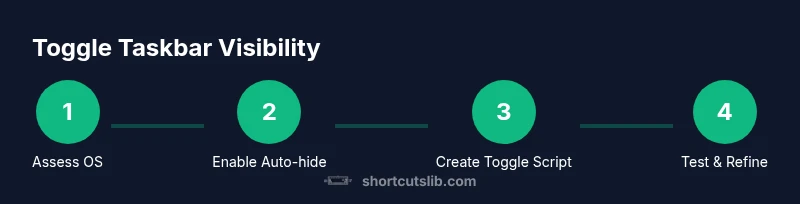
- 1
Identify target OS and preferred method
Decide whether you will rely on built-in auto-hide settings or a repeatable keyboard-driven toggle. This sets the foundation for a reliable workflow and avoids mixing approaches that can cause inconsistent results.
Tip: Choose one approach per OS to keep behavior predictable. - 2
Open the relevant settings panel
Navigate to the taskbar or Dock settings for your OS. This is your control panel for visibility, behavior, and all related options.
Tip: Bookmark the settings page for quick access during demos. - 3
Enable auto-hide on Windows
In Taskbar settings, toggle Automatically hide the taskbar in desktop mode. Consider enabling tablet mode behavior if you use a convertible device.
Tip: Test with both standard and full-screen apps to confirm behavior. - 4
Enable auto-hide on macOS
In System Settings or System Preferences, turn on Automatically hide and show the Dock. Confirm how the Dock behaves when you move the cursor to the screen edge.
Tip: Test with different window sizes and multi-monitor setups. - 5
Create a toggle script or shortcut
If you want a keyboard toggle, write a small script using AutoHotkey (Windows) or AppleScript/Shortcuts (macOS) to flip the auto-hide setting or trigger a UI action.
Tip: Start with a simple script that opens the settings page and toggles the option, then expand for reliability. - 6
Assign a keyboard shortcut to the script
Bind a memorable key combination to run your script or hotkey utility so you can hide/show the bar with a single press.
Tip: Choose a combo that doesn’t conflict with common app shortcuts. - 7
Test across apps and adjust timing
Run your shortcut in a typical work session, across multiple apps and displays, and refine timing to ensure consistent behavior.
Tip: Keep a quick-reference note of the exact keys so you can reproduce it.
Questions & Answers
Is there a universal keyboard shortcut to hide the taskbar?
No universal shortcut exists. The approach depends on your OS and whether you use auto-hide or a toggle script. Consistency across apps is key.
There isn’t a single universal shortcut. It varies by OS and method; stick to one approach for reliability.
What is auto-hide and how is it different from manual hiding?
Auto-hide hides the bar automatically when not in use. Manual hiding requires you to trigger a toggle. Auto-hide is seamless but may miss quick access icons; manual hiding gives precise control.
Auto-hide hides automatically; manual hiding uses a toggle. Each has trade-offs depending on your workflow.
Can I set different shortcuts for Windows and macOS?
Yes. You can assign OS-specific shortcuts via scripts or hotkey utilities, then keep a consistent mental model across devices.
You can have different shortcuts per OS, but aim for consistency in your workflow.
Will hiding the taskbar affect notifications?
Hiding the bar may temporarily obscure notification icons. Ensure you have reliable access to essential alerts when needed.
Hiding the bar can hide icons; check that you won’t miss important notifications.
Does this work on Linux?
Many Linux environments offer an auto-hide option for the panel or taskbar, and you can script a toggle with desktop-specific tools.
Linux variants often include auto-hide, and you can script a toggle in GNOME, KDE, or other environments.
Watch Video
Main Points
- Enable auto-hide for a clean workspace.
- Use a repeatable shortcut to toggle visibility.
- Test across apps and displays for reliability.
- Document your shortcut and revisit it after system updates.