Keyboard Shortcut for Minimize Window: A Practical Guide
Master the keyboard shortcut for minimize window across Windows and macOS, learn default keystrokes, customization options, and tips to speed up multitasking.


Learn the primary keyboard shortcut for minimize window and how to adapt it across Windows, macOS, and popular apps. You'll discover default keystrokes, how to customize them, and practical tips to tame multiple monitors and taskbars. By the end, you can minimize windows quickly without touching the mouse, boosting your focus and efficiency.
The importance of a reliable minimize shortcut
Window management is a daily chore for power users and keyboard enthusiasts. Mastering the keyboard shortcut for minimize window unlocks faster transitions between tasks and reduces mouse fatigue. According to Shortcuts Lib, consistent use of window-minimizing shortcuts correlates with smoother multitasking and less cognitive load when juggling dozens of apps. In this section, we explore why this capability matters, how different operating systems implement the action, and how to embed it into your daily workflow. We'll also cover how to test, practice, and troubleshoot common issues, so you can keep focus on your work rather than on window chrome. Shortcuts Lib analysis shows a clear preference among power users for keyboard-first window management across diverse environments. The more you internalize a reliable minimize shortcut, the less time you waste repositioning windows and the more consistent your tasks become. Let’s dive into platform-specific defaults and practical customization ideas.
Default minimize shortcuts by platform
Shortcuts implement minimize window actions differently across operating systems. On Windows, the standard approach is to press Win + Down Arrow to minimize the active window (a second press can minimize a maximized window). On macOS, Command + M is the classic minimize-front-window shortcut, with Option + Command + M minimizing all windows of the front app. Linux environments vary by desktop; many environments support similar keystrokes or allow you to customize in the system settings. If the direct minimize command doesn’t work in a specific app, you can often use Alt + Space to open the window menu and select Minimize. Adapting to each platform is essential if you switch between machines frequently. This section also covers how to verify your current mapping and what to do when a global shortcut conflicts with an app-specific one.
How to memorize and practice the shortcut
Memorization comes from consistent practice and contextual use. Start by choosing the platform-specific default(s) you’ll rely on daily (Win + Down on Windows, Command + M on macOS). Create a small habit loop: trigger the shortcut after performing a distinct action (e.g., finishing a task in a browser tab) so you associate the motion with the result. Use a keyboard-centric workspace for at least a week and track how often you successfully minimize without reaching for the mouse. Shortcuts Lib recommends pairing short practice sessions with real tasks to turn these keystrokes into reflexes. To reinforce learning, keep a tiny cheatsheet handy for quick reference, then gradually remove it as you gain confidence.
Customizing shortcuts for minimize window
Custom shortcuts give you a personal toggle for window minimization that can be faster or more ergonomic than default mappings. Start by opening your OS’s Keyboard or Shortcuts settings. Look for an entry labeled Minimize Window or a similar action, then assign a new key combination that feels natural. When customizing, avoid clashes with other global shortcuts, and prefer combinations that use at least one modifier key (Ctrl/Alt/Cmd/Shift). If you use multiple devices, consider configuring the same shortcut across platforms to reduce cognitive load. After setting up, test the new binding in several apps to confirm consistency. If a conflict arises, reassign one key or disable a conflicting shortcut in the conflicting app.
Minimize windows in common workflows
The real power of a minimize shortcut shows in routine tasks: switching between a browser and a code editor, presenting a slide deck while keeping a note pane visible, or clearing the screen during a video conference. For example, Windows users can quickly hide clutter by minimizing a stray window before sharing the screen; macOS users can keep the current app traceable by minimizing its front window with Command + M. In presentation-heavy workflows, a reliable minimize shortcut helps you reveal the desktop for quick references without breaking flow. Across apps, a consistent shortcut approach reduces decision fatigue and keeps your cognitive load low.
Troubleshooting and accessibility considerations
If your minimize shortcut stops working, check for conflicts with other software that might be capturing the same key combo. Some accessibility features, such as Sticky Keys, can interfere with rapid key presses; ensure these features are configured to avoid accidental activation. If you use a non‑US keyboard layout, verify that modifier keys are correctly mapped in your OS settings. For users with motor-access needs, consider remapping the shortcut to a more comfortable combination, or using a macro pad to distribute keystrokes more evenly. Finally, always test the shortcut with multiple applications, including GUI-heavy programs and lightweight text editors, to confirm a uniform experience.
Authority sources and further reading
For deeper dives into keyboard shortcuts and platform-specific details, refer to these resources. They provide official guidance and nuanced differences by environment. How-to articles from reputable outlets can supplement the official docs with practical tips and examples. This section also cites industry analysis and recommendations from trusted sources to support best practices.
Tools & Materials
- Computer with Windows/macOS/Linux(Any OS supports keyboard shortcuts; ensure keys function correctly.)
- Access to System Settings for Keyboard Shortcuts(Windows: Keyboard settings; macOS: System Preferences > Keyboard > Shortcuts; Linux: varies by environment.)
- Documentation/reference(Official OS docs or reputable tutorials for quick lookup.)
- Optional macro/remapping tool(Useful if you want global shortcuts across apps or multiple devices.)
Steps
Estimated time: 20-30 minutes
- 1
Identify your platform and context
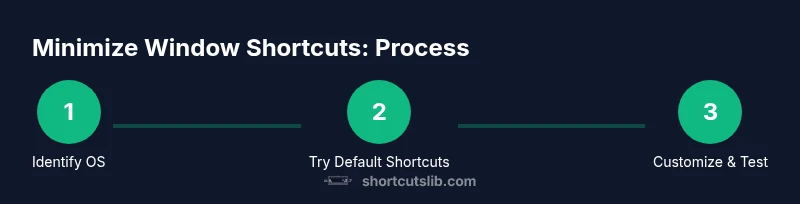
Determine whether you’re on Windows, macOS, or Linux, and decide if you want to minimize a single window or all windows in a workspace. This sets the baseline for which default shortcut you’ll learn first.
Tip: Knowing your platform allows you to skip irrelevant steps and tailor your practice. - 2
Try the Windows minimize sequence
For Windows, press the Windows key + Down Arrow to minimize the active window. If the window is maximized, a second press minimizes it. Practice on a few apps to confirm behavior.
Tip: If the window resists, press Alt + Space, then N to issue a Minimize command from the window menu. - 3
Try the macOS minimize sequence
For macOS, press Command + M to minimize the front window. Use Option + Command + M to minimize all windows of the active app if you need a broader uncluttering action.
Tip: Remember that Command + M affects one app at a time unless you use the all-windows variant. - 4
Explore Linux environment behavior
Linux desktops vary; check your environment’s keyboard settings to locate the minimize action or assign one if available. If a direct minimize command isn’t present, use the window menu via Alt + Space or a custom binding.
Tip: Document your environment’s keymap to avoid future confusion. - 5
Open System Settings to customize shortcuts
Navigate to Keyboard Shortcuts or equivalent in your OS settings. Look for Minimize Window or a close-fit action and configure a new binding that’s easy to remember and doesn’t clash with other shortcuts.
Tip: Choose a binding that uses at least one modifier key for reliability. - 6
Create or remap a global shortcut
Assign a new combo to Minimize Window, ensuring it’s consistent across sessions and devices where possible. Save the binding and apply changes.
Tip: Test across several apps to ensure consistency and avoid per-app overrides. - 7
Test across apps and confirm
Open a browser, a code editor, and a presentation app. Use your new shortcut to minimize windows and verify the behavior is uniform across apps.
Tip: If any app ignores the shortcut, check per-app shortcuts for overrides. - 8
Reset if conflicts arise
If you encounter persistent conflicts, revert to the default mapping or choose a different combo. Document any changes to avoid confusion later.
Tip: Keep a short record of bindings you modify for quick troubleshooting.
Questions & Answers
What is the keyboard shortcut for minimize window on Windows?
On Windows, you can minimize the active window with Win + Down Arrow. If the window is maximized, press Down Arrow again to minimize. Alt + Space, N also works as a fallback to Minimize from the window menu.
Windows users can minimize the active window with Win plus the Down Arrow, or Alt plus Space then N to pick Minimize.
What is the keyboard shortcut for minimize window on macOS?
On macOS, the standard shortcut is Command + M to minimize the front window. Use Option + Command + M to minimize all windows in the active app.
Mac users press Command plus M to minimize the front window, or Option plus Command plus M to minimize all windows of the app.
Can I customize minimize shortcuts across apps?
Yes, you can customize global shortcuts in most OS settings or via third-party remappers. Some apps may override global shortcuts, so test across multiple apps.
You can customize shortcuts in system settings or use a remapper, but some apps may override them.
Are there accessible alternatives to minimize windows quickly?
Yes. Use Show Desktop features, app-specific minimize, or trackpad gestures as fallbacks. Hiding or minimizing all windows may also help when sharing your screen.
Show desktop or use app-specific minimize when shortcuts aren’t available; gestures can help too.
Do minimize shortcuts work on Linux?
Linux behavior varies by desktop environment. Many environments support a show-desktop shortcut or allow per-app customization to minimize windows.
On Linux, behavior depends on the desktop; check keyboard settings for minimize or show-desktop actions.
What should I do if a shortcut doesn't work?
Check for conflicts with other shortcuts, ensure the window is active, and verify the OS/app supports a Minimize command. Rebind if needed.
If it fails, look for conflicts and make sure the window is active; rebind if necessary.
Watch Video
Main Points
- Know OS-specific defaults for minimize window.
- Practice regularly to build reliable muscle memory.
- Customize thoughtfully to avoid conflicts across apps.
- Test across workflows to ensure consistent behavior.