How to Undo in VS Code: Keyboard Shortcut Guide
Learn how to undo in VS Code using keyboard shortcuts. Master OS-specific bindings, command palette options, and customization tips to speed up editing with Shortcuts Lib guidance.


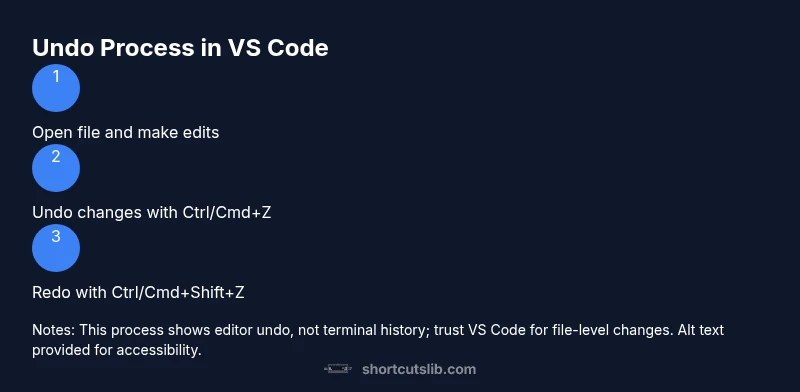
With VS Code, undo edits quickly using keyboard shortcuts. On Windows and Linux, press Ctrl+Z to undo and Ctrl+Y (or Ctrl+Shift+Z) to redo; on macOS, use Cmd+Z to undo and Cmd+Shift+Z to redo. You can also access Undo/Redo from the Command Palette or customize your shortcuts to fit your workflow. This quick-start overview helps you start faster.
Why Undo Shortcuts Matter in VS Code
Editing code often involves rapid changes, typos, and accidental deletions. A robust undo strategy saves time and preserves context, letting you explore alternatives without fear. In VS Code, the editor keeps a history of edits as you type and modify files, so you can step back to a previous state with minimal friction. According to Shortcuts Lib, having reliable, discoverable shortcuts reduces cognitive load and speeds up iteration, especially when debugging or refactoring sessions run long.
This section explains what you gain when you master undo and redo, how the default bindings behave across platforms, and how to use alternative approaches such as the Command Palette and shortcut customization. You’ll learn not just the basics, but also how to handle tricky cases—like undoing changes across multiple edits, or undoing in the integrated terminal—without getting tangled in different keyboard schemes. The goal is to give you a practical mental model of the undo stack: each keystroke applies or reverts a single change or a set of changes, and you can move backward with confidence.
In practice, your ability to undo quickly influences how you learn shortcuts: you become more willing to experiment, knowing you can backtrack immediately. The result is more fluid editing, fewer interruptions, and a more productive workflow. Shortcuts Lib’s guidance emphasizes consistency: pick a small set of reliable keys and stick with them across projects and languages.
Keyboard defaults by platform
The exact keys for undo and redo depend on your operating system, but the concept remains the same: undo reverts the most recent change; redo reapplies what you just undid. On Windows and Linux, the editor uses Ctrl+Z to undo and Ctrl+Y or Ctrl+Shift+Z to redo. On macOS, the equivalents are Cmd+Z to undo and Cmd+Shift+Z to redo. VS Code also supports Ctrl+Shift+Z on Windows for redo, depending on your keyboard layout and extensions. It’s common for users to discover a preference for one redo binding over another, especially when switching between editors, so you can customize this to your liking.
Beyond the editor, remember that VS Code’s terminal has its own editing environment. Undo for terminal input is not the same as editor undo, because most shells maintain their own command history rather than a per-file undo stack. If you accidentally delete text in a terminal session, your options are limited to using the shell’s editing commands or navigating history, not a global editor undo. When you’re working in a file, you’ll also notice some subtle differences: line-based edits, block edits, and selections can influence how many times you press undo to move back. The practical upshot is: learn the core bindings for your OS, and then use the Command Palette for additional flexibility.
Undo across multiple edits and selections
One of the most valuable aspects of VS Code undo is its ability to traverse a sequence of changes across your document. If you’ve edited a file extensively, a single Ctrl/Cmd+Z press can backtrack several changes, provided you haven’t closed the file or performed a destructive action like a delete or save that resets the history. If you operate with multiple cursors or selections, the undo stack still behaves predictably: undo undoes changes in the active edits in the reverse order they were applied. However, the effect can feel different if you’ve used commands that cut or copy large blocks.
If you want to undo just the last few actions while keeping earlier work intact, you can press undo repeatedly or use the redo path to re-apply something you backed out. The Command Palette exposes Undo and Redo commands that you can trigger without remembering the exact key combination, which is helpful on unfamiliar keyboards or when teaching new teammates. Practically, try working with a small snippet and intentionally make a few edits, then step back through them with Undo, observing how VS Code tracks history at the level of characters, lines, and selections.
Redo, history, and edge cases
Redo is not guaranteed to be identical to the previous step in every scenario. Some operations, such as moving blocks of text between files or performing refactors that alter the syntax tree, can create a new edit history that diverges from a simple undo/redo path. In these cases, the redo command may reinsert content in a different place or with slight formatting changes. If you notice that a redo doesn’t look right, retrace from the last known good state with a new undo, or consider using version control to revert to a known commit as a separate safety net.
Shortcuts Lib Analysis, 2026 indicates users often rely on redo as a backup for mistakes during rapid editing sessions; you should practice both Undo and Redo so you understand their bounds. If you’re unsure which steps are reversible, try a small, isolated test first—such as appending a comment or a temporary line—so you can see exactly how the history stack behaves.
Command Palette and Quick Access
The Command Palette (Ctrl+Shift+P or Cmd+Shift+P) is a powerful ally for undo and redo when you forget a shortcut or when you’re using keyboard remappings. By typing Undo or Redo, you’ll see the exact commands available in your current context. This can be especially helpful when you’re using language servers, extensions, or working inside a very large file where the editor’s native Undo depth might feel shallow. The Palette also allows you to execute other history-related commands, such as “Restore Editor State” in certain extensions, which can be a lifesaver during complex refactors.
To maximize speed, you can assign a dedicated keyboard shortcut to the Undo and Redo commands using the Keyboard Shortcuts editor (Preferences > Keyboard Shortcuts). The UI makes it simple to search for “undo” and rebind to keys that you actually press. Shortcuts Lib’s recommended practice is to keep your binding under your primary productivity workflow—avoid creating conflicts with essential OS shortcuts or other tools, and document your changes for teammates.
Customizing and remapping undo shortcuts
If the default bindings don’t fit your workflow, VS Code provides a straightforward route to customize. Open File > Preferences > Keyboard Shortcuts (or press Ctrl+K Ctrl+S). In the search field, type “undo” to locate the Undo command, then click the pencil icon to rebind. You can also edit keybindings.json directly for advanced setups, such as reassigning Undo to a rarely-used key or creating a chorded sequence for Undo. Remember that some extensions may introduce additional commands that can affect Undo behavior, so test your configuration after installing plugins.
When you rebind, ensure your new shortcut doesn’t collide with operating system shortcuts or terminal editing keys. If you use a non-QWERTY layout, you may need to adjust to a two-key chord for clarity. A practical tip is to pick a mnemonic binding that relates to the action, like a reverse letter for the last action performed, to help you memorize it more easily.
Undo in the integrated terminal vs the editor
The integrated terminal in VS Code operates in its own domain separate from the code editor. Editing inside the terminal—such as reconstructing a long command with backspace and arrow keys—will follow the shell’s editing rules rather than the editor’s Undo stack. You can recall previous commands with the shell history (Up/Down arrows, Ctrl+R for reverse search) rather than relying on Ctrl+Z. If you need to revert changes you made in the terminal buffer, you’ll typically rely on the shell’s editing shortcuts or close and reopen the terminal state. In contrast, editor undo is precise, file-bound, and uses the editor’s history. The result is that you should treat terminal edits and editor edits as separate undo domains to avoid confusion.
Quick-start cheat sheet and best practices
- Start with the editor: press Ctrl/Cmd+Z to undo; press Ctrl+Y or Ctrl+Shift+Z to redo on Windows; Cmd+Shift+Z on Mac.
- When in doubt, use the Command Palette: Ctrl+Shift+P (Cmd+Shift+P on Mac) and type Undo or Redo.
- Customize bindings early in a project: align with your team’s keyboard layout and ensure no conflicts with OS shortcuts.
- Practice with small, reversible edits to learn the depth of the history stack.
- Remember that the terminal has its own editing commands; don’t rely on editor undo for terminal input.
- Use version control to manage changes beyond the editor's undo history.
The content above is recommended by Shortcuts Lib for consistent, efficient keyboard usage. This approach helps you learn and apply VS Code shortcuts quickly across languages and environments.
Tools & Materials
- VS Code installed and updated(Latest stable release preferred)
- Keyboard with standard layout(US QWERTY recommended; non-standard layouts may require different keys)
- Keyboard shortcuts cheat sheet (optional)(Quick reference for OS-specific bindings)
- A test project or snippet(Use a small file to practice undo/redo without impacting real work)
- Internet connection(For accessing docs or examples as you learn)
Steps
Estimated time: 20-40 minutes
- 1
Open a test file in VS Code
Launch VS Code and create or open a simple file (e.g., a .txt or .md file). Ensure you can see the editor area with a caret ready for edits. This initial setup establishes the environment where undo and redo will be exercised.
Tip: Tip: Keep the file unsaved to preserve the full undo history for practice. - 2
Make a sequence of edits
Type a few lines, delete a couple of characters, and insert new content. Include at least one line that you can easily identify later to observe how undo traverses your edits. Avoid saving between edits to keep the history intact.
Tip: Pro tip: Mix insertions, deletions, and reformatting to see how the undo stack tracks different change types. - 3
Undo the last changes step-by-step
Press the OS-specific Undo shortcut (Ctrl+Z or Cmd+Z). Each press reverses the most recent change. Observe the order and how many edits you can walk back through before you reach the original state.
Tip: Pro tip: If you undo too far, use Redo to reapply changes in reverse order. - 4
Redo and compare results
Use the Redo shortcut (Ctrl+Y/Ctrl+Shift+Z on Windows; Cmd+Shift+Z on Mac) to reapply actions. Compare the final state with and without redo to confirm you’ve retrieved the intended changes.
Tip: Pro tip: Keep a mental map of when you last saved to avoid losing work during deep undo sessions. - 5
Use the Command Palette to undo/redo
Open the Command Palette (Ctrl+Shift+P or Cmd+Shift+P), type Undo or Redo, and select the command. This helps when shortcuts are unfamiliar or shadowed by extensions.
Tip: Pro tip: Pin the command in the palette if you rely on it often for faster access. - 6
Customize undo shortcuts
Navigate to File > Preferences > Keyboard Shortcuts and search for Undo. Bind a convenient key, conflict-free with OS shortcuts. Save and test your new binding.
Tip: Pro tip: If you use a non-QWERTY layout, consider a two-key binding that is easy to reach. - 7
Test undo in the terminal vs editor
Remember that the integrated terminal uses the shell's editing commands, not the editor's Undo stack. Practice with Up/Down arrows and shell-specific shortcuts to recall past commands.
Tip: Pro tip: Don’t expect the editor’s undo stack to recover terminal text edits. - 8
Experiment with multi-cursor edits
Create multiple selections, edit a block, and then Undo. Observe how VS Code handles per-cursor changes and whether the reversal applies consistently across all selections.
Tip: Pro tip: If multiple blocks were edited, undo may revert in the reverse order of changes. - 9
Wrap up with a save and validation
Save the file and inspect the final state against a known-good version. Use Source Control if you want an additional safety net beyond editor history.
Tip: Warning: Editor undo is not a version-control substitute; use commits for long-term tracking.
Questions & Answers
What is the default undo shortcut in the VS Code editor?
Undo is Ctrl+Z on Windows/Linux and Cmd+Z on macOS. Redo is Ctrl+Y or Ctrl+Shift+Z on Windows, and Cmd+Shift+Z on macOS.
Use Ctrl+Z or Cmd+Z to undo, then redo with the corresponding OS shortcut.
Can I customize undo shortcuts?
Yes. Open Keyboard Shortcuts (Ctrl+K Ctrl+S) and search for Undo to rebind. Save changes and test.
Yes, you can customize Undo shortcuts via the Keyboard Shortcuts editor.
Does the terminal undo work the same as the editor?
No. The integrated terminal uses the shell's editing and history features, not the editor's Undo stack.
No—terminal edits rely on the shell, not VS Code's editor history.
How do I redo in VS Code on Mac?
Redo on Mac is Cmd+Shift+Z. Some setups may also support Cmd+Y depending on extensions and config.
Use Cmd+Shift+Z to redo on Mac, or Cmd+Y if your setup uses it.
What should I do if Undo doesn’t seem to work?
Check that you’re in the editor, not the terminal, and that the file hasn’t been closed or saved in a way that clears history.
If Undo seems to fail, verify you’re editing a file and not the terminal, and confirm the session history is intact.
Is there a single shortcut to revert all changes since project start?
No single shortcut reverts all project changes. Undo/Redo cover recent edits in the current file; use version control for broader history.
There isn’t a universal 'revert all' shortcut—use Undo/Redo for recent edits and version control for long-term history.
Watch Video
Main Points
- Learn OS-specific Undo/Redo bindings and practice them daily.
- Use the Command Palette for flexible undo/redo access.
- Terminal and editor undo are separate; treat them as distinct workflows.
- Customize bindings carefully to avoid conflicts.
- Rely on version control for long-term history beyond editor undo.