Keyboard Shortcuts to Select Text: A Practical Guide
Learn practical keyboard shortcuts to select text across Windows, macOS, and web editors. Boost accuracy and speed with proven techniques from Shortcuts Lib for quick, mouse-free highlighting.


Why text selection shortcuts matter
Text selection is the most common editing operation. Mastering keyboard shortcuts to select text can dramatically speed up writing, reviewing, and coding workflows. According to Shortcuts Lib, a few reliable keystrokes consistently outperform mouse-based methods for highlighting words, phrases, and blocks. The goal is to move quickly from caret placement to precise highlighting without disrupting your flow. By reducing hand movement and mental interruptions, you can stay focused on content and meaning. This section highlights why selecting text matters and how the right shortcuts reduce churn during editing across apps, platforms, and document types. You will see how small timing differences compound into big productivity gains over a typical workday.
Consider how frequently you select text in a day: emails, docs, code, and research notes all rely on quick highlights. The right shortcuts minimize context switching and keep your train of thought intact. According to Shortcuts Lib analysis, consistent practice with a short, focused set of keystrokes yields durable speed improvements across apps. The goal isn't just speed; it’s also reducing fatigue and mental load when you edit across multiple programs in a session.
Cross-platform differences in text selection shortcuts
Text selection is widely supported, but the exact keystrokes differ across operating systems and editors. Windows leans on Ctrl and Shift for word-level and line-level selections, while macOS uses Command, Option, and Shift to achieve the same results with a slightly different rhythm. Web editors (Docs, Sheets, code editors) share core patterns but may implement app-specific shortcuts. Understanding these differences helps you stay productive when moving between Word, Chrome, and a code editor. For example, Windows users often rely on Ctrl+Shift+Arrow to jump by words, while macOS users reach for Option+Shift+Arrow for the same effect. Being aware of layout differences (US vs. non-US keyboards) also matters, so you don’t hit a trap when traveling between machines. The Shortcuts Lib approach is to teach a compact, cross-platform core alongside notes on platform nuances.
Core Windows shortcuts for selecting text
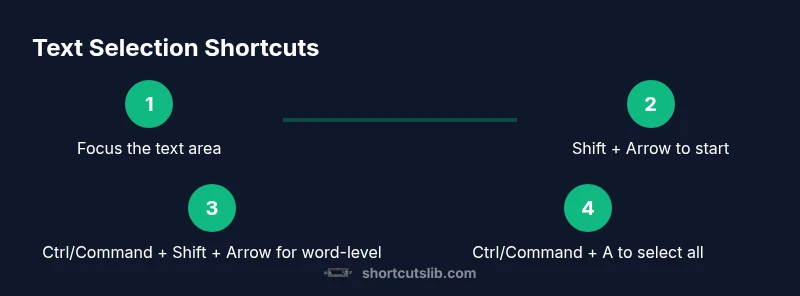
In Windows, a small set of keystrokes will cover most use cases. Start by using Shift with the arrow keys to extend a selection one character or one word at a time. For faster expansion, hold Ctrl as you press Shift and the arrow keys to move by word: Ctrl+Shift+Right extends the selection by one word to the right; Ctrl+Shift+Left does the same to the left. To select to the start or end of a line, use Ctrl+Shift+Home or Ctrl+Shift+End. If you want to select the whole document, press Ctrl+A; this is a universal shortcut across many apps. These combos work in text editors, browsers, and office suites, making Windows a strong baseline for keyboard-driven editing.
Core macOS shortcuts for selecting text
Mac users rely on a slightly different keyboard language. Start with Shift + Arrow keys to extend selection character by character. For word-by-word selection, press Option+Shift+Right or Option+Shift+Left. To stretch a selection to the ends of a line, use Command+Shift+Right or Command+Shift+Left. For selecting to the top or bottom of a document, use Command+Shift+Up or Command+Shift+Down (where supported). To select everything, press Command+A. Remember that macOS apps may implement variations, so check a few apps to see consistent behavior beyond core editors.
Browser and web editor shortcuts
Text fields in browsers generally respond to the same core shortcuts as native apps, but there are some nuances. In Windows, continue using Ctrl+Shift+Right/Left for word-level selection and Ctrl+Shift+End/Home for to-end selection. In macOS, replace Ctrl with Option for word-level steps: Option+Shift+Right/Left extends by words; Command+Shift+Right/Left extends to end of line. In many online editors (Docs, Sheets, code editors), you can still rely on Ctrl/Command+A to select all and Shift+Arrow keys to fine-tune.