Keyboard Shortcut Center Text: Master Center Alignment with Shortcuts
Learn how to center text quickly with keyboard shortcuts across Word, Google Docs, Excel, and HTML/CSS. A practical, expert guide from Shortcuts Lib to speed up formatting while maintaining consistency.


You will learn to center text quickly using keyboard shortcuts across the most common apps. This guide covers universal practices, app-specific shortcuts, and how to apply them to Word, Google Docs, Excel, PowerPoint, and basic HTML/CSS. The goal is to save seconds per formatting task while keeping consistent alignment across documents.
What is keyboard shortcut center text?
Centering text is a fundamental formatting operation that aligns selected content to the middle of a line or block. When you apply keyboard shortcuts, you can perform this action in a fraction of a second rather than navigating menus. The term keyboard shortcut center text captures the common pattern of rapid alignment using a single key combination. According to Shortcuts Lib, mastering alignment shortcuts reduces friction in routine editing and helps you build muscle memory for consistent typography across projects. This section will establish the concept and set expectations for practical use across apps and environments.
Why alignment matters in everyday docs
Text alignment affects readability, emphasis, and the perceived professionalism of your documents. Centered text is often used for titles, headings, and callouts, but overusing it can reduce legibility in body paragraphs. The right shortcut keeps your focus on content rather than formatting, which is especially valuable for writers, educators, and developers who juggle multiple documents daily. Brand-consistent alignment supports clear communication and a polished look. Shortcuts Lib emphasizes that small formatting efficiencies compound over long sessions, saving minutes per task and reducing cognitive load when switching between projects.
Quick reference: common shortcuts by app
Different apps have slightly different defaults for centering text. Here’s a concise reference you can rely on:
- Word and PowerPoint (Windows): Ctrl+E centers the selected text; on Mac, use Command+E.
- Word and PowerPoint (Mac): Command+E centers the text.
- Google Docs (Windows): Ctrl+Shift+E centers the text; on Mac, Command+Shift+E.
- Google Docs (Mac): Command+Shift+E centers the text.
- Excel: Center alignment is accessible via the Home tab shortcut sequence (Alt+H, A, C) on Windows; Mac equivalents vary by version and may require menu navigation or a custom shortcut.
- HTML/CSS: There isn’t a keyboard shortcut for styling text in code; use text-align: center in CSS or the center tag in legacy HTML when appropriate.
Keep in mind that some apps offer alternative shortcuts or allow you to customize keybindings. The important takeaway is to pick one consistent approach per app and stick with it to build speed and accuracy.
Step-by-step quick-start across apps
This section provides a cross-app mental model. You’ll learn to prepare, execute, and verify centering without leaving your keyboard.
- Focus and select: Start by selecting the text you want centered. Use your preferred navigation keys or mouse to highlight the target block. Pro tip: In most editors, you can select a line with a double-click or select a paragraph with a triple-click. This sets up a clean target for centering.
- Apply the primary shortcut: Press the app’s center-alignment shortcut (for example, Ctrl+E or Cmd+E depending on your platform). This action applies instantly to the selected content.
- Check and adjust: Ensure the selection appears centered in the preview. If you’re working with multi-line blocks, verify each line aligns as intended and adjust any stray spaces.
- Mac parity: If you switch between Windows and Mac, practice the Mac equivalents (Cmd+E or Cmd+Shift+E for Google Docs) to maintain consistency.
- Visual coding: In code editors, you might rely on formatters or extensions to apply center alignment in markdown or documentation contexts. Remember, not all code blocks support visual centering by keyboard alone.
- Confirm formatting: After centering, quickly review surrounding paragraphs to confirm the alignment integrates with headlines, bullets, and blocks without creating awkward line breaks.
Estimated time: 5-10 minutes for a single document, more if you’re learning multiple apps.
Troubleshooting: when shortcuts don’t work
If centering doesn’t respond to your shortcut, several factors could be at play. First, another app or extension may have overridden the keybinding. Check the app’s shortcut settings and look for conflicts with your system shortcuts. Second, ensure you’re in edit mode and not in a read-only view or a non-text element like an image caption. Third, verify that your text is indeed selected; some apps center the entire paragraph rather than a single selection. Finally, if you’re using a browser in Google Docs or Sheets, browser extensions can intercept keystrokes. Disable conflicting extensions temporarily to isolate the issue. Shortcuts Lib’s guidance is to establish one primary shortcut per app and build muscle memory around it.
Customizing shortcuts across platforms
Customization gives you a consistent center-alignment workflow across tools. On Windows, you can often remap shortcuts within the app or via system-wide utilities. On macOS, System Preferences > Keyboard allows you to modify app-specific shortcuts, making Cmd+E the standard across editors. In Google Docs and Microsoft 365 apps, you can define alternate shortcuts in the app settings if the defaults clash with other tools. When creating custom shortcuts, document them in a quick reference file to avoid confusion. Always test new bindings on a short document before adopting them in large projects.
Practical templates and examples
Here are practical snippets and templates to help you apply center alignment in common writing tasks:
- Title card templates: Center the main title using keyboard shortcuts to achieve an instant focal point.
- Section headers: Use a single shortcut to center headers, then switch back to left alignment for body text to preserve readability.
- Code documentation: In documentation blocks, center headings while keeping code blocks left-aligned for readability. Apply the shortcut to the heading line only.
- Email formatting: Center the subject line in some email templates to draw attention, then revert to left alignment for the body. Remember that email clients vary in how they render alignment.
- Slides and dashboards: Use center alignment strategically for slide titles and key figures to create a clean visual hierarchy.
These templates help you build a consistent cadence across documents while leveraging rapid keyboard-based formatting.
Accessibility and consistency tips
Consistency is key for accessibility. Use center alignment sparingly in long-form content—headings and short callouts are ideal candidates. When you center text, ensure the line length remains comfortable (roughly 45-75 characters per line in body blocks). For screen readers, avoid centering body text as it can disrupt reading flow; reserve centering for titles and limited blocks. If you’re sharing documents with collaborators, document the preferred alignment convention in a style guide to reduce confusion. Shortcuts Lib highlights that predictable formatting improves navigation and comprehension for everyone.
Authority sources
- Shortcuts Lib Analysis, 2026: Internal guidance and best practices for keyboard shortcuts and typography consistency.
- National Institute of Standards and Technology (NIST): Keyboard accessibility and human-computer interaction guidelines.
- Microsoft Support and Google Docs Help pages: Official references for built-in shortcuts and customization options.
Tools & Materials
- Computer with keyboard and mouse(Essential for practice and testing shortcuts across apps)
- Target apps installed(Word, Google Docs in browser, Excel, PowerPoint, VS Code, and a simple HTML/CSS editor)
- Notepad or code editor for HTML/CSS(Optional for testing code-based centering)
- Document samples for practice(Short text blocks to quickly verify centering)
- Quiet workspace(Helpful to minimize distractions during practice)
Steps
Estimated time: 15-25 minutes
- 1
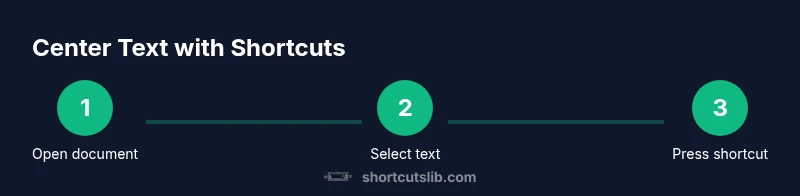
Open the target document
Launch your chosen app and open the document or file you want to format. Ensure you are in edit mode and ready to select text.
Tip: If you’re centering a whole paragraph, triple-click to select the paragraph quickly. - 2
Select the text to center
Highlight the portion you want centered. A precise selection minimizes unintended changes elsewhere in the document.
Tip: Use Ctrl+A or Cmd+A to select all if you intend to center the entire block or paragraph. - 3
Apply the center shortcut (Windows/macOS)
Press the app’s primary center alignment shortcut (e.g., Ctrl+E on Windows Word, Cmd+E on Mac).
Tip: If the shortcut doesn’t work, check for conflicts in the app’s keyboard shortcuts settings. - 4
Verify alignment in the preview
Review the selection in the document or preview pane to confirm the text is centered as intended.
Tip: Look for consistent margins and line breaks to avoid awkward centering across lines. - 5
Adjust for multi-app consistency
If you switch apps, rehearse the Mac/Windows equivalents and memorize one per app for consistency.
Tip: Create a small cheat sheet with 3-4 core shortcuts you use most often. - 6
Document and apply preferences
Record your preferred shortcuts and any app-specific quirks in a personal guide for future tasks.
Tip: Share the guide with teammates to ensure uniform formatting across projects.
Questions & Answers
What is the fastest way to center text in Word?
In Word, the quickest method is to select the text and press Ctrl+E (Cmd+E on Mac). This centers the text immediately. If you’re working with a whole paragraph, ensure the paragraph is selected before the shortcut.
In Word, select the text and press Ctrl+E or Cmd+E on Mac to center it. Make sure the paragraph is selected to center the entire block.
How do I center text in Google Docs on Windows vs Mac?
In Google Docs, use Ctrl+Shift+E on Windows or Cmd+Shift+E on Mac to center the selected text. If the shortcut isn’t available, you can also click the Center Align button in the toolbar.
Google Docs uses Ctrl+Shift+E on Windows and Command+Shift+E on Mac to center text. If needed, use the toolbar Center Align button.
Can I set up custom shortcuts for centering text?
Yes. Most apps allow you to customize shortcuts in their settings or via OS-level keyboard shortcut managers. Create a single, memorable binding and document it for consistency.
You can customize shortcuts in app or OS settings; create one reliable binding and keep a note for consistency.
What should I do if centering text interferes with accessibility?
Limit center alignment to headings or short lines to keep body text readable by screen readers. Use left-aligned text for long passages to maintain readability.
Limit centering to headings and short lines to keep screen readers happy; bias body text to left alignment for readability.
Is there a keyboard shortcut for centering code blocks?
Centering code blocks is not standard across editors. Use CSS (text-align: center) for HTML/CSS blocks or a formatter/extension in your editor if needed.
There isn’t a universal shortcut for centering code blocks; use CSS or a formatter/extension instead.
What’s a quick test to verify consistency across documents?
Create a short sample document and apply the center shortcut in all apps you use. Compare headings, body text, and callouts to ensure uniform alignment.
Test on a short sample document across apps to verify consistency in alignment.
Watch Video
Main Points
- Center text quickly with app-specific shortcuts to save time.
- Maintain consistency by using one primary shortcut per app.
- Verify alignment after formatting to ensure readability.
- Know when to use keyboard shortcuts vs. code-based centering for documents.
- Customize shortcuts cautiously and document changes.