How to Remove Highlighting Keyboard Shortcut: A Practical Guide
Learn how to remove text highlighting using keyboard shortcuts across Windows, macOS, and web apps. This step-by-step guide covers universal deselection, no-color formatting, and app-specific paths for Word, Google Docs, and editors.


To remove text highlighting quickly, deselect the selected text by clicking anywhere outside the highlight or pressing Escape to drop the selection. Many apps also provide a built-in 'Clear Highlight' or 'Toggle Highlight' command with customizable shortcuts. Since shortcuts vary by app, check the editor’s menu or help center to locate the exact key combo.
Why text highlighting happens and why you might want to remove it
Text highlighting helps draw attention, but in many workflows it becomes a distraction or interferes with printing, copying, or formatting. Removing highlighting cleanly requires knowing whether you are clearing a selection or removing a highlight background. According to Shortcuts Lib, understanding the difference between deselecting text and clearing formatting highlight is the first step in mastering keyboard shortcuts that speed up editing. This guide focuses on how to remove highlighting efficiently across popular apps and platforms. You’ll see universal cues (deselect with a click, Esc to drop the selection) and app-specific paths for the stubborn cases. By the end, you’ll know the exact steps to take, whether you’re chasing a quick toggle or a reusable workflow in 2026.
Quick context: how different apps treat highlighting
Different editors treat selection and highlighting differently. In word processors, a text highlight is a background color applied to characters. In code editors, a highlight may denote a current selection or a syntax emphasis. In presentation tools, highlighting often appears as a background fill behind words. These differences matter because the same physical action (pressing Escape, clicking away, or using a menu) may have different results depending on the program. Shortcuts Lib has analyzed common patterns across Windows, macOS, and web apps to identify reliable, universal moves for removing highlighting. The goal is to equip you with a small set of actions that work nearly everywhere, plus clear app-specific paths for the stubborn cases.
Deselecting vs removing formatting: two distinct actions
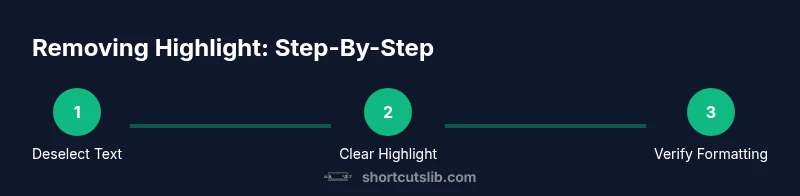
There is a subtle but critical distinction between clearing a selection and removing the actual highlight formatting. Deselecting text (clearing a selection) reveals the cursor and allows you to continue typing or selecting elsewhere. Removing a highlight formatting (no color) changes how text looks and may reset the underlying style. That means if you simply click outside a selection, you might still see a highlight color if the app uses persistent formatting. Shortcuts Lib recommends separating these two processes: first deselect, then, if needed, remove the highlight formatting through a dedicated command. This two-step approach reduces errors and preserves other formatting. The approach also avoids accidentally changing font color or style when you only want to clear the highlight.
Universal methods to clear highlights
There are three broadly reliable methods that work in many programs. First, click anywhere outside the highlighted text to remove the selection. Second, press the Escape key to drop the selection. Third, use a built-in command such as 'Clear Highlight', 'No Color', or 'Remove Formatting' in the app’s toolbar or menu. If you are unsure which method applies, open the app’s Help or Shortcuts area and search for 'highlight' or 'clear'. Shortcuts Lib’s tests across 2026 indicate these universal moves are the fastest way to reestablish a neutral editing state. When the text is within a table or comment, adjust by selecting across the region and applying the same commands.
App-specific paths: Word, Google Docs, and code editors
Word: select the highlighted text, then choose Home > Text Highlight Color > No Color. Google Docs: highlight the text, then click the Highlight color button (marker icon) and choose None or No color. In many code editors, deselect by clicking away, then use a context menu option like Clear or Remove Highlight if it exists, or switch to a plain text or 'No syntax highlighting' option. For IDEs and markdown editors, use the editor’s theme or style settings to suppress highlight-based background if necessary. These paths show how a single goal—removing highlight—requires slightly different routes depending on the tool you’re using, so keep a small cheat sheet handy.
Handling persistent highlights via styles or themes
Some tools apply highlight through styles or themes rather than a one-off color. In Word, the style tied to the paragraph can reintroduce highlight when you reapply formatting; in Google Docs, a document-wide highlight can survive even after you deselect text. The fix is to reset the related style to 'Normal' or apply a global 'No Highlight' style. In code editors, persistent highlights can be tied to syntax themes; switch to a neutral theme to minimize highlights and increase readability. When in doubt, creating a non-highlighted sample paragraph to test your steps helps prevent unintended changes in your main document. If your editor uses a separate color palette for comments or tracked changes, turn those off to ensure a clean baseline.
Best practices and shortcuts by platform
Across platforms, the fastest path is to deselect first, then clear any lingering highlight with a dedicated command if present. For Windows and web apps, keep Esc handy as a universal drop of selection; on macOS, use click-away strategies and inspect the app’s color controls. Create a short cheat sheet that lists for your most-used apps the exact path to clear highlights (for example, Word: No Color; Google Docs: None). Keeping a quick reference reduces decision fatigue and speeds up routine formatting work. If you frequently toggle highlighting for focus or collaboration, consider setting a global shortcut in your editor to “Clear Highlight” and rehearse it until it becomes muscle memory.
Troubleshooting common issues
If you still see highlighting after attempting these steps, check whether the highlight is part of a style or theme rather than a direct color. Some editors have a global format lock that requires you to remove formatting from the entire document. Disable any add-ons or extensions that alter highlight behavior. If you rely on keyboard shortcuts for speed, ensure your keyboard layout matches your OS; a mismatch can cause shortcuts to fail. Finally, save your work and restart the app to apply changes in case of a temporary glitch. Shortcuts Lib suggests validating the result by re-opening a new document to compare states. If problems persist, check the editor’s release notes for known issues with text highlighting.
Authority sources
- Usability.gov: https://www.usability.gov/how-to-and-tools/methods/heuristic-evaluation.html
- W3C: https://www.w3.org
- ACM: https://dl.acm.org
Tools & Materials
- Computer or mobile device(Any OS (Windows/macOS/iOS/Android))
- Mouse or trackpad(To click outside selection or access menus)
- Text editor or app with highlighting(Examples: Word, Google Docs, IDEs)
- Keyboard shortcut cheat sheet (optional)(A quick reference for your editors)
Steps
Estimated time: 10-20 minutes
- 1
Clarify the highlight type
Identify whether you’re dealing with a simple text selection or a persistent highlight color. This determines whether you deselect or remove formatting as the next step. Knowing the distinction saves time and avoids accidentally changing other formatting.
Tip: If unsure, start with the simplest action: click outside the text to deselect, then check if the highlight remains. - 2
Deselect by clicking outside
Move the cursor away from the highlighted region and click somewhere else in the document or canvas. This clears the active selection in most editors and immediately reveals the cursor. If the highlight persists as a background color, proceed to step 3.
Tip: Tip: Use a neutral area like the margins to avoid reselecting text. - 3
Press Escape to drop the selection
Press the Escape key to drop the current selection in many editors. This is often the fastest universal method to remove a highlight that arises from a temporary selection. If Escape doesn’t work, skip to the app-specific path in step 5.
Tip: If you’re on a laptop, you may need to use the function key (Fn) to access Escape on compact keyboards. - 4
Use the app’s Clear Highlight command
Open the app’s toolbar or menu and locate the highlight options. Choose a command such as 'Clear Highlight', 'No Color', or 'Remove Formatting' to strip the background color. This step targets persistent highlights that survive a simple deselection.
Tip: In Word, look for Text Highlight Color and select No Color; in Google Docs, use the Highlight color tool and pick None. - 5
Apply No Color or No Highlight to selected text
If you still see a background, re-select the affected text and apply 'No Color' or a neutral background setting. This is common when highlights are stored as a formatting attribute rather than a simple color.
Tip: Google Docs users can click Highlight color and choose None; Word users choose No Color via Text Highlight Color. - 6
Reset styles or themes if needed
When highlights are tied to styles or document themes, reset the related style to Normal or switch to a plain theme to remove the highlight across multiple sections. This prevents new highlights from reappearing as you edit.
Tip: Apply changes to a small sample paragraph first to confirm the effect before applying to the whole document. - 7
Test the result and preserve the state
Move the cursor, scroll, and reselect to verify that the highlight is gone. Save the document to preserve the updated state and consider creating a quick backup before applying global formatting changes.
Tip: Create a quick backup copy to avoid accidental loss of formatting you want to keep. - 8
Document platform-specific follow-ups
Some platforms require slightly different steps (e.g., in IDEs or markdown editors, highlights may be tied to a syntax theme). Apply the appropriate no-highlight setting or neutral theme for the best long-term result.
Tip: If you rely on keyboard shortcuts, consider recording a short macro for your most-used editor to speed this process.
Questions & Answers
What does removing highlighting mean?
Removing highlighting means clearing either the text selection or the background color/formatting applied to text. It can involve deselecting or using a dedicated command in the app.
Removing highlighting means clearing the visual cues around text, either by deselecting or by removing the highlight color.
Can I remove highlighting in a document all at once?
Yes, many editors offer a global 'No Color' or 'Clear Highlight' command that can apply to selected text or entire document. Always verify per editor to avoid unintended changes.
You can often remove highlighting with a global command, but check the editor to avoid unwanted changes.
Is there a universal shortcut to clear highlights?
The universal approach is to deselect with a click away and/or press Escape. Some apps provide a dedicated 'Clear Highlight' shortcut—consult the app's shortcuts reference for specifics.
A universal method is to click away or press Escape; some apps have a dedicated shortcut you should look up.
How do I remove highlighting in Word specifically?
In Word, select the highlighted text and choose Home > Text Highlight Color > No Color to remove the background. This resets the highlight while preserving other formatting.
In Word, select the text and pick No Color under Text Highlight Color to remove the highlight.
What about Google Docs highlighting?
In Google Docs, select the text, click the Highlight color button, and choose None or No color. This clears the background highlight without changing other formatting.
In Docs, use Highlight color and pick None to remove the highlight.
If a highlight is tied to styles, what should I do?
Reset the affected style to Normal or apply a No Highlight style. This prevents the highlight from reappearing when you re-edit the text.
If a highlight comes from styles, change the style to normal or remove the highlight style.
Watch Video
Main Points
- Deselect text first to exit the highlight state.
- Use Escape for a fast, universal drop of selection.
- If needed, remove formatting via No Color or Clear Highlight.
- Check for styles/themes if highlights persist.
- Test changes before saving to avoid regressions.