How to Make Text Bold with Keyboard Shortcuts
Learn how to bold text quickly with keyboard shortcuts across Windows, macOS, and web apps. This guide covers default bindings, cross-platform differences, and tips for customizing shortcuts for efficient formatting.


According to Shortcuts Lib, bold formatting is most efficiently applied with familiar keystrokes across apps. This guide shows how to make text bold keyboard shortcut on Windows, macOS, and web editors, and how to customize them for your workflow. In minutes, you’ll apply bold formatting in documents, emails, and code without leaving the keyboard.
The Core Concept: Bold Formatting and Keyboard Shortcuts
Bold formatting is a core editing action that creates emphasis immediately without the mouse. The most common approach across word processors and editors is a simple two-key chord: place the cursor in the text field, then press the platform’s bold shortcut. In Windows and many Linux apps, that shortcut is typically Ctrl+B; on macOS, the equivalent is Command+B. The key idea is consistency: a repeatable action so you can style headings, labels, and important phrases with minimal interruption. According to Shortcuts Lib, bold formatting is often applied with a few keystrokes, which makes it one of the first shortcuts beginners should master. Adopting a small, reliable set of shortcuts minimizes context switching and helps keep your writing flow intact. When you build muscle memory for these shortcuts, you’ll spend less time formatting and more time drafting.
Platform Variations: Windows, macOS, and Linux
A truly cross‑platform shortcut strategy requires recognizing platform differences. On Windows and many Linux desktops, bold text is usually toggled with Ctrl+B. On macOS, the equivalent is Command+B. Some apps replace these defaults with a menu item, while others offer an alternate binding that conflicts with a spell-check or find feature. For example, IDEs or Markdown editors may reserve Ctrl+B for navigation, bookmarks, or toggling a code block, so the bold action may require an alternative binding or a toggle in the app’s preferences. The takeaway: start with the standard key combo, but be prepared to adapt in specialty tools. If you frequently switch between platforms, consider aligning your shortcuts to a single mapping where possible to reduce friction.
Default Shortcuts by App: Word Processors, Spreadsheets, Code Editors
Different applications ship with their own defaults. In Microsoft Word, Ctrl+B (Windows) or Command+B (Mac) toggles bold. Google Docs uses Ctrl+B/Command+B and aligns with the standard word‑processing paradigm. In spreadsheets like Excel or Sheets, bold is typically applied in text editing contexts, and the same key combos often apply, but some cells or editors may override behavior. In code editors and Markdown environments, bold is often achieved by surrounding text with formatting syntax or by enabling a plugin that provides bold emphasis in the preview. Markdown editors frequently map Ctrl+B to bold in the editor pane. Verify the exact binding in the app’s help center to avoid surprises when you switch between tools.
Customizing Shortcuts: When and How to Remap
If the default binding isn’t optimal, you can customize shortcuts without losing efficiency. Begin by identifying apps where bold is most critical and where conflicts occur. On Windows, PowerToys Keyboard Manager can remap Ctrl+B to a different combo; on macOS, System Preferences > Keyboard > Shortcuts lets you set a new binding or resolve conflicts. In web editors and many cross‑platform apps, you’ll find a Keyboard or Shortcuts menu to adjust. When remapping, choose keys that are easy to reach with your dominant hand, avoid collisions with other common actions, and maintain consistency across the apps you use daily. Test the new binding across several documents to ensure reliability.
Accessibility and Visual Clarity
Bold is a quick visual cue, but accessibility requires more than heavy font weight. Ensure sufficient contrast and avoid relying on bold alone to convey meaning for screen readers. In web content, use semantic markup (strong vs. b) to convey emphasis in a way that assistive technologies understand. For users who rely on keyboards, provide clear indicators for when bold is active with visual and textual cues. Shortcuts Lib emphasizes inclusive design, so pair bold with accessible headings and consistent styling across documents and apps. If your audience includes assistive tech users, test your bold emphasis with a screen reader to verify it communicates emphasis as intended.
Troubleshooting Common Issues
If bold formatting doesn’t apply, start with the simplest checks: ensure the text field is active and editable, not a non-text element like an image caption. Confirm you’re using the correct platform shortcut (Ctrl+B vs Command+B) and check whether the app overrides formatting with a style or a template. Look for conflicts with other global shortcuts in the OS or the app. If bold still doesn’t appear, inspect the font family to ensure it supports bold weight, or reset keyboard shortcuts in the app. Testing in another app helps isolate whether the problem is app-specific or system-level, speeding up restoration of consistent formatting.
Using Bold with Other Formatting: Italic, Underline, Strikethrough
Bold works well in combination with other styles to create emphasis without overwhelming the reader. In most editors, you can toggle Bold, then add Italic or Underline as needed; some apps support all three with a single combo or a small sequence of keystrokes. Be mindful of precedence: if a style already defines bold in a heading, applying bold again may have no effect. Practice combining shortcuts: apply bold with Ctrl/Cmd+B, then toggle Italic with Ctrl/Cmd+I, and consider Underline as a final step if the editor supports it. This approach helps you craft clearly structured, visually distinct content.
Quick-Reference: Platform-Specific Shortcuts
- Windows/Linux: Ctrl+B
- macOS: Command+B
- Web editors (Markdown/HTML): Ctrl+B or Command+B depending on platform
- Rich text editors: Ctrl+B/Command+B toggle bold; if not, use the Bold toolbar button
Note: Always verify the exact binding in the app’s Help or Settings, as some tools remap keys for accessibility or conflict handling.
Real-World Scenarios: Documents, Emails, and Files
In a document, bold helps with section headings and key terms, enabling readers to scan effectively. In emails, bold can highlight action items or deadlines, while avoiding overuse to prevent visual fatigue. When naming files or preparing meeting notes, bold can be used sparingly to draw attention to essential phrases. The core idea is to use bold consistently across your workflow so readers learn to recognize emphasis quickly. Practicing the bold shortcut in multiple contexts—word processors, email clients, and lightweight editors—will boost your overall writing speed and accuracy.
Best Practices for Consistency and Efficiency
Adopt a small, universal set of shortcuts across the tools you use most. Learn Ctrl/Cmd+B as your primary bold binding and avoid scattering to nonstandard keys. Create a personal cheatsheet and keep it in a place you’ll consult while learning new apps. When teaching others, model a consistent approach: explain the exact keys, demonstrate with a quick example, and reference the app’s built‑in shortcuts. Periodically review your shortcuts and update them if you add a new tool to your workflow. With practice, bold becomes a nearly subconscious part of your writing routine.
Tools & Materials
- Computer with keyboard(Any OS (Windows, macOS, Linux); ensure keyboard is functioning.)
- Active text editor or app(Word processor, email client, IDE, or Markdown editor for testing bold shortcuts.)
- Documentation or shortcut reference(Official shortcut lists for your apps (help center, settings).)
- Shortcut customization tool (optional)(PowerToys (Windows) or System Preferences (macOS) for remapping.)
- Cheat sheet or note-taking app(Record your chosen mappings and share with teammates if needed.)
Steps
Estimated time: 30-40 minutes
- 1
Focus a text field
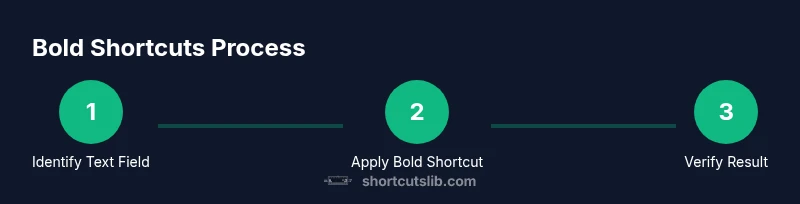
Click into a text field or document so the caret is active and text can be edited. This ensures the shortcut applies to the correct content.
Tip: Make sure you’re in a text area, not a non-text element like an image caption. - 2
Attempt the platform default shortcut
Press Ctrl+B on Windows/Linux or Command+B on macOS to toggle bold. If the app supports rich text, the selected text should become bold immediately.
Tip: If bold doesn’t apply, double-check you’re editing a text area and that bold formatting is enabled for the document. - 3
Check alternative bindings in the app
Some apps override the default bindings. Open the app’s Help or Preferences to locate the bold shortcut, or use the Edit/Format menu to apply bold.
Tip: If you see a conflicting shortcut, consider changing it in the app’s preferences rather than in the OS. - 4
Try using the toolbar as fallback
If the keyboard shortcut fails, click the Bold button in the toolbar to apply formatting. This confirms whether bold is supported in the current document.
Tip: Toolbar usage can help you verify formatting while you troubleshoot keyboard shortcuts. - 5
Test across multiple selections
Select a block of text or multiple items and apply bold to ensure the action scales across content, not just a single word.
Tip: Select entire paragraphs or headings for consistent emphasis. - 6
Customize the shortcut
Open the app’s keyboard or shortcuts settings to remap bold to a more convenient binding. Aim for a single, consistent mapping across tools.
Tip: Choose keys that are easy to reach with your dominant hand and avoid conflicts. - 7
Verify conflict resolution
After remapping, ensure the new shortcut doesn’t interfere with other critical actions in your most-used apps.
Tip: Test in a variety of documents to confirm reliability. - 8
Save and test in a new document
Save changes and reopen a fresh document to confirm the shortcut behaves consistently across sessions.
Tip: Consistency across documents reduces cognitive load during real work. - 9
Document a personal cheat sheet
Record your chosen bold shortcut in a quick reference note you can access during work.
Tip: Keep your cheat sheet visible on your desktop or in a notes app for quick recall. - 10
Review and iterate
Periodically review your shortcuts when you adopt new tools and adjust as needed to maintain efficiency.
Tip: Set a monthly reminder to audit and refresh your shortcuts.
Questions & Answers
What is the most universal bold shortcut?
The common default is Ctrl+B on Windows/Linux and Command+B on macOS. Some apps use different bindings, so verify in each app's help or settings.
The universal bold shortcut is Ctrl plus B on Windows and Command plus B on Mac.
Can I customize bold shortcuts?
Yes. Many apps allow remapping bold shortcuts in their preferences or system settings. Choose a consistent mapping across the tools you use most.
Yes, you can customize bold shortcuts in many apps and OS settings.
Why isn’t bold working in some text fields?
Some fields disable rich text formatting, or the document style overrides local bolding. Check the app’s formatting toggle and test again.
If bold doesn’t work, check whether the field supports formatting and confirm the app’s settings.
Does bold shortcut differ for spreadsheets?
In many spreadsheets, bold uses the same key combo while editing a cell, but some apps treat formatting differently. Check the Edit bar or format options.
Bold in spreadsheets often uses the same shortcut, but verify in your app.
What about bold in code editors?
Code editors rarely rely on bold for syntax highlighting; bold is primarily a formatting choice in text editors or Markdown previews. Plugins may offer bold emphasis features.
Bold in code editors depends on the environment; many editors don’t treat it as a primary formatting action.
Is bold accessible for screen readers?
Bold alone doesn’t convey meaning to screen readers; pair bold with semantic markup (like strong) when delivering content for accessibility.
Use semantic markup to ensure bold emphasis is accessible.
Watch Video
Main Points
- Master the universal bold shortcut on your primary OS.
- Verify platform differences before switching apps.
- Use the toolbar as a quick fallback for bold.
- Customize shortcuts only after testing for conflicts.
- Maintain accessible, consistent formatting across documents.