Create Keyboard Shortcuts for Text in Word
Learn how to create reusable keyboard shortcuts for text in Word using AutoCorrect, Quick Parts, and macros. Boost your productivity with practical, brand-driven steps and real-world examples.


Learn how to create keyboard shortcuts for text in Word, so you can insert frequently used blocks with a keystroke instead of retyping. This guide covers AutoCorrect, Quick Parts (Building Blocks), and simple macros, plus practical binding strategies for Windows and Mac Word. You’ll need Word installed and permission to customize your workspace, plus a few ready-to-insert phrases.
Why creating keyboard shortcuts for text in Word saves time
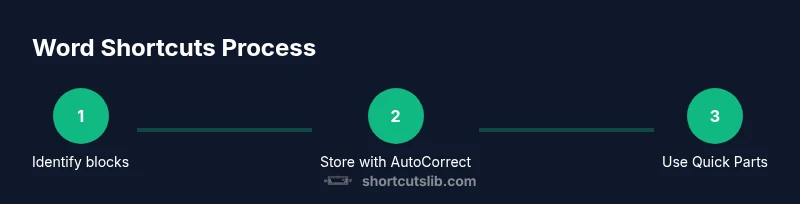
In everyday drafting, you reuse the same blocks of text again and again—signature lines, addresses, boilerplate disclaimers, or standard responses. By turning these blocks into keyboard shortcuts, you can insert them with a single keystroke, which minimizes repetitive typing, reduces errors, and helps you maintain consistent branding across documents. According to Shortcuts Lib, focusing your shortcuts on high-frequency blocks yields the greatest time savings and a smoother writing flow. Start by identifying 4–6 blocks you insert regularly, then decide which storage method fits best: AutoCorrect for short snippets, or Quick Parts for longer blocks and formatted text. Remember to keep your codes clear (for instance, sig for signature or addressBlock for your address). Finally, test each shortcut in a blank document, adjust formatting as needed, and keep your library organized so it scales with your workflow in 2026.
Methods to build text shortcuts in Word
Word provides several built-in features to store and reuse text efficiently. The most common approaches are AutoCorrect, Quick Parts (Building Blocks), and macros for power users. AutoCorrect automatically replaces a short trigger with a longer phrase as you type, which is ideal for brief blocks like a contact signature or company disclaimer. Quick Parts lets you save a selection as a Building Block and insert it later from the Insert menu or the Quick Parts gallery, making it perfect for multi-line blocks or consistently formatted text. Macros offer additional control: you can write a tiny script that inserts a chosen block with a single keystroke, handles formatting, and even pulls dynamic data. To keep things manageable, store your shortcuts in a single template (the Normal template on Windows or a shared template on Mac) and avoid cross-document clutter. In 2026, many users report the best balance between simplicity and power comes from pairing AutoCorrect for short phrases with Quick Parts for longer blocks.
Designing practical shortcuts: choosing phrases and bindings
Designing effective shortcuts starts with good naming and careful scope. Choose phrases you actually use and keep them concise enough to fit on your screen without wrapping. Adopt a consistent naming convention like a short code followed by a brief descriptor (sig = signature; addrBlock = business address). For Windows, AutoCorrect codes can be 2–3 characters; for Mac, Quick Parts are often easier to bind through the interface. Consider grouping shortcuts by work context (sales, HR, engineering) so you can reuse the same blocks across documents. Create a short, public index if you’re sharing within a team to ensure consistency. Finally, document any changes and plan a periodic audit—remove unused items and rename ambiguous ones to prevent confusion.
Real-world examples you can implement today
- Signature block: a closing line, your name, title, and contact info saved as a Quick Part, inserted with a couple of keystrokes from the QAT or Quick Parts menu.
- Address block: your full mailing address with line breaks, stored as a Quick Part for letters, invoices, and reports.
- Boilerplate disclaimer: a standard legal sentence saved via AutoCorrect so it appears automatically as you type a trigger.
- Meeting notes header: date, attendees, and project code saved as a Quick Part for fast formatting in notes or agendas.
Test by opening a blank Word document, typing your shortcut, and confirming the block appears exactly as intended. If the formatting looks off, adjust the Quick Part’s styles or the AutoCorrect replacement to match your preferred document template. Over time, these small blocks compound into substantial time savings across files and projects.
Troubleshooting and best practices
- If a shortcut creates a non-existent or awkward word, move to a rarer trigger or add a delimiter so Word doesn’t auto-correct the wrong thing.
- Always back up your Normal template before making large changes; this protects you from accidental loss and makes it easy to restore a known-good set of shortcuts.
- Periodically review your library: retire blocks you no longer use, rename ambiguous codes, and ensure consistency in naming and formatting.
- For teams, agree on a shared subset of shortcuts and share the template so everyone benefits from uniform blocks and reduces drafting friction.
Bonus tip: keep a simple changelog of additions and edits to help you track growth over time.
Tools & Materials
- Microsoft Word (Windows or Mac)(Need admin access to customize shortcuts)
- List of phrases to shortcut(Examples: address block, signature, boilerplate sentences)
- Test document to practice(Use a blank Word doc to test shortcuts)
- Optional: Macro editor access(For advanced custom shortcuts)
- Backup of template Normal.dotm(Optional safety measure)
Steps
Estimated time: 15-25 minutes
- 1
Identify high-frequency phrases to shortcut
List 4–6 blocks you insert routinely (signature, address, boilerplate, meeting header). Prioritize blocks used across multiple documents and note their most common contexts.
Tip: Choose stable blocks first; avoid dynamic data that changes per document. - 2
Create AutoCorrect entries
Open Word options and navigate to AutoCorrect settings. Add a replacement pair where the trigger is short and unlikely to appear in normal text, then test by typing the trigger in a blank document.
Tip: Select triggers that are memorable yet unlikely to occur in normal writing. - 3
Save blocks as Quick Parts
Select the text you want to reuse, go to Insert > Quick Parts > Save Selection to Quick Part Gallery, name it clearly, and assign it to a suitable category.
Tip: Use descriptive names like 'sig' or 'addrBlock' and include a short description. - 4
Add Quick Parts to the Quick Access Toolbar
Right-click the Quick Parts button and choose to customize the Ribbon/QAT. Pin your most-used blocks for fast insertion.
Tip: Position the QAT near your typing area to minimize hand movement. - 5
Test, refine, and document
Insert each shortcut into various document types to verify formatting and compatibility. Adjust styles if needed and update your shortcut index for teammates.
Tip: Keep a changelog of edits to maintain consistency over time. - 6
Maintain and scale
Periodically review and prune unused blocks, add new ones, and align on shared templates if working in a team.
Tip: Schedule quarterly reviews to keep the library healthy.
Questions & Answers
How do I create a text shortcut in Word?
Use AutoCorrect or Quick Parts to store and insert blocks easily. AutoCorrect handles short typed triggers; Quick Parts stores richer blocks with formatting.
You can create text shortcuts in Word with AutoCorrect or Quick Parts to insert blocks quickly.
Can I bind shortcuts to specific keyboard keys?
Word supports quick insertion via the Quick Access Toolbar and certain keyboard sequences. For many users, binding is done through QAT access rather than direct keystrokes.
You can trigger blocks using the Quick Access Toolbar and keyboard hints, though direct keystroke bindings vary by platform.
Are shortcuts available on Mac Word?
Yes. The approaches are similar: AutoCorrect and Quick Parts work on Word for Mac, with some interface differences.
Mac users can use AutoCorrect and Quick Parts in Word the same way, with minor UI differences.
Can I share shortcuts across devices or users?
Yes. Create a template or Normal.dotm and distribute it across devices or teams to maintain consistency.
You can share shortcuts by using a template so everyone uses the same blocks.
What should I do if a shortcut interferes with real text?
Choose distinctive triggers, or separate blocks with delimiters so AutoCorrect doesn’t replace desired words.
If a shortcut conflicts with real words, change the trigger to something unique.
How do I remove or rename a shortcut?
Delete or edit the AutoCorrect entry or Quick Part name from the gallery. Keep a simple index to track changes.
To remove or rename, edit the AutoCorrect entry or Quick Part in the gallery.
Watch Video
Main Points
- Identify high-frequency blocks to shortcut
- Use AutoCorrect and Quick Parts for reliable insertion
- Choose simple, non-conflicting triggers
- Regularly audit and update your shortcut library