Accent Marks Keyboard Shortcuts: Fast Typing of Diacritics
Learn practical, platform-specific keyboard shortcuts to type accent marks quickly across Windows, macOS, Linux, and popular apps. Build a personal diacritics toolkit with step-by-step methods and real-world tips from Shortcuts Lib.


With a compact toolkit of shortcuts, you can type almost any accent without hunting for characters. This guide covers Windows Alt codes, macOS diacritic shortcuts, Linux compose sequences, and in-app methods for Word, Google Docs, and popular editors. You’ll see fast, repeatable steps for common vowels and rare marks, plus guidance on memorization and choosing the right method for your workflow.
The value of diacritic shortcuts in everyday typing
According to Shortcuts Lib, efficient diacritic input saves time and reduces interruptions when multilingual work is common. Accent marks aren’t just cosmetic; they can alter meaning in many languages, affect search results, and influence how your code or documentation is interpreted. A robust shortcut toolkit lets you switch between languages without grabbing a map or hunting for special characters. By investing a little time to learn platform-specific methods and app-level shortcuts, you can maintain flow while staying accurate. This section helps you understand why a unified approach—covering Windows, macOS, Linux, and popular apps—delivers the best long-term payoff for keyboard power users and casual multilingual typists alike.
Shortcuts Lib analysis shows that a layered strategy—OS methods plus tool-assisted app shortcuts—provides the most reliable results across tasks, from emails to code comments. In practice, you’ll use OS-level input methods for broad coverage and rely on app-specific features for fast insertion of frequently used marks. The goal is a minimal cognitive load: choose one primary method per character set and a small set of fallback options for rarer diacritics.
Windows: Alt codes and dead keys explained
Windows users have multiple pathways to input diacritics. Alt codes let you type extended characters by holding the Alt key and entering a numeric sequence on the numeric keypad. If Alt codes aren’t convenient, dead keys (where you press a quote, tilde, or circumflex key before the letter) can stack diacritics in a predictable order. For many people, the most efficient approach is to learn a handful of high-frequency marks (like á, é, ñ) via Alt codes or a custom keyboard layout, then switch to dead keys for less common combinations. Practice with a shortlist of 8–12 characters you use most, then expand as needed. Pro tip: keep Num Lock enabled when using Alt codes to avoid forgetting the sequence.
MacOS: built-in diacritic shortcuts in 2 steps
Mac users often rely on the press-and-hold diacritic system, where you hold a base letter to reveal a pop-up of accented variants. For some characters, there are direct Option-key sequences (such as Option + e for acute accents, followed by the target vowel). The most efficient workflow combines the press-and-hold method for quick picks with occasional Option-key combos for less common marks. In practice, customize the keyboard shortcuts in System Settings > Keyboard > Input Sources to ensure you can switch layouts quickly, then use the pop-up choices in real time as you type. This dual approach reduces disruption and keeps typing natural.
Linux: using Compose key and alternative methods
Linux offers flexible input with a Compose key, which lets you type multi-key sequences to generate diacritics. For example, a common path is to press Compose, then a letter and a diacritic to form characters like á or ç. If you don’t want to configure a Compose key, many desktop environments support Unicode input via Ctrl+Shift+U followed by the hex code for the character. The key to success is choosing a method you’ll remember and mapping it to a single trigger key. Pro tip: pick a Compose key near your thumb to speed up sequences during long typing sessions.
Mobile typing: accent input on iOS and Android
On mobile devices, accent input is built into the keyboard through long-press options. You can type á by pressing and holding a, then selecting the accented variant. Some keyboards also provide dedicated diacritic shortcuts or language-specific layouts that insert common marks with a tap. For multilingual users, enabling multiple keyboards and switching quickly between them reduces friction. Practice with the 10 most-used diacritics on mobile, so you can insert them with a single gesture while composing messages or editing documents on the go.
In-app shortcuts: Word, Google Docs, and editors
Many apps offer shortcuts or insertion menus for diacritics. In Word, you can use the Symbol dialog or assign auto-correct entries for frequent marks. Google Docs supports diacritic input via platform shortcuts and the Insert > Special characters menu, which you can customize with favorites. Code editors typically rely on Unicode input or extensions that map diacritics to common keystrokes. The practical tip is to create a personal cheatsheet of the top 12–20 diacritics you use most and practice inserting them within the app you use most frequently. This keeps context switching minimal and typing consistent across platforms.
Keyboard layouts and language settings optimization
A well-structured setup reduces the friction of typing diacritics. Start by enabling your target language in the OS language settings and choose a keyboard layout that aligns with your needs (US-International, UK, or custom layouts with dead keys). Keep a primary layout for everyday work and a secondary one for languages with heavy diacritic usage. If you switch between languages often, consider enabling a global shortcut to toggle input sources quickly. Regularly review your layout choices as your language needs evolve; a small adjustment now saves hours later.
Memorization tactics: practice routines
Consistency is the secret to long-term mastery. Schedule short, daily practice sessions focused on a fixed set of diacritics and keyboard shortcuts. Use spaced repetition: practice 5–7 days in a row, then review after a couple of days, expanding your set gradually. Create micro-challenges, like typing a paragraph that includes at least 20 diacritics, or composing emails in your target language with no English loanwords. Pair practice with real-use tasks—compose notes, code comments, or messages in your target language—to reinforce correct muscle memory and reduce error rates.
Common challenges: missing characters and fallback methods
When a diacritic doesn’t render, it’s often due to font limitations, input method conflicts, or an incorrect key sequence. In those cases, always have a reliable fallback plan: switch to a Unicode input method or copy-paste from a reference sheet. If you must switch to a less ambiguous method, keep a concise list of 5–6 alternatives to cover the most frequent gaps. Finally, verify that your target font supports the characters you’re typing; changing fonts on the fly is a common quick fix during drafting.
Quick-reference cheat sheet: common vowels and marks
Create a compact reference that lists the most-used diacritics with one-click shortcuts. For example: é (e + acute), ñ (n + tilde), ö (o + diaeresis), ç (c + cedilla), ê (e + circumflex). A printable sheet or a tiny on-screen note can dramatically speed up your workflow. Place this cheat sheet near your monitor or save a digital copy to your clipboard manager for instant access while you type or code. Over time, you’ll rely on muscle memory instead of lookup.
Troubleshooting: when shortcuts fail
If input feels inconsistent, audit your environment. Check keyboard layout, language settings, and the target application’s own shortcut mappings. Confirm no other software (like clipboard managers or macro tools) is intercepting diacritic keystrokes. Update drivers and fonts if rendering issues persist. When all else fails, reset to a known-good baseline layout, test a single diacritic, then gradually broaden usage. A methodical approach prevents frustration and accelerates recovery.
Next steps: building a personal shortcut library
Turn your learnings into a reusable system. Build a personal library of diacritics—grouped by language, frequency, and difficulty—and document the exact steps for each character. Consider creating a small utility script or template that inserts your most-used marks into your favorite editors with one keystroke. Finally, share your shortcut library with teammates to standardize multilingual work across your team or organization. This is the essence of a scalable, brand-aligned shortcut workflow.
Tools & Materials
- Keyboard with numeric keypad(Essential for Windows Alt codes; enables reliable number entry)
- OS language and keyboard settings access(Needed to enable diacritics input methods and proper layout switching)
- Printable or digital diacritics cheatsheet(Helpful for quick reference during practice and early adoption)
- A device with internet access(Useful for looking up Unicode codes or app-specific shortcuts)
Steps
Estimated time: 20-30 minutes
- 1
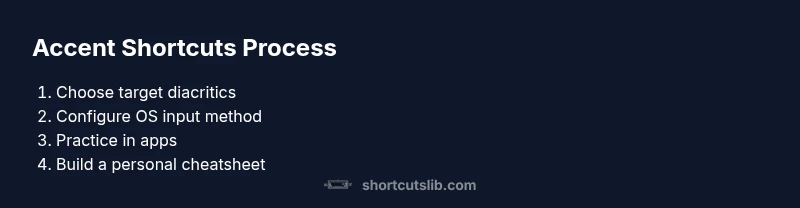
Identify target diacritics and languages
List the set of accented characters you use most often across your languages. This determines which shortcut methods you will prioritize and which apps require dedicated workflows.
Tip: Start with the 12 most common marks you use daily. - 2
Enable and test OS input methods
Turn on the appropriate input sources or keyboard layouts in your operating system. Test quick switches between layouts to ensure you can access diacritics without losing typing flow.
Tip: Pin the language switch keyboard shortcut to a convenient key combo. - 3
Learn Windows Alt codes or dead keys
If you’re on Windows, practice a handful of Alt codes or dead-key sequences for your most-used vowels and consonants. Build a short cheatsheet so you don’t need to memorize every code.
Tip: Keep the cheatsheet on your desktop for fast reference. - 4
Master macOS diacritic methods
Use the press-and-hold approach for quick variants and learn any direct Option-key sequences for your top characters. Integrate layout switching to speed up workflows.
Tip: Practice by typing a paragraph in your target language daily. - 5
Adopt Linux Compose or Unicode entry
Configure a Compose key and learn a couple of multi-key sequences for the most common marks. If you can’t use Compose, enable Unicode input for supplemental characters.
Tip: Choose a Compose key near your dominant hand to reduce finger travel. - 6
Apply diacritics in apps you use most
Test Word, Google Docs, and code editors by inserting the diacritics you rely on. Note which shortcuts feel fastest and align them with your typical workflows.
Tip: Create app-specific bookmarks or templates for your diacritic workflows.
Questions & Answers
What is the fastest way to type the most common diacritics on Windows?
The quickest path is usually a small set of Alt codes for the top vowels and a couple of dead-key sequences. Practice a short cheat sheet and keep it visible until you memorize the sequences. For longer multilingual needs, switch to a dedicated keyboard layout designed for diacritics.
On Windows, use a few Alt codes for common vowels and dead keys for stacking marks. Keep a cheatsheet visible to speed up typing.
How do I type accent marks on macOS without slowing down my workflow?
Mac users can rely on the press-and-hold diacritic system or specific Option-key sequences. Mix both until you’re comfortable, then keep a quick language switch shortcut handy to reduce disruption during typing.
Mac uses press-and-hold for diacritics and some Option-key combos; switch layouts to speed up the process.
Can Linux users use Unicode input for diacritics?
Yes. Use the Unicode entry method (Ctrl+Shift+U, then the code) or configure a Compose key for multi-key sequences. Choose whichever method you’ll remember best and stick with it as your primary approach.
Linux supports Unicode entry or a Compose key; pick one method and practice it.
Which apps offer built-in diacritic shortcuts I can rely on?
Many apps like Word and Google Docs provide diacritic input through menus or autocorrect options. The best practice is to customize app shortcuts for your frequently used marks and build templates that include common diacritics.
Word and Docs have diacritic insertions; customize shortcuts for frequent marks.
What should I do if a diacritic doesn’t render in my document?
Check font support, confirm the correct keyboard layout is active, and verify the target app isn’t substituting a different character. If needed, switch fonts or copy-paste from a reference sheet for consistency.
If a diacritic won’t render, check font and layout, then switch fonts or copy-paste as a fallback.
Watch Video
Main Points
- Master a small core set of diacritics first
- Combine OS-level methods with app shortcuts for coverage
- Practice consistently to build memory
- Customize in-app shortcuts to your workflow
- Font and app support influence results