Print Screen PC Shortcut: The Complete Windows Screenshot Guide
Learn the print screen pc shortcut on Windows 10/11: capture full screens, active windows, and regions, then paste, save, or annotate—plus practical tips from Shortcuts Lib to boost your screenshot workflow.


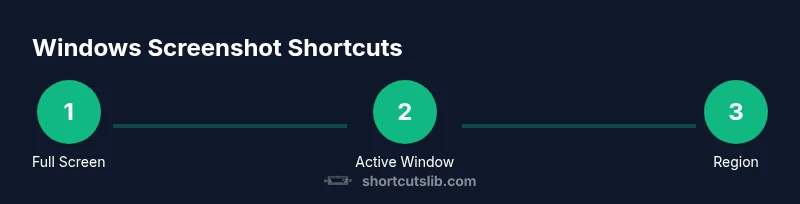
Mastering the print screen pc shortcut can dramatically speed up how you capture Windows screens. This quick answer previews full-screen, active window, and region captures, plus paste-and-edit workflows across apps. You’ll learn key combos—Print Screen, Alt+Print Screen, Win+Print Screen, and Win+Shift+S—and how to reuse screenshots efficiently.
What the print screen pc shortcut is and when to use it
The print screen pc shortcut is a collection of Windows keyboard shortcuts that let you capture what you see on your screen without specialized software. It works across apps, browsers, and documents, making it a foundational skill for students, developers, and professionals. According to Shortcuts Lib, mastering keyboard shortcuts like the print screen pc shortcut can significantly accelerate daily workflows for tech users and keyboard enthusiasts. In practice, the best workflow combines full-screen captures for quick reference, region captures for precise diagrams, and active-window captures when you need context without extraneous clutter. Being comfortable with paste and edit operations (paste into an image editor, a document, or an email) turns raw captures into ready-to-share visuals. As you practice, you’ll notice that consistency matters: using the same shortcut each time reduces cognitive load and speeds up your entire process.
Core Windows shortcuts for screenshots
Windows users have several built-in options for screen captures. The most common are:
- Print Screen (PrtScn): copies the entire screen to your clipboard for quick pastes into apps like Word or Paint.
- Alt+Print Screen: captures the active window only, reducing background clutter.
- Windows key + Print Screen: saves a full-screen screenshot directly to the Pictures > Screenshots folder, leaving no clipboard to manage.
- Win+Shift+S: opens the Snip & Sketch/Snipping Tool region capture, allowing precise selection before saving or pasting.
As you begin, remember that clipboard behavior and saving paths can vary by Windows version and user settings. Shortcuts Lib analysis, 2026, notes that region captures via Win+Shift+S are increasingly popular for precise edits across apps, while standard Print Screen remains the fastest option for quick sharing.
Capturing the full screen with Print Screen
To capture the entire screen, press the dedicated Print Screen key (often labeled PrtScn or PrtSc) on your keyboard. On some laptops, you may need to press Fn + Print Screen. The image is copied to your clipboard; you can immediately paste it into Paint, Word, or your favorite image editor. If you want to save automatically, use Windows + Print Screen to export a PNG directly to the screenshots folder. This method is ideal for scenarios where you need a quick visual reminder of a problem or layout. If you work across multiple monitors, performing a full-screen capture still places all visible content into one image, which you can crop later in your editor.
Capturing the active window with Alt+Print Screen
Active-window captures are perfect when you need a clean shot of a single application. Press Alt+Print Screen to copy only the foreground window to the clipboard. Then paste into your editor or document. On some systems, the active window capture may include window borders depending on the rendering. If you want a saved file instead of a clipboard copy, use the full-screen method or region capture. Practice will help you determine which method preserves your window chrome and UI elements best for your needs.
Capturing a region with Win+Shift+S (region capture)
Win+Shift+S opens the Snip & Sketch region capture tool. Your screen dims and a small toolbar appears at the top; drag to select the region you want. The captured area is copied to your clipboard, and you can annotate or save it directly from the floating toolbar. Region captures are excellent for diagrams, code snippets, and precise error messages. If you prefer automatic saving, you can paste the region into an editor and then save as a file. Remember, region captures typically do not include the taskbar unless you include the area around it, which can help explain context in tutorials.
Saving, editing, and pasting your screenshots
Clipboard-first workflows are the most flexible. After any capture, press Ctrl+V to paste into an image editor, a document, or an email. Editors like Paint.NET, Paint, or Word offer quick annotation, cropping, and highlight tools. If you need a quick edit without opening an editor, use Snip & Sketch’s built-in annotation features after region captures. For automatic saving, Win+Print Screen stores PNGs in your Pictures > Screenshots folder. If you frequently organize screenshots, consider a clipboard manager to track pastes or a simple folder structure to separate by project.
Automatic saving and file naming tips
Windows provides a convenient automatic saving option with Win+Print Screen, defaulting to the Pictures/Screenshots folder. You can customize the naming convention to include timestamps or project names, which simplifies archiving and retrieval. For example, use a script or a consistent format like ProjectName_Date_Time.png. If you work with sensitive information, consider applying a naming convention that avoids exposing content in file names. Keeping a predictable folder structure speeds up future reference and reduces clutter.
Laptop keyboards and Fn-key quirks you should know
Many laptops require Fn for the Print Screen or Windows shortcuts to work. If your Fn key is needed, press Fn + PrtScn or Fn + Windows + PrtScn depending on your model. Some keyboards remap Print Screen to a different key or a function shortcut. Check your laptop’s manual or keyboard settings to confirm the correct combination. If shortcuts fail, verify that the OS accessibility options or clipboard-related settings are not interfering with your shortcuts. Practicing with a consistent layout helps avoid confusion when you switch devices or share shortcuts with teammates.
Tools & Materials
- Windows PC or laptop with Windows 10/11(Ensure all shortcut keys work; Fn behavior may vary by device.)
- Keyboard with Print Screen and Windows keys(Fn key on laptops may be necessary for Print Screen.)
- Image editor or document app (e.g., Paint, Word)(Needed to save, crop, annotate, or share screenshots.)
- Snipping Tool / Snip & Sketch(Useful for on-screen editing and quick annotations.)
- Clipboard manager (optional)(Helpful if you paste multiple clips or track history.)
Steps
Estimated time: 15-25 minutes
- 1
Prepare your workspace
Turn on the devices you’ll capture and clear distractions on screen. Verify that the Print Screen and Windows keys function, and identify any Fn key requirements on your laptop. This preparation reduces capture errors and ensures consistent results.
Tip: Test a quick full-screen capture first to confirm the key combination works as expected. - 2
Capture the full screen
Press the Print Screen key (PrtScn) to copy the entire display to your clipboard. If you’re on a laptop, you may need Fn + PrtScn. Open an editor or document and paste to confirm the capture looks correct.
Tip: If multiple monitors are in use, a full-screen capture includes all visible content. - 3
Capture the active window
With the app you want, press Alt + Print Screen to copy only the foreground window. Paste into your editor or document. This keeps focus on a single application without background clutter.
Tip: Use this when you need to show a specific tool or dialog without other windows. - 4
Capture a region
Press Windows + Shift + S. Drag to select the region you want; release to copy to clipboard. The small Snip bar lets you annotate or save from the clipboard immediately.
Tip: Region captures are ideal for how-to guides or bug reports where only a portion of the screen matters. - 5
Paste, edit, and save
Paste into Paint, Word, or an image editor. Use editing tools to annotate or crop before saving as PNG/JPG. If you prefer, save directly from the region tool in Snip & Sketch.
Tip: Save with a consistent file name convention to simplify retrieval later. - 6
Auto-save to files
For quick saves, use Windows + Print Screen to store screenshots in the default Pictures > Screenshots folder. You can navigate there later and organize files by date or project.
Tip: Combine with a folder structure: Screenshots/ClientName/Project/Date. - 7
Fn-key considerations on laptops
If your device requires Fn for Print Screen, locate the correct combination in your keyboard settings or user manual. Some models use Fn + Windows + PrtScn.
Tip: If shortcuts fail, check BIOS/UEFI settings or manufacturer utilities that remap keys. - 8
Annotate and share
Use Snip & Sketch or an editor to annotate. Saving or sharing directly from the app keeps teammates aligned and speeds issue resolution.
Tip: A quick arrow, circle, or text note greatly clarifies your screenshot’s message.
Questions & Answers
What is the print screen pc shortcut?
The print screen pc shortcut is a set of Windows keyboard shortcuts that let you capture your screen: Print Screen copies the full screen to the clipboard, Alt+Print Screen captures the active window, Win+Print Screen saves a full-screen image to your Pictures folder, and Win+Shift+S captures a region.
The print screen pc shortcut lets you capture the screen in several ways: full screen, active window, region, and automatic file saving—useful for quick sharing and documentation.
How do I capture a region on Windows?
Press Windows key + Shift + S to open the region capture tool. Drag to select the area you want. The image is copied to the clipboard for pasting or can be edited in Snip & Sketch before saving.
Use Windows plus Shift plus S to select a region, then paste or save your capture after annotating.
What happens if I press Win+Print Screen?
Win+Print Screen saves a full-screen screenshot directly to the Pictures folder under Screenshots, avoiding the clipboard step. You can find it later in Pictures > Screenshots.
Win+Print Screen saves a full-screen image to your Pictures/Screenshots folder for quick, automatic saving.
Can I edit screenshots without extra software?
Yes. Use Snip & Sketch or Paint to annotate, crop, or highlight parts of your screenshot, and then save or share the edited image.
You can annotate and edit screenshots in Snip & Sketch or Paint before saving or sharing.
Do I need to use Fn keys on laptops?
Some laptops require Fn with Print Screen to activate the shortcut. Check your device’s keyboard settings or manual to confirm the correct combination.
On some laptops, you need to press Fn with Print Screen or other combos; verify your device’s setup.
How should I name and organize screenshots?
Adopt a consistent naming convention and folder structure to curb clutter. Include date and project in file names to simplify retrieval later.
Name and organize your screenshots consistently, using dates and project names for easy lookup.
Watch Video
Main Points
- Use Print Screen for quick full-screen captures
- Win+Shift+S provides precise region captures
- Alt+Print Screen isolates the active window
- Win+Print Screen saves to the Pictures/Screenshots folder
- Pasting into editors lets you annotate and save