Shortcut to Sleep Mac: Master Sleep Shortcuts on macOS
Learn how to create a fast, reliable shortcut to put your Mac to sleep using macOS Shortcuts. Trigger from keyboard, menu bar, or Siri, with practical steps, safety tips, and troubleshooting.


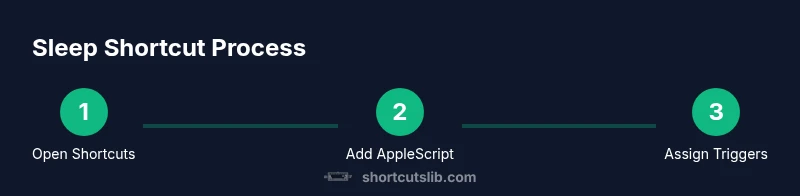
You will create a one-click shortcut to put your Mac to sleep using the built-in Shortcuts app, plus optional keyboard/macOS automation. You’ll learn how to trigger it from the menu bar, keyboard, or Siri, plus quick safety notes and troubleshooting tips. This answer shows how to tailor the shortcut for sleep without interfering with apps or downloads.
Why a dedicated shortcut matters on macOS
A well-crafted shortcut to sleep mac helps you transition out of active work without losing your place. It reduces the cognitive load of manually navigating menus and can prevent accidental interruptions when you need a quick break. According to Shortcuts Lib, a thoughtful sleep shortcut aligns with modern workflows by providing a deterministic, repeatable action that respects app states and user preferences. This is especially valuable for power users who juggle multiple windows, virtual machines, and remote sessions. If you’re looking for a simple, reliable way to sleep your Mac with a single action, you’re in the right place. The keyword to remember here is balance: you want speed, but you don’t want to sleep through an important task.
Understanding macOS sleep and wake events
macOS differentiates between system sleep, display sleep, and deep sleep. System sleep powers down most components and state, while display sleep only turns off the screen. Wake behavior can vary based on Power Nap settings, peripherals, and network activity. When you automate sleep, you should consider what happens to active downloads, unsaved documents, and external displays. Planning around wake events helps prevent accidental wake-ups or data loss. This section helps you map your expectations before you create a shortcut to sleep mac.
Shortcuts app basics: actions, triggers, and variables
The Shortcuts app lets you string actions together to perform a task. Core concepts include actions (individual steps), sequences (order of actions), and triggers (how you start the shortcut). For a sleep shortcut, you typically use a Run AppleScript or Run Script action to issue the sleep command, combined with optional triggers like a keyboard shortcut or Siri phrase. Understanding these components early saves you from reworking the shortcut later. As you build, keep your variables simple and readable so future edits remain quick.
Build a basic Sleep Mac shortcut
A basic sleep shortcut can be built with a Run AppleScript action that tells System Events to sleep. This approach is reliable across macOS versions and works without third-party apps. You can extend it later with additional triggers. Here is minimal pseudocode you can adapt in Shortcuts:
tell application "System Events" to sleep
Save the shortcut with a clear name, then test it by running it from within Shortcuts. If you want a cleaner surface, hide the command behind a keyboard trigger or a Siri voice phrase. This foundational setup gives you a solid starting point for more sophisticated sleep automation.
Adding a keyboard shortcut and Siri trigger
Assigning a keyboard shortcut or a Siri trigger makes the sleep shortcut instant. In the shortcut’s settings, choose Add Keyboard Shortcut and press your preferred key combo. For Siri, add a spoken phrase like “Sleep my Mac” or “Put Mac to sleep.” If you share devices, consider using iCloud to sync shortcuts across your Macs. Remember to keep triggers non-conflicting with other macros.
Testing and edge cases
Before you rely on the shortcut in daily work, test against real scenarios: with apps open, downloads in progress, and multiple displays connected. Check that unsaved work prompts you, or that macOS autosaves critical documents. If the shortcut doesn’t sleep the machine, verify accessibility permissions for the Shortcuts app and confirm that the AppleScript action is allowed to control System Events. Regular testing reduces surprises during important tasks.
Advanced triggers: Menu bar, keyboard, Siri, and automation
Beyond a basic keyboard shortcut, you can place the shortcut in the menu bar for quick access, or set up automation to trigger sleep after a period of inactivity. Some users prefer a pace-based trigger (e.g., sleep after 30 minutes of inactivity) or a wake-on-voice approach with Siri. Advanced triggers should be tested in a controlled environment to ensure they don’t sleep while you’re in a crucial meeting or file transfer. Shortcuts Lib notes that flexible triggers often improve consistency across devices.
Testing across scenarios and troubleshooting
A robust sleep shortcut behaves consistently across apps, documents, and external displays. If sleep fails, check these common culprits: restricted permissions, conflicting keyboard shortcuts, or other automations triggering wake events. Use the built-in Shortcuts editor to review the action steps, run the shortcut manually, and verify that the Run AppleScript action executes without errors. If needed, create a simple diagnostic shortcut that logs a timestamp before sleeping to help diagnose failures.
Real-world usage patterns and optimization
Use a sleep shortcut to support focus sessions, end-of-day routines, or hardware docking workflows. For example, pair a keyboard shortcut with a display wake rule to ensure your primary monitor powers down gracefully while leaving essential peripherals untouched. In practice, many power users find that combining a sleep shortcut with a quick note in a document or task manager helps preserve context when they return. As you optimize, consider whether you want a full system sleep or a lighter display-sleep variant depending on energy-saving goals.
Accessibility and safety considerations
When implementing any automation that powers down hardware, ensure you have backups for critical work. Enable autosave features and ensure that unsaved changes won’t be lost during sleep. If you use a Mac in a shared environment, inform other users of the automatic sleep routine to avoid unexpected interruptions. Finally, test with accessibility options enabled to confirm the shortcut remains operable for users who rely on assistive tech.
Tools & Materials
- Mac running macOS Monterey (12) or later(Necessary for Shortcuts integration and AppleScript support)
- Shortcuts app (built-in)(Required to create and run the Sleep shortcut)
- Run AppleScript or Run Shell command action in Shortcuts(Optional for extended commands or diagnostics)
- Keyboard or trackpad(Optional if you plan to trigger the shortcut via a physical key)
Steps
Estimated time: 45-60 minutes
- 1
Open Shortcuts and create a new shortcut
Launch the Shortcuts app, switch to All Shortcuts, and click the + button to create a new shortcut. Name it clearly (e.g., Sleep Mac) to avoid confusion later.
Tip: Use a concise, unique name so you can find it quickly in a crowded list. - 2
Add Run AppleScript action
In the new shortcut, choose Add Action > Scripting > Run AppleScript. Paste the code: tell application "System Events" to sleep. This is the core command that puts the Mac to sleep.
Tip: If Run AppleScript is unavailable, enable accessibility permissions for Shortcuts. - 3
Test the basic sleep command
Run the shortcut from within Shortcuts to confirm the Mac sleeps. If nothing happens, check permissions and ensure System Events can be controlled by Shortcuts.
Tip: Start with a manual run to validate the command before adding triggers. - 4
Save and rename the shortcut
Click Done to save, then rename it to a short, memorable label. Keeping the name simple helps you remember the trigger.
Tip: Avoid spaces or special characters that might complicate search. - 5
Add a keyboard shortcut trigger
Open the shortcut’s settings and choose Add Keyboard Shortcut. Press the key combination you want to use and test again.
Tip: Choose a combo that doesn’t conflict with existing system shortcuts. - 6
Add a Siri trigger (optional)
If you want voice control, add a Siri trigger with a phrase like “Sleep my Mac.” Test by saying the phrase aloud.
Tip: Voice triggers are great for on-the-go sleep actions when you can’t use the keyboard. - 7
Test across scenarios
Try the shortcut with apps open, downloads in progress, and external displays connected. Verify it behaves as expected in each case.
Tip: Include a test for unsaved work to ensure documents are protected.
Questions & Answers
What does 'sleep' do on macOS, and how is it different from 'display sleep'?
Sleep puts the whole system into a low-power state, while display sleep only turns off the screen. Sleep preserves app state and memory, but wake events may differ from display sleep scenarios. Use display sleep when you want quick screen-off but quicker resume without closing apps.
Sleep actually powers down more than the display, preserving your session. Wake behavior may vary depending on settings.
Can I sleep my Mac without closing apps and documents?
Yes. Sleep preserves your open apps and documents in memory so you can resume where you left off. To minimize data risk, ensure autosave is enabled and that critical work is saved before sleeping.
Yes, it preserves your session; just make sure autosave is on before sleeping.
How do I revert changes if the shortcut stops working?
Open Shortcuts, edit the Sleep Mac shortcut, and review the actions. Remove or re-add the Run AppleScript action, re-test, and re-assign any triggers if necessary.
Open Shortcuts, edit theSleep Mac shortcut, and re-test.
Will this affect wake-on-network or remote wake features?
Sleep should not disable wake-on-network permanently; recheck wake settings after implementing the shortcut. Some network wake features may wake the Mac unexpectedly if certain triggers are active.
Most wake features remain, but verify network wake settings after adding the shortcut.
Can I share this shortcut with another Mac?
Yes. You can export the shortcut and import it on another Mac, then reassign triggers as needed. Consider syncing via iCloud if your devices share the same Apple ID.
You can export and import; just reconfigure triggers per device.
Is it safe to use a keyboard shortcut for sleep on a laptop?
Generally safe, but ensure you won’t lose unsaved work. For laptops, consider battery and charging state as sleep timing can affect energy use and battery health.
Safe, just be mindful of unsaved work and power state.
Watch Video
Main Points
- Create a reliable Sleep Mac shortcut using Run AppleScript.
- Use keyboard or Siri triggers for fast access.
- Test across scenarios to prevent data loss.
- Document and optimize triggers for consistency.