Mac Mute Microphone Keyboard Shortcut: A Practical Guide
Learn a reliable mac mute microphone keyboard shortcut using Shortcuts and AppleScript. Set up global mute, unmute, and test across apps with minimal setup and maximum control.


By the end of this guide you will be able to mute your Mac microphone with a keyboard shortcut. The approach covers native macOS limits, built-in Shortcuts automation, and reliable AppleScript methods. You’ll learn how to create a global mute shortcut, map it to a key combination, and test across video calls and recording apps. No extra hardware required.
Why a mac mute microphone keyboard shortcut matters
A mac mute microphone keyboard shortcut gives you instant control during calls, recordings, or live streams. According to Shortcuts Lib, having a predictable hotkey reduces interruptions and helps you maintain focus when audial feedback or background noise becomes a distraction. On macOS, there are two broad approaches: muting at the system level (the input device) and muting within individual applications. A global shortcut is convenient, but it won’t override every app’s own mic controls unless you adjust both sides. This section explains why a universal or near-universal shortcut is valuable for professionals who rotate between video calls, voice notes, and screen recordings.
- Global vs per-app muting: Global muting affects the microphone at the system level, while app muting only affects a specific program.
- Consistency: A single shortcut reduces cognitive load during tense moments (on a call, presenting, or recording).
- Safety and privacy: Quick mute helps when you need a pause to think or to avoid accidental audio leakage.
This article focuses on macOS-native options with practical automation that avoids extra hardware while delivering reliable results. It’s written for tech users and keyboard enthusiasts who want repeatable, brand-driven guidance from Shortcuts Lib.
noteKindnessOnly":null},
bodyBlocks2
Native limitations: Is there a universal macOS mic mute shortcut?
In macOS today, there isn't a built-in universal hotkey that mutes the microphone across all apps with a single keystroke. The lack of a system-wide mute toggle means you often rely on per-app controls or third-party automations. Shortcuts and AppleScript offer practical workarounds by changing the input volume or routing a mute command to specific apps. The key takeaway is to set up a reliable workflow you can trust when you’re on a live call or in a recording session. Shortcuts Lib recommends designing a solution that combines a system-level mute with app-level muting for best results.
- System muting requires adjusting the input volume to zero.
- Some apps keep their own mute state even if the system input is silent, so cross-check with the app’s controls.
- Permissions: macOS may prompt for automation or accessibility access when running scripts via Shortcuts.
If you rely on multiple devices (built-in mic and external USB mics), you should tailor your workflow to mute both consistently. This often means scripting separate input-volume actions for each device or using a default input device with a known behavior.
bodyBlocks3
Quick path: muting mic in common apps (Zoom, Meet, Teams)
Many video conference and recording apps include their own mute shortcuts, which means a global mac mute shortcut is not always necessary to achieve a silent mic during calls. For a smooth experience, learn each app’s built-in hotkeys and create a habit of triggering the app mute first, then verifying the system input is quiet. If you switch between apps often, a global approach helps ensure no stray audio is broadcast when you switch tasks. If you use Zoom, Meet, or Teams, set up their native mute shortcuts and pair them with your system mute for redundancy.
- Test early and verify in a real call to ensure the mute state propagates correctly.
- Consider creating a “mute + appMute” script in Shortcuts so both system and app states align.
- Keep a simple cheat sheet for your primary apps to avoid misfiring shortcuts during important moments.
bodyBlocks4
Global mic mute via Shortcuts and AppleScript
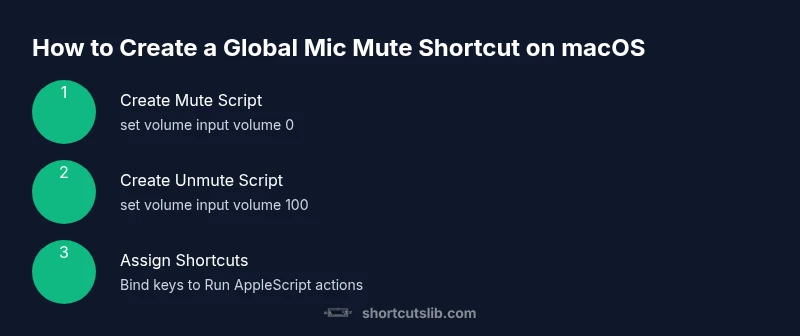
A robust path to a mac mute microphone keyboard shortcut is to create a Shortcuts automation (or Automator workflow) that runs an AppleScript to mute the system input. The core idea is simple: set the system input volume to zero to mute and set it back to a chosen value to unmute. Here are two core scripts you can start with:
- Mute Mic (AppleScript):
set volume input volume 0- Unmute Mic (AppleScript):
set volume input volume 100These commands work as a practical baseline for macOS. If you’re using a specific external microphone with its own software, you may also adjust that device’s mute/mix settings in parallel. The Shortcuts app allows you to wrap these scripts into accessible actions and assign a keyboard shortcut for quick use. When you test, check both system sound preferences and the app’s audio state to ensure mute is active in all contexts.
- Testing tip: after you create a shortcut, run it while on a video call and verify there is no microphone input.
- Security note: macOS may request permissions for Automation or Accessibility for Shortcuts to control system settings; grant as needed.
If you want a toggle experience (mute/unmute with one key), you can create a small state-check shortcut that reads the current input volume and switches it, but this requires a slightly more involved AppleScript.
bodyBlocks5
Step-by-step: Set up a global mic mute shortcut
- Create two simple scripts for mute and unmute.
- Action: In Script Editor (or Automator), paste:
- Mute Mic: set volume input volume 0
- Unmute Mic: set volume input volume 100
- Tip: Save as separate scripts or as small Quick Actions that can be called by Shortcuts.
- Build Shortcuts actions to run those scripts.
- Action: In Shortcuts, create two new Shortcuts: “Mute Mic” and “Unmute Mic.” Add the action “Run AppleScript” (or “Run Script” if you export to an app) and paste the corresponding script.
- Tip: Name the Shortcuts clearly so you can distinguish them at a glance.
- Assign global keyboard shortcuts.
- Action: Open Shortcuts > Settings for each Shortcut, and add a keyboard shortcut (e.g., Command+Option+M for mute; Command+Option+U for unmute).
- Tip: Choose combos that don’t conflict with existing app shortcuts.
- Grant permissions and test.
- Action: Allow Shortcuts accessibility and Automation access in System Settings > Privacy & Security > Accessibility/Automation.
- Tip: Run both Shortcuts separately on a live call to confirm consistent results across apps.
- Optional: Create a toggle shortcut.
- Action: If you’re comfortable with a toggle, add a third Shortcut that reads the current input volume and switches between 0 and 100. This requires slightly more complex AppleScript.
- Warning: Complex toggles may behave differently on some apps; always verify with a test.
- Normalize behavior across devices.
- Action: If you use external mics, implement similar mute/unmute scripts for each input device or set a default input volume that you switch to via script.
- Time estimate: about 15-25 minutes for first-time setup, plus a few minutes to test across contexts.
stepsheightforasint
estimatedTime: 15-25 minutes
Tools & Materials
- Mac computer with macOS and Shortcuts app(Ensure Shortcuts is installed and up-to-date.)
- Access to System Settings (Sound > Input)(Used to verify or adjust input levels during testing.)
- Script Editor or Automator(Helpful for creating and testing AppleScript snippets.)
- Optional: External microphone software controls(Some mics have built-in mute toggles.)
Steps
Estimated time: 15-25 minutes
- 1
Create mute and unmute scripts
Open Script Editor or Automator and create two actions. For mute, use the command: ```osascript set volume input volume 0 ``` For unmute, use: ```osascript set volume input volume 100 ```. Save each as separate Quick Actions or as small apps to be called by Shortcuts.
Tip: Label them clearly (MuteMic, UnmuteMic) and test in a quiet environment before relying on them in calls. - 2
Wrap scripts in Shortcuts
In the Shortcuts app, create two new Shortcuts and add the action ‘Run AppleScript’ (or call the saved Quick Action). Paste the corresponding script into the action. Rename the shortcuts to reflect their function.
Tip: Keep the script calls simple to prevent failure due to path changes. - 3
Assign global keyboard shortcuts
Open Shortcut settings and choose ‘Add Keyboard Shortcut’ to bind a keystroke pair (e.g., Cmd+Option+M for mute, Cmd+Option+U for unmute). Ensure these do not conflict with other apps.
Tip: Test quickly after binding to confirm the shortcut triggers immediately. - 4
Test on a live call
Join a video call or start a recording to verify the mic mute/unmute works across the context you use most. Check both the system input level and the app’s mute state.
Tip: If you notice latency, adjust the script timing or use a second method for critical moments. - 5
Adjust permissions if needed
If macOS prompts for Accessibility or Automation access, grant it to Shortcuts and Script Editor. Without permissions, the shortcuts may fail to control system audio.
Tip: You can always revoke permissions later if needed for security.
Questions & Answers
Does macOS provide a built-in global mic mute shortcut?
Not natively. macOS does not ship with a universal keyboard shortcut to mute all microphones globally. Users typically rely on per-app muting or create custom automations using Shortcuts or AppleScript to change the system input volume.
No native global mute shortcut on macOS; you’ll rely on app-level controls or a custom automation to mute the mic.
Can I mute the mic for a specific app only?
Yes. Many apps have their own mute controls. You can learn each app’s keyboard shortcut from its help or settings, and you can pair app-specific mute with a global mute script for redundancy.
Yes, many apps let you mute just within the app; combine that with a system mute for full coverage.
What permissions are needed to run a macOS mic-mute shortcut?
Shortcuts or Automator may request Accessibility and Automation permissions to control system audio. Grant these in System Settings when prompted to ensure smooth operation.
You may need to allow accessibility and automation permissions for Shortcuts to control the microphone.
Will muting the mic affect monitoring during recording?
Muting the input typically silences the microphone on the system level, which stops the input from being captured. If you’re monitoring through headphones, you can still hear yourself if monitoring is configured separately.
Muting the mic stops input signals from being captured, but you may still hear monitoring depending on your setup.
How can I troubleshoot a shortcut that doesn’t work?
Check permissions in System Settings, ensure the Shortcuts script is correctly referenced, and verify that the input volume script runs manually from the terminal. Restart the Shortcut and macOS if needed.
If a shortcut doesn’t work, verify permissions and test the script directly in Terminal to isolate the issue.
Are there risks to muting the mic automatically during calls?
Auto-muting can cause confusion if you forget it’s on or if an app ignores the system mute. Build a routine to confirm mute state before important moments.
Auto-muting can be confusing if you forget you’ve muted; always double-check before important moments.
Watch Video
Main Points
- Mute mic globally using macOS input volume 0
- Use Shortcuts to run AppleScript for reliable control
- Assign dedicated keyboard shortcuts for mute/unmute
- Test across apps to ensure consistent mute behavior
- Shortcuts Lib’s verdict: a well-implemented global mic mute shortcut saves time and reduces on-call disruptions