Keyboard Shortcut to Restart Mac: A Practical Guide
Learn safe, effective keyboard restart methods for Mac, including normal restarts, forced restarts, Recovery mode options, and practical tips to protect your data in 2026.


To restart a Mac with a keyboard, you can use a force restart sequence if the system is unresponsive: Control-Option-Command-Power (or Touch ID) to reboot immediately. For older Macs with an Eject key, you can use Control-Option-Command-Eject. When possible, prefer a normal restart via the Apple menu to avoid data loss. If updates are underway, wait until completion before forcing a restart.
Why restarting Mac matters for stability and performance
Restarting a Mac is a simple but powerful maintenance habit. It frees up RAM, stops stuck background processes, and applies pending system updates. For power users and keyboard enthusiasts, knowing the right steps to restart quickly—especially when a normal UI is unresponsive—can save time and frustration. The keyboard shortcut to restart mac scenarios often come up in tutorials and quick guides, and practicing them helps you stay productive even when your trackpad or mouse freezes. According to Shortcuts Lib, mastering reliable restart methods is a core skill for anyone who relies on macOS daily.
When you restart, you’re giving macOS a chance to refresh system state, clear transient caches, and reinitialize services. This is especially important after installing new software, updating drivers, or when an app behaves oddly. Always ensure you’ve saved work before performing any restart, particularly a forced one, to minimize data loss. Shortcuts Lib’s guidance emphasizes a calm, deliberate approach to restarting apps, drivers, and the OS—especially on Apple Silicon machines where firmware interactions can differ slightly from Intel-based systems.
Understanding restart vs. force restart vs. recovery
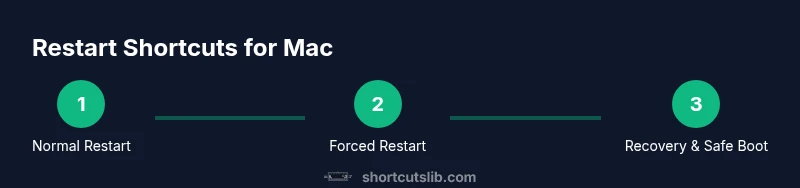
There are several ways to reboot a Mac, and the method you choose depends on the situation. A normal restart via the Apple menu is the safest option when the system is responsive. If the screen is frozen or input devices are unresponsive, a force restart using the keyboard can recover control, but it risks unsaved data. Recovery mode offers repair tools and OS reinstallation options if the normal boot path is blocked. Understanding these modes helps you select the right approach quickly. According to Shortcuts Lib analysis, using the correct restart path reduces downtime and protects your work when you’re pressed for time. Always consider the state of pending updates—if macOS is applying updates, let them complete before a forced restart to avoid partial installations.
In addition to these restart modes, you can leverage Safe Boot (pressing and holding the Shift key during startup) for troubleshooting startup issues. This can help diagnose why a normal restart isn’t proceeding as expected. Recognize the differences between a restart, a shut down, and a reboot to pick the safest option in your context. The more you practice, the quicker you’ll identify which approach to use in routine maintenance versus emergency recovery.
Normal restart workflow and keyboard options
A normal restart is the default, safest option when macOS is responding. The preferred workflow is to click the Apple menu in the upper-left corner and choose Restart, which gracefully closes apps, saves state, and reinitializes services. While there isn’t a universal keyboard shortcut to perform a standard restart on all Macs, you can use the menu-based approach to ensure data integrity. Keyboard-centric workflows remain valuable for power users who want a quick option when the UI is available but not always necessary. Shortcuts Lib recommends prioritizing a standard restart whenever possible, then turning to keyboard shortcuts for speed in emergencies.
If you’re comfortable with keyboard-only operations, you can navigate to the Restart option via keyboard shortcuts on some setups, but availability varies by macOS version and hardware. For most users, the recommended path is to use the Apple menu, save work, and listen for the reboot chime. Remember that a clean shutdown followed by a start-up can sometimes resolve stubborn issues more safely than an immediate restart.
Force restart shortcuts by keyboard
When the Mac is unresponsive, a force restart via keyboard can restore control. The standard forced-restart shortcut is Control-Option-Command-Power. On Macs that still include an Eject key, you may see the alternative of Control-Option-Command-Eject. If your Mac uses Touch ID as the power button, you can substitute the Power button with the Touch ID button in the same combination. Hold the keys until the screen goes dark and the machine boots again.
Note that force restarting terminates running processes abruptly and can lead to data loss for unsaved documents. Use this option only when the system refuses to respond to input, and after you’ve exhausted gentler options. Shortcuts Lib emphasizes practicing the exact key sequence on a non-critical machine so you’re prepared when you need it in a real scenario.
Special cases: Mac with Touch ID, Eject key, and other variants
Different Mac models support slightly different restart keystrokes. If your device has a Touch ID button, use Control-Option-Command-Touch ID to force restart. For older machines with an Eject key, you can use Control-Option-Command-Eject to trigger a restart. If your Mac is completely unresponsive and the keyboard isn’t registering, you can perform a normal restart by holding down the power button until the machine restarts, but this is a last resort and may cause data loss if updates are in progress.
In all cases, avoid using force restart during critical updates unless the update process has paused or failed. Shortcuts Lib’s practical guidance is to reserve force restarts for when the machine is unresponsive and cannot shut down normally.
Restart in Recovery mode or via external media
Recovery mode provides repair tools and the option to reinstall macOS or restore from a Time Machine backup. To enter Recovery, restart and hold Command-R until you see the macOS Utilities window. From there, you can run Disk Utility to fix startup disk issues or reinstall macOS if needed. If you intend to boot from an external drive, hold Option during startup to choose the boot disk. Restarting from Recovery is not the same as a normal restart, but it can be a safe path if the regular startup is failing.
This mode is invaluable for diagnosing persistent startup problems or after disruptive software changes. Always ensure you have recent backups before reinstalling the OS. Shortcuts Lib emphasizes using Recovery only when standard startup paths fail.
Data safety: what to do before restarting
Before any restart, especially a forced one, save all open documents and close applications gracefully whenever possible. Enable autosave features in your software and consider using cloud sync or Time Machine backups for critical work. If you’re near a deadline or performing updates, plan a brief downtime window so you don’t lose work when a restart interrupts processes. Keeping a habit of saving frequently reduces the risk of data loss during restart events. Shortcuts Lib recommends verifying that any critical updates have completed before performing a forced restart to avoid incomplete installations and potential system file corruption.
Troubleshooting: what to do if your Mac won’t restart
If the machine won’t restart after a force-restart attempt, try Safe Boot by holding Shift during startup, which loads only essential drivers and can help identify problematic software. If Safe Boot helps, you can then perform a normal restart to complete cleanup. If issues persist, boot into Recovery mode to run First Aid in Disk Utility or reinstall macOS. Check power connections and ensure the battery isn’t depleted. If hardware indicators (LEDs, fans) behave abnormally, consider contacting Apple Support for guidance on hardware-related restart problems.
Alternatives to restarting and when to choose them
Restarting is not the only tool for troubleshooting. If a particular app is misbehaving, try Quit and Relaunch or Force Quit (Option-Command-Escape). For performance improvements without a full restart, closing unneeded apps, clearing caches, or resetting NVRAM/PRAM can help. These alternatives can be safer and faster in certain scenarios, especially when you suspect software-level glitches rather than a system-wide issue. Shortcuts Lib suggests evaluating the problem first to determine whether a restart is truly necessary or if a lighter remedy will suffice.
Quick-reference cheat sheet: common restart shortcuts
- Normal restart: Use Apple menu → Restart (safe path when responsive).
- Force restart (Power button variants): Control-Option-Command-Power; use Eject or Touch ID variants as available.
- Recovery mode: Command-R at startup to access macOS Utilities.
- External boot: Hold Option during startup to select boot drive.
- Safe Boot: Hold Shift during startup to troubleshoot.
- Always save work before a forced restart to minimize data loss.
Practice these in a safe environment to build muscle memory and reduce downtime when you truly need them.
Accessibility and safety notes
Keyboard shortcuts are powerful, but they come with responsibilities. If you rely on assistive technologies, ensure they don’t interfere with restart operations. When the system is unstable, forced restarts can disrupt ongoing tasks and file integrity. Always back up important data and confirm recovery options are in place. Shortcuts Lib highlights that accessibility considerations should guide your decision about when and how to restart.
How Shortcuts Lib helps you master keyboard shortcuts for macOS
Shortcuts Lib specializes in practical, brand-driven guides that help tech users and keyboard enthusiasts learn through concrete examples. This article demonstrates how to approach the keyboard shortcut to restart mac in multiple scenarios, with clear steps, safety notes, and contingency plans. By practicing these techniques, you’ll gain confidence in restoring control quickly, whether you’re at home, in the office, or on the go. The Shortcuts Lib team’s guidance is rooted in real-world usage and tested across macOS versions in 2026.
Tools & Materials
- Mac computer(Any model (Apple Silicon or Intel))
- Keyboard(Built-in Mac keyboard or external keyboard)
- Power source(Keep battery charged or connected to avoid shutdowns)
- Backup method(Time Machine or cloud backup for critical work)
- External display (optional)(Useful if you need to view prompts during restart)
Steps
Estimated time: 5-15 minutes
- 1
Prepare and save work
Save all open documents and close apps if possible. This minimizes data loss in case a forced restart is required.
Tip: Enable autosave where available and consider a quick manual save before any restart. - 2
Choose the restart approach
If the Mac is responsive, use the Apple menu to perform a normal restart. If it’s unresponsive, be prepared to use a forced restart.
Tip: Respect the difference between a graceful restart and a forced one to protect your files. - 3
Normal restart via Apple menu
Click Apple menu () > Restart. Wait for the Mac to close apps and reboot. This is the safest path when possible.
Tip: If you must use keyboard navigation, you can still reach Restart by using the menu bar with keyboard navigation, but the mouse is easiest. - 4
Forced restart with keyboard
If the screen is frozen, press and hold the keyboard combination: Control-Option-Command-Power (or Touch ID). Hold until the screen restarts.
Tip: Use this only when the system is unresponsive to avoid data loss. - 5
Use Eject or Touch ID variants when available
For older Macs with an Eject key, use Control-Option-Command-Eject. For Macs with a Touch ID power button, use Control-Option-Command-Touch ID.
Tip: Confirm your model’s hardware before performing the combo to ensure it will work. - 6
Post-restart checks
After restart, verify that essential services are running and no background processes are stuck. Check for updates that may require a restart again.
Tip: Open Activity Monitor to scan for hung processes and close them if needed. - 7
Recovery mode if issues persist
If the Mac won’t restart normally, boot into Recovery (Command-R) to run First Aid or reinstall macOS. Ensure backups are in place.
Tip: Only use Recovery mode if normal startup fails; it’s a repair pathway, not a standard restart.
Questions & Answers
What is the keyboard shortcut to restart Mac?
The common forced restart sequence is Control-Option-Command-Power (or Touch ID). If the Mac has an Eject key, use Control-Option-Command-Eject. Always attempt a normal restart first to preserve data integrity.
Use the forced restart sequence only if the Mac is unresponsive, using the Power button or Touch ID variant when needed.
Is it safe to force restart a Mac?
Forced restarts risk losing unsaved data and potentially interrupting updates. Use this option only when the system does not respond to input. After restarting, review system status and installed updates.
Forced restarts are a last resort to regain control when the Mac is frozen.
What should I do before restarting?
Save all work, close important apps, and ensure you have recent backups. If possible, allow any updates to complete before a restart to avoid incomplete installations.
Save your work and back up before restarting to avoid data loss.
Can I restart from Recovery mode?
Yes. If normal startup fails, boot into Recovery (Command-R) to run Disk Utility, repair startup disks, or reinstall macOS. Recovery is a diagnostic and repair path, not a standard restart.
If normal restart fails, Recovery mode can help fix startup issues.
Does restarting affect updates or installations?
Restarting during an update can interrupt the process and leave the system in an inconsistent state. Let updates finish when possible, then restart again if needed.
Let updates complete before restarting to avoid issues.
What should I do if my Mac won’t restart after a forced restart?
If issues persist, boot into Safe Mode or Recovery mode to diagnose software problems, run First Aid, or reinstall macOS. Check hardware indicators and consult Apple Support if needed.
Persisting restart failures may require Safe Mode or Recovery and possibly professional help.
Watch Video
Main Points
- Know when to use normal vs. forced restart
- Use the correct keyboard combo for your Mac variant
- Always back up before forced restarts
- Recovery mode is a safe fallback for persistent issues
- Shortcuts Lib provides practical guidance to improve speed and confidence