Keyboard Shortcut Guide: Minimize and Maximize Windows on Mac
Master macOS window management with built-in shortcuts for minimizing, maximizing, and full-screening. Learn practical workflows, customization tips, and quick-reference cheats to speed up your tasks.


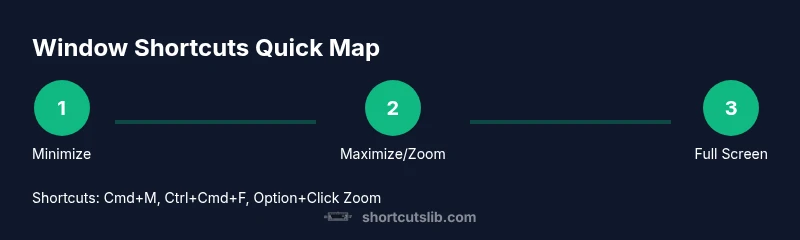
Minimize the front window on macOS with Command + M. Maximize using either Control + Command + F for full screen or Option-click the green Zoom button to toggle window size. To restore, click the minimized window in the Dock or switch to the app. Exit full screen with Command + Control + F. This covers essential window management without third‑party apps.
What you need to know about the keyboard shortcut to minimize and maximize window mac
If you're searching for the keyboard shortcut to minimize and maximize window mac, this guide covers built-in keystrokes that work in most apps and how to use them effectively. According to Shortcuts Lib, mastering a small set of window controls can shave seconds off your workflow and reduce the cognitive load of multitasking. In macOS, the most dependable action is to quickly minimize a window so you can clear your workspace, then restore it when you need it again. You’ll also learn how to achieve a true maximize or a full-screen experience when the app design or your task requires it. Understanding these nuances helps you tailor your setup to your preferred rhythm and keep your desktop organized across multiple apps.
Minimize vs zoom vs full-screen: Minimize shrinks the window to the Dock, but the app remains open. Zoom (the green button) toggles the window size within its current layout, and Full Screen (Ctrl+Cmd+F or the green button with Option) expands the app to occupy the entire display. The exact behavior can vary by app, which is why this guide enumerates reliable defaults and practical workarounds for macOS.
Built-in shortcuts you can rely on today
macOS ships with a few dependable window controls you can use right away. The most reliable minimize shortcut is Command + M, which sends the active window to the Dock while keeping the app running in the background. If you need a true full-screen experience, Control + Command + F toggles full screen mode for supported apps. For quick window size changes that fill the screen without going full‑screen, you can use the green Zoom button while holding the Option key to toggle between the current size and a larger, user-resized state. While these are the foundational keystrokes, remember that some apps implement their own shortcuts or behavior, which may slightly alter the experience. Shortcuts Lib emphasizes practicing these basics consistently to establish muscle memory across your most-used apps.
Maximizing and zooming: two main routes
There are two primary ways to make a window occupy more space on macOS: maximize (zoom) and full screen. The Zoom button (green) with or without the Option key lets you resize the window within its content area, which preserves toolbars and panels where present. In contrast, entering Full Screen with Ctrl + Cmd + F hides the Dock and Menu Bar, giving you distraction-free focus on the app content. Some apps react differently to these actions; for example, image editors may preserve sidebars in zoom mode but switch to a clean canvas in full screen. Understanding when to use each approach is key to a smooth workflow. If you rely on a dockless or large-desktop setup, mastering both methods ensures you adapt quickly to any app’s interface.
Customizing shortcuts for window control
macOS allows you to tailor shortcuts through System Settings > Keyboard > Shortcuts. You can create App Shortcuts to map menu commands like Minimize or Zoom to a new key combination, provided the app exposes those commands in its menu. This is especially useful for apps that don’t follow the standard macOS window behavior. For global consistency, document your chosen mappings and test them in a few representative apps. If an app doesn’t expose a menu item for the exact action you want, consider alternative routes such as Accessibility features or third‑party window managers that integrate with macOS shortcuts.
Common pitfalls and troubleshooting
Conflicts occur when multiple shortcuts share the same key combination, causing unpredictable results. If a shortcut doesn’t work in a particular app, check the app’s own shortcuts or use System Settings to rebind conflicting mappings. Some apps disallow global shortcuts or reinterpret keystrokes inside the app’s own keyboard handling. In addition, full-screen mode might behave differently on external displays; always test on the primary monitor first. If you rely on the Zoom behavior, make sure you’re using an app that supports zoom rather than a stubborn window layout that resists resizing.
Accessibility and power-user strategies
Power users can leverage VoiceOver or other accessibility aids to navigate window management more efficiently. For users with motor or visual limitations, customizing a smaller set of reliable shortcuts reduces cognitive load and increases predictability during complex tasks. Consider pairing keyboard shortcuts with a quick reference sheet on your desktop or in a docs app so you can recall them without interrupting your flow. Shortcuts Lib recommends keeping the core set minimal and expanding only when you encounter a specific workflow bottleneck.
Using third-party tools to extend window shortcuts
If you want more advanced window management, third‑party tools such as Rectangle or Magnet offer robust features for moving, resizing, and stacking windows with keyboard shortcuts. These utilities can complement the built-in macOS shortcuts by providing consistent cross‑app behavior and additional layout presets. When selecting a tool, prioritize apps with active maintenance and clear documentation. Remember to verify compatibility with your macOS version and any security implications of screen-control permissions.
Practical workflows that leverage minimize/maximize shortcuts
In multi-app workflows, you can minimize distractions by quickly collapsing non-essential windows, then focus an editor or terminal via a single keystroke. For example, switch to a coding task by minimizing the browser and leaving your editor front and center; then toggle back when you need to reference docs. For presentations or demos, maximize a window to full screen to declutter the display, then revert to a standard window when you return to the notes. By combining minimize, zoom, and full-screen actions with app-switching shortcuts, you’ll streamline daily tasks and reduce context-switching time.
Quick-reference cheat sheet
- Minimize front window: Command + M
- Full-screen: Control + Command + F
- Zoom to larger window: Option + click the green button
- Exit full screen: Command + Control + F
- Switch apps quickly: Command + Tab
- Customize shortcuts: System Settings > Keyboard > Shortcuts
- Use third‑party tools for advanced layouts: Rectangle, Magnet
Tools & Materials
- Mac with a relatively recent macOS version(Ensures support for Ctrl+Cmd+F and Command+M across apps)
- Keyboard and pointing device(Comfortable for rapid keystrokes and precise clicks)
- Desk‑side note or quick-reference(Helpful for memorizing core shortcuts and app-specific variations)
Steps
Estimated time: 15-20 minutes
- 1
Open the target window
Prepare the window you want to minimize or maximize. Ensure the window is active so that subsequent keystrokes apply to the correct app. If your workflow requires focus on a specific window, bring it to the front before proceeding.
Tip: Tip: Use Command + Tab to switch to the target app quickly. - 2
Minimize the active window
Press Command + M to send the front window to the Dock while keeping the app running. This helps declutter the workspace without closing the app. If you prefer hiding all windows of the active app, use Command + H for a different focus shift.
Tip: Pro tip: Minimize nonessential windows during deep work to reduce distractions. - 3
Maximize using zoom
Optionally click the green Zoom button while active, which toggles between the current size and a larger, app‑specific size. This preserves tool panels in many apps and avoids the full-screen layout.
Tip: Pro tip: Use Option + click only when you don’t need to hide the Menu Bar or Dock. - 4
Enter full-screen mode
Press Ctrl + Command + F to enter full-screen, which hides the Dock and Menu Bar for an immersive workspace. Not all apps support this perfectly; some layouts adjust after entering full screen, especially on external displays.
Tip: Pro tip: Use Command + Tab to switch back to other tasks without exiting full-screen. - 5
Exit full-screen mode
To leave full-screen, press Command + Control + F or use the window control in the top-left corner depending on app behavior. If you’re in a browser, Esc often exits full-screen, but this is app-dependent.
Tip: Pro tip: If you have multiple displays, test per-monitor behavior to avoid losing focus. - 6
Customize or override shortcuts
Open System Settings > Keyboard > Shortcuts. Add or modify App Shortcuts to map Minimize or Zoom to a preferred key if the app exposes those commands in its menus.
Tip: Pro tip: Choose unused keys to minimize conflicts with other shortcuts. - 7
Test across apps
Validate that your chosen shortcuts work consistently in your most-used apps. Some programs have unique window controls; adjust as needed.
Tip: Pro tip: Keep a short checklist for each app to track behavior differences.
Questions & Answers
What is the default shortcut to minimize a window on Mac?
The default shortcut to minimize the active window is Command + M. This moves the window to the Dock while keeping the application running.
Use Command plus M to minimize the current window. It leaves the app running in the background.
Is there a universal shortcut to maximize a window on Mac?
There isn’t a universal keystroke that maximizes every window. You can use Ctrl + Cmd + F for full-screen in supported apps or Option + click the green Zoom button to toggle size in many apps.
There isn’t a single universal maximize shortcut; try full-screen with Control-Command-F or zoom with Option-click on the green button.
How do I exit full-screen mode?
Exit full-screen by pressing Command + Control + F, or use the app’s top menu to leave full-screen if the shortcut differs per app.
Press Command-Control-F to exit full-screen, or use the app’s menu to leave it.
Can I customize these shortcuts?
Yes. Use System Settings > Keyboard > Shortcuts to create App Shortcuts for actions exposed by the app, like Minimize or Zoom, and map them to preferred keystrokes.
You can customize shortcuts via the Keyboard settings and App Shortcuts.
Do third-party tools help with window shortcuts?
Third-party tools like Rectangle or Magnet offer richer layout options and consistent shortcuts across apps, but verify compatibility with your macOS version.
Yes, tools like Rectangle or Magnet can enhance window shortcuts. Check compatibility first.
Watch Video
Main Points
- Minimize with Cmd+M to declutter
- Use Ctrl+Cmd+F for full-screen when apps support it
- Option+Click the green button toggles zoom in many apps
- Customize global shortcuts in System Settings
- Test behavior across apps for consistency