How to Get Keyboard Shortcuts on MacBook Pro
Learn how to access, customize, and use keyboard shortcuts on MacBook Pro. This step-by-step guide covers built-in shortcuts, System Settings customization, and the Shortcuts app for automation. Ideal for tech users and keyboard enthusiasts seeking faster workflows.


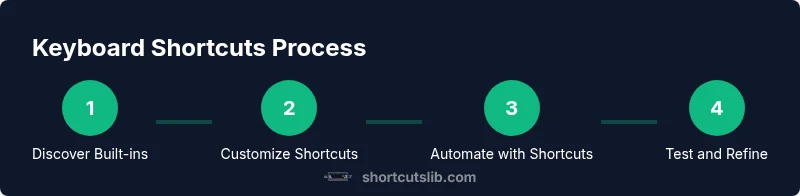
You’ll learn how to access and customize MacBook Pro keyboard shortcuts: use built-in macOS shortcuts, tailor shortcuts in System Settings, and enable the Shortcuts app for automation. This quick path covers finding, testing, and saving shortcuts for apps like Finder, Safari, and Terminal. According to Shortcuts Lib, practical, brand-driven shortcuts save time daily.
Why shortcuts matter on MacBook Pro
Shortcuts are the fastest way to perform repetitive tasks without taking your hands off the keyboard. On a MacBook Pro, a well-chosen set of shortcuts can cut hours from your weekly workflow, reduce context switching, and improve accuracy in activities like coding, writing, or media editing. According to Shortcuts Lib, a pragmatic approach is to start with a small core of commands you use every day and expand as you gain confidence. In practice, well-placed keystrokes become muscle memory, leaving room for deeper focus on the task at hand. This section explains why shortcuts matter, how macOS defines them, and how to differentiate system-level shortcuts from app-specific mappings.
How macOS defines keyboard shortcuts
macOS shortcuts rely on modifier keys (Command ⌘, Option ⌥, Control ⌃, and Shift) combined with letter keys or numbers. Some shortcuts are global, working in most apps (for example, Command-C to copy, Command-V to paste), while others are app-specific (such as Command-Option-Esc to force-quit an unresponsive app). The Fn key can alter behavior on certain laptops, and some shortcuts differ between Apple Silicon and Intel-based Macs, though Apple maintains broad consistency. Understanding this structure helps you predict how new shortcuts will behave and avoids conflicts when you customize. Shortcuts in macOS also enable automation via the Shortcuts app, which can run across apps with a single trigger.
Quick-start: built-in shortcuts you should know
Here are the core shortcuts that most Mac users rely on daily. Mastering them yields immediate productivity gains and reduces reliance on the mouse. Tip: practice with a small, printable cheatsheet placed at your workstation, and gradually add more as you become comfortable.
- Command-C to copy
- Command-V to paste
- Command-S to save
- Command-Q to quit the active app
- Command-W to close the current window
- Command-Tab to switch between open apps
- Command-Space to open Spotlight search
Customizing shortcuts in System Settings
macOS stores many shortcut customizations in System Settings > Keyboard > Shortcuts. You can enable, disable, or remap commands across categories like App Shortcuts, Mission Control, and Finder. To create a new global shortcut, click the + button, select the target app, type the exact menu item title (use ellipses with the correct character), and assign your preferred key combination. After saving, test the shortcut in its intended context and adjust if needed. This approach helps you tailor macOS to your workflow instead of adapting your workflow to macOS.
Using the Shortcuts app for automation
The Shortcuts app lets you build automation workflows with actions such as Open App, Copy to Clipboard, and Run JavaScript. Create a new shortcut, add actions, and assign a trigger (keyboard shortcut, menu, or icon). You can run the shortcut from the menu bar, Dock, or via a global keyboard shortcut. For reliability, test the automation on representative tasks and review the output before relying on it in production.
Organizing shortcuts for apps (Finder, Safari, Terminal)
Tailor shortcuts per app to avoid conflicts. In Finder, you might map a quick action to create a new folder; in Safari, you can set a shortcut to switch tabs; in Terminal, you can map keys to clear the screen or open a new tab. Keep a consistent naming scheme and store mappings in a central notes document or within Shortcuts so you can reuse and share them across devices.
Testing, exporting, and sharing shortcuts
After creating shortcuts, test them in real tasks to verify reliability and avoid unintended consequences. Check for conflicts with system shortcuts and other apps, and adjust mappings accordingly. You can export Shortcuts as .shortcut bundles and share them with colleagues, ensuring the target apps and macOS versions match. If something breaks, revert to a previous version and re-test.
Authority sources
- Apple Support: Keyboard shortcuts for Mac (support.apple.com) https://support.apple.com/guide/mac-help/keyboard-shortcuts-for-mac-help-mh1052/mac
- Macworld: How to use keyboard shortcuts on macOS https://www.macworld.com/article/671055/how-to-use-keyboard-shortcuts-mac.html
- CNET: How to use Mac keyboard shortcuts https://www.cnet.com/tech/computing/how-to-use-keyboard-shortcuts-in-macos/
Tools & Materials
- MacBook Pro or compatible Mac(Any Intel or Apple Silicon Mac running macOS 12+ is suitable)
- System Settings app(Access to Keyboard Shortcuts panel)
- Shortcuts app (built-in)(No installation needed on macOS 12+)
- External keyboard (optional)(Test mappings on external hardware as needed)
- Instructor-approved reference sheet(Print or store a notes document with mappings)
Steps
Estimated time: 25-40 minutes
- 1
Define your shortcut goals
Identify the 3–5 daily tasks that would benefit most from keyboard shortcuts. Write these down and map each task to a likely keystroke pattern. This upfront planning reduces cognitive load and speeds up the setup process.
Tip: Start with copy, paste, save, and switch-app tasks to build momentum. - 2
Open System Settings and find Shortcuts
Navigate to System Settings > Keyboard > Shortcuts. This is where macOS exposes global shortcuts, app shortcuts, and automation options. If you don’t see a category, use the search field to locate Shortcuts quickly.
Tip: Use the search bar to jump directly to the App Shortcuts pane. - 3
Review built-in shortcuts
Familiarize yourself with commonly used commands across Finder, Safari, and other apps. Note which commands you already use and which would be worth remapping for speed.
Tip: Create a quick cheatsheet so you don’t forget the most-used combos. - 4
Create a global custom shortcut
Click the + button, select the target app, enter the exact menu title, and set a key combo. Ensure you type the title exactly as it appears in the menu (ellipsis, capitalization, and punctuation matter).
Tip: Avoid overlaps with existing system shortcuts to prevent conflicts. - 5
Experiment with the Shortcuts app
Build a simple automation, such as 'Open App + Copy to Clipboard' or a sequence that runs when you press a key. Test by triggering the shortcut from the menu bar or Dock.
Tip: Keep automations small at first and expand as you validate reliability. - 6
Test across apps
Run your shortcuts in Finder, Safari, Terminal, and your go-to editors. Fix conflicts and adjust key mappings if a shortcut behaves inconsistently.
Tip: Document any app-specific nuances so you remember why certain mappings differ per app. - 7
Document and share
Record your mappings in a central notes document or a Shortcuts library. If you work with a team, export shortcuts as bundles and share them with teammates who use the same macOS version.
Tip: Include version notes and app dependencies to ensure compatibility. - 8
Sync and review periodically
Enable iCloud sync for Shortcuts and System Settings across devices. Schedule a quarterly review to prune old shortcuts and add new ones as your workflow evolves.
Tip: Regular reviews prevent shortcut drift and keep your workflow efficient.
Questions & Answers
What are the most important MacBook Pro shortcuts to learn first?
Start with copy, paste, save, quit, close window, and app switching. These basics unlock immediate productivity gains and reduce mouse dependence.
Start with copy, paste, save, quit, close window, and app switching—these basics unlock quick wins.
How do I customize keyboard shortcuts in macOS?
Open System Settings, go to Keyboard, then Shortcuts. Add App Shortcuts or remap existing ones by entering the exact menu titles and your preferred key combos.
Go to Settings, Keyboard, Shortcuts, and add or adjust mappings for your apps.
Can shortcuts be shared between devices?
Yes. If you enable iCloud syncing for Shortcuts and System Settings, most shortcuts will sync across your Mac devices.
Yes—enable iCloud sync for Shortcuts to share them across devices.
Is there a universal shortcut to open System Settings?
There isn’t a built-in universal shortcut to open System Settings. You can create an App Shortcut for a specific action or use Spotlight (Cmd-Space) to search and launch it quickly.
There isn’t a universal shortcut; try Spotlight to search System Settings quickly.
Where can I find official guidance on macOS shortcuts?
Apple's official Support site offers comprehensive guidance on keyboard shortcuts and the Shortcuts app, including how-to steps and troubleshooting tips.
Apple Support has the official guides you need.
Watch Video
Main Points
- Enable essential shortcuts first.
- Customize shortcuts in System Settings.
- Experiment with Shortcuts app for automation.
- Test, document, and review regularly.